The asset register that lives in your Microsoft 365
A product guide and walkthrough: what every feature does, how it works, who can use it, how your data is protected, and how to deploy it.
Product
Brillienta Asset Management for Microsoft 365
Version
1.0.0
Platform
SharePoint Online · SharePoint Framework
Edition of this guide
October 2026
Part 1
Overview
Asset Management is a complete IT asset register that runs inside SharePoint Online. It tracks every asset from purchase to disposal — assignments, loans, receipt confirmations, requests and approvals, maintenance, audits, contracts, depreciation and Intune device sync — with email and reminders delivered by Power Automate flows in your own tenant.
0servers or Azure resources to run
24SharePoint lists, created for you
24notification and email templates
3Power Automate flows do the scheduled work
14day trial with every feature
Your data stays in your tenant
Every record lives in SharePoint lists on a site you choose, with the prefix AM_. There is no vendor database and no third-party service.
Nothing to host or maintain
One package for your app catalog. No Azure Functions, no timer jobs, no extra sign-in. The app creates, checks and repairs its own lists, and never deletes anything.
Employees serve themselves
A branded portal shows everyone their own equipment, takes requests, loans, returns and problem reports, and confirms receipt — so the asset team stops chasing paperwork.
Security enforced by SharePoint
The app sets up its own SharePoint groups and list-level permission profiles. Employees can read the register but can never edit it; their writes go through checked lists.
Email and reminders without a server
Three Power Automate flows — email, reminders, device sync — send mail from the asset team mailbox and do the scheduled work when nobody is online.
A modern, full-screen experience
A clean full-screen workspace with dashboard, reports, QR labels and a phone layout. Everything is configured inside the app, without code.
About the screens in this guideEvery screenshot is captured from version 1.0.0 running on a live SharePoint site.
Part 2
How it works
Asset Management is a single SharePoint Framework (SPFx) web part. It runs in each user's browser, inside a SharePoint page. Data is read and written only through SharePoint in your tenant; emails and scheduled work run in Power Automate flows; only device sync touches Microsoft Graph.
Your Microsoft 365 tenant
Asset Management web part
Runs in the user's browser on a SharePoint page, as the signed-in user. Covers the full browser window.
reads & writes
SharePoint Online: your asset site
Hidden lists with the prefix AM_: assets, assignments, acknowledgements, requests, maintenance, audits, contracts, devices, outbox, reminder queue, notifications, staff and settings.
Power Automate: three flows
Email (from the team mailbox), reminders & digest (scheduled), and daily device sync — all running under one service account.
Microsoft Graph: devices only
Intune managed devices and Entra ID devices, read-only. Browser sync uses delegated rights; the daily flow uses an app registration.
Key ideas
Delegated access only. The app always acts as the person using it. It can never read or do more than that person could in Microsoft 365.
Status kinds drive logic, never titles. Every status belongs to one of six fixed kinds — Available, Assigned, Maintenance, Retired, Disposed, Lost. A status's kind can never change after creation.
Employees never edit the register. Receipt confirmations and requests go into their own lists; an asset manager's page records them after checking SharePoint's Created By and version history.
Background work without a server. Due reminders, receipt confirmations and device processing run in an asset manager's open page; when nobody is online, the Power Automate flows do the same work. Every item is claimed first, so nothing is done twice.
Schema as code. The app knows exactly which lists and columns it needs. Setup creates them. After an upgrade, the first visit by a site owner checks them and adds anything missing. Existing data is never removed.
Live updates. Open pages ask SharePoint every few seconds what changed, so a new request, approval or assignment appears without a reload.
Microsoft Graph permissions
The package asks for two delegated permissions, only needed for the “Sync now” device sync from the browser. A SharePoint or global administrator approves them once, in the SharePoint admin center under Advanced › API access.
Permission
Used for
If it is not approved
DeviceManagementManagedDevices.Read.All
Reading Intune managed devices for “Sync now”
Browser sync cannot run. The daily flow (app registration) still works.
Device.Read.All
Reading Entra ID devices for “Sync now”
Entra ID devices are skipped in the browser sync.
Part 3
Feature walkthrough
A tour of the app as people use it, page by page. The tags beside each heading show who can use the feature and the lowest plan that includes it. Keyboard tip: / focuses search anywhere, n starts something new.
Dashboard
Asset team
Plus
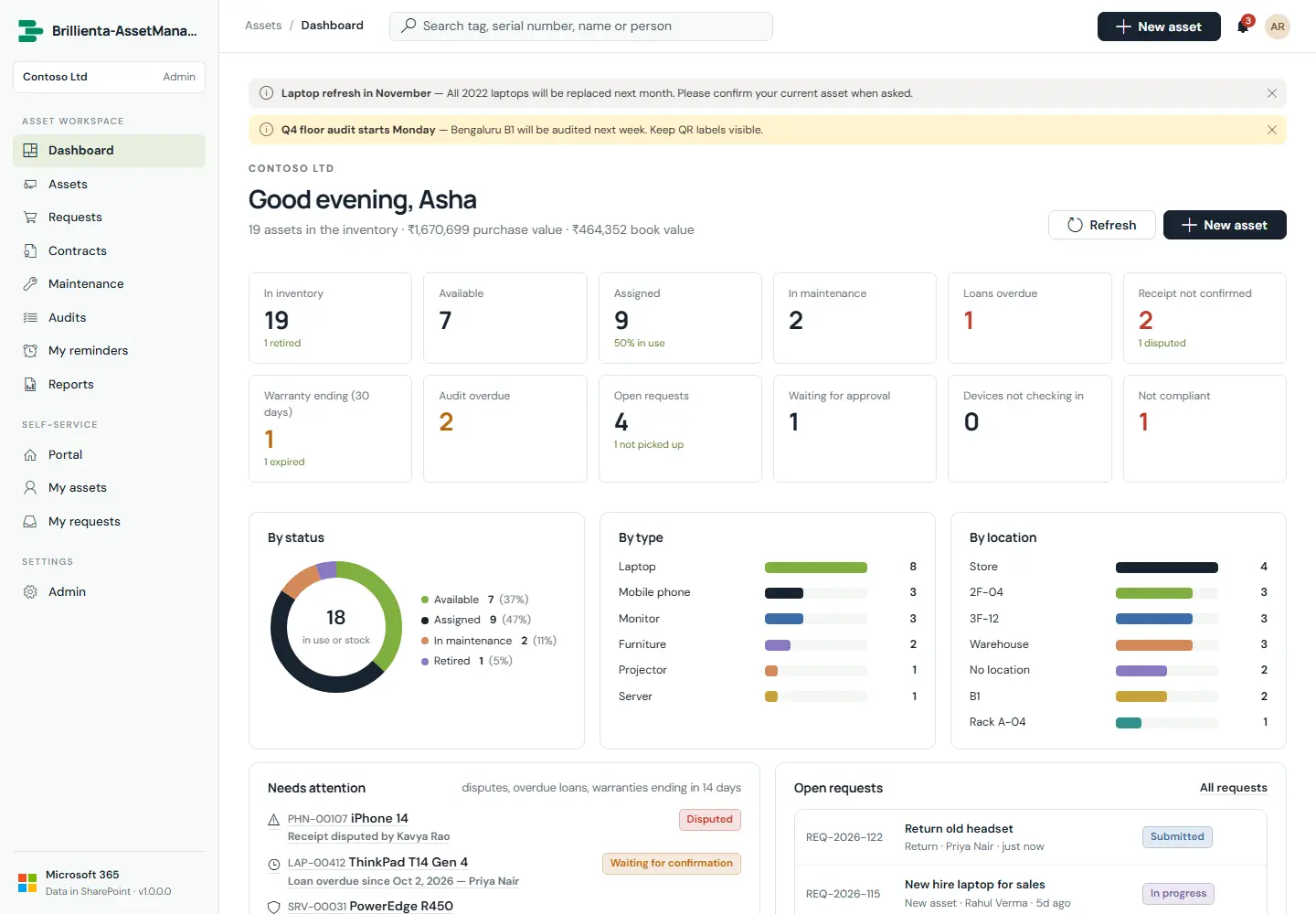
The landing page for the asset team. Clickable KPIs jump straight into filtered views; Needs attention collects disputes, overdue loans and warranties ending in 14 days; open requests, registrations per month and device-sync health complete the picture.
Dashboard. KPIs are clickable into views; Needs attention surfaces disputes, overdue loans, warranties ending soon and waiting approvals.
How it works
The default start view is configurable (Admin › General); otherwise staff land on the dashboard and employees on the portal.
Warranty flags look 14 days ahead; audit and maintenance due lists come from each type's intervals.
Assets & inventory
Asset team
Plus
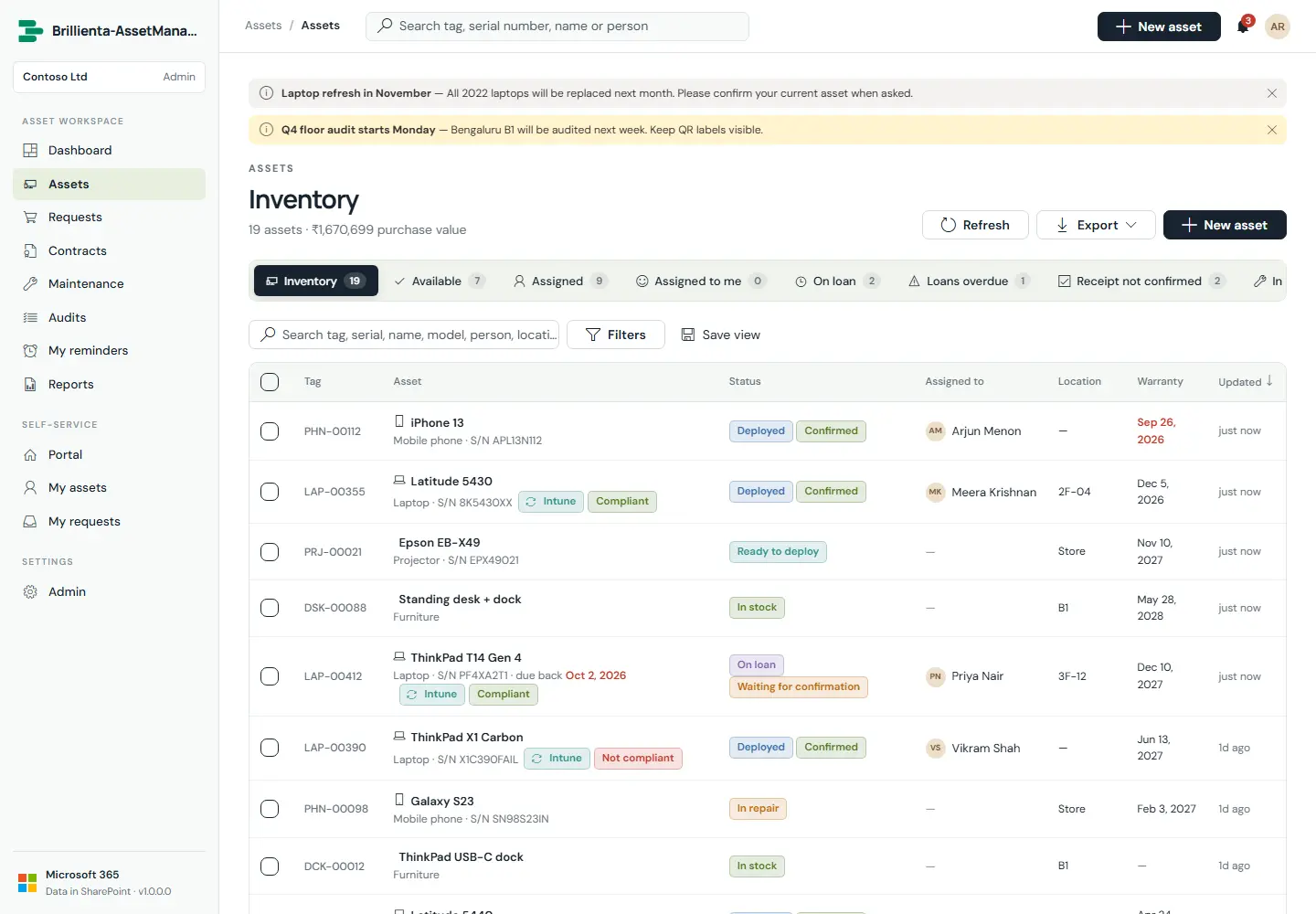
The register holds asset types (tag prefix, depreciation, audit and maintenance intervals, portal and approval rules), nested locations, vendors and custom fields per type. The Assets page offers built-in views — inventory, available, assigned, mine, on loan, loans overdue, receipt not confirmed, in maintenance, warranty ending, audit due, retired, disposed & lost — plus saved personal and shared views, filters, sorting, paging, bulk actions and Excel/PDF export. Search matches every word across tag, name, serial, maker, model, person, location and order numbers; an exact tag or serial (3+ characters) is looked up directly in SharePoint, so it finds disposed assets too.
Tags are typed by hand (checked unique) or auto-numbered from the item id: <type prefix><id padded>, e.g. LAP-00042.
Bulk actions run three at a time and report per-row failures.
Parent/child links (a dock attached to a desk) show on both asset pages.
Every edit writes one history entry per changed field.
Changing an asset's type is allowed; changing a status's kind after creation is not — create a new status instead.
Asset page & check-out
Asset team
Plus
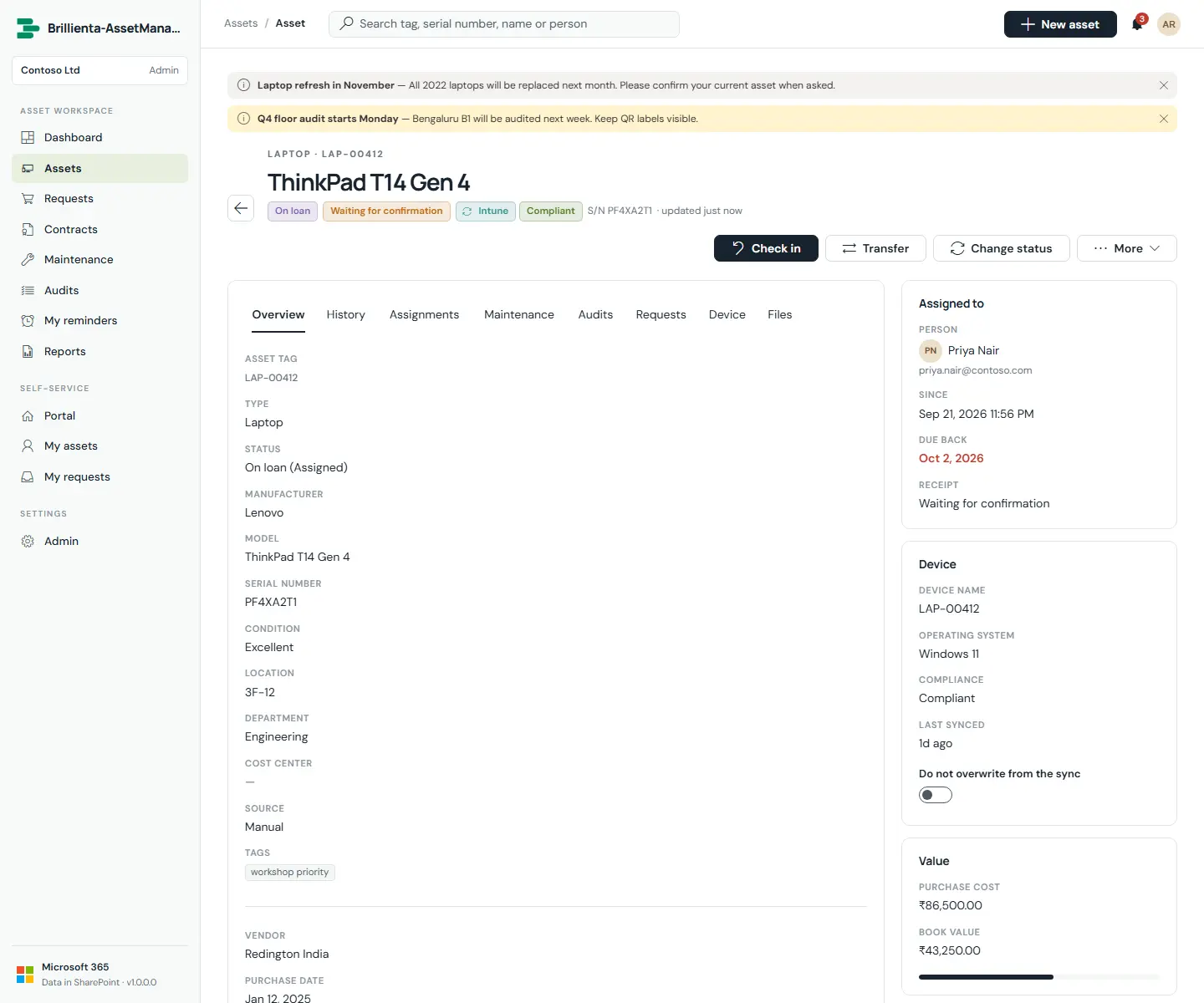
Each asset page shows details (assignee, due-back date, location, purchase, book value, device compliance, QR label) beside full custody and change history. From here the team checks out, transfers, checks in, starts maintenance, changes status, edits, prints labels and sets personal reminders. Check-out assigns to anyone in the directory with condition, location, department and notes; loans carry a due-back date. Changing status to Available, Retired, Disposed or Lost takes the asset back from its assignee first; Maintenance keeps the assignee; Disposed records method and value.
Asset page. Details and custody history side by side; book value uses the type's depreciation rules.
Employee portal
Everyone
Plus
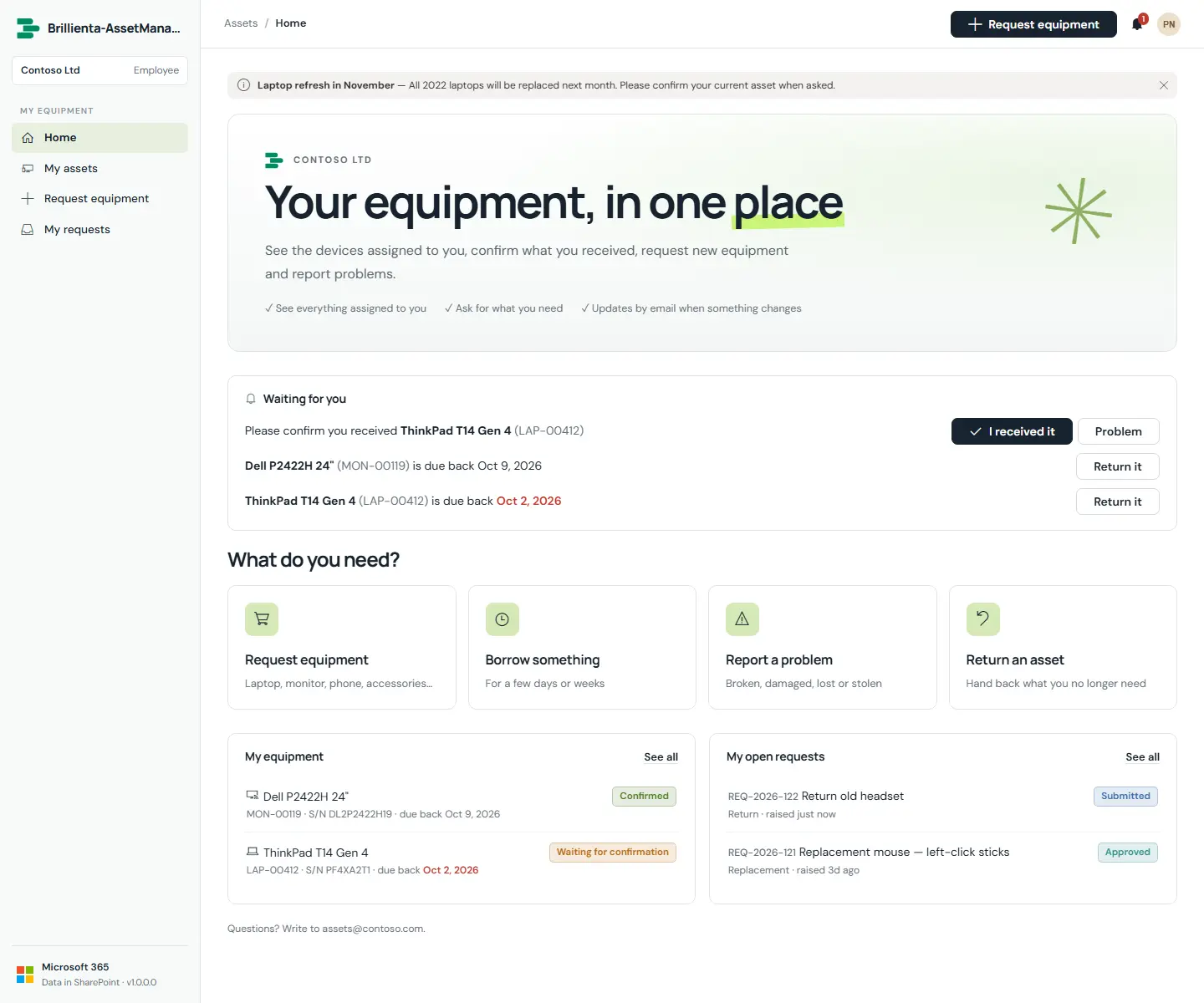
The branded home for every employee: a Waiting for you card (confirmations, loans due, approvals), request tiles (new, loan, issue, return), my equipment and my open requests. My assets shows each assigned asset with confirm, report-a-problem, return and replace actions. Opening an asset from a scanned QR label shows full details for the employee's own assets only.
Portal home. Waiting-for-you actions, request tiles, equipment and request summaries.
How it works
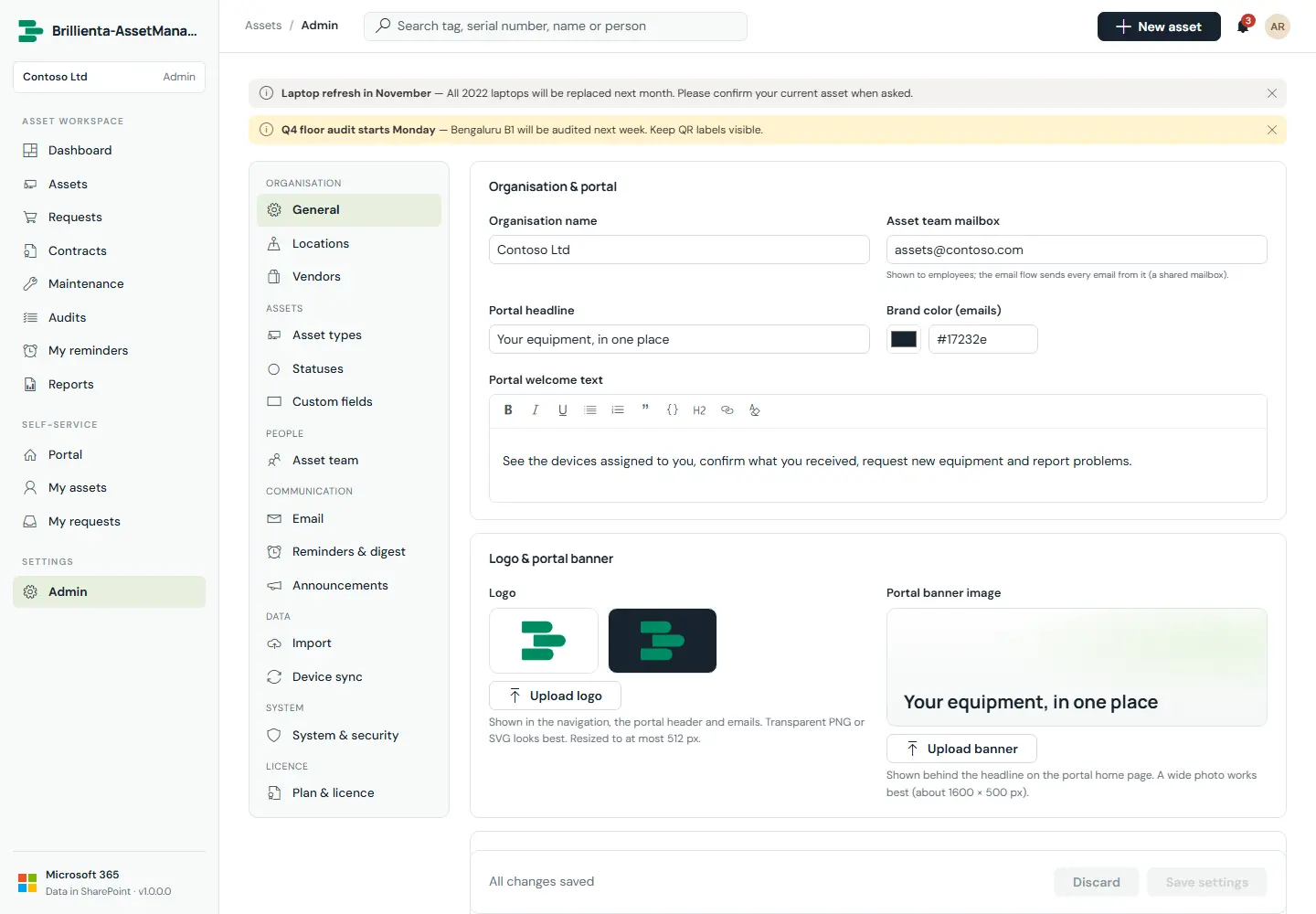
Headline, welcome text, banner image and support email are set under Admin › General.
Maintenance mode pauses new requests; a banner explains why.
Receipt confirmation
Everyone
Plus
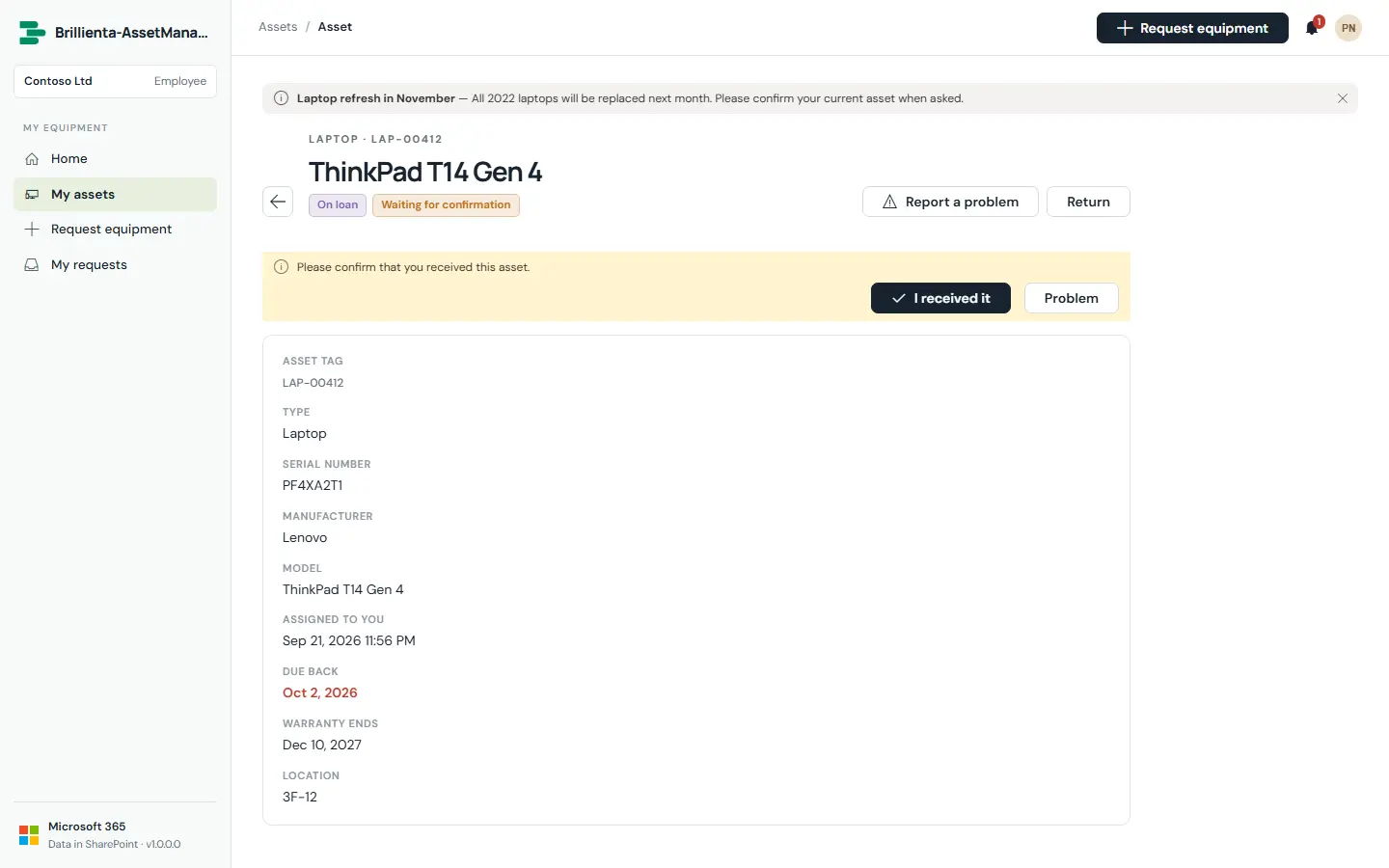
When a type (or the person checking out) requires it, the assignee must confirm they received the asset — I received it, or Problem with a description. Confirmations appear on the portal home, My assets and the asset page; disputes alert the asset team immediately, and reminders chase unconfirmed receipts until they are answered.
Confirming receipt. One click confirms; problems go straight to the asset team.
How it works
Employees write into AM_Acknowledgements, never into the register; an asset manager's page records each answer after verifying SharePoint's Created By is the current assignee.
Reminders: 2 days after assignment, every 3 days up to 3 times, then the team.
Requests & approvals
Everyone · Approvers
Plus · Approvals: Pro
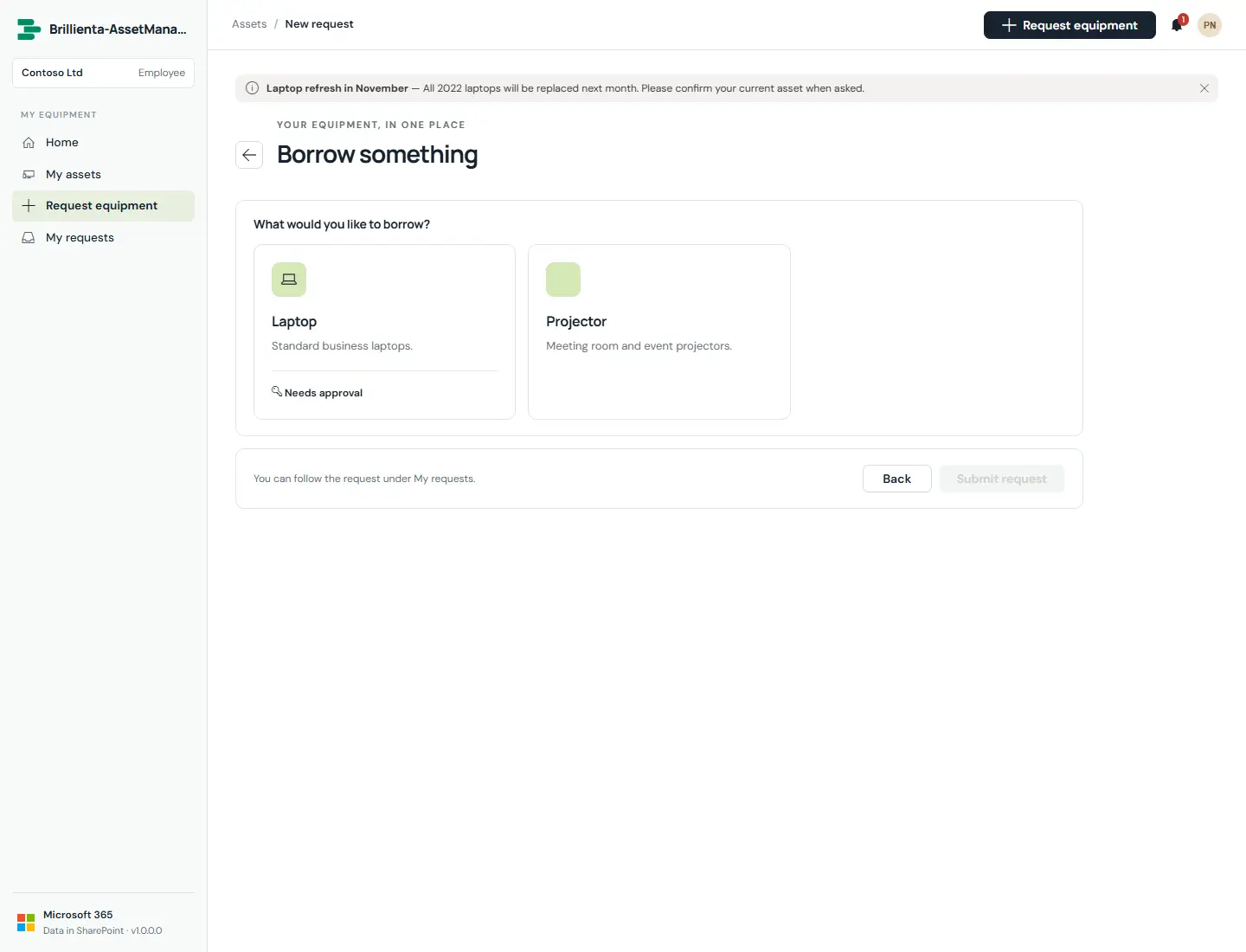
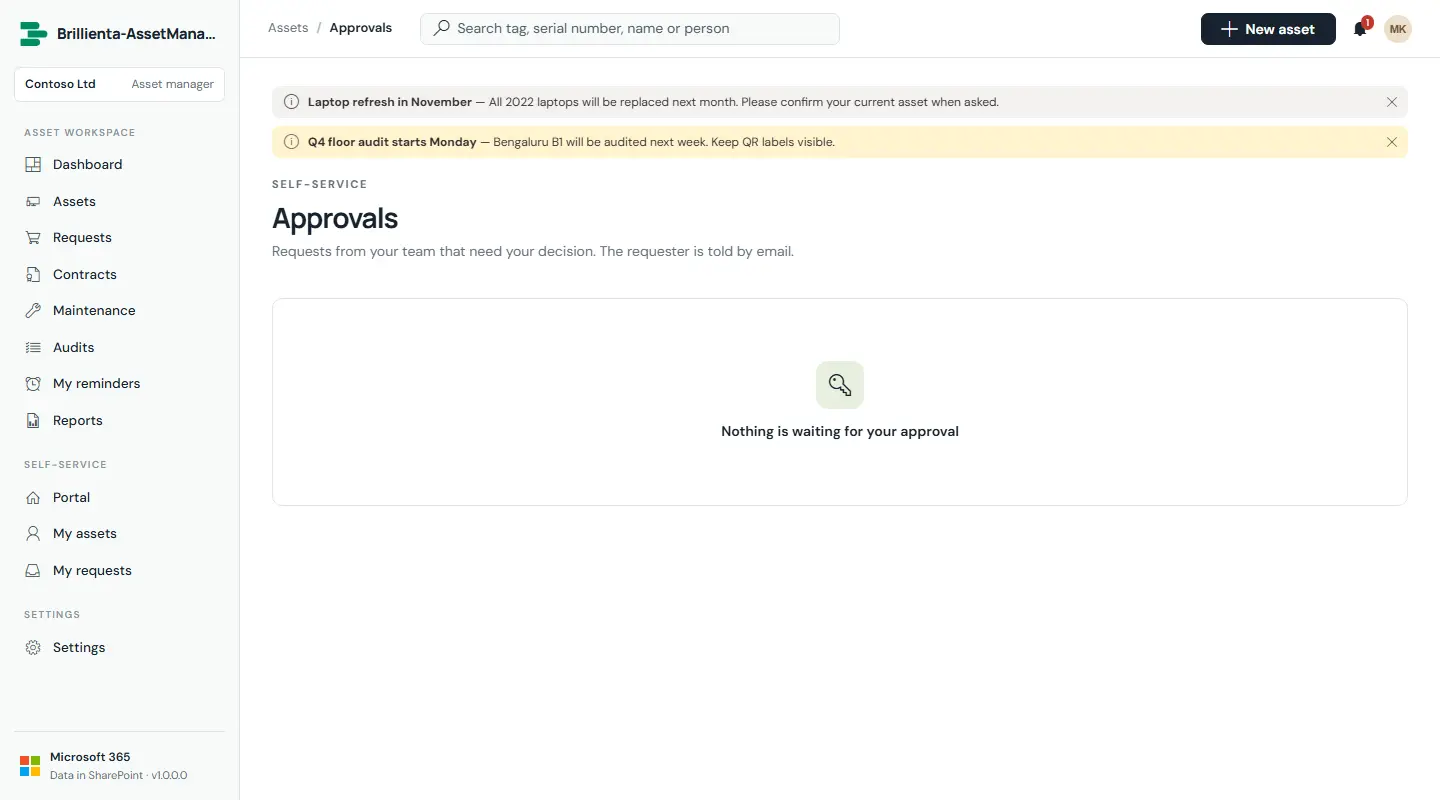
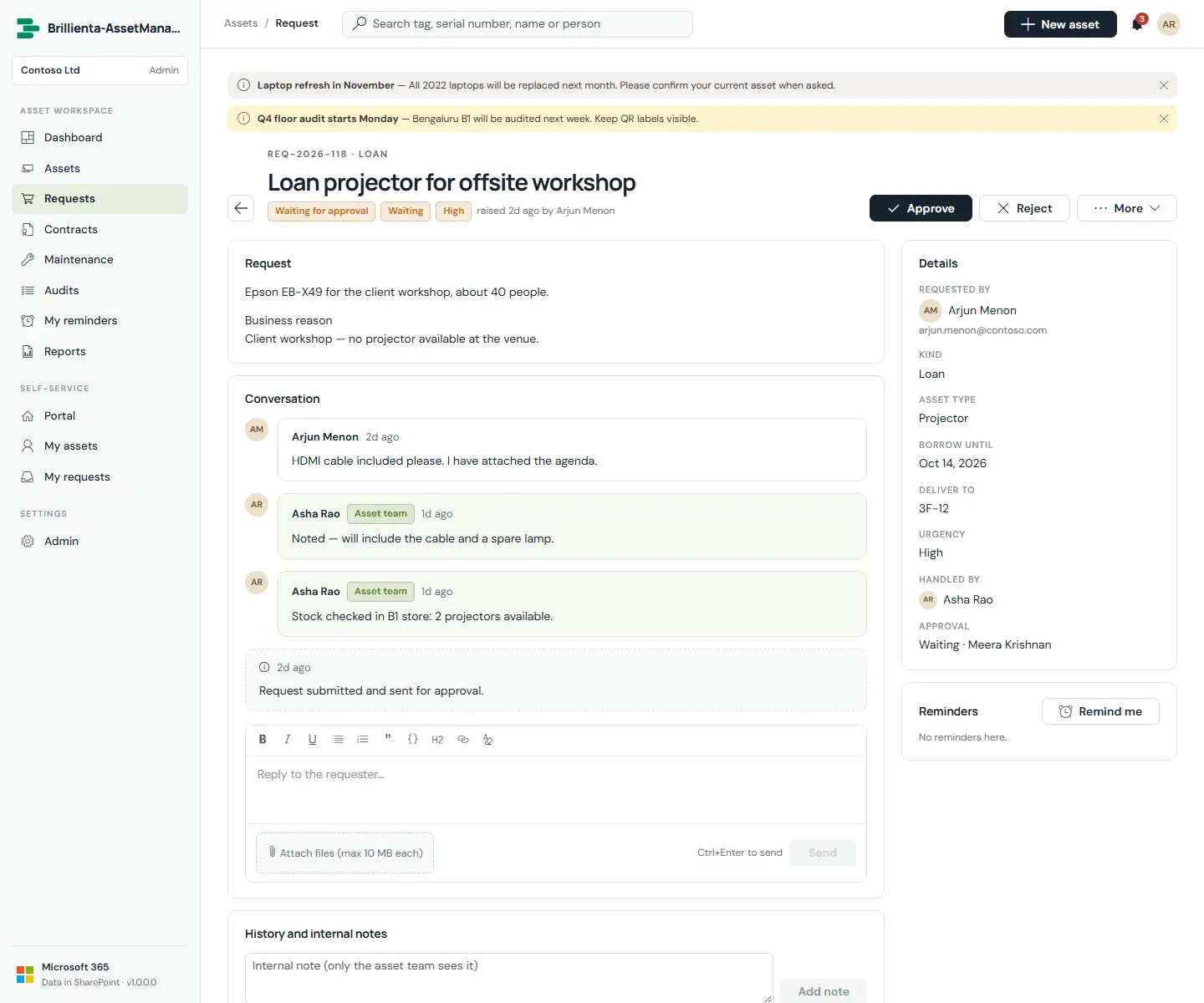
Five kinds — New, Loan, Replacement, Return, Issue — raised from the portal with business reason, dates and files. The asset team triages them in views (all open, handled by me, not picked up, waiting for approval, ready to fulfil), with conversation, files, internal notes and history on each request. Approval goes to the requester's manager or a named person; nobody approves their own request. Fulfilment hands out an asset, takes one back, or starts a repair in a single step and closes the request with a system comment.
New request. Kind, dates, business reason and attachments; progress is tracked under My requests.
Approvals. Managers decide with Approve/Reject; the requester is told by email.
Working a request. Approval state, one-step fulfilment, conversation and full history.
How it works
Approvals are verified against the request's SharePoint version history before fulfilment — a requester cannot fake an approval by editing the request.
Approval reminders: after 1 day, every 2 days up to 3 times, then admins. Fulfilment nudges: 3 days after ready, every 3 days up to 3 times.
Maintenance
Asset team
Pro
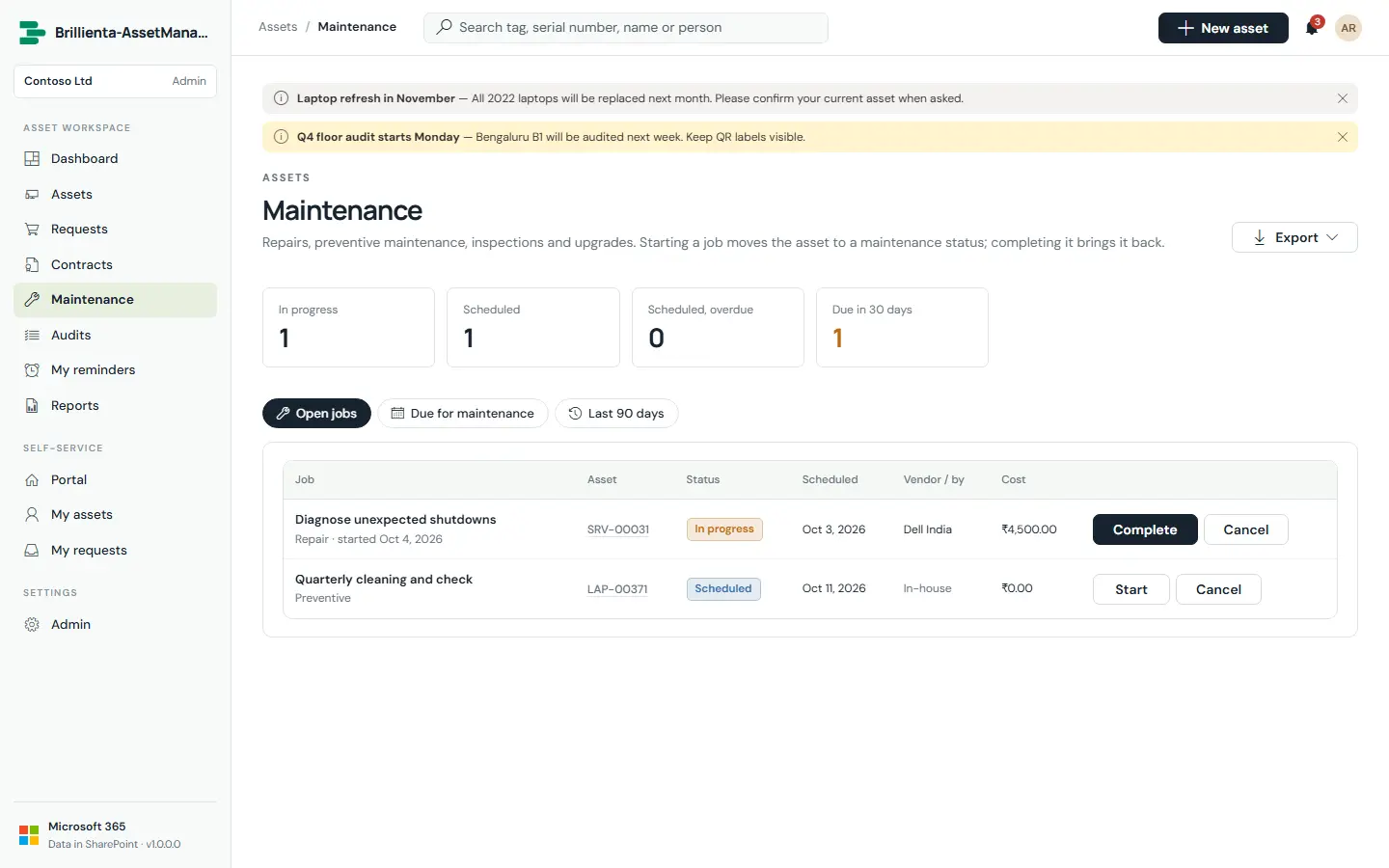
Repairs, preventive maintenance, inspections, upgrades and calibration. The page lists open jobs, assets due in the next 30 days for planning, and the last 90 days. Starting a job moves the asset to a Maintenance status; completing it records cost, condition and outcome, returns the asset to Assigned or Available, and moves the next-due date on for preventive, inspection and calibration jobs.
Maintenance. Schedule or start jobs; completion records cost and condition and rolls the next-due date forward.
Audits
Asset team · Auditors read-only
Pro
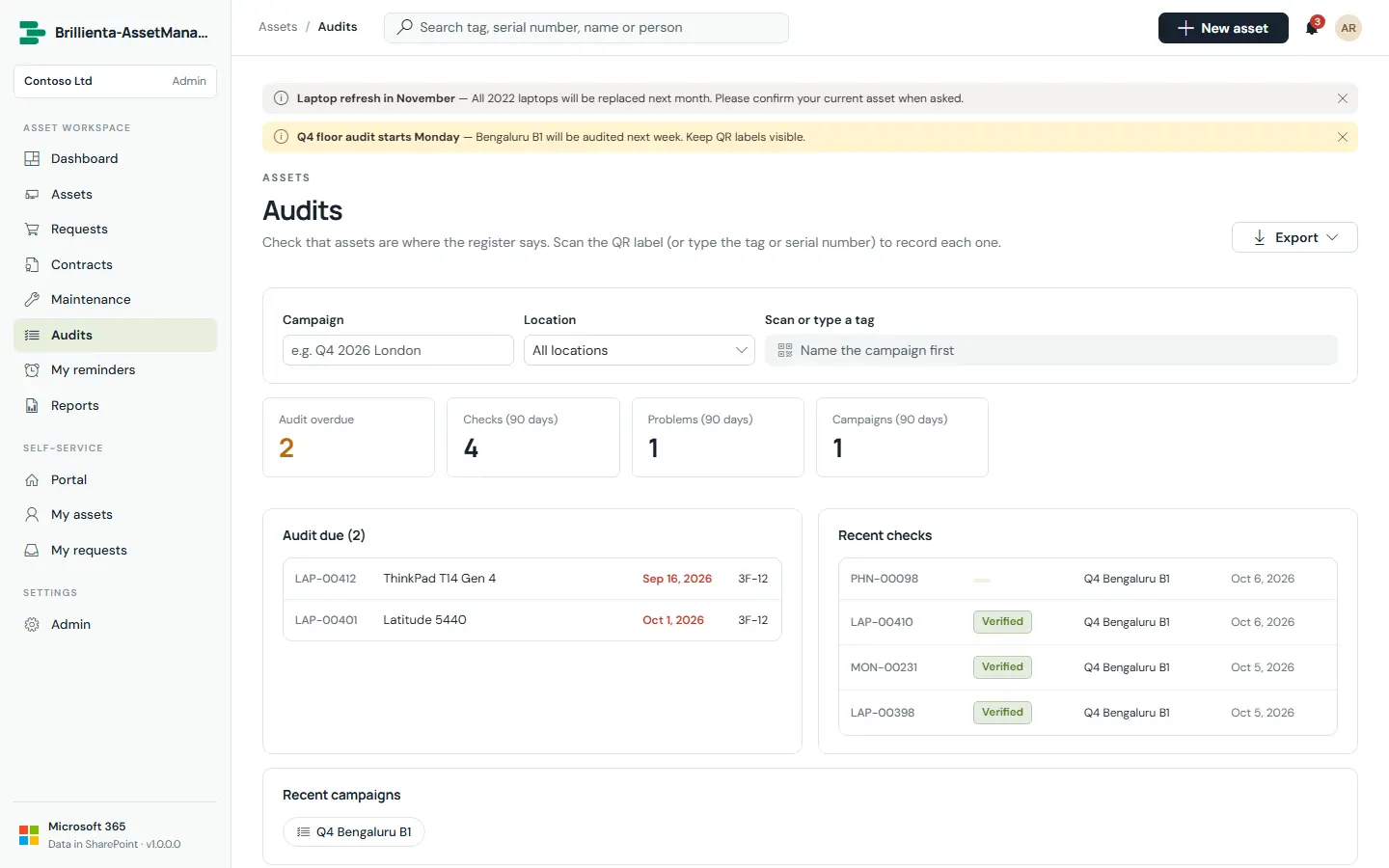
Location campaigns: name plus location (sub-locations included). Walk the floor scanning each QR label — the code opens the asset — or type the tag or serial to record Verified; a wrong location is corrected automatically, and anything else opens the audit form to record the problem. Record the rest as missing finishes the campaign. Each type's audit interval sets the next due date; progress and exports keep auditors and managers informed.
Floor audit. Scan labels or type tags; the rest can be recorded as missing in one step.
Contracts, warranty & depreciation
Asset team
Pro
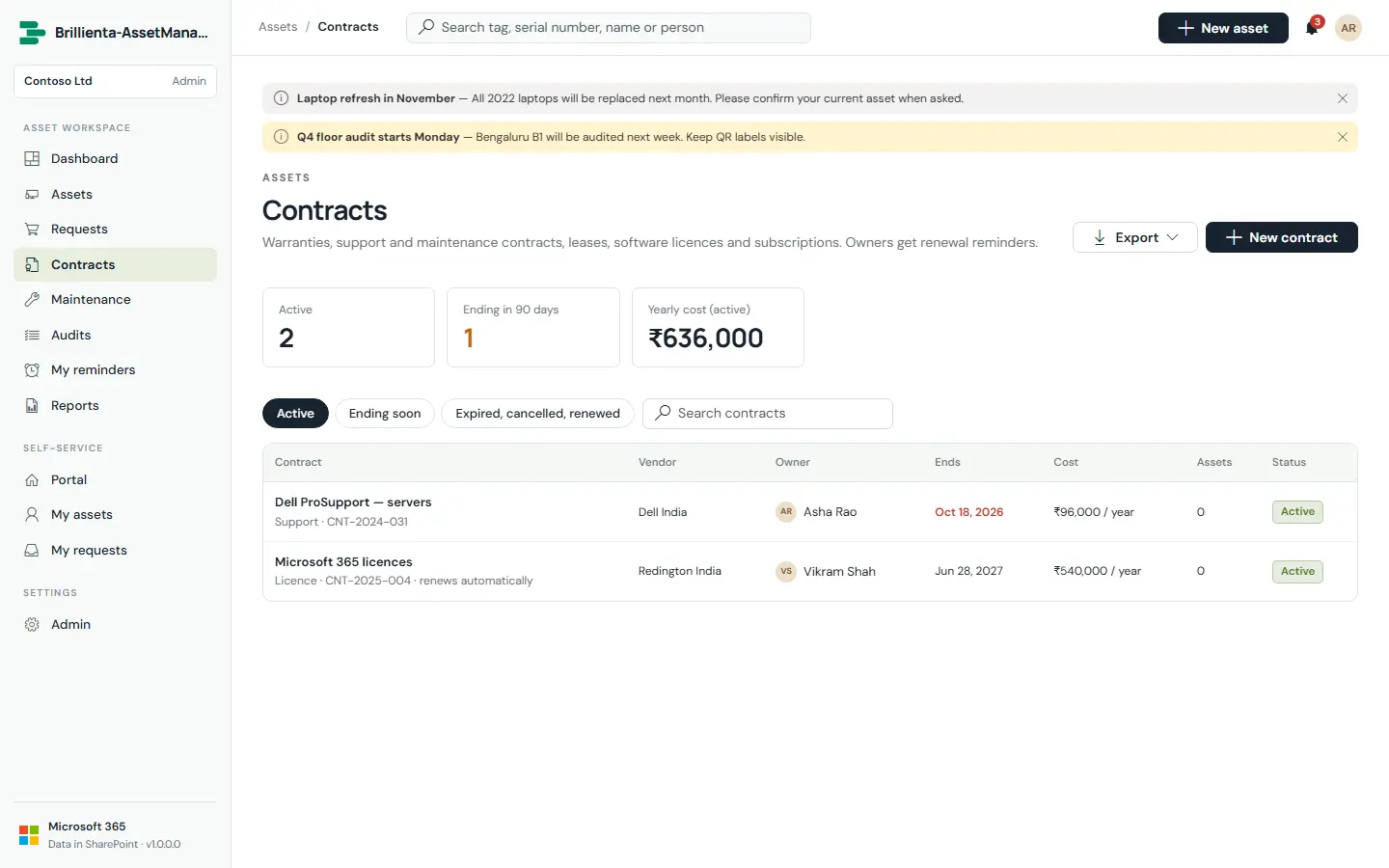
Contracts (warranties, support, leases, licences, subscriptions) hold kind, vendor, owner, dates, cost and billing cycle, seats, auto-renew, notes, linked assets and documents. Each day, expired active contracts renew by their billing cycle or expire, and owners get renewal reminders 60, 30 and 7 days ahead. Depreciation runs per type — straight-line or double-declining balance, with per-asset life and salvage overrides — and shows as book value plus schedule on the asset, in the dashboard, reports and exports.
Contracts. Renewal reminders go to the owner at 60, 30 and 7 days.
QR labels
Asset team
Pro
Printable QR labels for one asset or a whole selection — A4 21-up, US Letter 30-up, or label-printer format. Scanning a label opens the asset in the app, which is what makes floor audits a scan-and-walk job.
Notifications & email
Everyone
Plus · Custom templates: Pro
The bell keeps the 30 latest in-app notifications with jump-to links, mark-all-read and clear-all. Email covers 24 events in four groups, each with subject and body templates, placeholders, a header with your logo and footers for employees and the team — with live preview and test send. The app never sends email itself: it writes one AM_Outbox row per recipient and the Email flow sends from the asset team mailbox.
Reminders & digest
Everyone · Team digest
Plus · Most: Pro
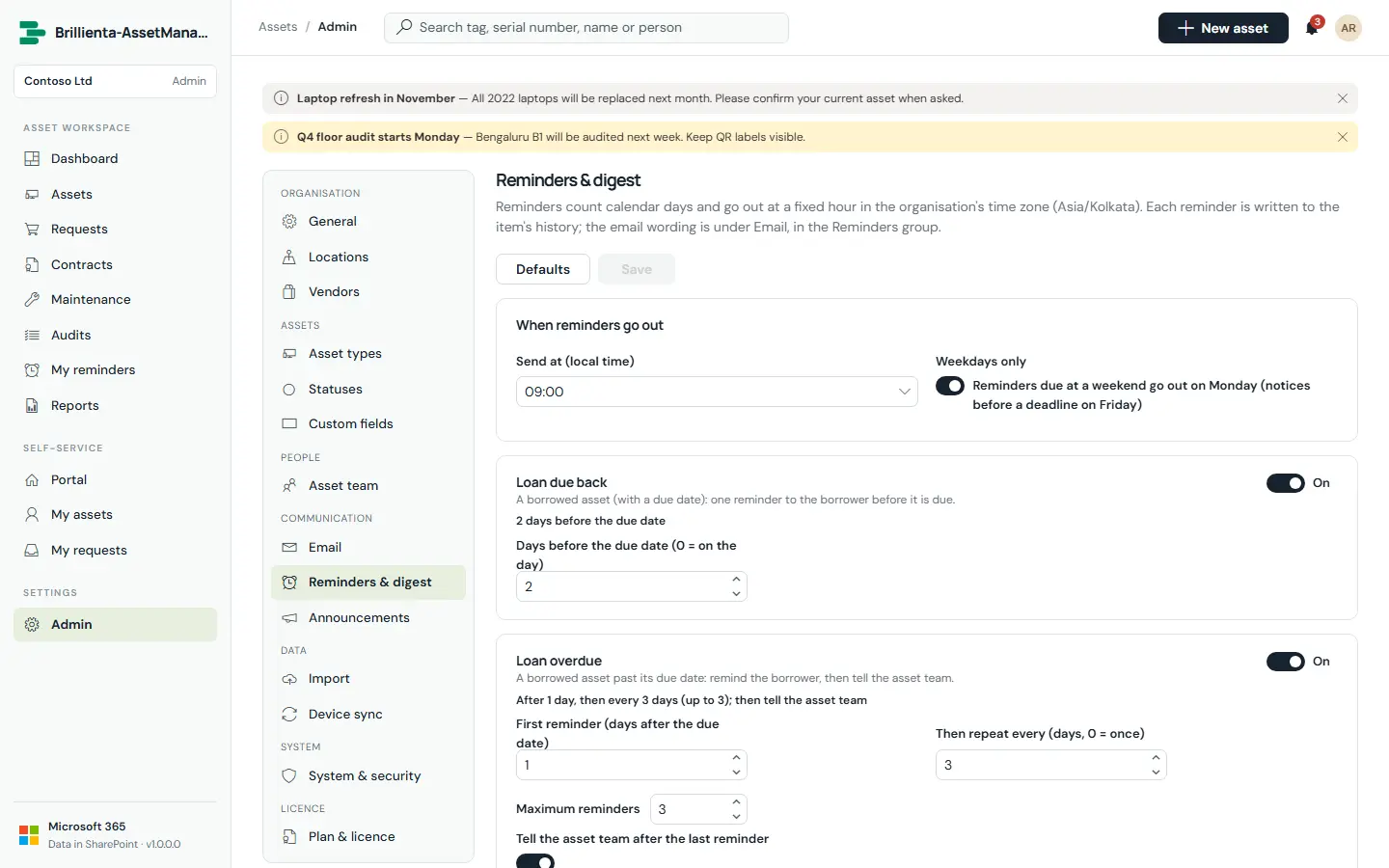
Loan due-back and overdue, receipt confirmations, pending approvals, unfulfilled requests, contract renewals and personal Remind me items — all planned at the organisation's send hour, with weekends moved to Monday and deadline notices to the Friday before. A weekday daily digest summarises the next 7 days for the asset team. Due items are sent by an asset manager's open page, or by the Reminder flow when nobody is online; each item is re-checked against the live record before sending, so stale reminders never go out.
Reminders & digest. One screen for the send hour, weekday rule and every event's timing.
Default timings
Loan due back: 2 days before · Loan overdue: 1 day after, every 3 days ×3, then the team.
Receipt: 2 days after, every 3 days ×3, then the team · Approval: 1 day, every 2 days ×3, then admins.
Fulfilment nudge: 3 days after ready, every 3 days ×3 · Contract renewal: 60, 30 and 7 days before the end.
Daily digest: every weekday at the send hour.
Device sync
Asset team
Enterprise
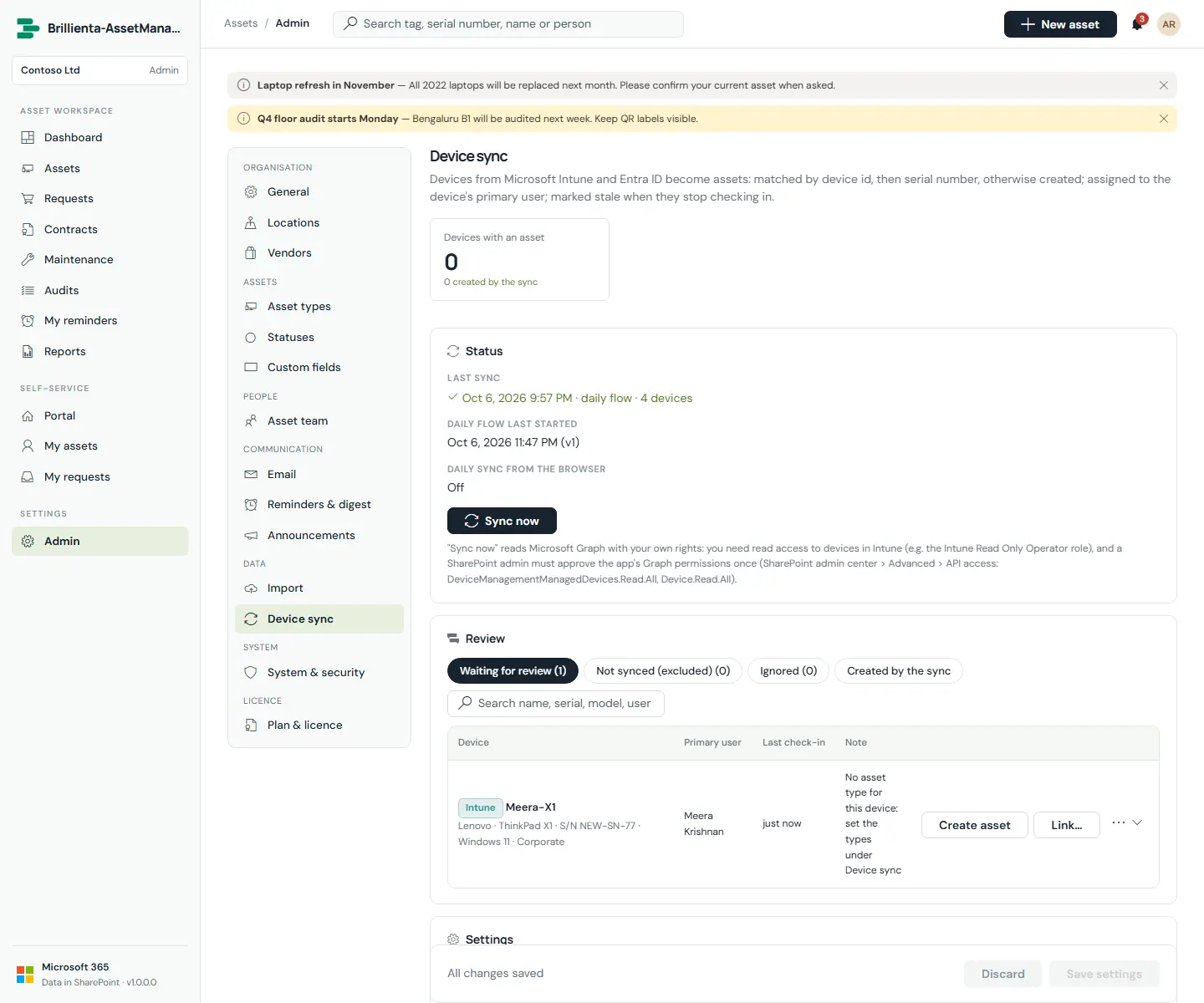
Intune managed devices and optionally Entra ID devices become assets: matched by device id, then serial number, otherwise created — or left for review. Type comes from model rules and operating system; new assets are assigned to the device's primary user; compliance and last check-in land on the asset, and devices that stop checking in become stale. Run it from the browser with Sync now, on a daily browser schedule, or unattended with the daily flow (app registration with application permissions).
Device sync. Sources, exclusions and type rules, plus a review queue for ambiguous devices.
Sync never takes an asset away from its current assignee.
Reports & export
Asset team
Plus
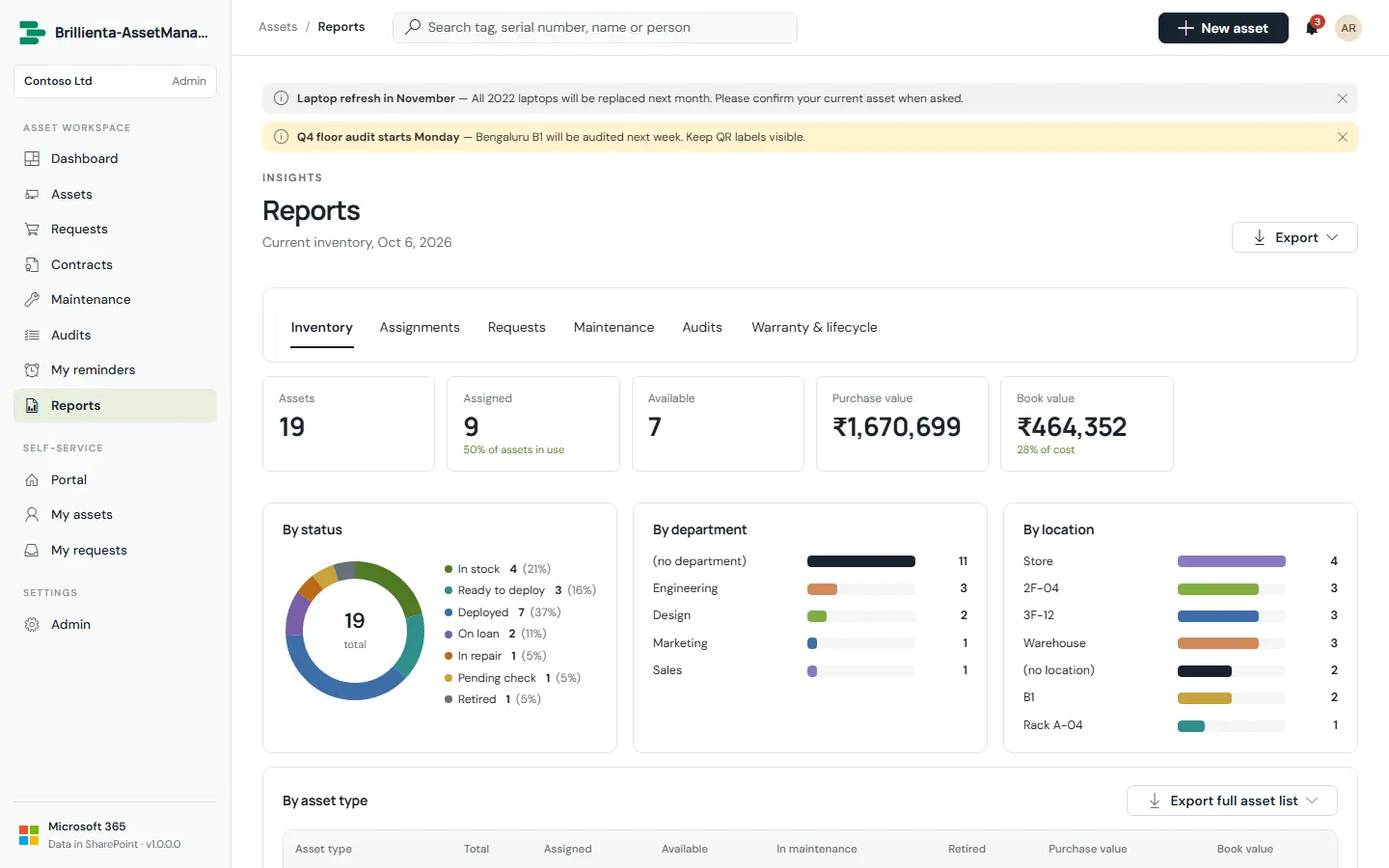
Inventory by type (purchase and book value), assignments, requests (approval and fulfilment times), maintenance spend by vendor and type, audit coverage and problems, warranty and lifecycle — every report exports to Excel or PDF, just like the inventory views.
Reports. Six report families, all exportable to Excel and PDF.
Import
Asset team
Plus
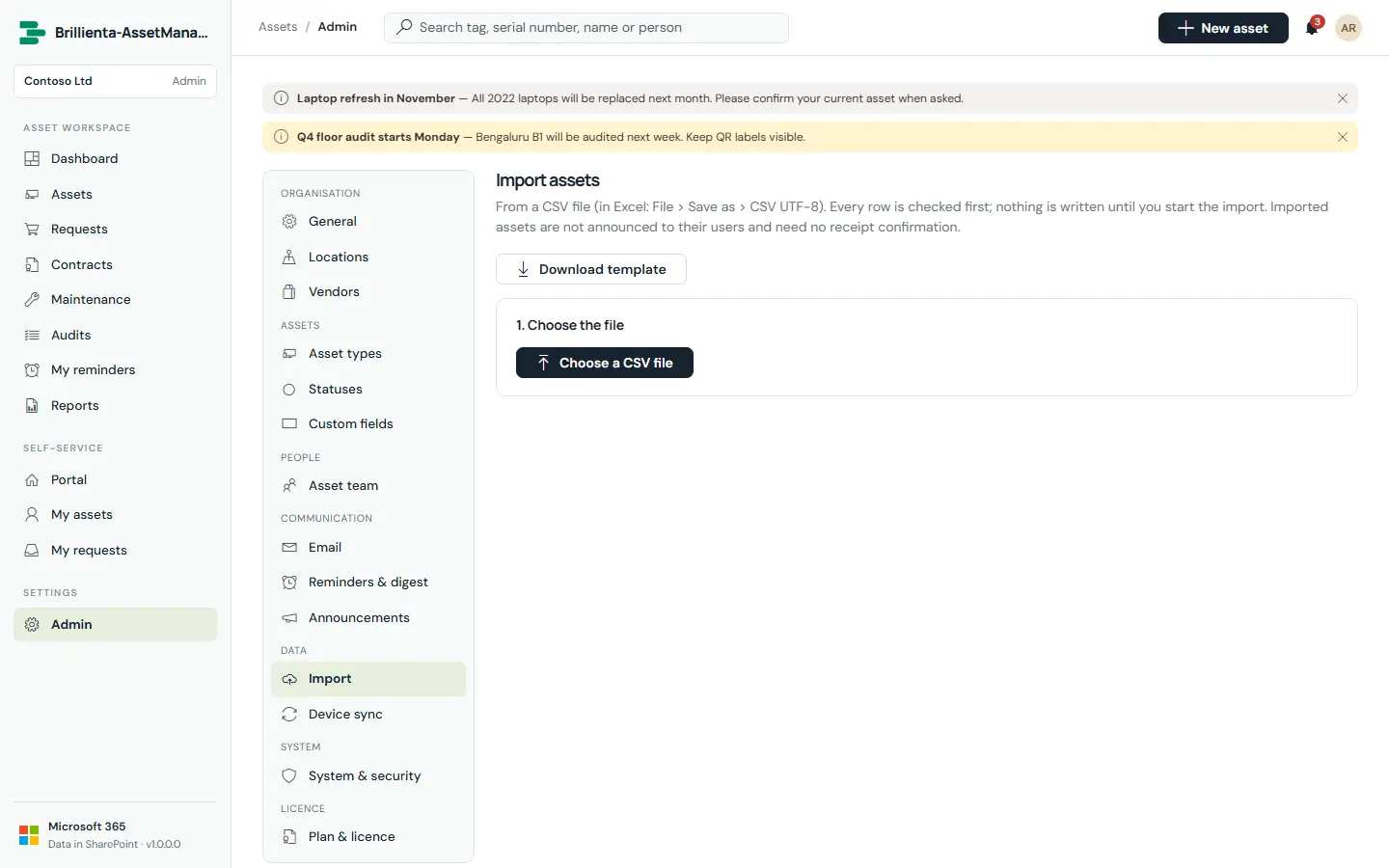
Bring an existing register from Excel: save as CSV and drop it in. The delimiter is detected, columns are recognised by name and synonyms (including custom-field labels), dates and amounts are parsed in your format, types, statuses and locations match by name, and duplicates inside the file are reported. Every row is validated before anything is written; existing assets (same tag or serial) are skipped or updated; people are assigned by email without notifications. A result and error report downloads at the end.
Import. Validate-first CSV import with update-by-tag-or-serial and an error report.
On a phone
Everyone
Plus
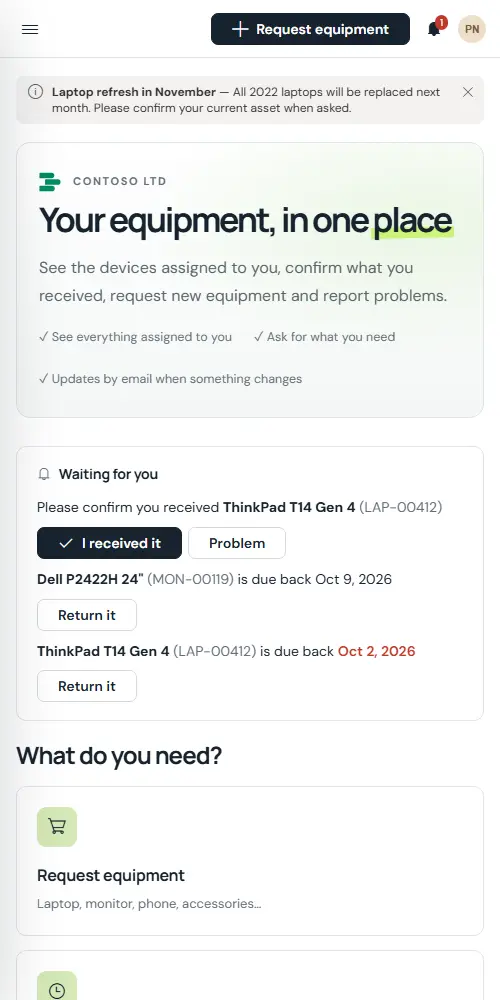
The layout is responsive and works as a Teams tab. Floor audits are designed phone-first: scan a QR label with the camera, verify, move on.
Portal on a phone. Confirmations and requests work the same in a pocket layout.
Part 4
Administration
Everything is configured inside the app — no web part properties, no code. Admins see all sections; managers see Vendors, Announcements, Import and Device sync.
First run: the setup wizard
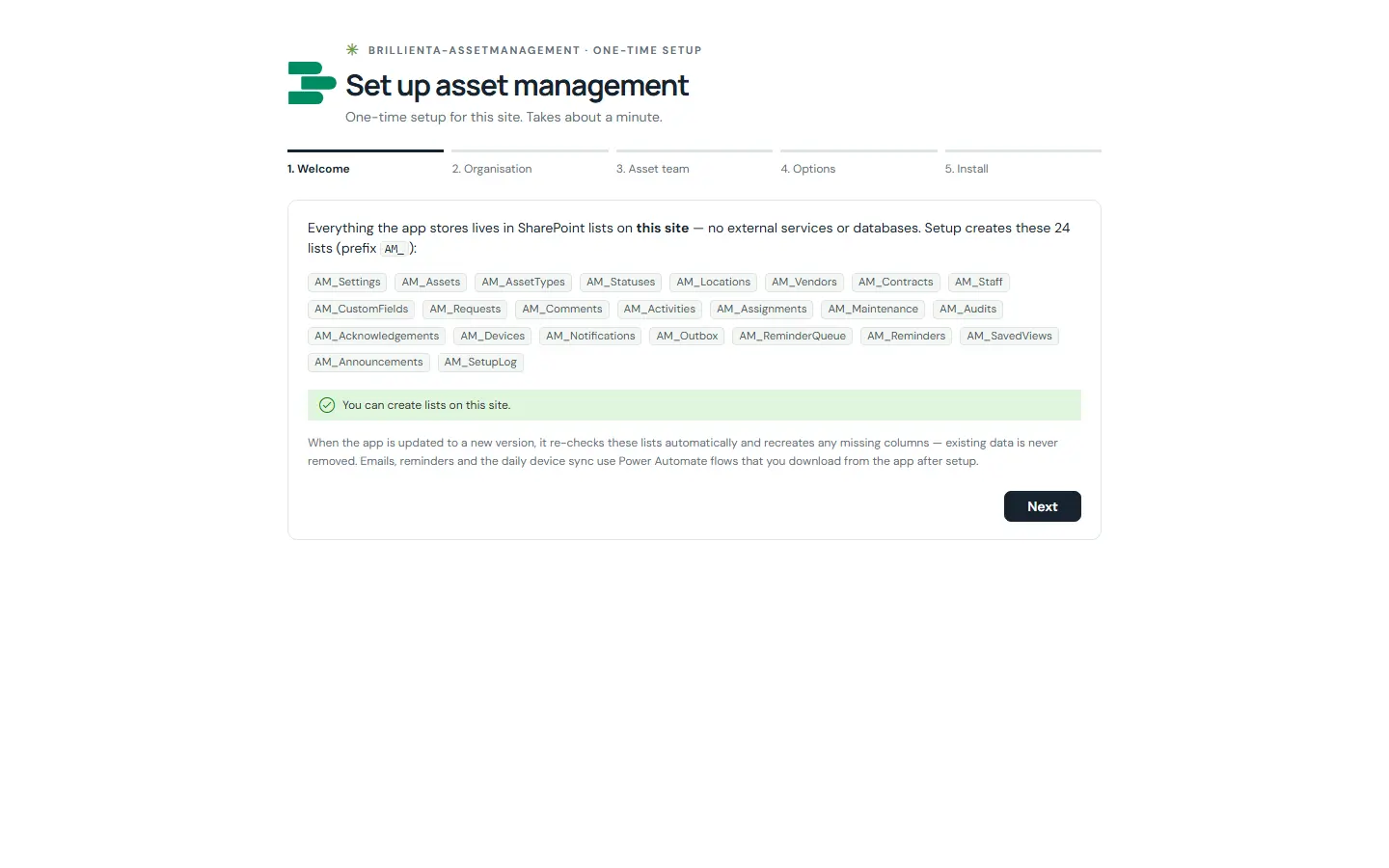
The first time a site owner opens the page, a wizard lists the 24 AM_ lists it will create and checks permissions, asks for organisation name, team mailbox, time zone, currency and numbering, adds admins, managers and auditors, and optionally adds starter content, turns on email and secures the lists. It is safe to run again — it resumes where it stopped. Anyone without Manage Lists sees “not set up yet” until then.
First run. The wizard creates every list and column, seeds statuses and types, and secures the lists.
Settings sections
Organisation — General (branding, numbering, currency, time zone, features, check-out defaults, maintenance mode), Locations, Vendors.
Assets — Asset types, Statuses, Custom fields.
People — Asset team (Admin / Manager / Auditor).
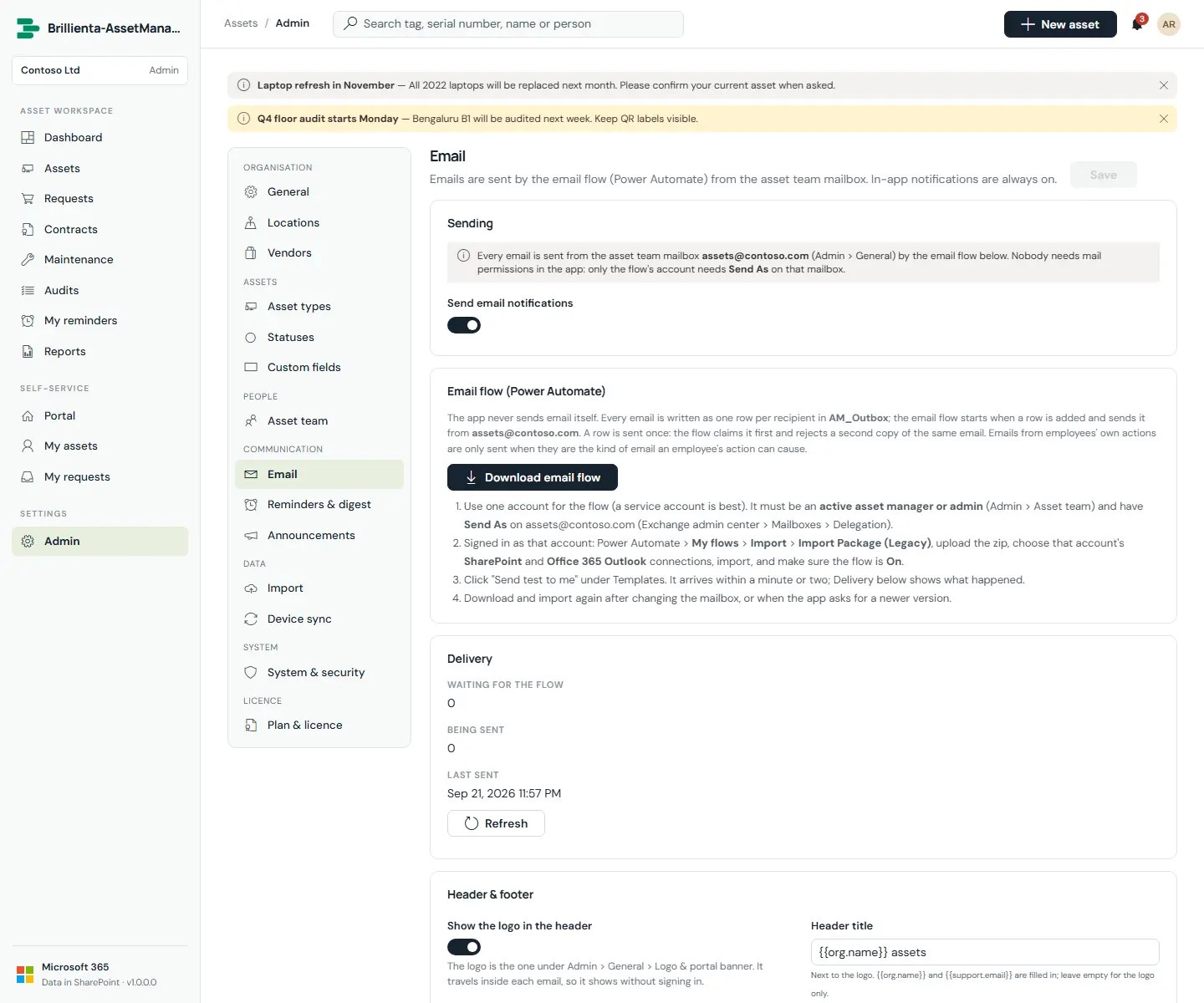
Communication — Email (flow download, delivery overview, test send, 24 templates with preview), Reminders & digest, Announcements.
Data — Import, Device sync (flow download; the client secret is pasted into the download and never stored).
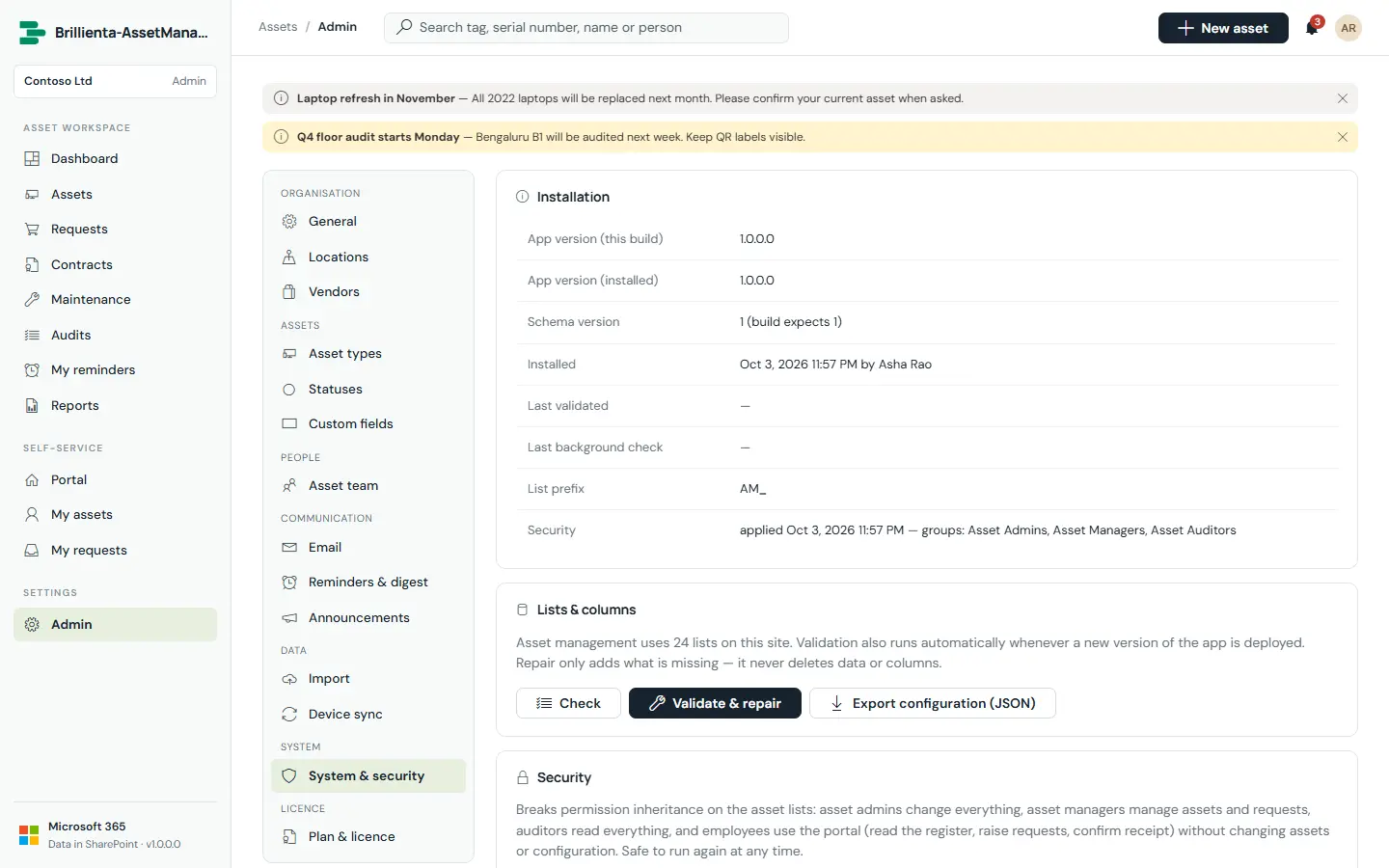
System — System & security (on-demand check, Apply security, flow health), Plan & licence.
General. Branding, numbering, currency, time zone and feature switches.
Email. Flow download, delivery overview and 24 editable templates with preview.
System & security. On-demand validation, list security and flow health.
Power Automate flows
The app never sends email itself and has no server. Three flows, downloaded from the app as import packages, do the work that needs a mailbox or a schedule. Run them under one account that is an active asset manager or admin (a service account is best). Import via My flows › Import › Import Package (Legacy), choose the connections, import, and turn the flow On. The flow account needs Send As on the asset team mailbox.
Flow
Download from
Trigger
Connections
Email
Settings › Email
Item added to AM_Outbox
SharePoint, Office 365 Outlook
Reminders
Settings › Reminders & digest
Every 5–60 minutes
SharePoint
Device sync
Settings › Device sync
Once a day
SharePoint, HTTP (Premium)
Device sync app registration (daily flow only)Entra admin center › App registrations › New single-tenant registration › Microsoft Graph application permissions DeviceManagementManagedDevices.Read.All and Device.Read.All › Grant admin consent › new client secret. Enter the application id in Settings › Device sync and paste the secret into the download box.
Part 5
Roles & permissions
Three layers decide what a person can do: SharePoint groups on the lists, the app role from the Asset team list, and the plan.
Capability
Admin
Manager
Auditor
Employee
Portal: my assets, requests, approvals, receipt confirmation
Auditors are read-only and never take a licence seat. Site owners act as admins only while no active admin exists.
Part 6
Security
List-level security with app-level verification, so employees can use the portal without ever being able to change the register.
Apply security creates the groups Asset Admins, Asset Managers and Asset Auditors, breaks inheritance on every list and applies one of four profiles: configuration (admins edit), register (managers contribute, everyone reads), portal lists (everyone adds and edits, never deletes) and staff-only lists (custody history, devices, contracts, queues, audit trail: no employee access).
Employee writes are verified, not trusted. Receipt confirmations are accepted only if SharePoint's Created By is the asset's current assignee for the current assignment; approvals are verified against the request's version history; the email flow rejects rows an employee is not entitled to send.
Upgrades never delete. Validation recreates missing lists, columns, indexes and choice values, reports type mismatches without changing them, and logs to AM_SetupLog.
Part 7
Plans & licensing
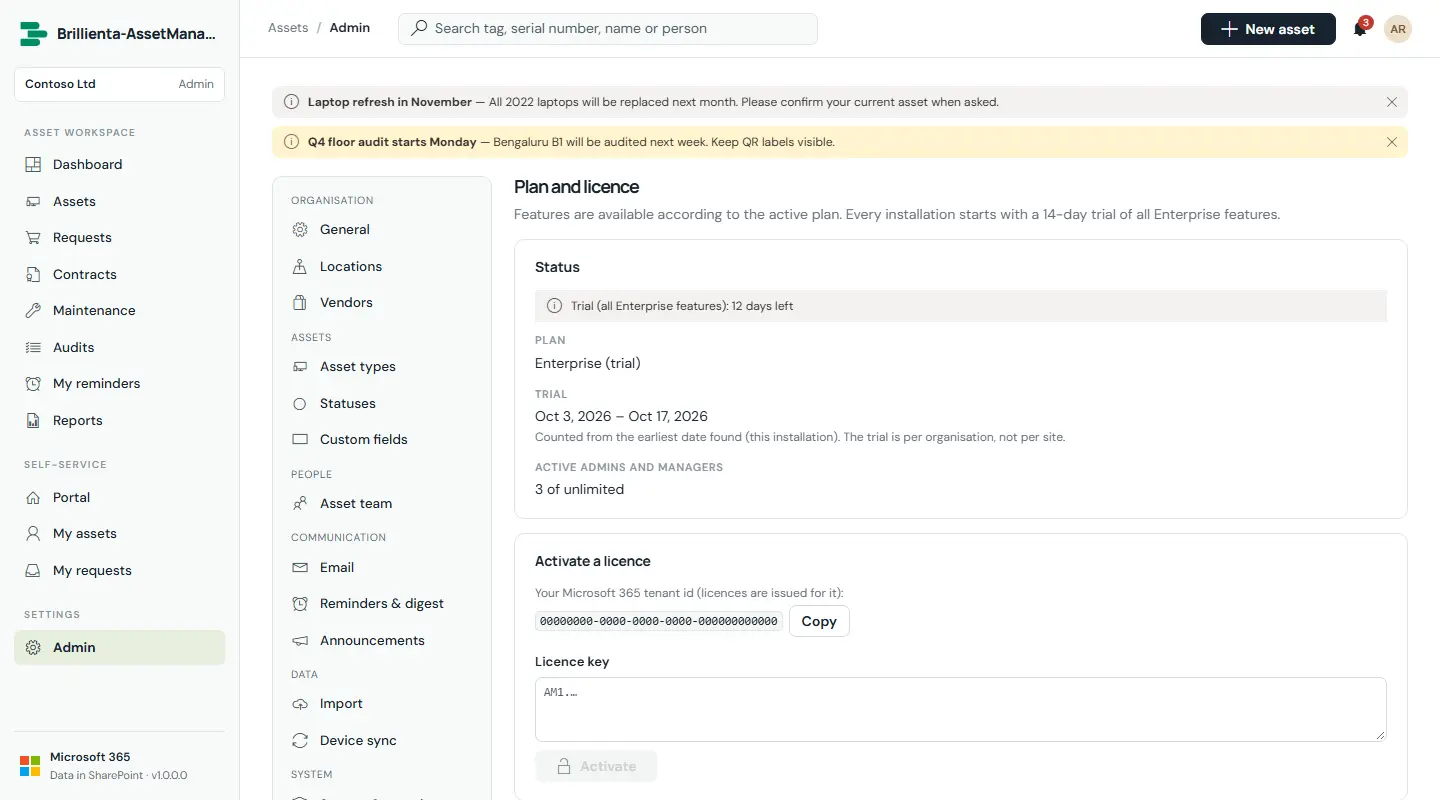
Every installation starts with a 14-day trial of all Enterprise features. Licence keys are signed by the vendor, name your Microsoft 365 tenant and start with AM1.
Plan & licence. Trial status, seats and key activation; a 14-day grace period applies after expiry.
Plan
Includes
Admins + managers
Plus
Register, assignments, loans, receipt confirmation, portal and requests, email, reports and exports, import, personal and loan reminders, announcements
5
Pro
Plus, plus approvals, custom fields, maintenance, audits, contracts, depreciation, QR labels, custom email templates, receipt / approval / fulfilment reminders and the daily digest
25
Enterprise
Pro, plus Intune / Entra ID device sync (manual and daily)
Unlimited
Part 8
Why Asset Management
One register, cradle to grave
Purchase, assignment, loans, maintenance, audits, contracts and disposal live on one asset page with full history.
Employees help instead of hinder
Confirmations, requests and problem reports arrive structured and verified — no spreadsheets, no corridor conversations.
Approvals you can trust
Manager approvals verified against version history before anything is handed out.
Nothing slips through
Reminders, digests, audits and stale-device detection keep the register honest with almost no effort.
Devices reconcile themselves
Intune and Entra ID flow into the register daily, matched and assigned automatically.
Yours, entirely
Data, flows and permissions live in your tenant. Export everything to Excel or PDF whenever you like.
Part 9
Deployment
From package to working register in an afternoon. Requires Node 22 to build; the package installs tenant-wide.
Build.
npm install, then npm run build produces sharepoint/solution/asset-management.sppkg. npm test runs the unit tests.
Deploy.
Upload the .sppkg to the tenant (or site collection) app catalog and deploy it. Approve the two Graph permissions under SharePoint admin center › Advanced › API access if you will use browser device sync.
Add to a site.
Add the app to the host site, then add the Brillienta-AssetManagement web part to a page (full-width section or single-part app page, or a Teams tab).
First run.
A site owner opens the page once and completes the setup wizard (§4).
Flows and licence.
Import the three flow packages, turn them On, and activate the licence key under Settings › Plan & licence.
Part 10
Good to know
Large registers. Server-side filters always use indexed columns; the inventory loads once and refreshes by change, and id-window reads keep reports legal beyond 5,000 items.
Calendar days are days. Due-back, purchase, warranty and contract dates are stored as text (yyyy-mm-dd), so they never shift with time zones; instants (assigned at) are UTC.
Shortcuts./ search, n new, g then a letter to jump between pages.
When something looks stale, wait a few seconds — pages refresh automatically and hidden tabs do not poll.
After an upgrade, the first site-owner visit repairs lists automatically; other staff see a notice until then.