The people directory that lives in your Microsoft 365
A product guide and walkthrough: what every feature does, how it works, who can use it, how your data is protected, and how to deploy it.
Product
Employee Directory for Microsoft 365
Version
1.5.0
Platform
SharePoint Online · SharePoint Framework
Edition of this guide
October 2026
Part 1
Overview
Employee Directory is a complete people directory that runs inside SharePoint Online. It keeps itself up to date from Microsoft Entra ID through Microsoft Graph and adds what a directory needs in daily use: rich profiles, an org chart, departments, celebrations, kudos, HR governance, notifications, dashboards and reports.
0servers or Azure resources to run
13SharePoint lists and libraries, created for you
15notification and email templates
10ready-made HR reports
14day trial with every feature
Your data stays in your tenant
Everything is stored in SharePoint lists on a site you choose. There is no vendor database and no third-party service, and the text fonts are bundled in the package.
Nothing to host or maintain
One package for your app catalog. No Azure Functions, no timer jobs, no extra sign-in. The app creates, checks and repairs its own lists.
Always in step with Microsoft 365
Names, titles, departments, managers, offices, phones, start dates and photos come from Microsoft Entra ID. Only changes are written, and leavers are deactivated, never deleted.
Security enforced by SharePoint
The app sets up its own SharePoint groups, permission levels and item-level security. Lists are hidden, and private ones are kept out of search.
Governance built in
Employees ask HR to correct Microsoft 365 details. HR approves or declines, nobody can approve their own request, and every decision is logged.
A modern, full-screen experience
A clean full-screen workspace with Teams presence, photos, an interactive org chart and a phone layout. Everything is configured in the app, without code.
About the screens in this guideEvery screenshot comes from version 1.5.0 running with the built-in sample organisation ("Acme"). All people, names, email addresses and figures shown are fictional.
Part 2
How it works
Employee Directory is a single SharePoint Framework (SPFx) web part. It runs in each user's browser, inside a SharePoint page. Directory data is read and written only through SharePoint and Microsoft Graph in your tenant.
Your Microsoft 365 tenant
Employee Directory web part
Runs in the user's browser on a SharePoint page, as the signed-in user. Covers the full browser window.
reads & writes
SharePoint Online: your directory site
Hidden lists with the prefix ED_: employees, profiles, departments, change requests, kudos, favourites, notifications, logs and settings, plus a photo library.
Microsoft Graph
Microsoft Entra ID users and managers, profile photos, Teams presence and sending email, all with the user's own delegated permissions.
Key ideas
Delegated access only. The app always acts as the person using it. It can never read or do more than that person could in Microsoft 365.
Background work without a server. The scheduled Microsoft Graph sync and the daily reminders run in the browser of an admin who opens the directory. Locks stop two admins from running the same job at once, and logs record every run.
Schema as code. The app knows exactly which lists and columns it needs. Setup creates them. After an upgrade, the first visit by a site owner checks them and adds anything missing. Existing data is never removed.
Live updates. Open pages pick up changes made by others (by default every 30 seconds), so a kudos, an approval or a new setting appears without a reload.
Everything configurable in the app. Admins change settings in the Admin pages, with Save and Discard buttons. Nothing changes until they save.
Microsoft Graph permissions
The package asks for four delegated permissions. A SharePoint or global administrator approves them once, in the SharePoint admin center under Advanced › API access.
Permission
Used for
If it is not approved
User.Read.All
Reading users, managers, profile details and photos (sync and live photos)
No sync and no Microsoft 365 photos. The directory still works with people added by hand.
Presence.Read.All
Teams status badges
Status badges simply do not appear
Mail.Send
Email notifications from the acting person's mailbox
Email is not sent and the person sees a warning. In-app notifications still work.
Mail.Send.Shared
Email from a shared mailbox (the person also needs Send As on it)
Falls back to the person's own mailbox, if that is allowed
Part 3
Feature walkthrough
A tour of the directory as people use it, page by page. The tags beside each heading show who can use the feature and the lowest plan that includes it.
Overview page
Everyone
All plans
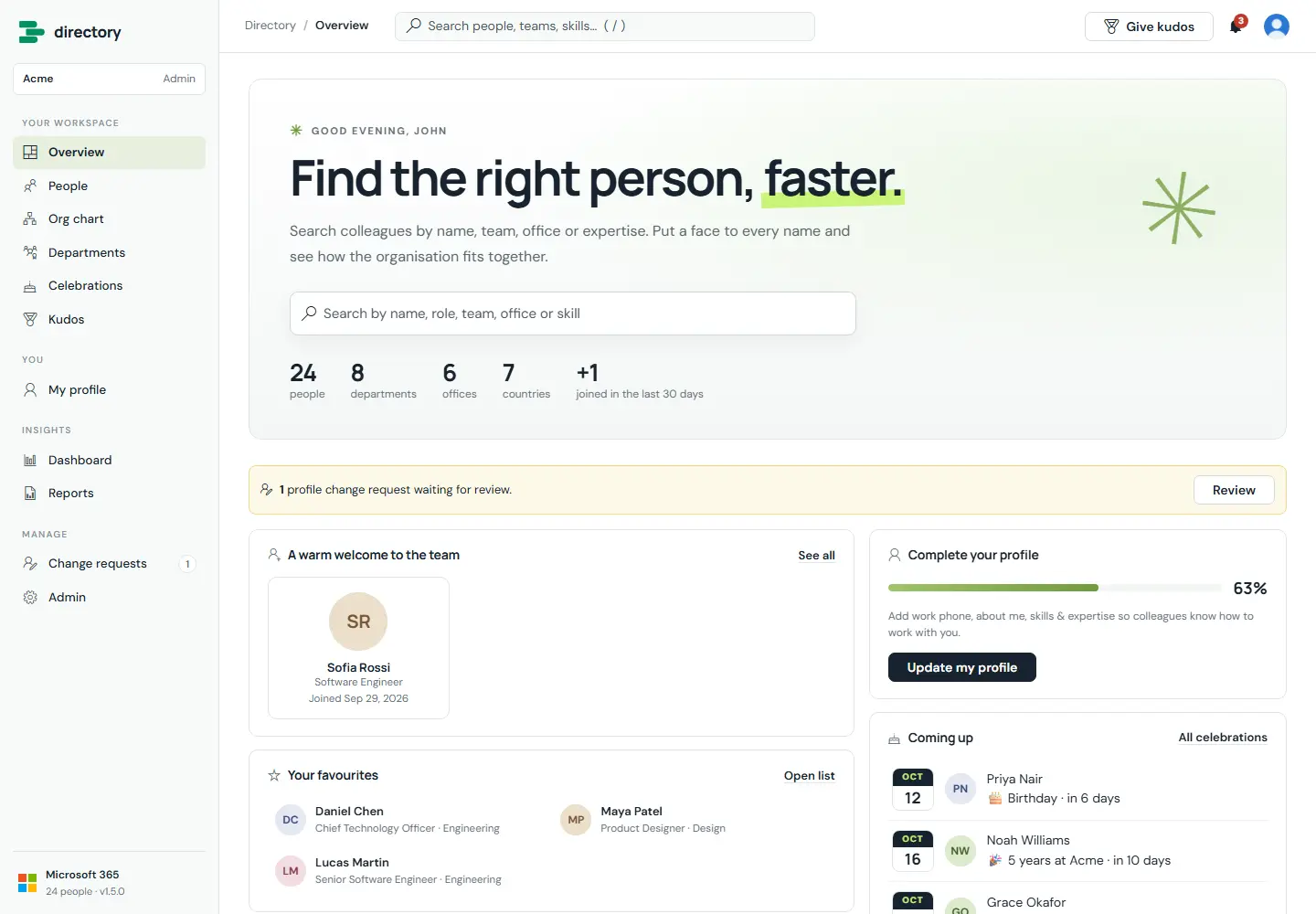
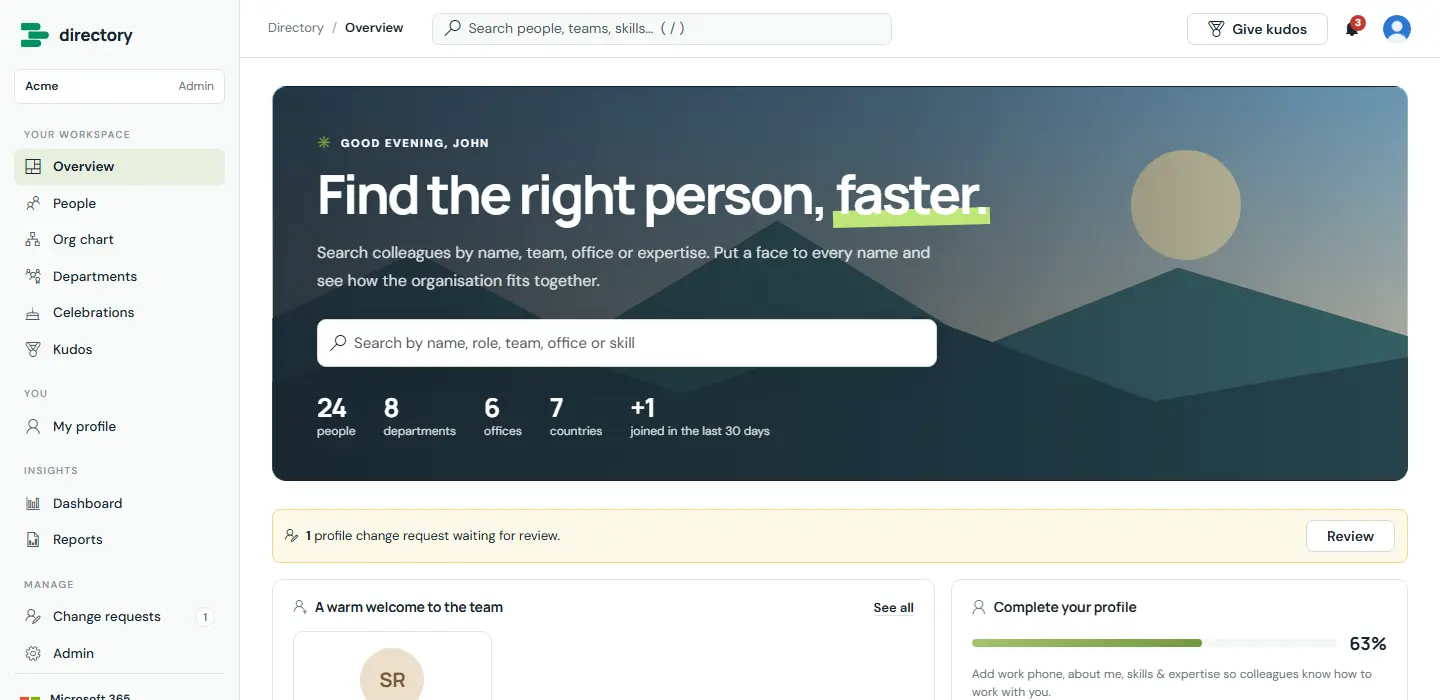
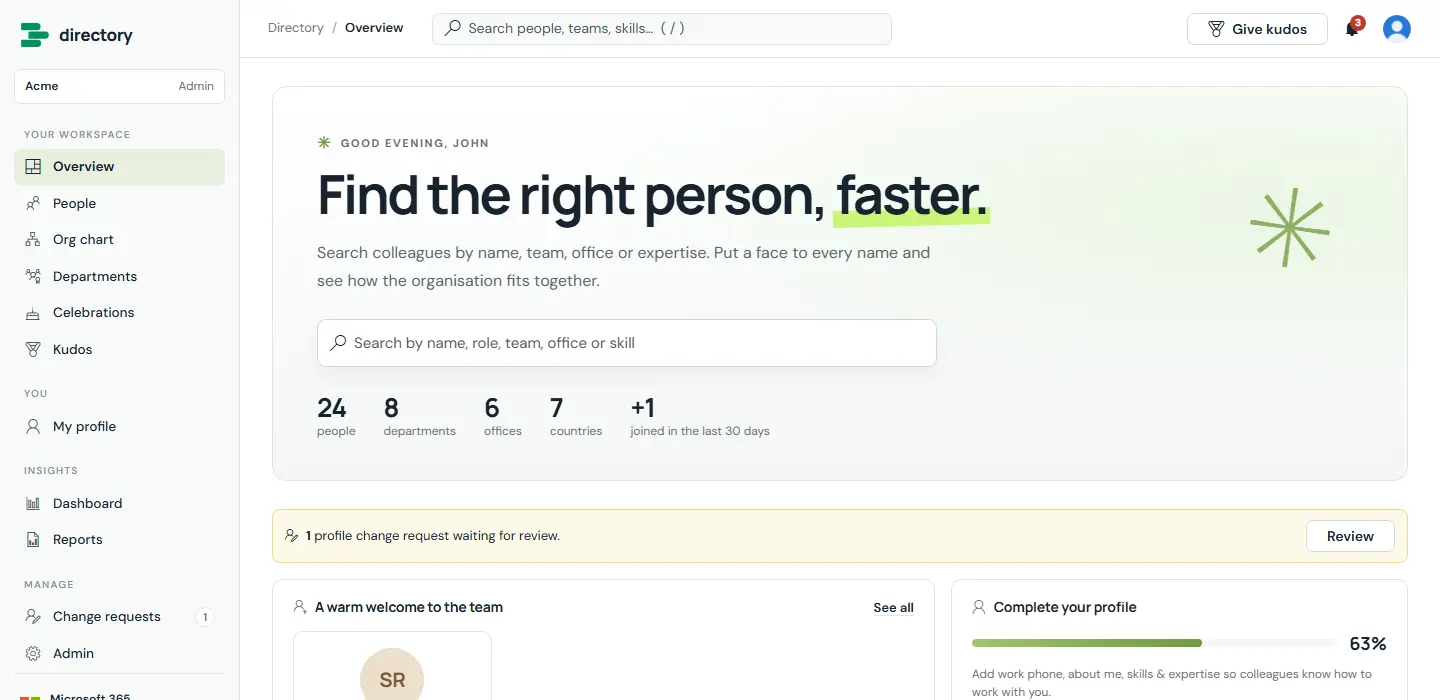
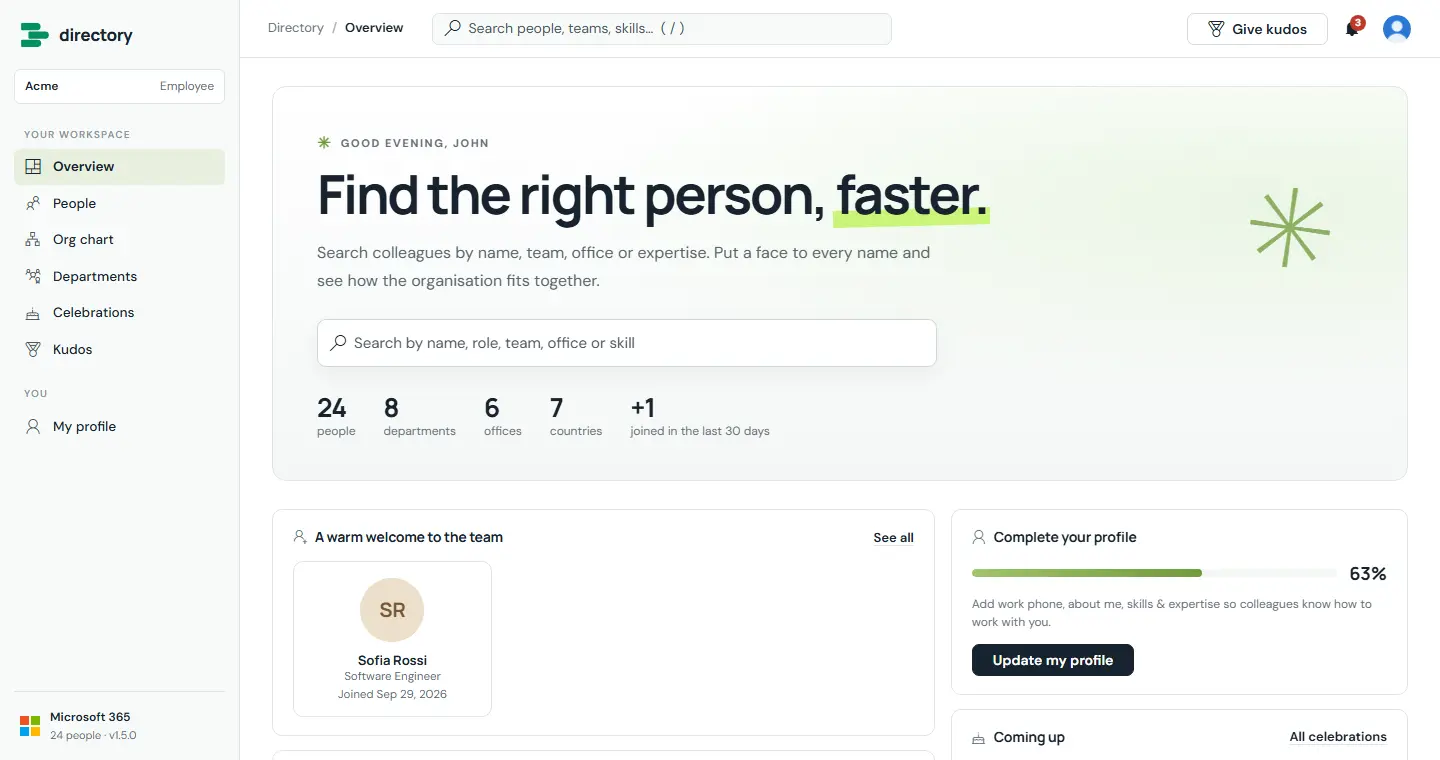
The start page greets each person by name and puts search front and centre. Below the search are the organisation's headline numbers, new joiners, the person's favourites, upcoming celebrations, recent kudos and a nudge to complete their profile. HR and admins also see a banner when change requests are waiting.
Overview. Headline numbers (people, departments, offices, countries, joiners in the last 30 days) are calculated live from the directory.
Your own banner image. With Enterprise branding, admins upload a banner picture, choose white or dark text, and change the headline and introduction.
How it works
The headline, introduction and banner are set under Admin › General.
The last word of the headline gets the lime underline.
The new-joiner window and the celebrations look-ahead are configurable.
The / key jumps to the quick search in the top bar from any page.
Admins can choose which page the directory opens on.
People search
Everyone
All plans
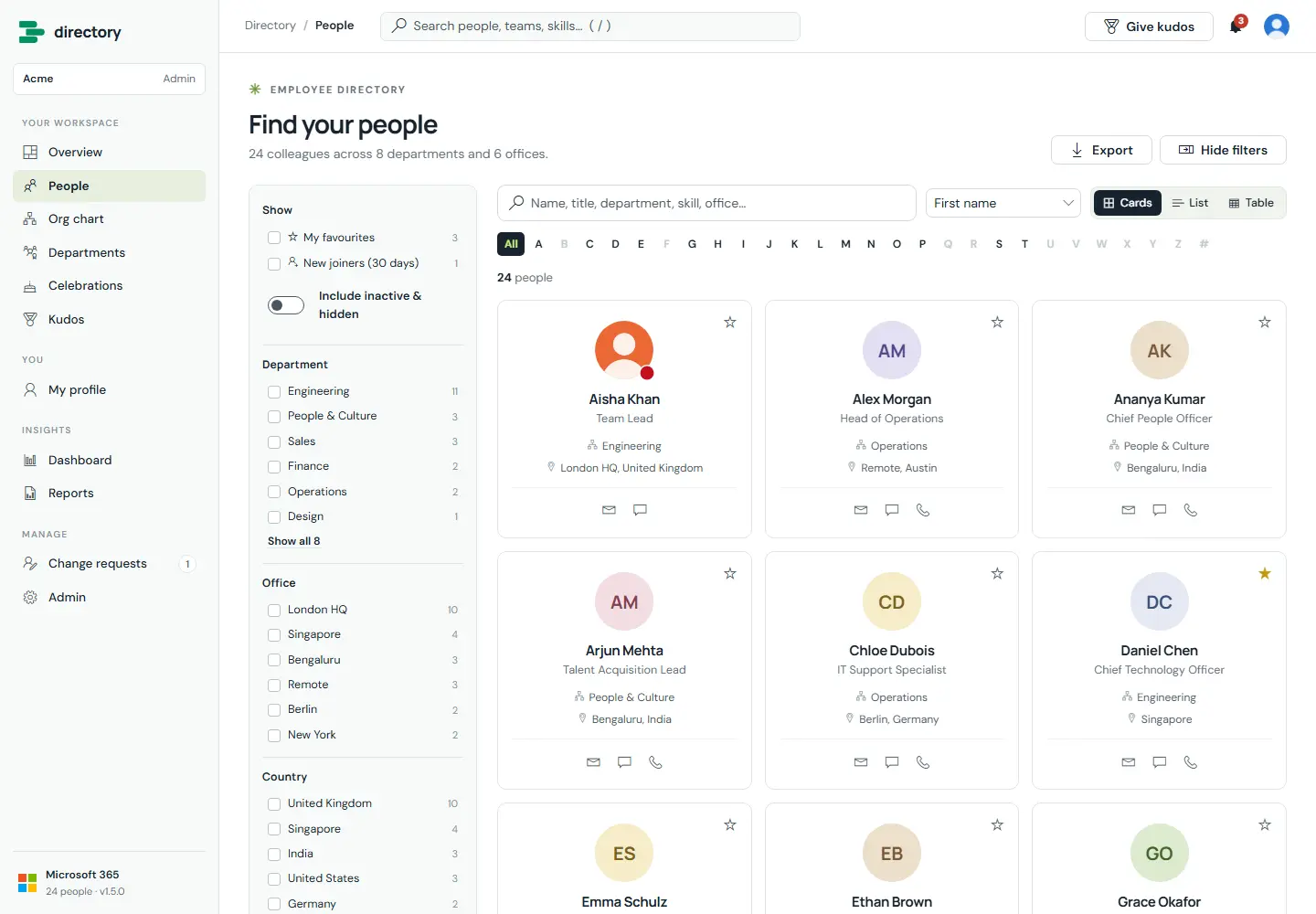
Find anyone by name, job title, department, office, skill or any other visible field. Narrow results with filters and the A–Z bar, and show them as cards, a compact list or a sortable table. Admins decide the default layout, which fields and quick actions each layout shows, and which filters are offered, under Admin › Cards & views.
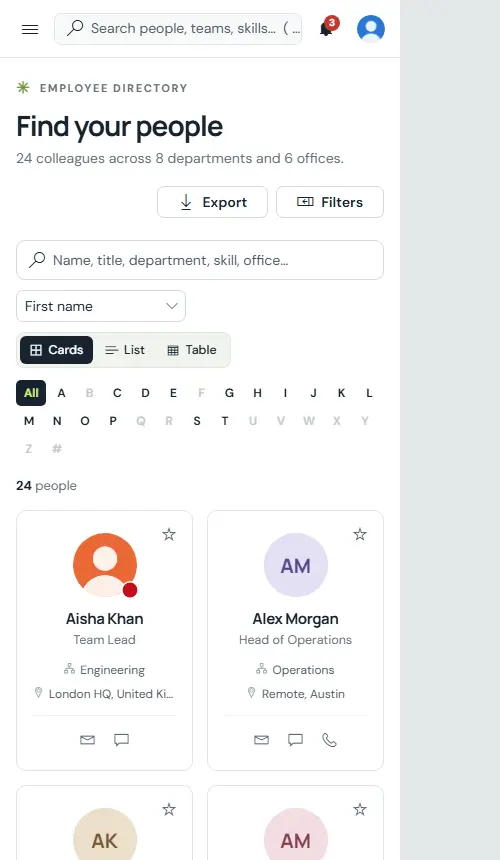
Cards view. Each card shows the photo, Teams status, title, department and office, with one-click email, Teams chat and call.
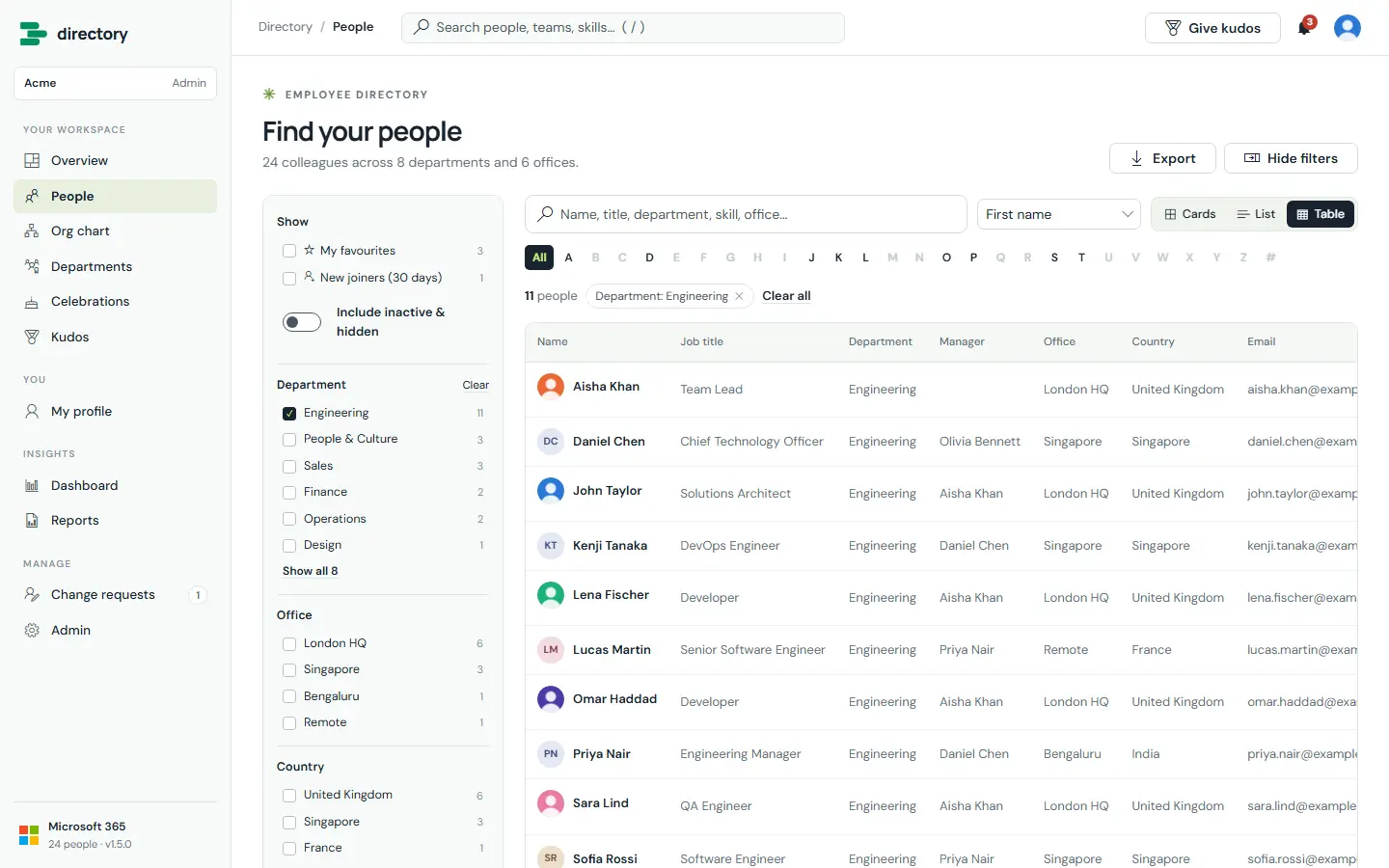
Table view with a filter. Active filters show as chips with a single "Clear all". The page address keeps the search, so a filtered view can be bookmarked or shared.
How it works
Every word typed must match. Name matches rank highest, and accents are ignored ("Jose" finds "José").
Filter counts update as you combine filters. Choosing several values in one filter means "any of these".
The A–Z bar offers only letters that have people, by first or last name.
Default filters are department, office, country, job title, employee type and skills. Admins can change them.
Quick actions on cards and list rows (email, Teams chat, call, QR code) are configurable. The QR code button opens the person's contact card or profile link as a QR code.
Export downloads the current result as CSV, with only the fields the viewer may see. Values that could run as spreadsheet formulas are neutralised.
HR and admins can include inactive and hidden people.
Profiles
Everyone
All plans
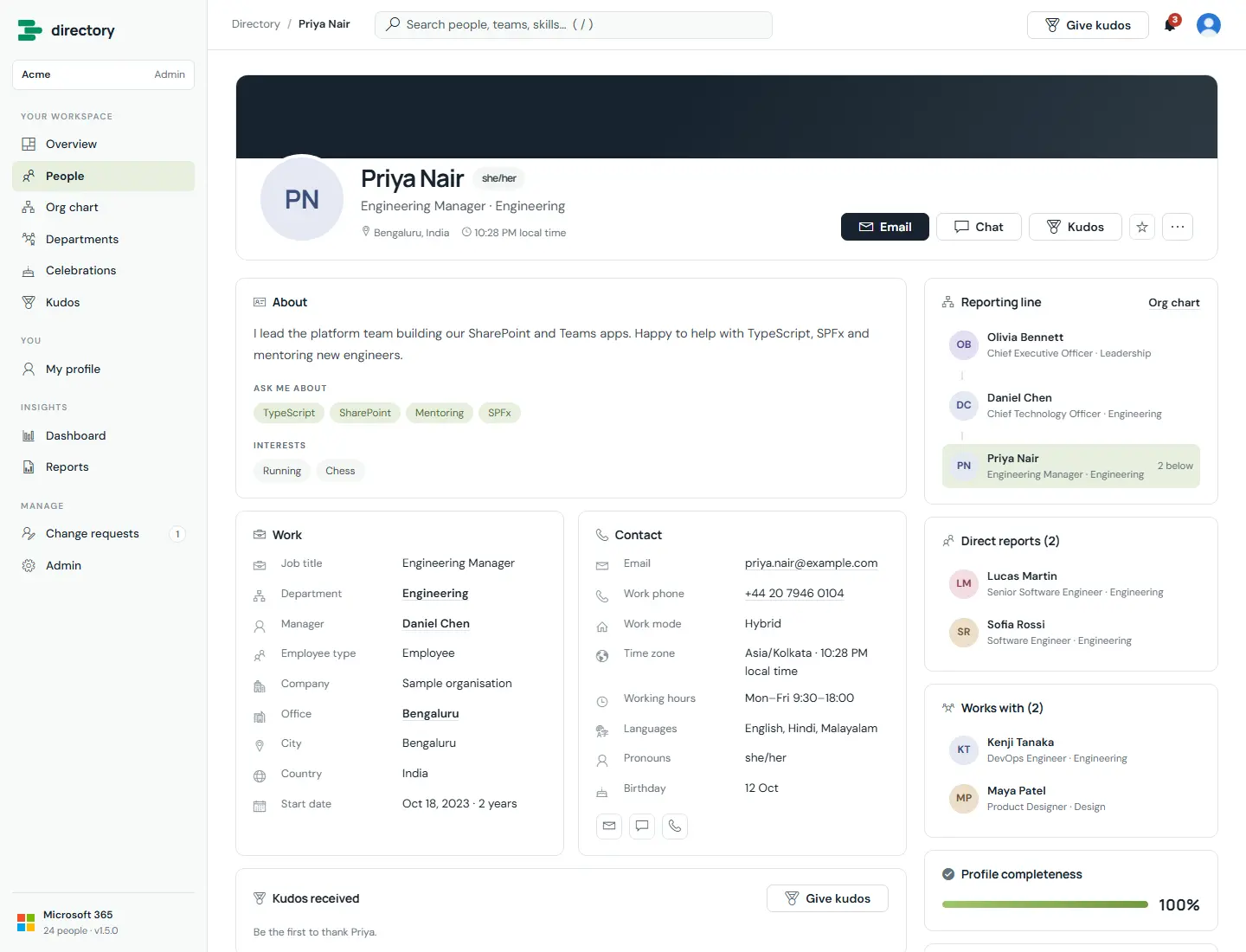
A profile brings together everything colleagues need: work and contact details from Microsoft 365, the person's own "about me", skills and working hours, their reporting line, direct reports, the people they work with, and the kudos they have received.
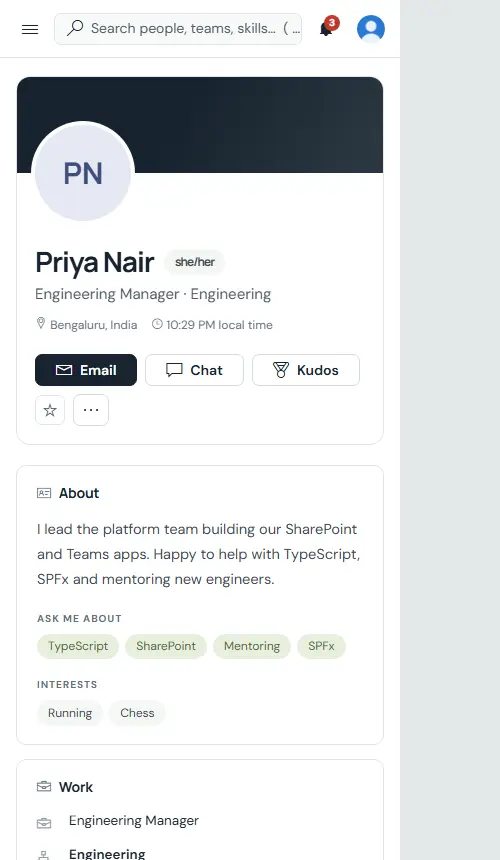
A complete profile. Skills are links: selecting one searches for everyone with that skill.
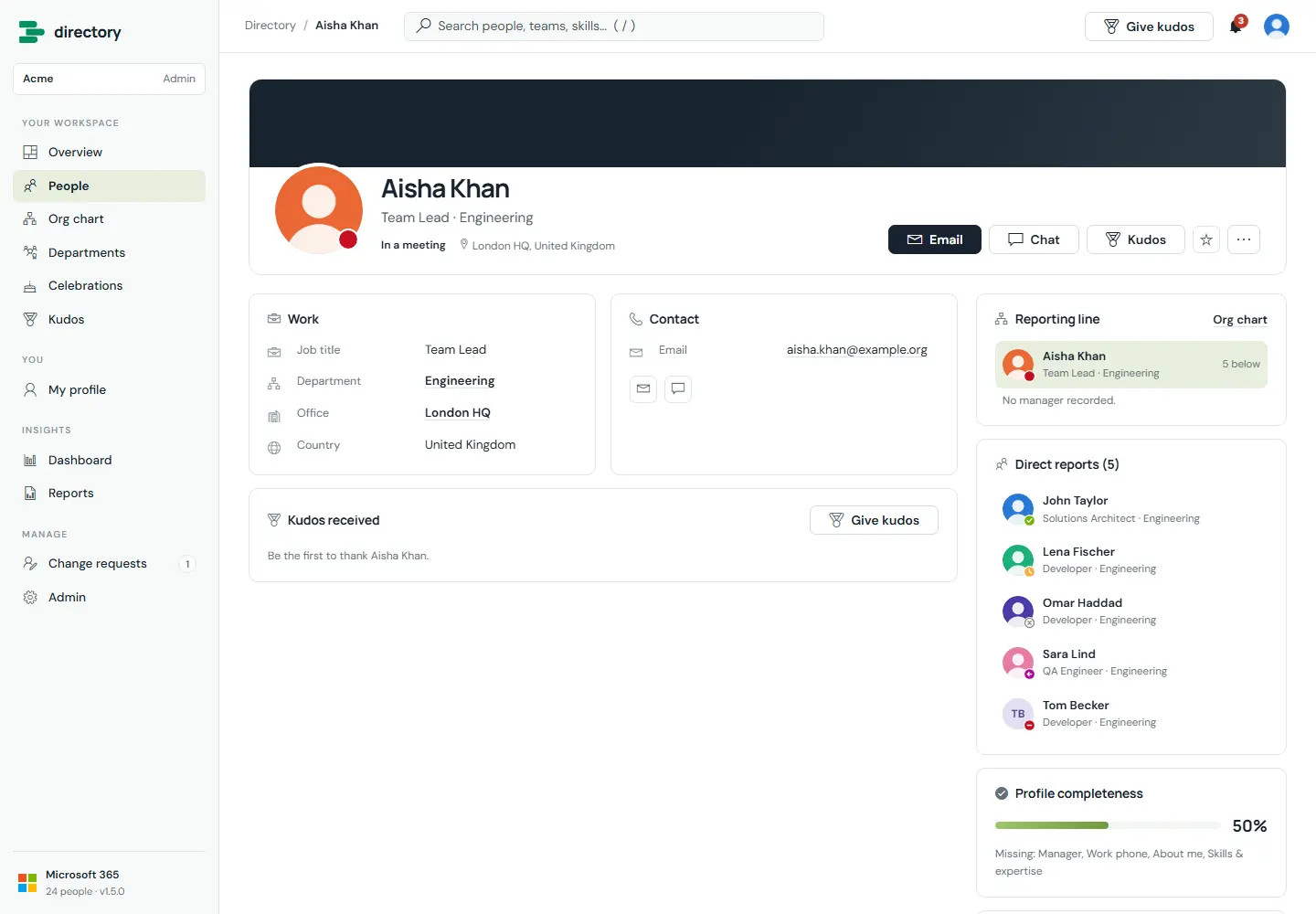
Photos and Teams status. Photos come from Microsoft 365. The status badge and text match Microsoft Teams: here "In a meeting", with team members Available, Away, Offline, Out of office and Do not disturb.
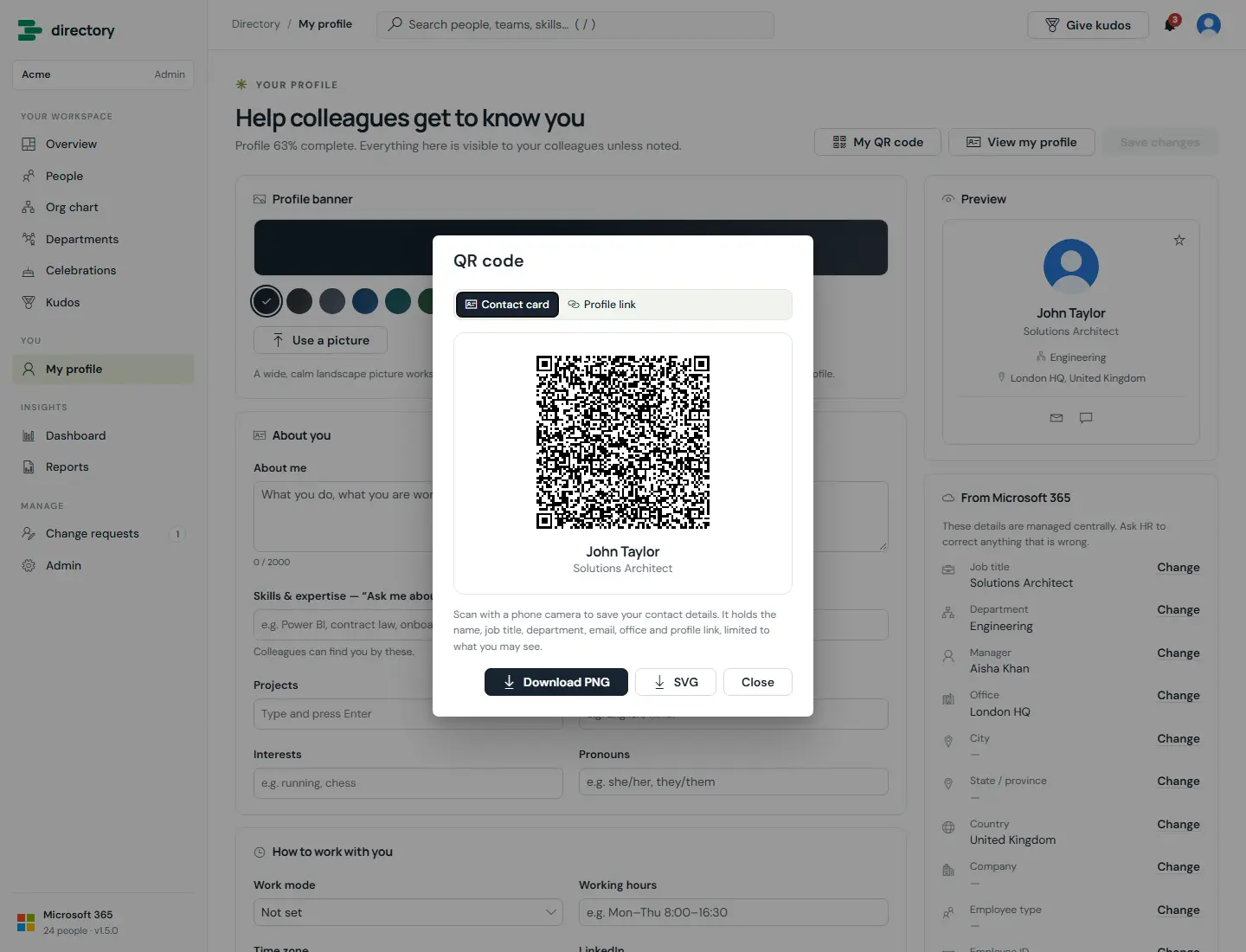
QR code. Scan with a phone camera to save the contact card or to open the profile. Download it as PNG (with name and job title, ready for a badge) or SVG. It holds only the fields the viewer may see.
How it works
Actions: email, Teams chat, give kudos, add to favourites, save contact (vCard), copy link, open in the org chart, QR code, and request a correction.
Local time is shown when the person has set a time zone.
As in Teams, the status icon follows availability and the text follows the activity (for example Busy, "Presenting").
Photos are copied into a picture library on your site during the sync. A photo changed in Microsoft 365 since the last sync is shown straight from Microsoft Graph.
Each person can choose their own profile banner (see My profile).
HR sees an extra record panel: the source, status, last sync and any HR overrides.
Org chart
Everyone
Pro and Enterprise
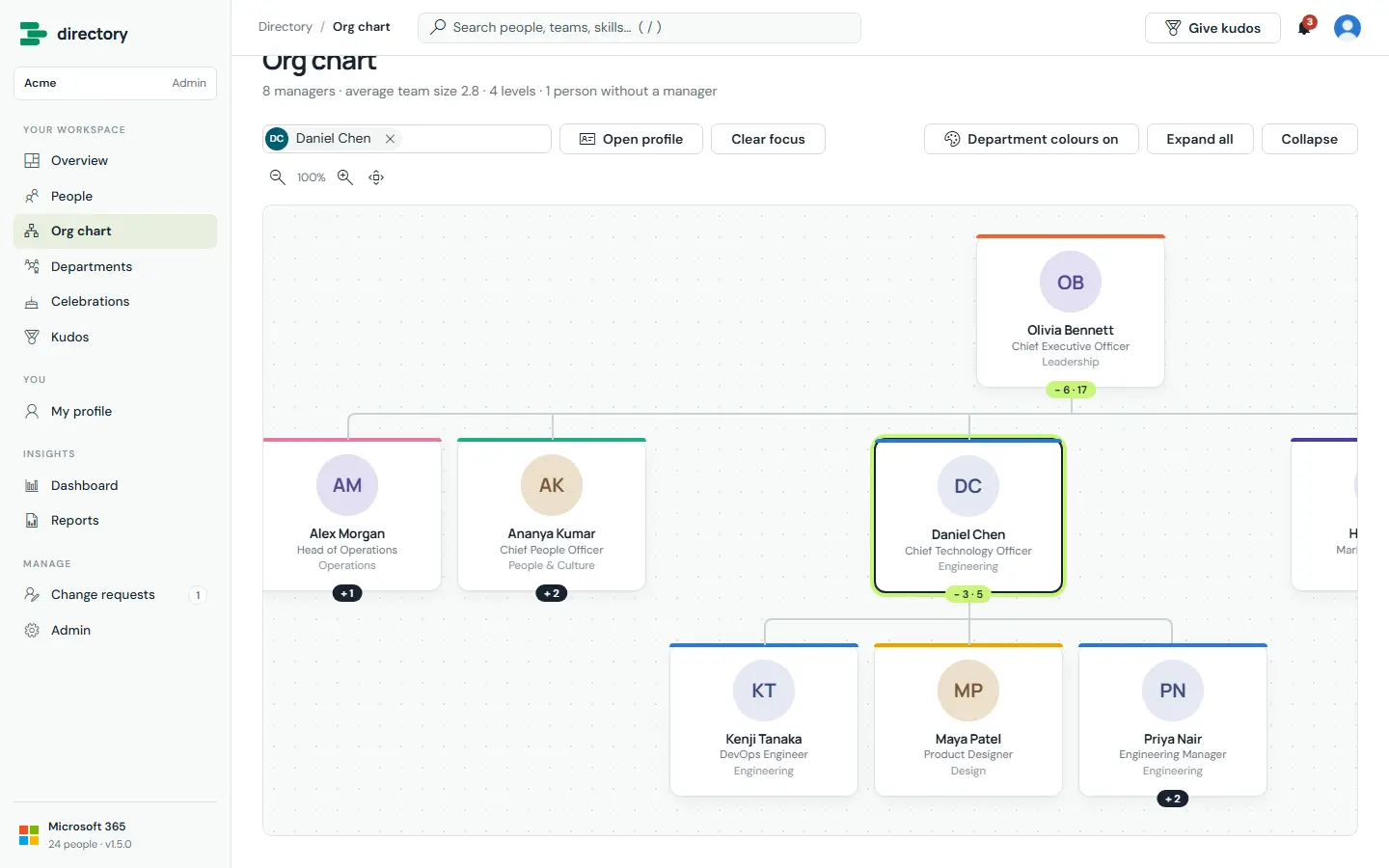
An interactive chart of the reporting structure, built from the managers recorded in Microsoft Entra ID. Search for anyone to open their whole reporting line.
Focused on one person. The header summarises the organisation: managers, average team size, levels and people without a manager.
How it works
Expand and collapse any branch. Badges show the number of direct reports and the total below.
Zoom with the buttons or Ctrl + mouse wheel, and drag to pan.
Department colours can be switched on or off.
Admins design the cards under Admin › Cards & views: photo on top or beside the name, compact / standard / large, round / rounded / no photo, Teams status, up to three lines under the name, department or brand accent on the top or left edge, team badge, and how many levels open at the start.
Reporting loops in the source data are detected and handled, so everyone stays reachable.
Departments
Everyone
All plans
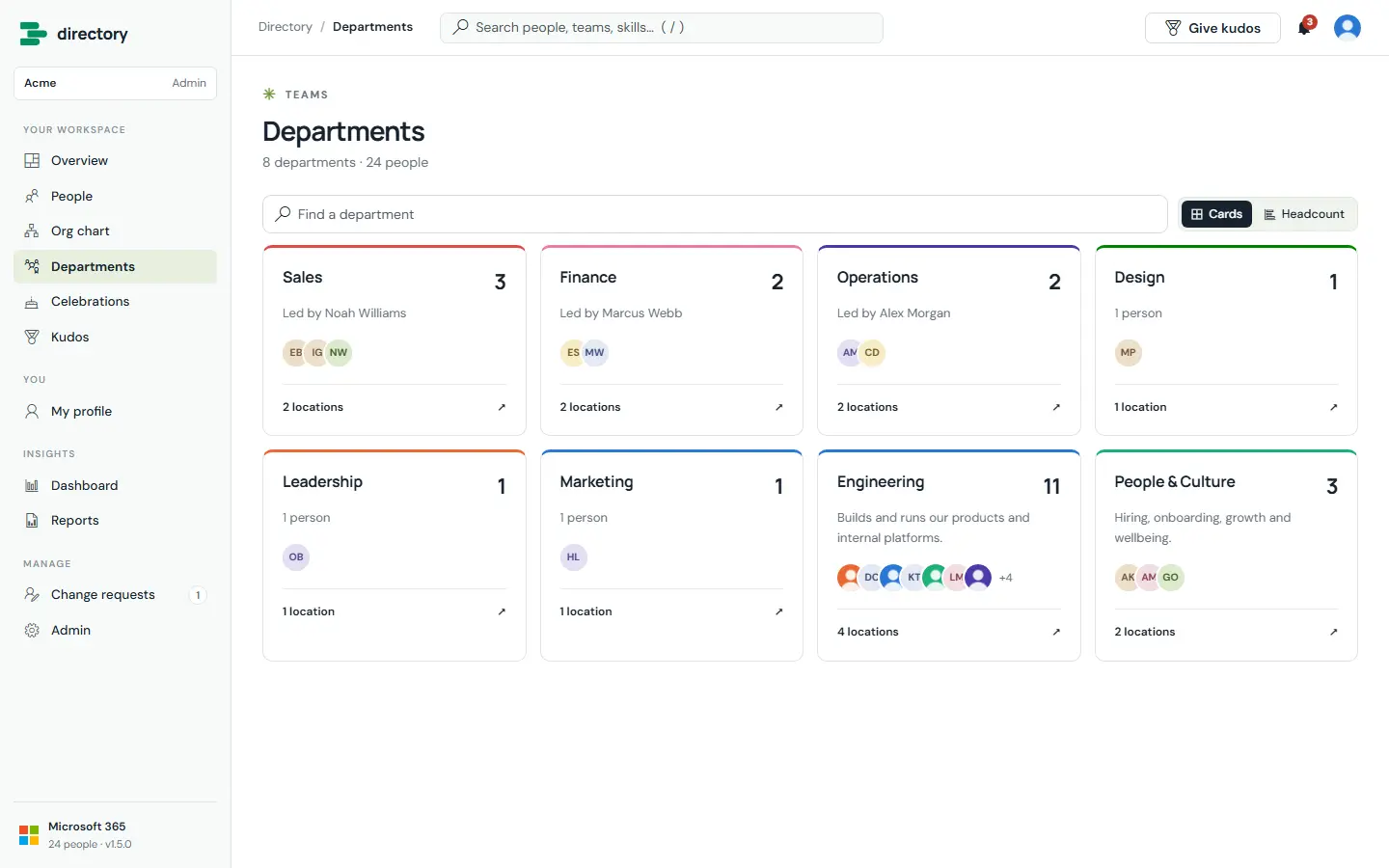
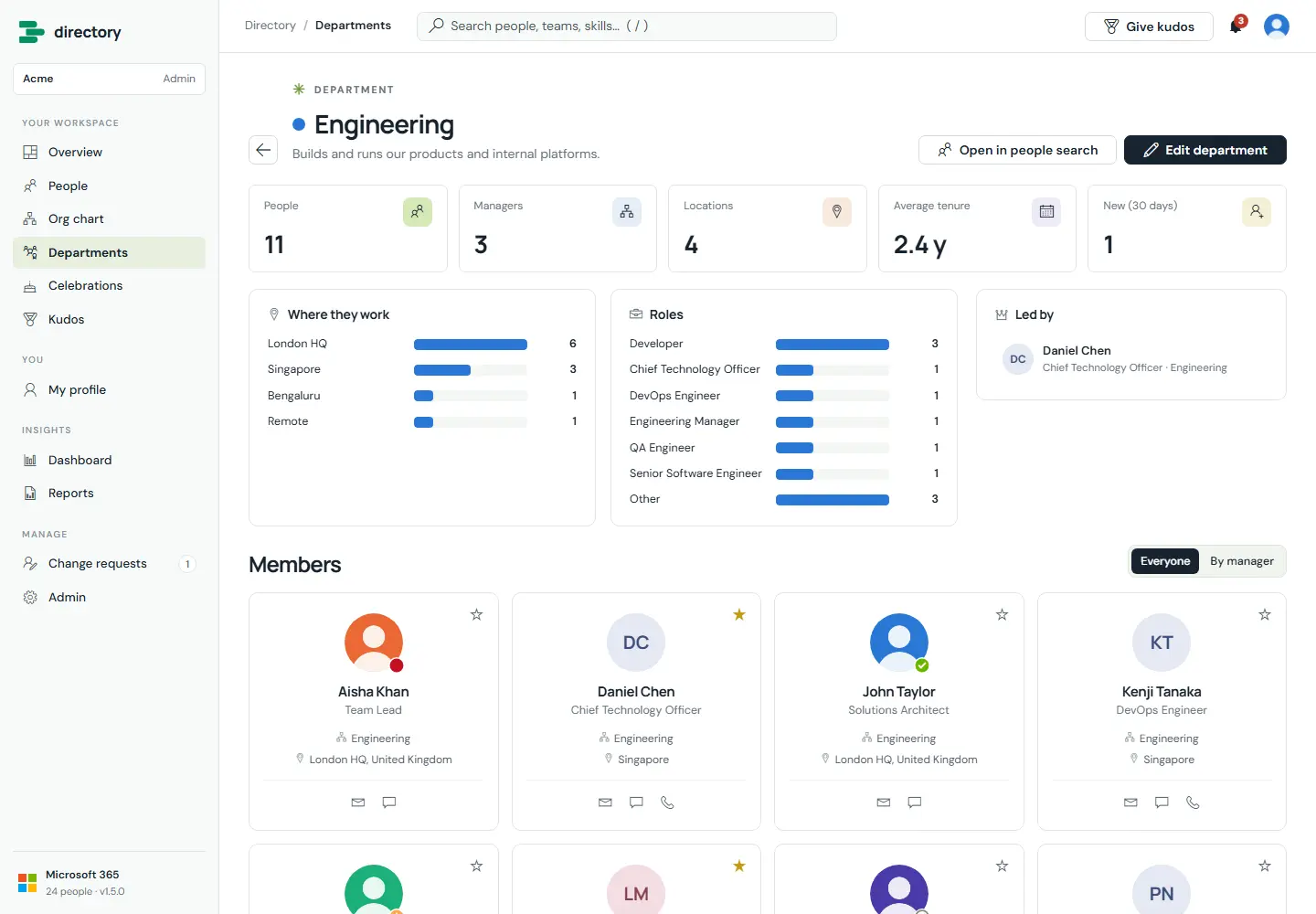
Every department gets its own page with its people, head, locations and roles. Departments come from the people's department field in Microsoft 365. Admins can add a description, a head, a colour and a parent department.
All departments as cards or as a headcount chart.
One department with its numbers, where its people work, roles, head and members.
How it works
If no head is set, the directory picks the member whose manager is outside the department and who has the most reports inside it.
Members can be shown together or grouped by manager. "Open in people search" applies the department as a filter.
Celebrations
Everyone
Pro and Enterprise
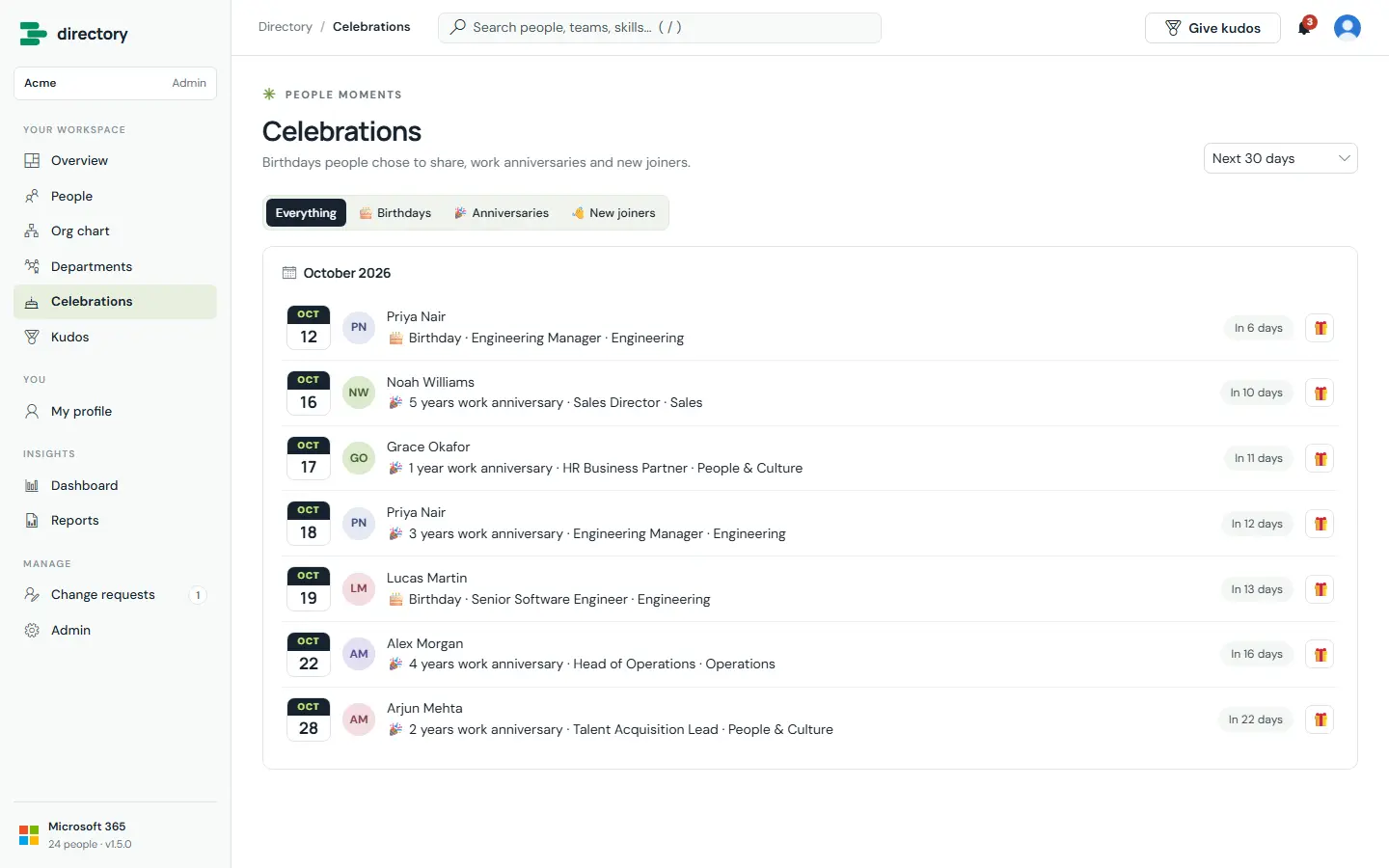
Upcoming birthdays, work anniversaries and new joiners, grouped by month. The gift button opens the kudos dialog to send wishes.
Celebrations for the next 30 days, with filters for birthdays, anniversaries and new joiners.
How it works
Birthdays appear only for people who choose to share them, as day and month (never the year).
Work anniversaries come from the start date, from one year onwards.
People born on 29 February are celebrated on 28 February in other years.
Admins can switch birthdays or anniversaries off and set the look-ahead window.
Kudos
Everyone
Moderation: HR
Pro and Enterprise
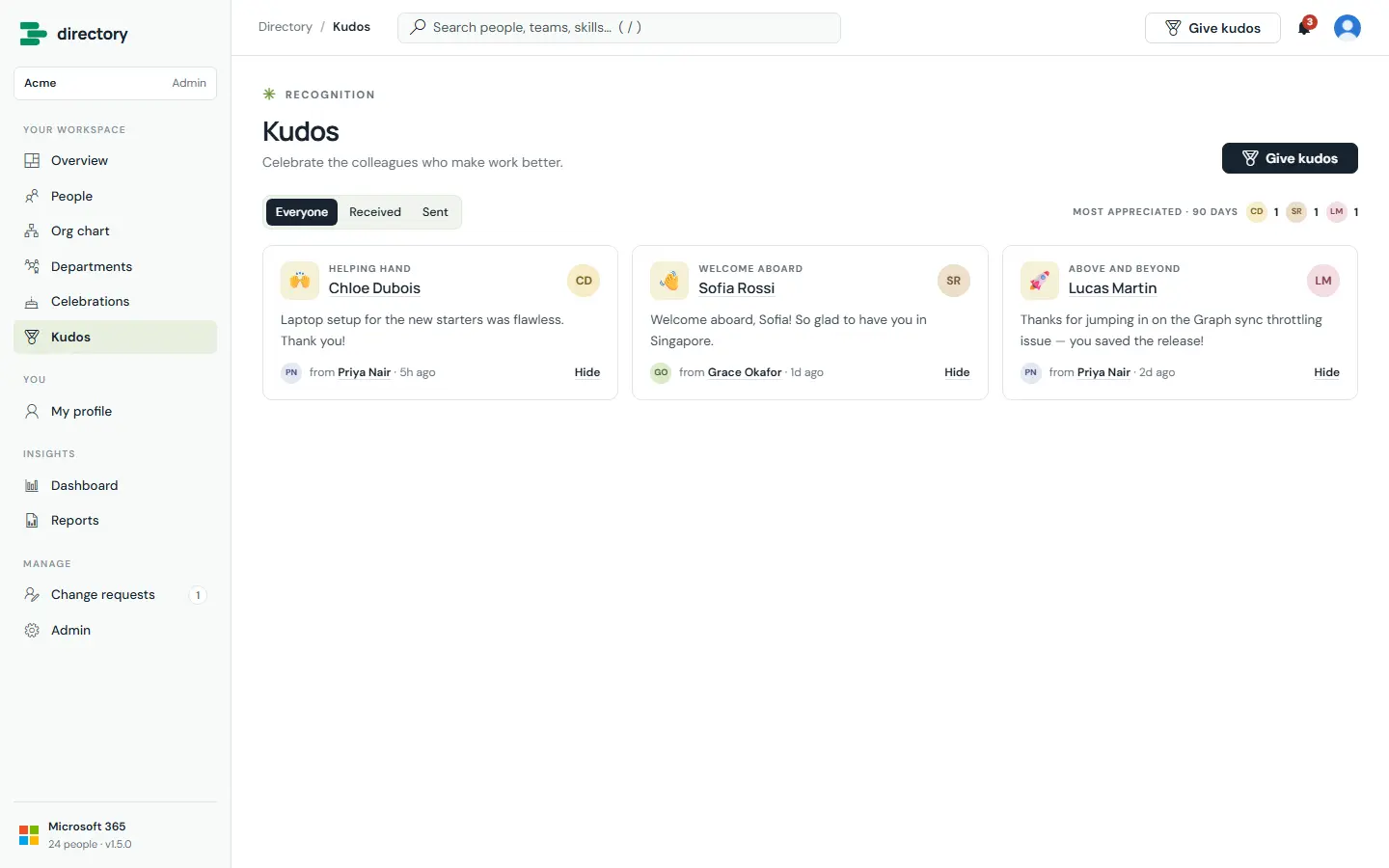
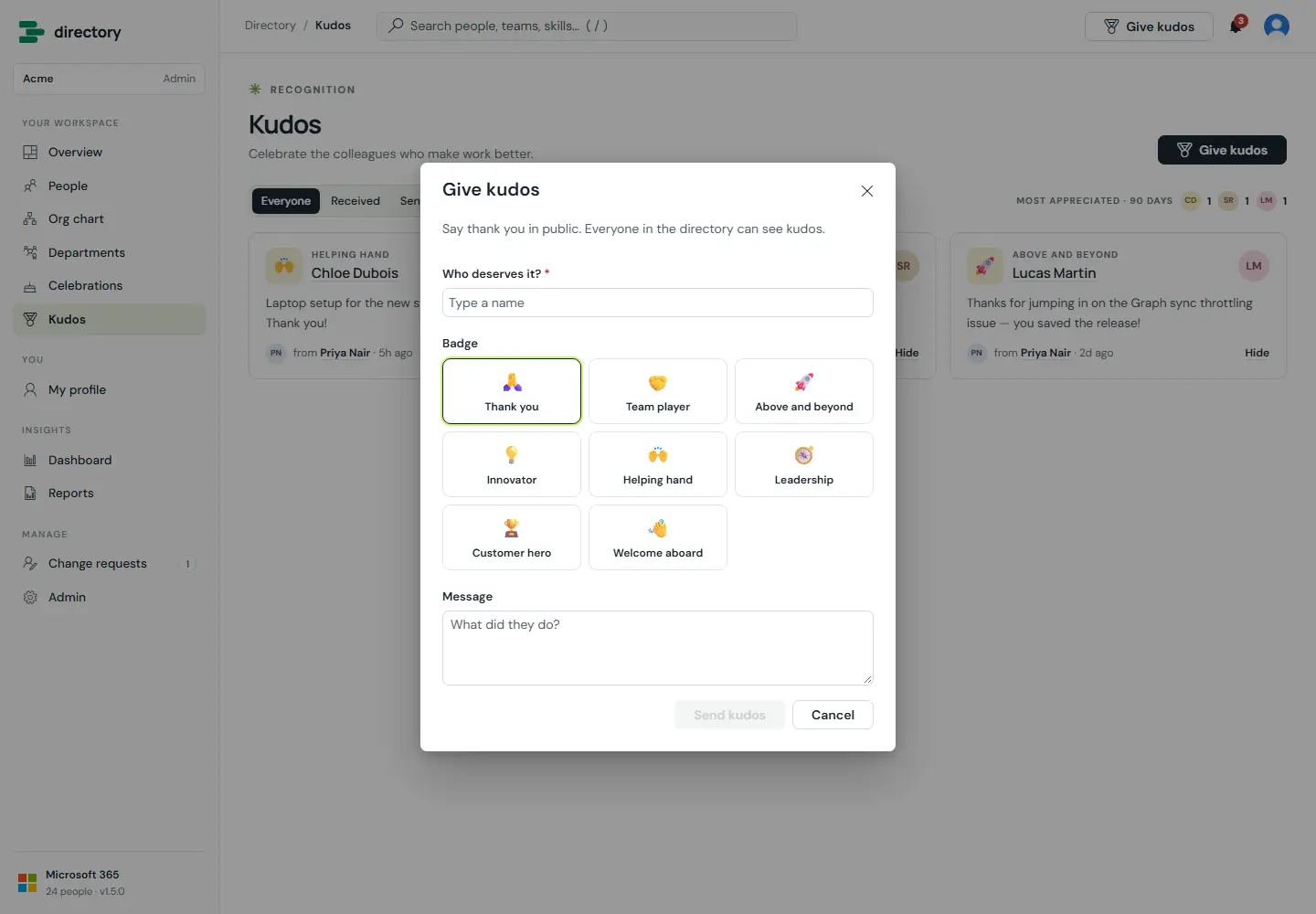
Public recognition between colleagues. Pick a person and a badge, add a message, and it appears on the kudos wall and on the person's profile. The recipient is notified.
The kudos wall with Everyone, Received and Sent views, and the most appreciated people of the last 90 days.
Giving kudos. Eight badges: Thank you, Team player, Above and beyond, Innovator, Helping hand, Leadership, Customer hero and Welcome aboard.
How it works
The sender shown is the person SharePoint recorded as the author, so nobody can post kudos in someone else's name.
HR can hide and restore kudos. If the author edits a kudos after posting it, it is hidden until HR restores it, so a message cannot be quietly changed or un-hidden.
My profile
Everyone (own profile)
All plans
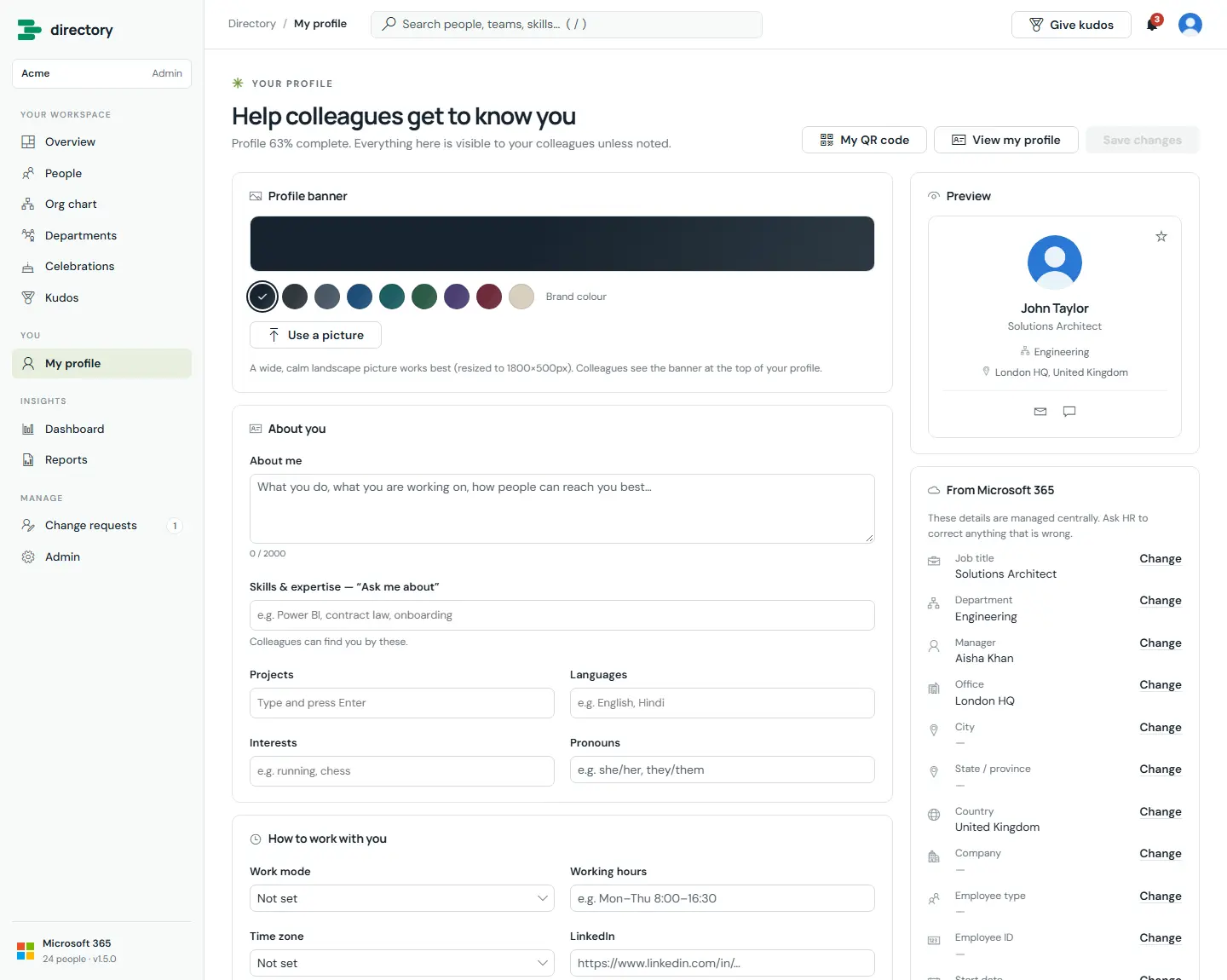
Each person keeps their own profile up to date: about me, skills ("ask me about"), projects, languages, interests, pronouns, work mode, working hours, time zone, LinkedIn and, if they wish, their birthday. They also choose their profile banner.
My profile. Banner styles or an uploaded picture, a live preview, and the details that come from Microsoft 365, each with a "Change" link.
How it works
Nothing is saved until the person selects Save changes.
Banner: seven styles (Aurora, Ocean, Sunset, Forest, Violet, Sand, Graphite) or a picture, resized to 1800 × 500 px.
The skills field suggests skills already used in the directory, which keeps spelling consistent.
Details that come from Microsoft 365 (job title, department, manager, office and so on) cannot be edited here. "Change" sends a change request to HR.
Birthday is day and month only, with an explicit switch to show it.
My QR code opens the person's own QR code (contact card or profile link) for download as PNG or SVG.
SharePoint lets each person edit only their own profile entry.
Change requests
Request: everyone
Review: HR & admins
Pro and Enterprise
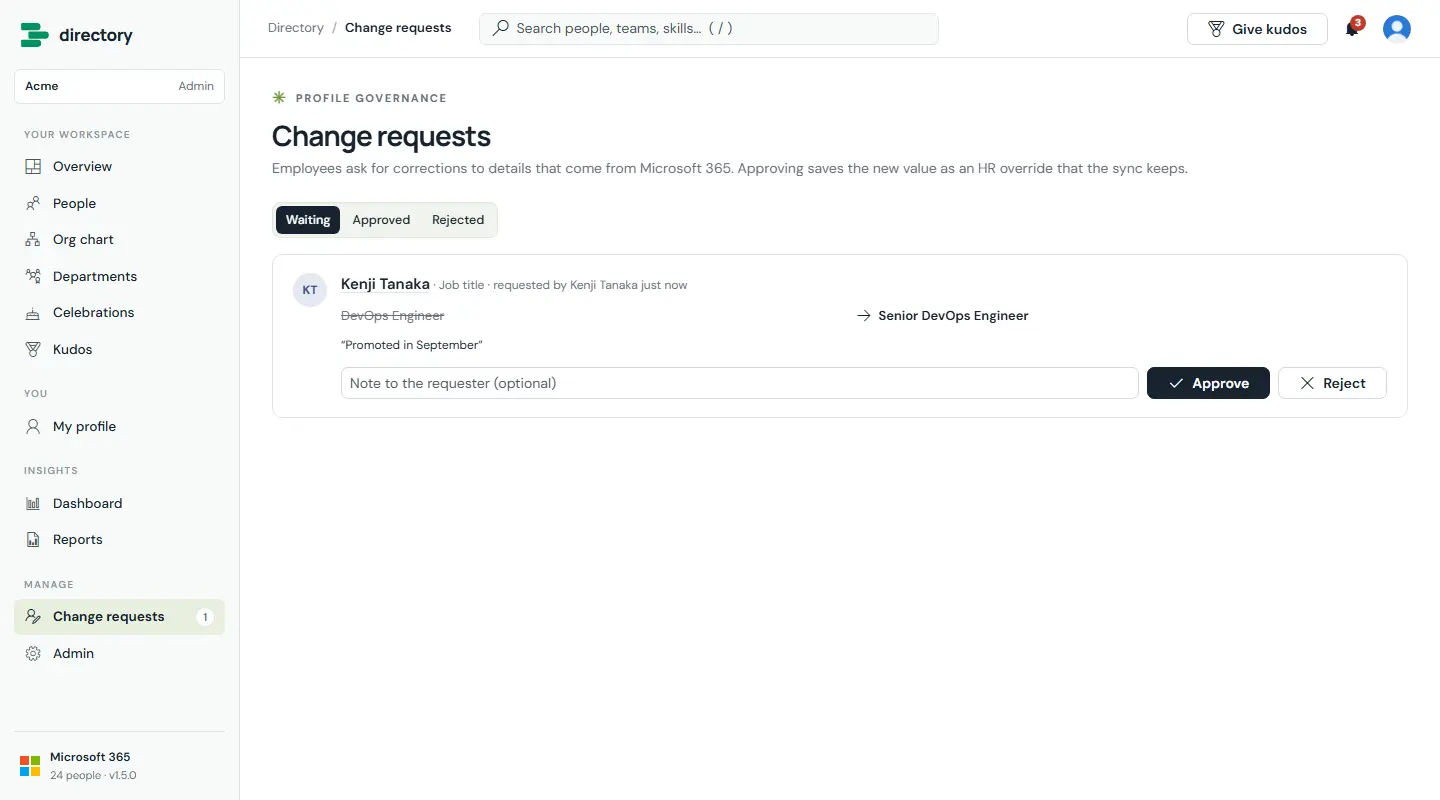
A controlled way to correct data that comes from Microsoft 365. An employee proposes a new value and a reason. HR sees the request with the old and new values side by side, then approves or declines it with an optional note.
The HR review queue, with Waiting, Approved and Rejected tabs.
How it works
Approving saves the new value as an HR override. The Microsoft Graph sync keeps it, and HR can reset it to the Microsoft 365 value at any time.
Separation of duties: nobody can review a request they filed themselves.
A decision counts only when it was made by someone other than the requester, so editing your own request cannot approve it.
Notifications: HR and admins are told about new requests, the requester gets a confirmation, and the requester (and the employee, if HR filed it for them) hear the outcome.
Employees see only their own requests. SharePoint enforces this.
A daily HR digest can list requests that have waited too long.
Notifications & email
Everyone receives
Admins configure
In-app: all plans · email: Pro · custom templates: Enterprise
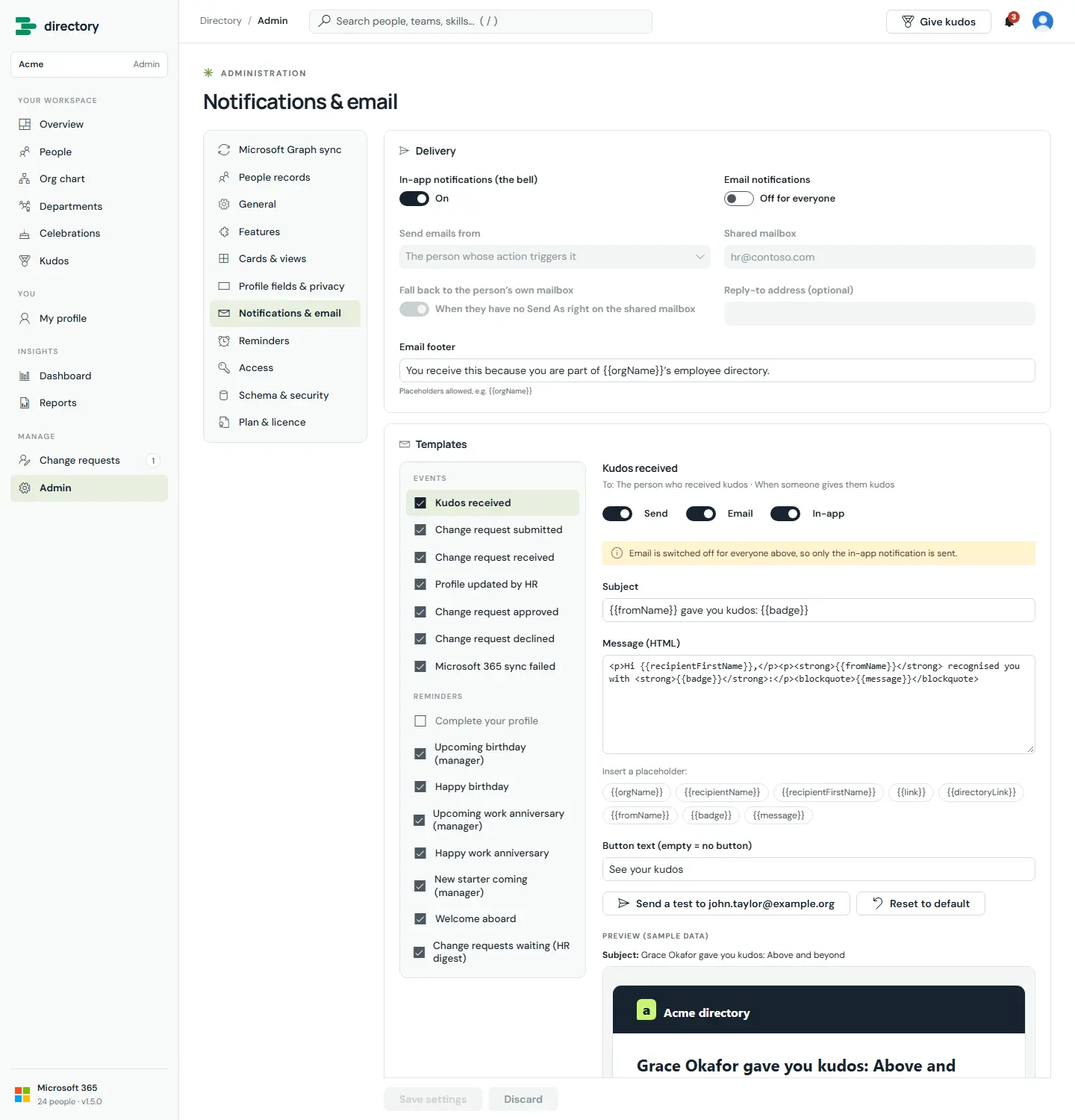
People are told what matters to them in the app's bell and, if enabled, by email. Admins decide which of the 15 notifications are sent, by which channel, and with what wording.
The bell. Each notification opens the relevant page. Read status is private to each person.
Delivery settings and the template editor. Each template has its own switches for sending, email and in-app, and a live preview with sample data.
How it works
Events: kudos received, change request submitted / received / approved / declined, profile updated by HR, and Microsoft 365 sync failed.
Email is sent through Microsoft Graph from the mailbox of the person whose action triggers it. With Enterprise it can come from a shared mailbox, with an optional fallback and a reply-to address.
Emails use a branded layout designed to display correctly in Outlook.
Templates support placeholders such as {{recipientFirstName}} or {{badge}}. Values are HTML-escaped, so a name or message cannot inject markup.
"Send a test" emails the admin, and "Reset to default" restores the original wording.
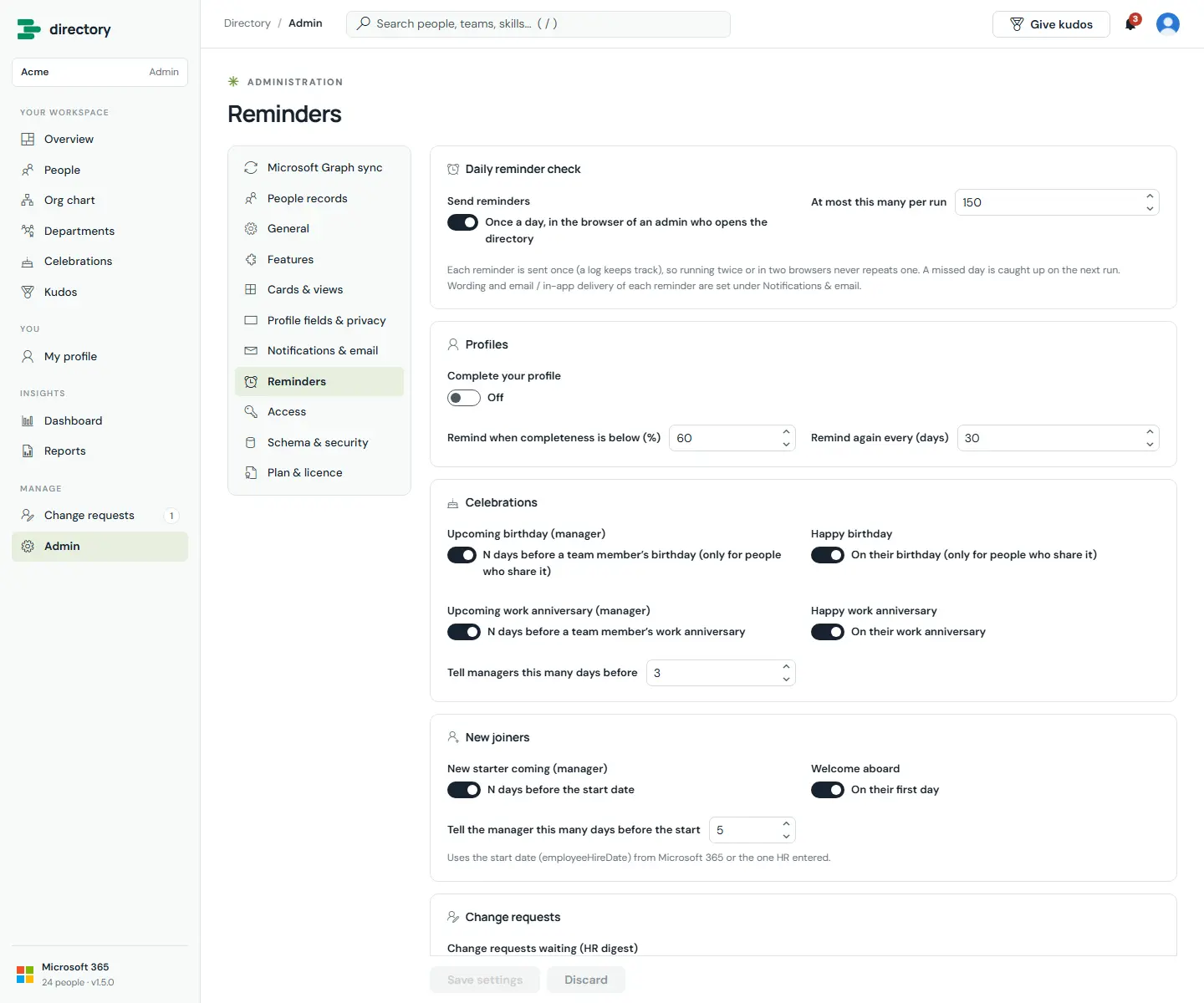
Automatic, timely nudges: complete your profile, a team member's birthday or work anniversary coming up, a new starter arriving, a welcome on the first day, and a digest of change requests waiting for HR.
Reminder rules. Thresholds and lead times are set here. Wording and channels are set per template under Notifications & email.
How it works
The reminder check runs once a day, in the browser of an admin who opens the directory.
Every reminder sent is logged, so a reminder is never sent twice, even if two admins have the directory open. A missed day is caught up on the next run.
Birthday reminders apply only to people who share their birthday.
A limit per run (150 by default) spreads large volumes over several days. Anything left over is sent on the next run.
Workforce dashboard
HR & admins (optionally everyone)
Pro and Enterprise
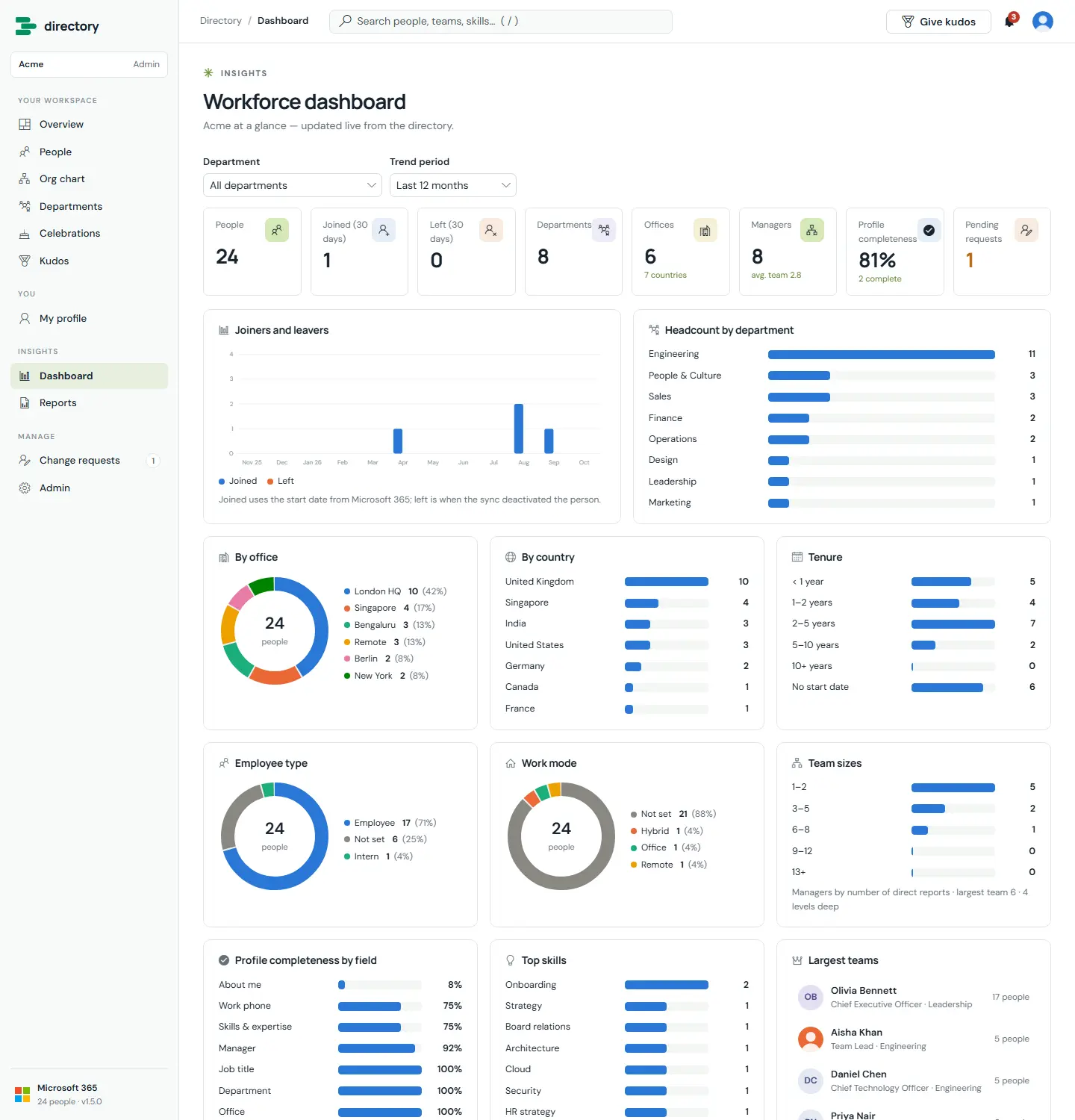
The organisation at a glance, updated live from the directory: headcount, joiners and leavers, departments, offices, countries, tenure, employee types, work modes, team sizes, profile completeness, top skills and the largest teams.
Workforce dashboard, filtered by department and trend period.
How it works
Most number tiles open the matching people list or report.
Joiners use the start date from Microsoft 365. Leavers are people the sync has deactivated.
Chart colours come from a palette checked for colour-vision deficiency, and every series is named in a legend or label, never by colour alone.
Admins can open the dashboard to everyone with one switch.
Reports
HR & admins
Pro and Enterprise · audit reports: Enterprise
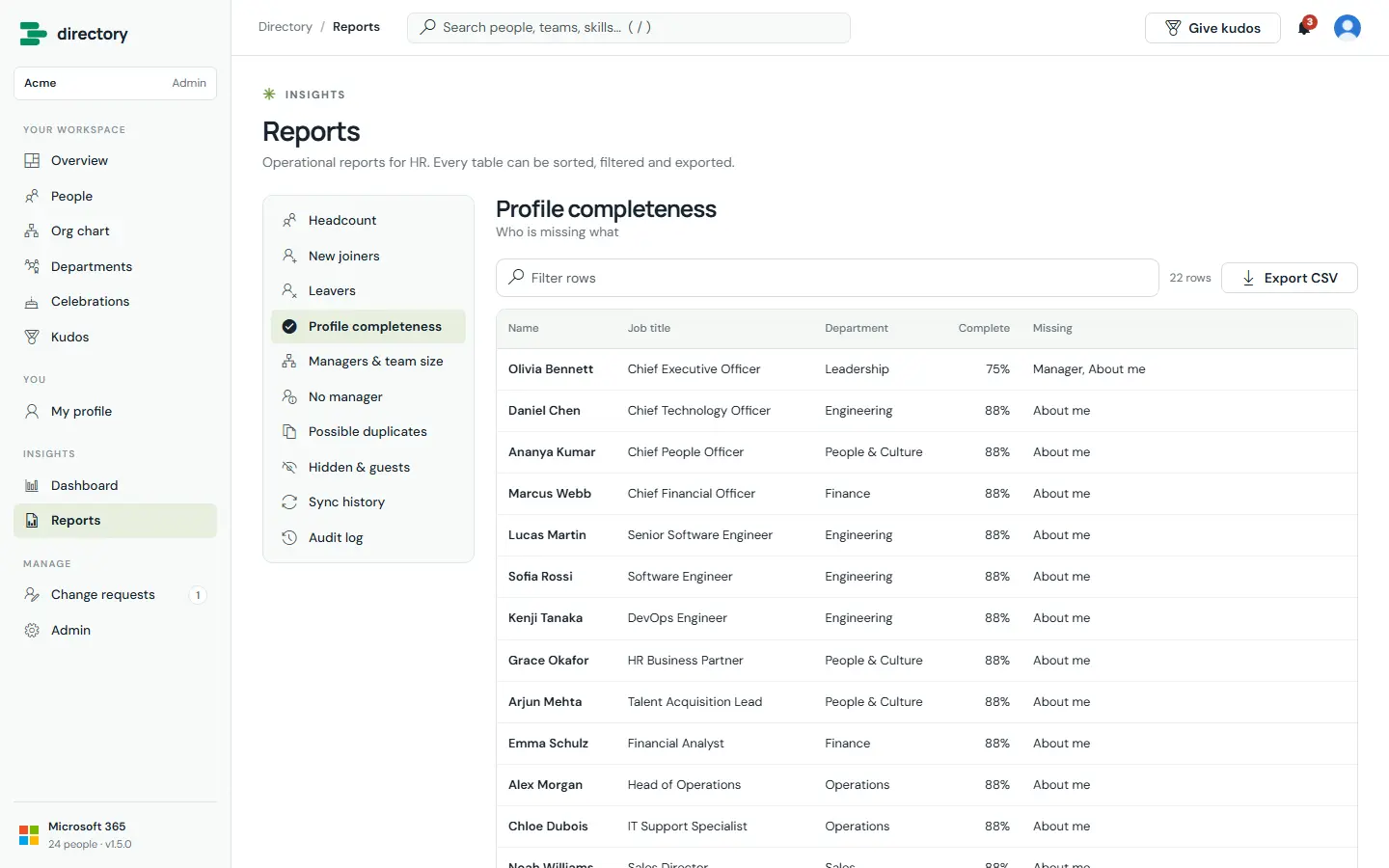
Ten operational reports for HR. Every report can be filtered, sorted and exported to CSV.
Profile completeness shows who is missing what. The report list is on the left.
The layout adapts down to phone width: the navigation moves into a menu, and cards, profiles and tables reflow to a single column. The package also declares support for Microsoft Teams, as a tab or a personal app.
People search at 400 px.
A profile at 400 px.
Part 4
Administration
Admins run the directory from one place: Admin, in the navigation. Each section edits a draft. Nothing changes until an admin selects Save settings, and Discard throws the draft away.
Setup wizard
Site owner
All plans
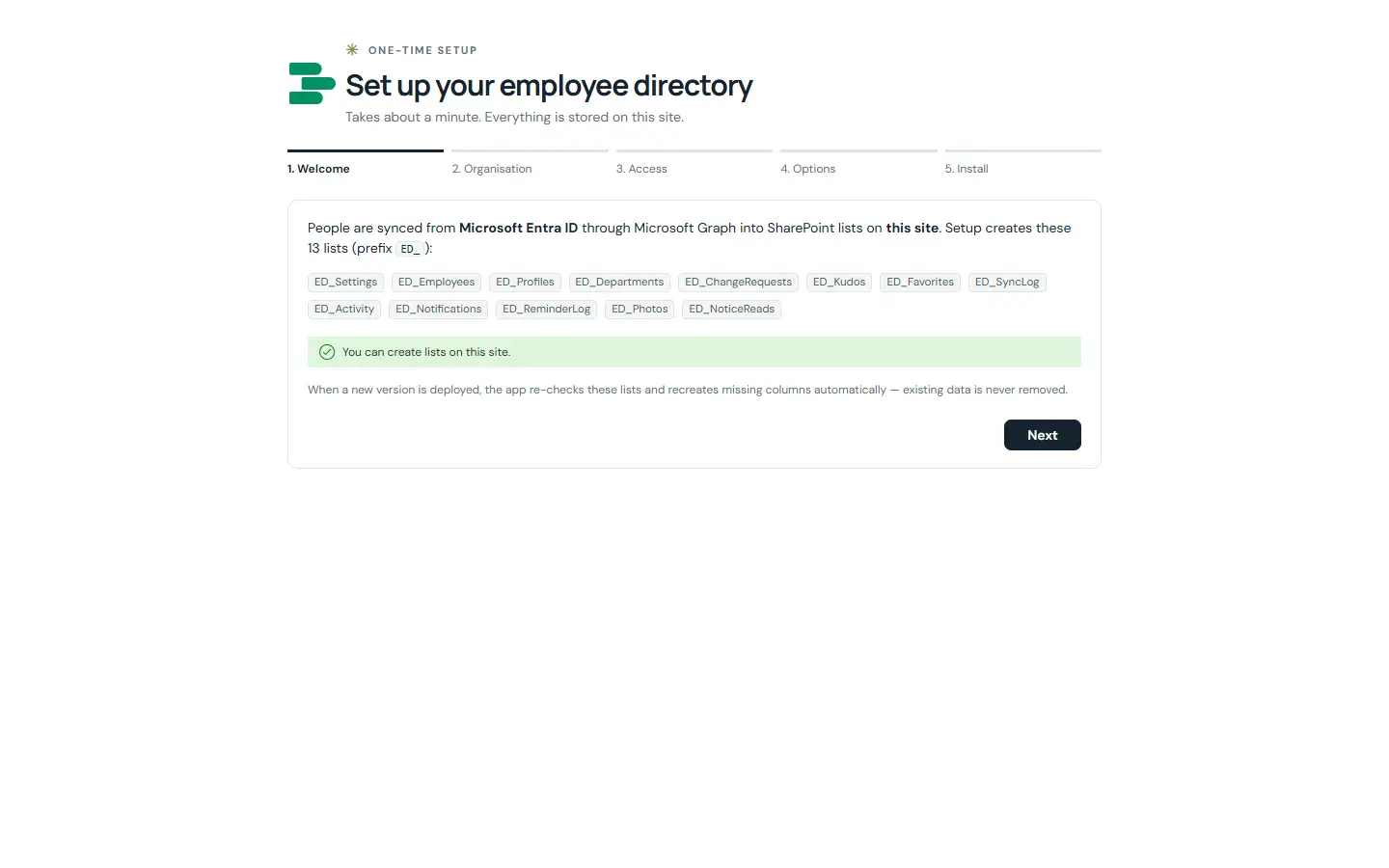
The first time a site owner opens the page, a five-step wizard sets everything up in about a minute: Welcome, Organisation, Access, Options and Install.
Step 1. The wizard lists what it will create and checks that you have permission to create lists.
How it works
Creates the lists, records your organisation name and the admins and HR people, and applies security.
Can test the Microsoft Graph connection and run the first sync.
Can add sample people, for a trial or a demonstration.
Safe to run again: it continues where it stopped.
Microsoft Graph sync
Run: admins
Preview: HR
All plans · profile details: Enterprise
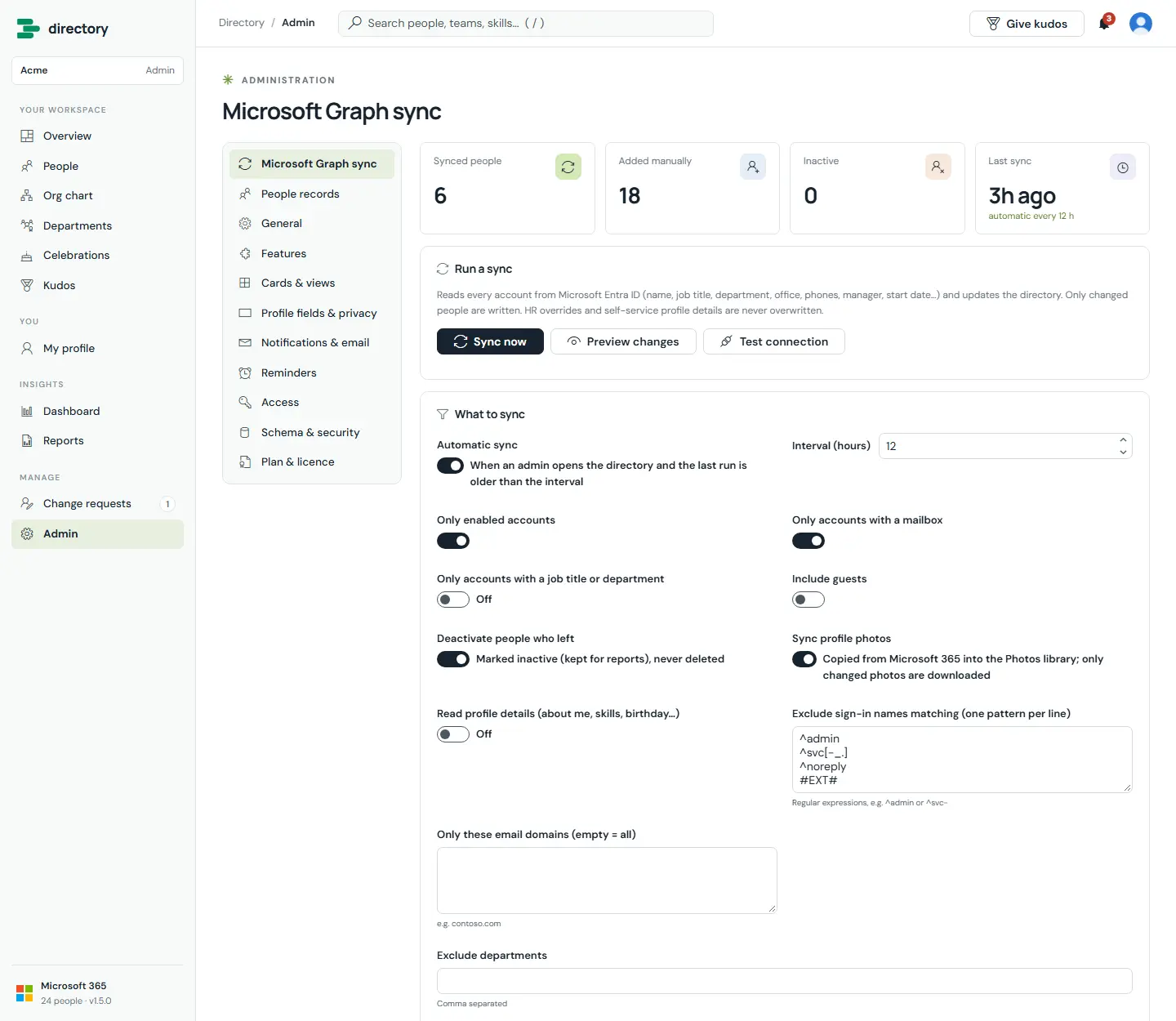
The sync reads every account from Microsoft Entra ID and updates the directory: names, job titles, departments, offices, phones, managers, start dates and photos. Filters decide who appears.
Sync settings. "Preview changes" shows exactly what a sync would create, update and deactivate, without writing anything.
How it works
Automatic sync runs when an admin opens the directory and the last run is older than the interval (12 hours by default). A lock stops two admins syncing at once.
Only changes are written. Each person's values are compared with the last sync, so unchanged people are left alone.
Leavers are deactivated, never deleted, so they still count in reports.
Safeguard: if a run would deactivate more than 30 % of synced people (and more than 10), it holds back until an admin confirms. This protects against a mistaken filter.
Filters: only enabled accounts, only accounts with a mailbox, only accounts with a job title or department, include guests, exclude sign-in names by pattern (service accounts, for example), limit to email domains, and exclude departments.
Photos are copied into the site's photo library. Only changed photos are downloaded, up to 400 per run.
HR overrides and employees' own profile details are never overwritten.
With Enterprise, the sync can also read about me, skills and birthdays from Microsoft 365.
People records
HR & admins
All plans
HR can correct a synced person's details directly. Each change is stored as an override, shown next to the Microsoft 365 value, with a per-field link to reset it. HR can also hide a person from the directory, and add people who are not in Microsoft 365 (contractors, for example). The employee is notified when HR changes their record.
Profile fields & privacy
Admins
All plans
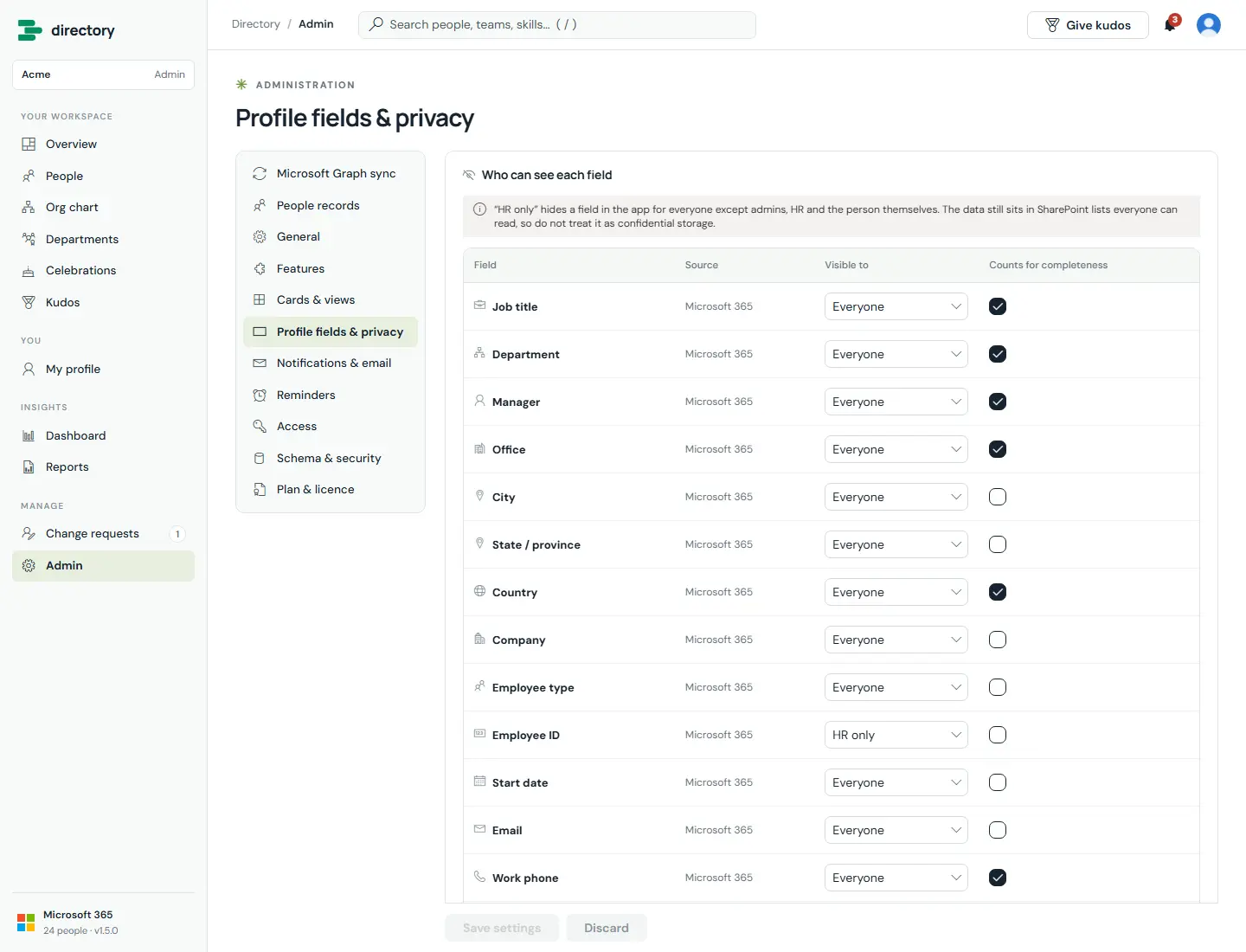
For each of the 25 profile fields, admins decide who sees it (Everyone, HR only, or Nobody) and whether it counts towards profile completeness.
Field visibility. Employee ID is "HR only" by default.
How it works
Hidden values are removed from the data each viewer receives, before any page uses it. They cannot appear in search, filters, charts, cards or exports.
"HR only" fields are still visible to the person themselves.
This is a privacy control inside the app. SharePoint does not enforce it, because the employee list must be readable for the directory to work. The note on this page says so. Do not store confidential data in directory fields (see Good to know).
Cards & views
Admins
All plans · org chart cards: Pro
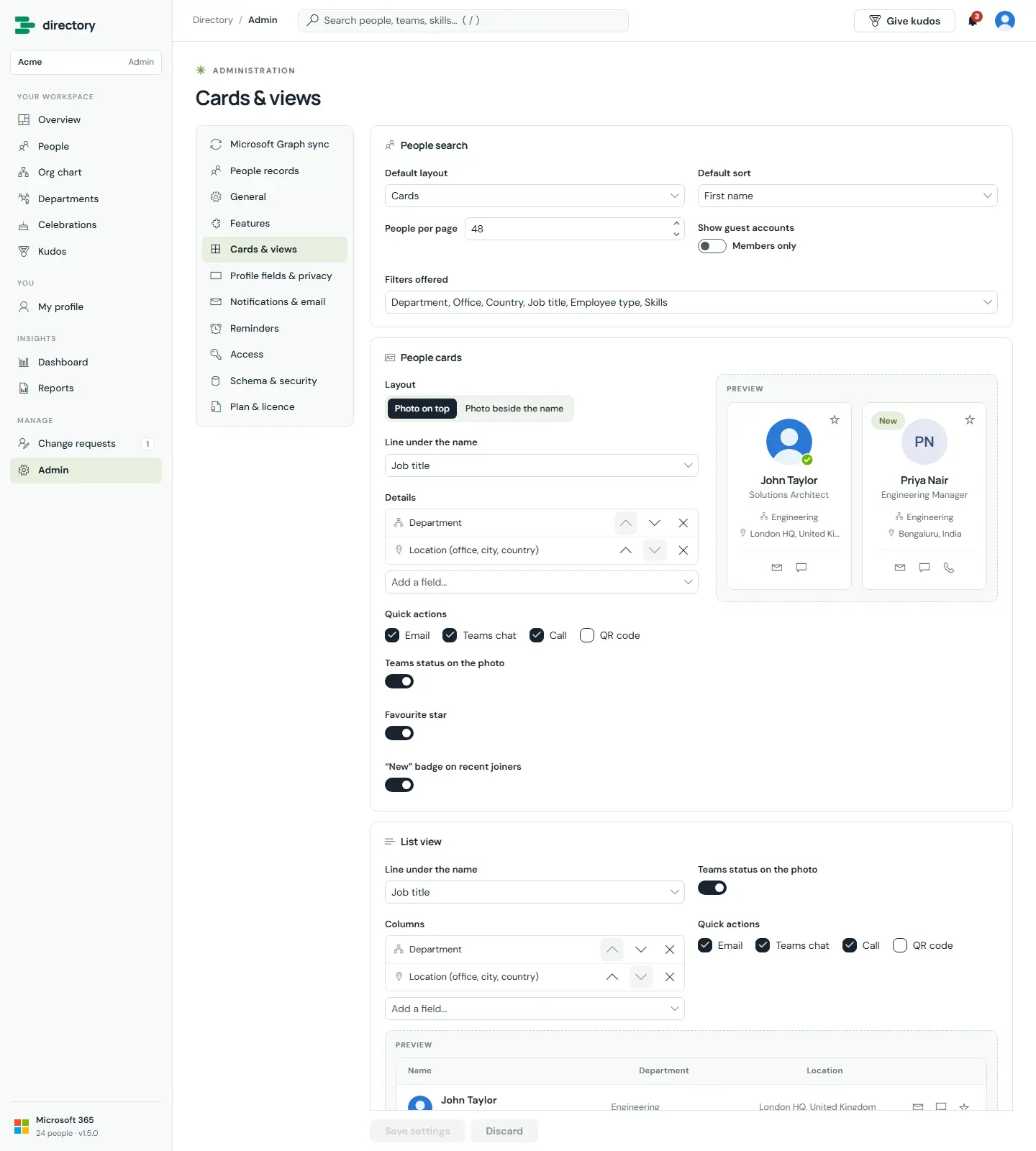
What people see in People search and the org chart: the default layout (cards, list or table), people per page, default sort, guest visibility and which filters are offered, what each person card, list row and table column shows, which quick actions appear, and how org chart cards look. Every section has a live preview built from real directory people. Nothing changes until Save settings.
Cards & views. Card layout (photo on top or beside the name), the line under the name, detail fields with move up / down and remove, quick actions including QR code, Teams status, favourite star and "New" badge — each with a preview. List, table, org chart cards and the profile banner follow below on the same page.
How it works
People cards: layout, subtitle line, up to 4 detail fields, quick actions (Email, Teams chat, Call, QR code), Teams status, favourite star, "New" badge.
List view: subtitle line, columns, quick actions and Teams status. Table view: photo on/off and columns.
Org chart cards: layout, size (compact / standard / large), photo (round / rounded / none), Teams status, accent colour (department / brand / none) on the top or left edge, team badge (direct or total reports), levels open at the start, and lines under the name.
Fields respect visibility: a field marked "HR only" or hidden notes it in the list and never shows to people who may not see it.
QR codes can additionally be switched off for everyone under Admin › Features.
General & branding
Admins
Branding: Enterprise
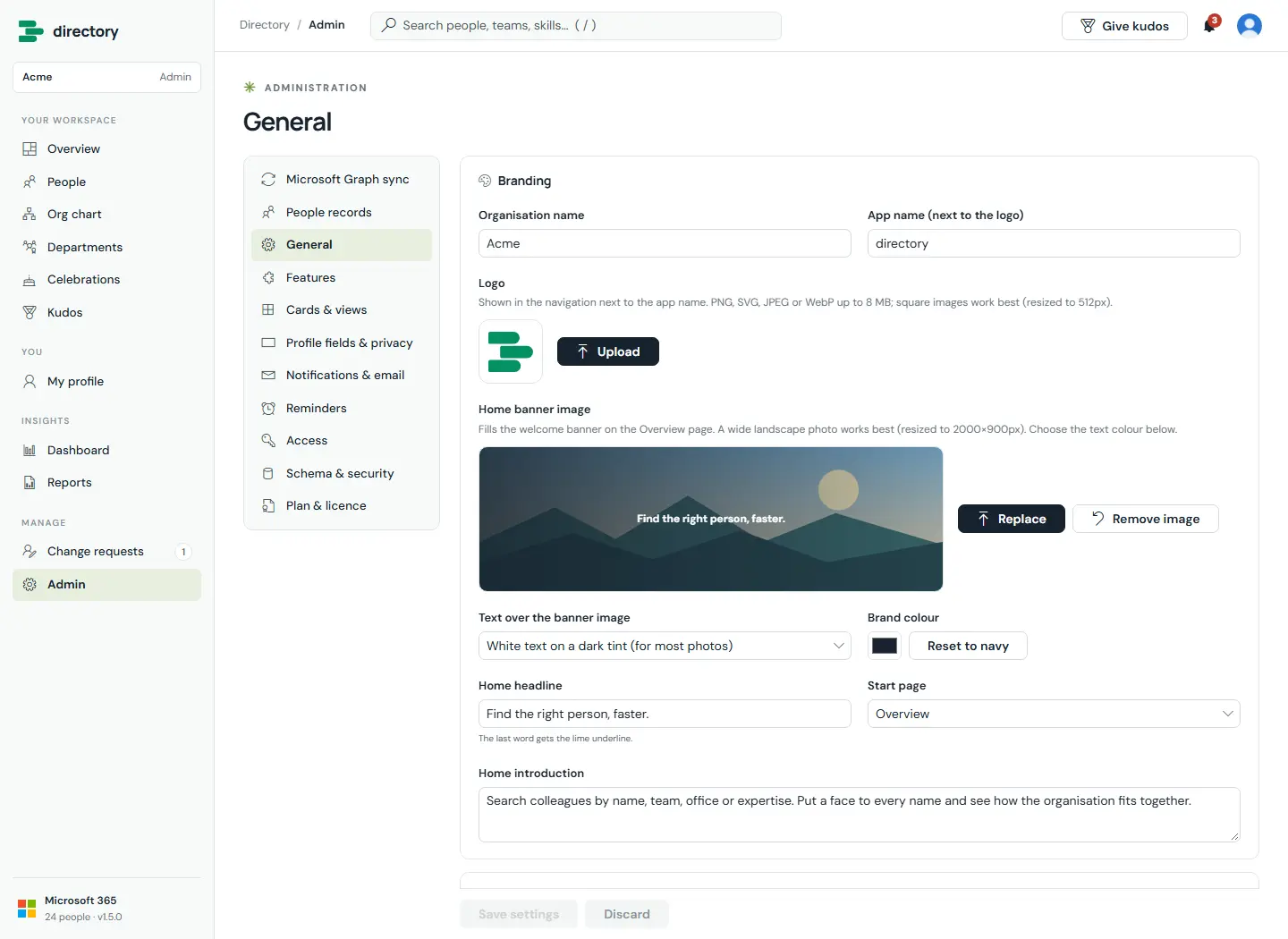
Organisation name, app name, logo, home banner image, brand colour, headline, introduction and start page. The same page sets the celebration windows, date and time format, and how often open pages refresh.
Branding. The logo accepts PNG, SVG, JPEG or WebP up to 8 MB (resized to 512 px). The home banner is resized to 2000 × 900 px.
Access
Admins
All plans
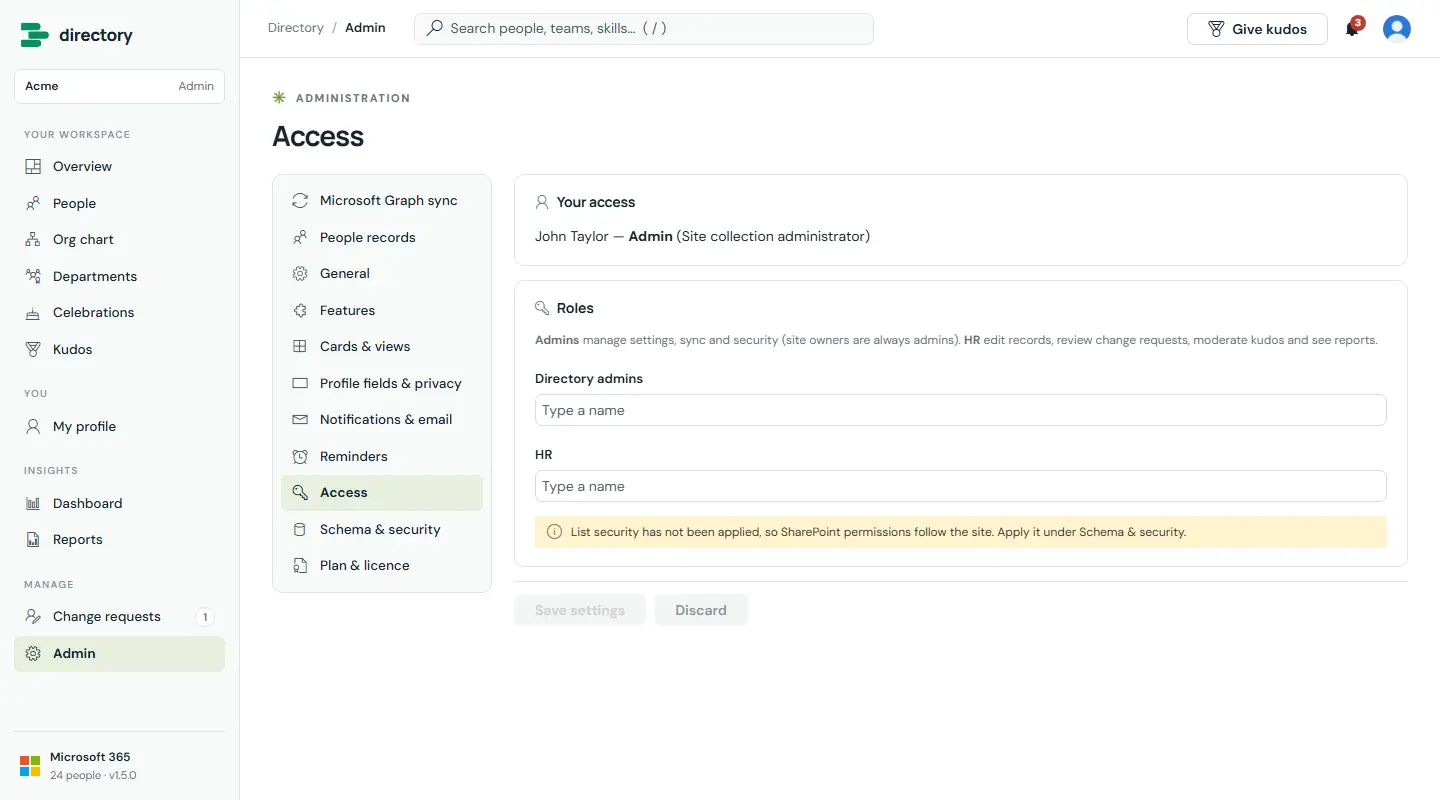
Choose the directory admins and HR people. Saving also updates the matching SharePoint groups (Directory Admins and Directory HR), so a person's app role and their real SharePoint permissions always agree.
Access. Shows your own role and why you have it. In this sample, list security has not been applied yet, and the page warns about it.
Schema & security
Site owner
All plans
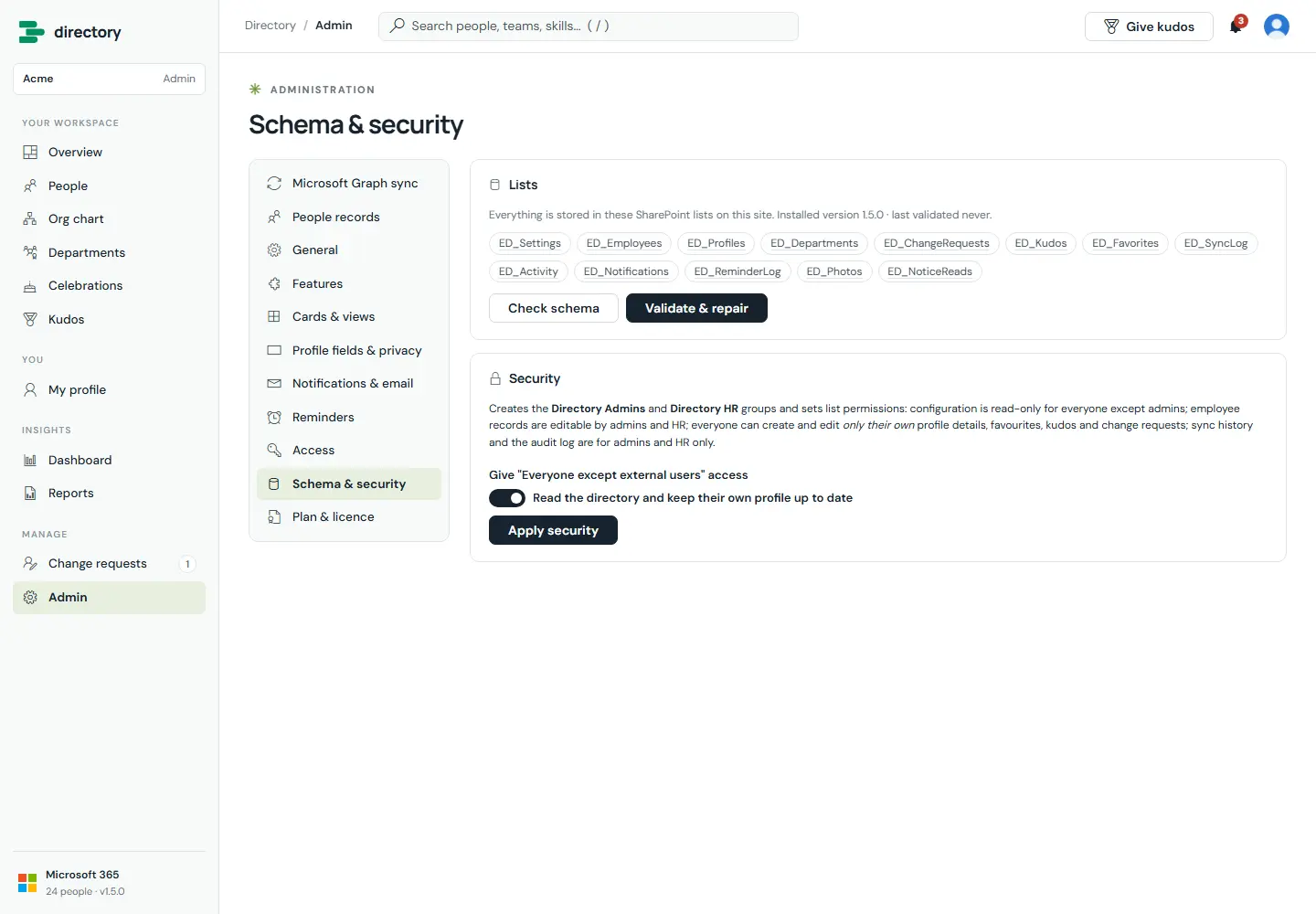
Shows the directory's lists, checks them against what the installed version expects, and repairs anything missing. Apply security sets up the groups and list permissions described in Part 6.
Schema & security. Re-applying security is safe at any time.
Plan & licence
Admins
All plans
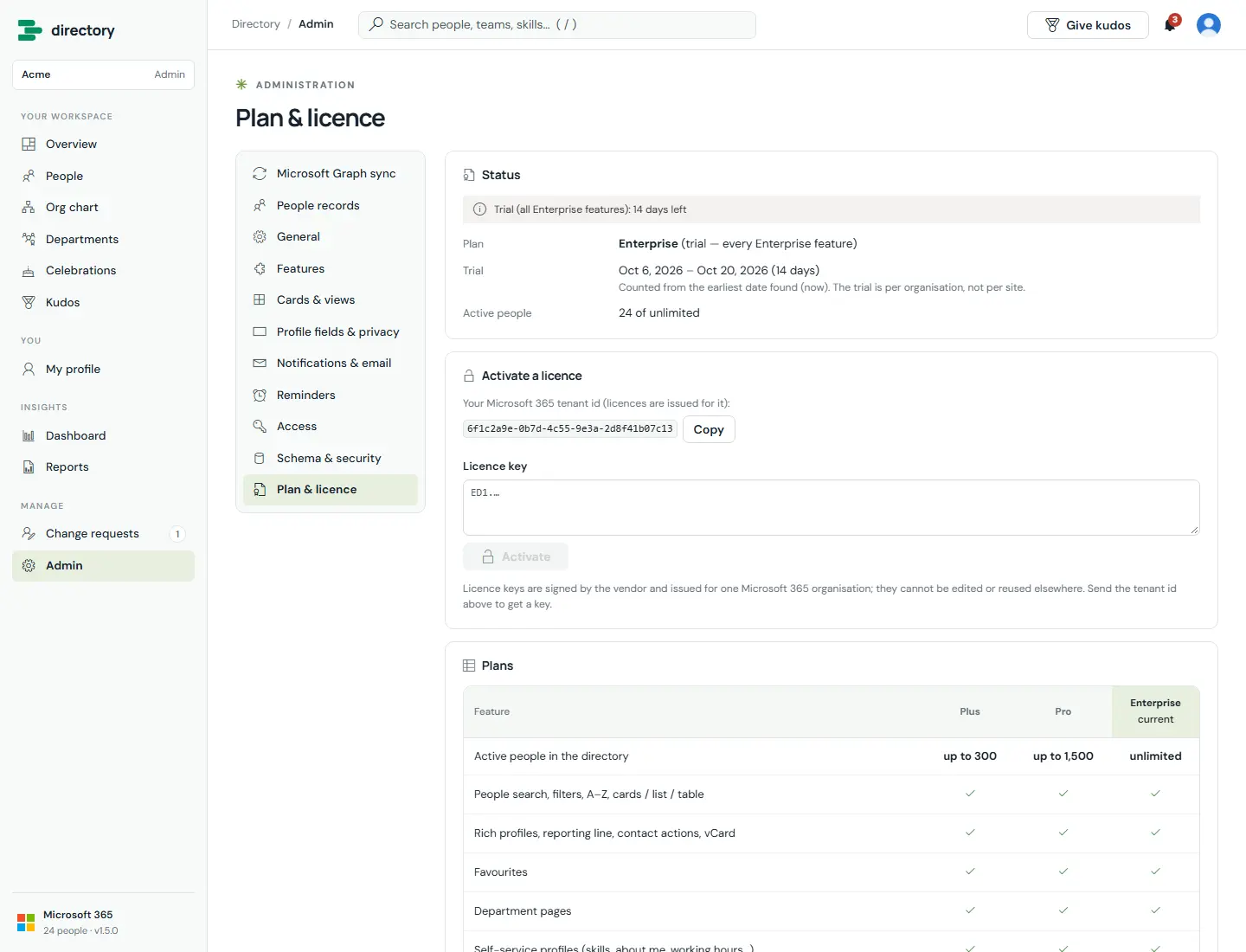
Shows the current plan, trial or licence dates, and active people against the plan limit. Admins copy the tenant ID here to request a licence key, and paste the key to activate it. A plan comparison table lists every feature.
Plan & licence during the 14-day trial. The tenant ID shown is a sample.
Part 5
Roles & permissions
There are three roles: Employee, HR and Admin. The role decides what the screens offer. SharePoint permissions, set up by the app, decide what can actually be read and changed.
How a person's role is decided
The first rule that matches wins:
Admin: site collection administrators and site owners, people listed as directory admins under Admin › Access, and members of the Directory Admins group.
HR: people listed as HR under Admin › Access, and members of the Directory HR group.
Employee: anyone else who can open the page.
What an employee sees. No Dashboard, Reports, Change requests queue or Admin in the navigation. The workspace chip says "Employee".
Features also depend on the plan (see Part 7). "If enabled" means an admin switch, off by default.
Part 6
Security
Security is enforced by SharePoint and Microsoft 365, not just by hiding buttons. The app configures SharePoint permissions on its own lists, and trusts only identity information that SharePoint records itself.
Your tenant, your data
All directory data lives in your SharePoint site and moves only through SharePoint and Microsoft Graph. There is no analytics, tracking or vendor cloud. The only other download is Microsoft's Fluent UI icon font, from Microsoft's own content network.
Least privilege
Four delegated Microsoft Graph permissions only. The app always acts as the signed-in person and can never exceed their own rights.
Permissions the app sets up
Apply security creates the Directory Admins and Directory HR groups and a "Directory Contributor" permission level (contribute without delete), and gives each list exactly the access it needs.
Item-level security
Where a list holds personal entries, SharePoint lets people change only their own. Change requests, favourites and read status are visible only to their owner (and HR where relevant).
Hidden and out of search
All directory lists are hidden from Site contents. Lists with private or operational data are excluded from SharePoint search.
Tamper-resistant by design
Profile ownership, the kudos sender and change request decisions are checked against SharePoint's own "created by" and "modified by" records, never against values the browser sends.
Who can do what with each list
After Apply security:
List
Holds
Employees
HR
Admins
In search
ED_Settings
Configuration, access lists, licence
Read
Read
Edit
Yes
ED_Employees
People records from the sync
Read
Edit
Edit
Yes
ED_Departments
Department details
Read
Read
Edit
Yes
ED_Photos
Profile photos
Read
Edit
Edit
Yes
ED_Profiles
Self-service profile details
Read all · edit own
Edit
Edit
Yes
ED_Kudos
Recognition
Read all · edit own
Edit (moderate)
Edit
Yes
ED_ChangeRequests
Requests to HR
Read and edit own
Edit all
Edit all
No
ED_Favorites
Starred colleagues
Own only
Edit
Edit
No
ED_NoticeReads
Which notifications were read
Own only
Edit
Edit
No
ED_Notifications
In-app notifications
Read · add · edit own
Edit
Edit
No
ED_SyncLog, ED_Activity, ED_ReminderLog
Sync history, audit trail, reminder log
No access
Edit
Edit
No
"Employees" means Everyone except external users, or the site's Members and Visitors, as chosen when security is applied. Site owners always keep full control. Directory users cannot delete items.
Further protections
Separation of duties. Nobody can review their own change request, and a self-made "approval" is treated as still pending.
Field privacy. Fields hidden from a viewer are removed from the data before any screen uses it.
Safe images. Logos, banners and photos must be image data or HTTPS addresses, and anything that could break out into page code is rejected. SVG logos are shown only as images, never as page markup.
Safe templates. Placeholder values in emails are HTML-escaped, and the template preview runs in a sandboxed frame.
Safe links and exports. Links in notifications can only open pages inside the directory. CSV exports neutralise values that spreadsheets could run as formulas.
Safe sync. Leavers are deactivated, never deleted. Mass deactivations are held back, and a lock prevents two syncs running at once.
Accountability. Setup, upgrades, security changes, settings changes, profile edits and approvals are written to the audit log. Every sync and every reminder is logged.
Apply security on every directory siteUntil security is applied, the lists inherit the site's permissions, so anyone who can edit the site could change directory settings. Setup applies security by default when a site owner installs. Admin › Schema & security shows whether it has been applied and can re-apply it at any time.
Part 7
Plans & licensing
Three plans, each including everything in the plan before it. Every installation starts with a 14-day trial of Enterprise.
Trial. 14 days with every Enterprise feature, counted per organisation (not per site) from the earliest installation date found, using SharePoint's server clock.
Licence keys are digitally signed by the vendor and issued for one Microsoft 365 tenant. A key cannot be edited or reused in another tenant. Paste the key under Admin › Plan & licence. The app checks it itself, with no call to a licence server.
Plan limits. Features outside your plan are switched off and shown with an upgrade note. Your saved settings for them are kept, so they come back on after an upgrade. If active people exceed the plan limit, those added most recently are not shown until you upgrade or deactivate others, and the licence page says so.
End of a licence. 14 days' grace after the end date. After that (or after the trial) the directory shows a lock screen until a key is activated. Your data is kept in your SharePoint lists.
Part 8
Why Employee Directory
When you compare people directories, these are the questions that decide cost, risk and adoption. Here is how Employee Directory answers each one.
Question to ask any directory
Employee Directory
Where is our employee data stored?
In SharePoint lists on a site in your own Microsoft 365 tenant. There is no vendor database, and no data is sent to third parties.
What infrastructure do we need?
None beyond SharePoint Online. No servers, Azure subscriptions, connectors or scheduled jobs to run or pay for.
Do people need another account or sign-in?
No. Employees use their Microsoft 365 identity, inside SharePoint.
How does the data stay current?
Automatic Microsoft Graph sync from Microsoft Entra ID. Only changes are written, leavers are deactivated rather than deleted, and a safeguard stops mass deactivations.
Who controls access, and how is it enforced?
Your SharePoint permissions. The app creates the groups and permission levels and applies item-level security. SharePoint enforces it for every request.
Can employees correct wrong data without IT?
Yes. Change requests go to HR, approved values survive every sync, and nobody can approve their own request.
Can we prove who changed what?
Yes. The audit log, sync history and reminder log are kept in your site, and SharePoint keeps version history for employee records.
Is it more than a phone book?
Org chart, departments, celebrations, kudos, notifications, reminders, a workforce dashboard and ten HR reports, all in one place.
Can we make it ours?
Logo, banner, colour, headline, start page, field visibility, filters, notification wording and reminder rules are all configured in the app, without code.
Does it work on phones and in Teams?
The layout adapts to phone width, and the package declares support for Teams tabs and personal apps.
How are upgrades handled?
Upload the new package. On the first visit by a site owner, the app checks its lists and adds anything new, without removing existing data.
What happens to our data if we stop?
It stays where it has always been: in your SharePoint lists.
Part 9
Deployment
A typical deployment takes less than an hour, most of it spent choosing the site and the people for the admin and HR roles.
Requirements
Microsoft 365 with SharePoint Online and a tenant app catalog.
A SharePoint or global administrator, to upload the package and approve the Microsoft Graph permissions.
A site to host the directory, and a site owner to run setup.
For email notifications: Exchange Online mailboxes for the people who trigger them (or a shared mailbox, with Enterprise).
Upload the package
Add employee-directory.sppkg to the tenant app catalog and deploy it.
Approve the Microsoft Graph permissions
SharePoint admin center › Advanced › API access: approve User.Read.All, Presence.Read.All, Mail.Send and Mail.Send.Shared.
Add the web part to a page
As a site owner, add Employee Directory to a page on the chosen site. It fills the whole browser window. While the page is being edited, it starts below SharePoint's edit bar.
Run the setup wizard
Enter the organisation name, choose the admins and HR people, keep "Secure the lists" on, choose who gets access, and run the first sync.
Activate your licence
Copy the tenant ID from Admin › Plan & licence and send it to us. Paste the key you receive and select Activate. Until then, the 14-day trial runs with every feature.
Upgrades
Upload the new package to the app catalog. The next time a site owner opens the directory, it checks and upgrades its lists automatically. Other visitors see a short notice until that happens. If the release notes mention permission changes, select Re-apply security under Admin › Schema & security.
Part 10
Good to know
Design decisions that follow from running without a server and from how SharePoint works. Knowing them helps you plan.
Background jobs need an admin visit. The scheduled sync and the daily reminders run when an admin opens the directory. If no admin visits for a while, they wait until the next visit.
Email comes from people's own mailboxes. Event emails come from the person whose action triggers them. Reminders come from the admin whose browser runs the check. With Enterprise, a shared mailbox can be used instead. There is no separate service account.
"HR only" is an in-app control. The employee list must be readable by every directory user, so values marked "HR only" are hidden in the app but are not protected by SharePoint permissions. Keep confidential HR data in your HR system.
Notification text is readable by list users. Notifications are created by one person for another, so keep sensitive details out of notification templates.
Site owners are always directory admins. This is how SharePoint permissions work: anyone who owns the site can change its lists.
Graph permission approval is tenant-wide. In Microsoft 365, approving a permission for SharePoint Framework solutions makes it available to every SPFx solution in the tenant.
Language. The interface is in English. Date and time formats are configurable.
Size. People are loaded and searched in the browser, which is designed for organisations of up to roughly 10,000–20,000 people.
Appendix
Reference
A. Notification templates
Template
Type
Sent to
When
Kudos received
Event
The person who received kudos
When someone gives them kudos
Change request submitted
Event
HR and directory admins
When someone asks HR to correct a profile field
Change request received
Event
The person who asked (and the employee, when HR asked for them)
When a change request is submitted
Profile updated by HR
Event
The employee
When HR edits their directory record
Change request approved
Event
The person who asked
When HR approves the request
Change request declined
Event
The person who asked
When HR rejects the request
Microsoft 365 sync failed
Event
Directory admins
When a Microsoft Graph sync fails
Complete your profile
Reminder
People below the completeness threshold
Every N days until the profile is complete enough
Upcoming birthday (manager)
Reminder
The manager
N days before a team member's birthday (only for people who share it)
Happy birthday
Reminder
The person
On their birthday (only for people who share it)
Upcoming work anniversary (manager)
Reminder
The manager
N days before a team member's work anniversary
Happy work anniversary
Reminder
The person
On their work anniversary
New starter coming (manager)
Reminder
The new starter's manager
N days before the start date
Welcome aboard
Reminder
The new starter
On their first day
Change requests waiting (HR digest)
Reminder
HR and directory admins
When requests have waited longer than N days, every N days
B. Profile fields
Default visibility is shown. Admins can change it for every field.
From Microsoft 365 (synced)
Default visibility
From the employee (self-service)
Default visibility
Job title
Everyone
About me
Everyone
Department
Everyone
Skills & expertise
Everyone
Manager
Everyone
Projects
Everyone
Office
Everyone
Languages
Everyone
City
Everyone
Interests
Everyone
State / province
Everyone
Pronouns
Everyone
Country
Everyone
Birthday (day and month, opt-in)
Everyone
Company
Everyone
LinkedIn
Everyone
Employee type
Everyone
Work mode
Everyone
Employee ID
HR only
Time zone
Everyone
Start date
Everyone
Working hours
Everyone
Email
Everyone
Work phone
Everyone
Mobile
Everyone
C. SharePoint lists created
All with the prefix ED_, all hidden from Site contents: Settings, Employees, Profiles, Departments, ChangeRequests, Kudos, Favorites, SyncLog, Activity, Notifications, ReminderLog, NoticeReads, and the Photos picture library.