A product guide and walkthrough: what every feature does, how it works, who can use it, how your data is protected, and how to deploy it.
Product
Brillienta-Helpdesk for Microsoft 365
Version
1.0.0
Platform
SharePoint Online · SharePoint Framework
Edition of this guide
October 2026
Part 1
Overview
Brillienta-Helpdesk is a complete IT and business service desk that runs inside SharePoint Online and Microsoft Teams. Employees raise and follow requests in a branded self-service portal; agents work tickets with SLAs, routing, approvals and a knowledge base; managers follow performance in dashboards and reports.
0servers or Azure resources to run
28SharePoint lists, created for you
20+notification and email templates
~210settings, searchable in one place
14day trial with every feature
Your data stays in your tenant
Tickets, replies, attachments and settings are stored in SharePoint lists on your site. There is no vendor database and no third-party service.
Nothing to host or maintain
One package for your app catalog. No servers, databases or timer jobs. The app creates, checks and repairs its own lists.
Where people already work
Open it as a SharePoint page, as a tab or personal app in Microsoft Teams, or ask the Microsoft 365 Copilot agent (Enterprise plan).
Security enforced by SharePoint
The app sets up its own SharePoint groups, permission levels and list permissions, with optional requester privacy where SharePoint itself limits requesters to their own items.
A full service desk, not a template
SLAs in business hours, routing, approvals, reminders, surveys, reports, archive and more are built in and configured from the Admin pages, without development.
Looks after itself
Validates and repairs lists after every upgrade, secures new lists automatically, and warns admins when a required Power Automate flow is missing or stopped.
About the screens in this guideEvery screenshot comes from version 1.0.0 running with the built-in demonstration data for the fictitious company Contoso. All people, tickets and figures shown are fictional.
Part 2
How it works
Brillienta-Helpdesk is a single SharePoint Framework (SPFx) web part. It runs in each user's browser, inside a SharePoint page, and reads and writes the helpdesk lists on your site with that person's own permissions.
Your Microsoft 365 tenant
Brillienta-Helpdesk web part
Runs in the user's browser on a SharePoint page, as the signed-in user. Portal, agent workspace, dashboards and Admin pages. Covers the full browser window.
reads & writes
SharePoint Online: your helpdesk site
Hidden lists with the prefix HD_: tickets, replies, history, settings, queues, knowledge base, surveys and the email outbox.
Power Automate, in your environment
Email flow (sends from your support mailbox), reminder flow (delivers reminders when nobody is online) and email-to-ticket flow.
Key ideas
Your permissions apply everywhere. The app always acts as the person using it. It can never read or do more than that person could in SharePoint.
Background work without a server. SLA checks, reminder planning and queue processing run in the browser of an agent who has the helpdesk open. Shared locks stop two browsers doing the same work twice, and each ticket records its escalation level so alerts are never sent twice.
Schema as code. The app knows exactly which lists and columns it needs. Setup creates them. After an upgrade, the first visit by a site owner checks them and adds anything missing. Existing data is never removed.
Live updates. Open pages check every 20 seconds (adjustable) whether anything changed, using one small request, and reload only the views showing a changed ticket.
Everything configurable in the app. Admins change about 210 settings in the Admin pages, with summary cards and side panels. Nothing is hidden in web part properties.
No Microsoft Graph permissions
The package asks for no Microsoft Graph permissions. The helpdesk never sends email itself: every email is one row in the Outbox list, and your own Power Automate email flow sends it from your support mailbox. Email, reminders and Copilot integrations all run through flows and lists inside your tenant.
Part 3
Feature walkthrough
A tour of the helpdesk as people use it, page by page. The tags beside each heading show who can use the feature and the lowest plan that includes it.
Portal home
Everyone
All plans
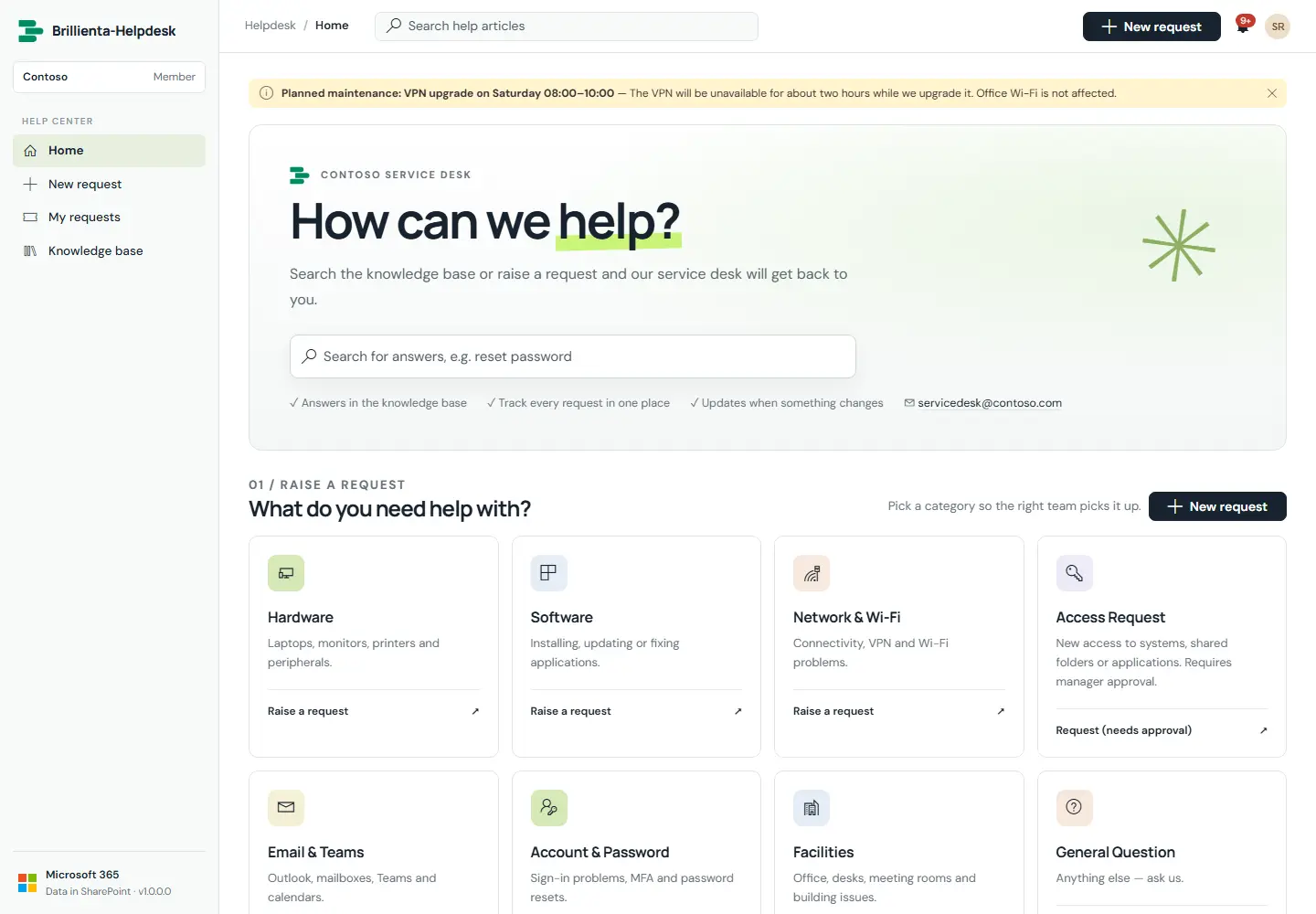
The branded help centre employees start from: announcements at the top, knowledge-base search, one catalogue tile per category, and a summary of their own requests on the side. Requesters see only the Help center menu; agent tools stay out of their way.
Portal home. Announcements, knowledge-base search, the service catalogue and the requester's own numbers (open, waiting for reply, resolved in 30 days).
How it works
Announcements (Admin → Announcements) carry a start and end time, an audience and a severity.
Categories that need approval say so on the tile; hidden categories never appear here.
Organisation name, logo, banner, title and welcome text come from Admin → General.
Maintenance mode pauses new requests with a message from General.
Raising a request
Everyone
All plans · suggestions: Pro
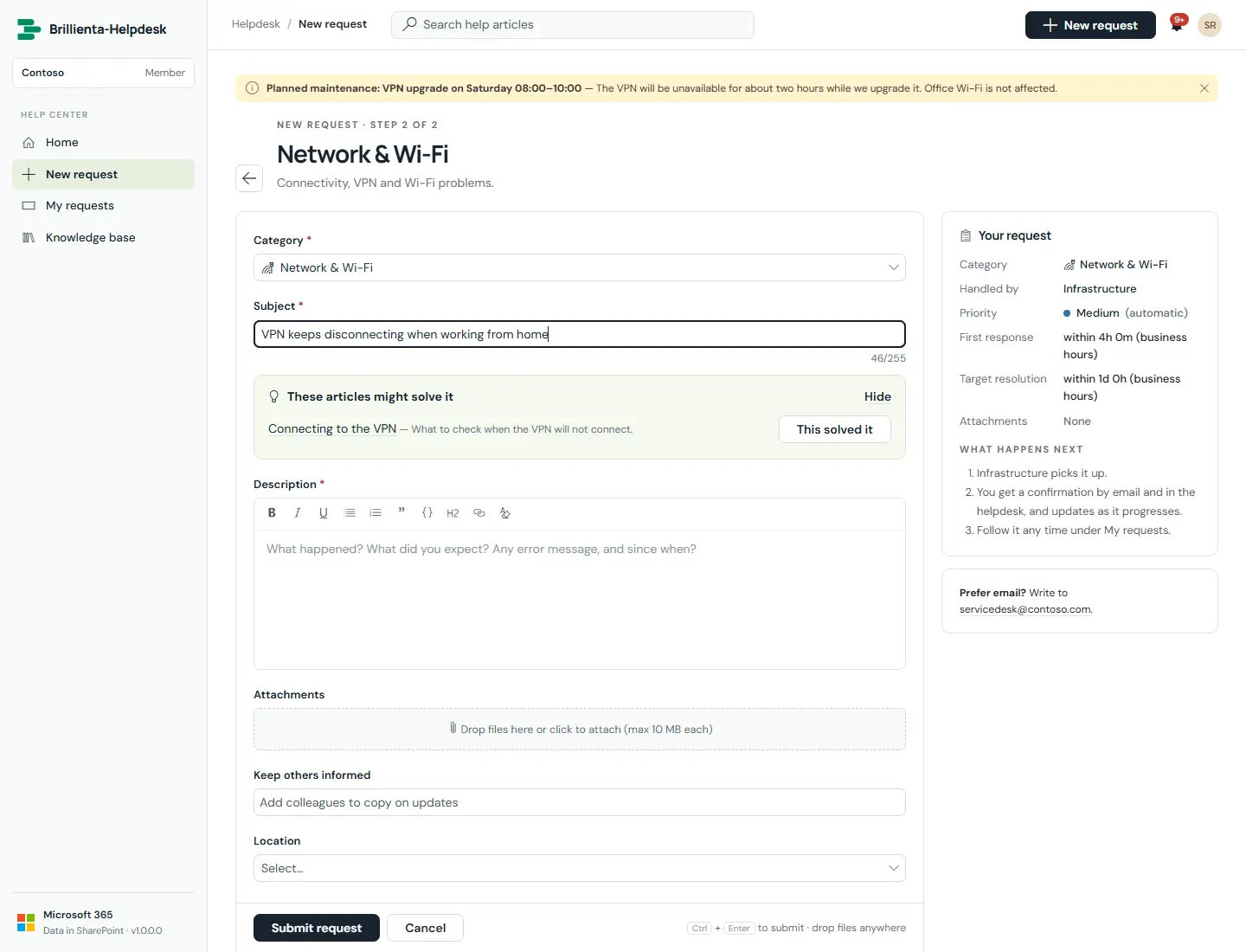
One form for everything: category catalogue, service and sub-service, rich-text description with drag-and-drop attachments, custom fields per category, watchers, and knowledge-base suggestions while typing with a "This solved it" deflection.
New request. Matching articles are suggested as the subject is typed; the side panel shows who handles the request and the expected response and resolution times.
How it works
Submitted requests are numbered (for example HD-00042), routed, given SLA targets and confirmed by email.
"This solved it" records a deflection and no ticket is created.
Files can be pasted, dragged onto the form, or dropped anywhere on a ticket.
Optionally the portal first asks which team (department) the request is for and shows that team's own form.
Request forms (standard plus one per team) are designed under Settings → Request forms.
My requests
Everyone
All plans
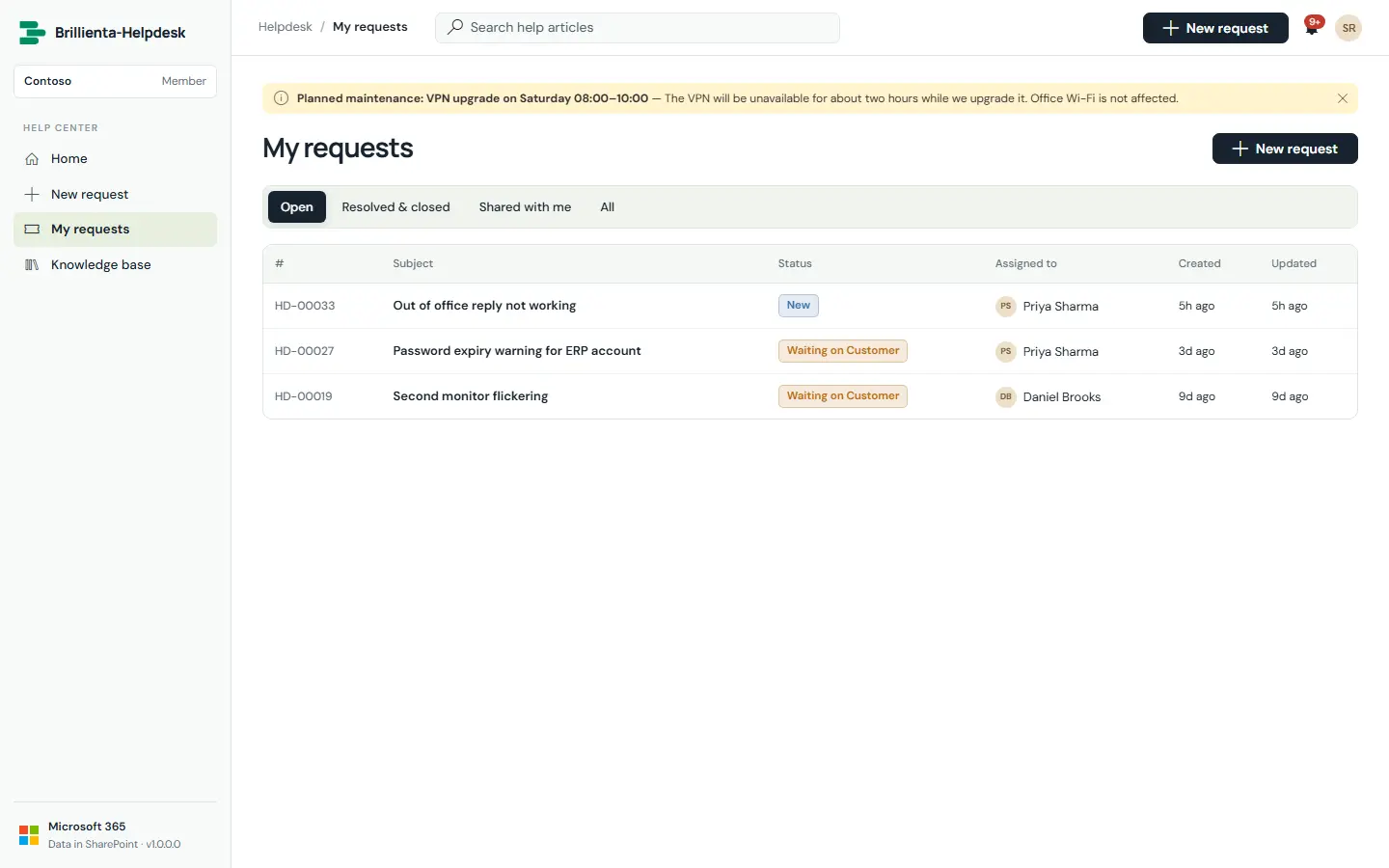
Every request a person raised or watches, in one list: open, resolved, closed, shared with me, and all requests, with search.
My requests. Tabs for open, resolved, closed and shared-with-me (as a watcher); archived tickets get their own tab once archiving runs.
How it works
Requesters can reply, add files, mark a request resolved, and reopen it within the reopen window (14 days by default).
Updates arrive as in-app notifications and by email from the support mailbox.
Request view
Everyone (own requests)
All plans
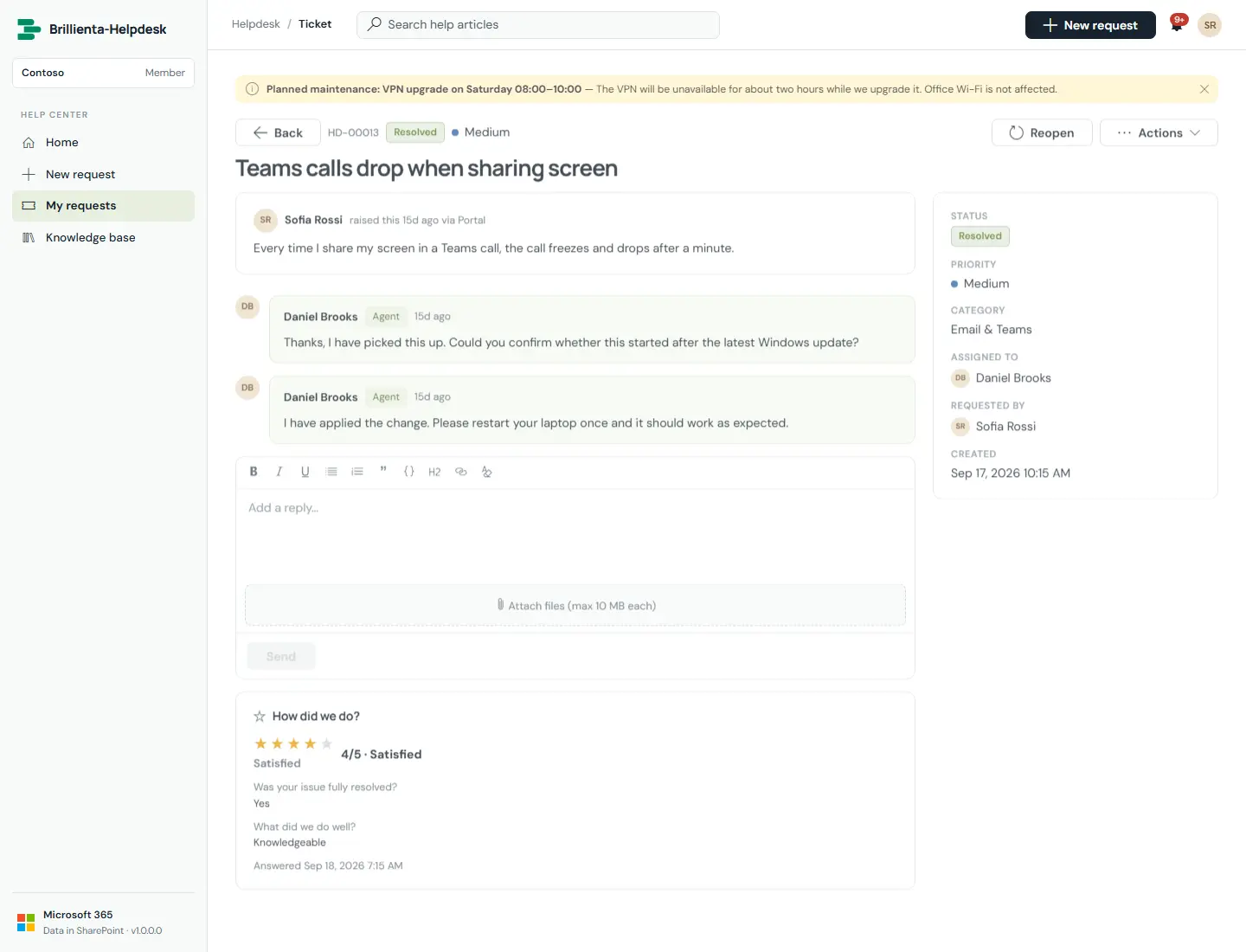
A request as the requester sees it: the public conversation, status and handler, the reply box, attachments and the satisfaction rating. Internal agent notes and history are never shown here.
Request detail. Public replies only, with status, assignee, reply box and rating.
How it works
Tickets, surveys and archived tickets open by an unguessable 20-character key (#/ticket/<key>); older numeric links still open.
With requester privacy on, SharePoint itself limits requesters to their own items.
Satisfaction survey
Everyone (invited)
Pro and Enterprise
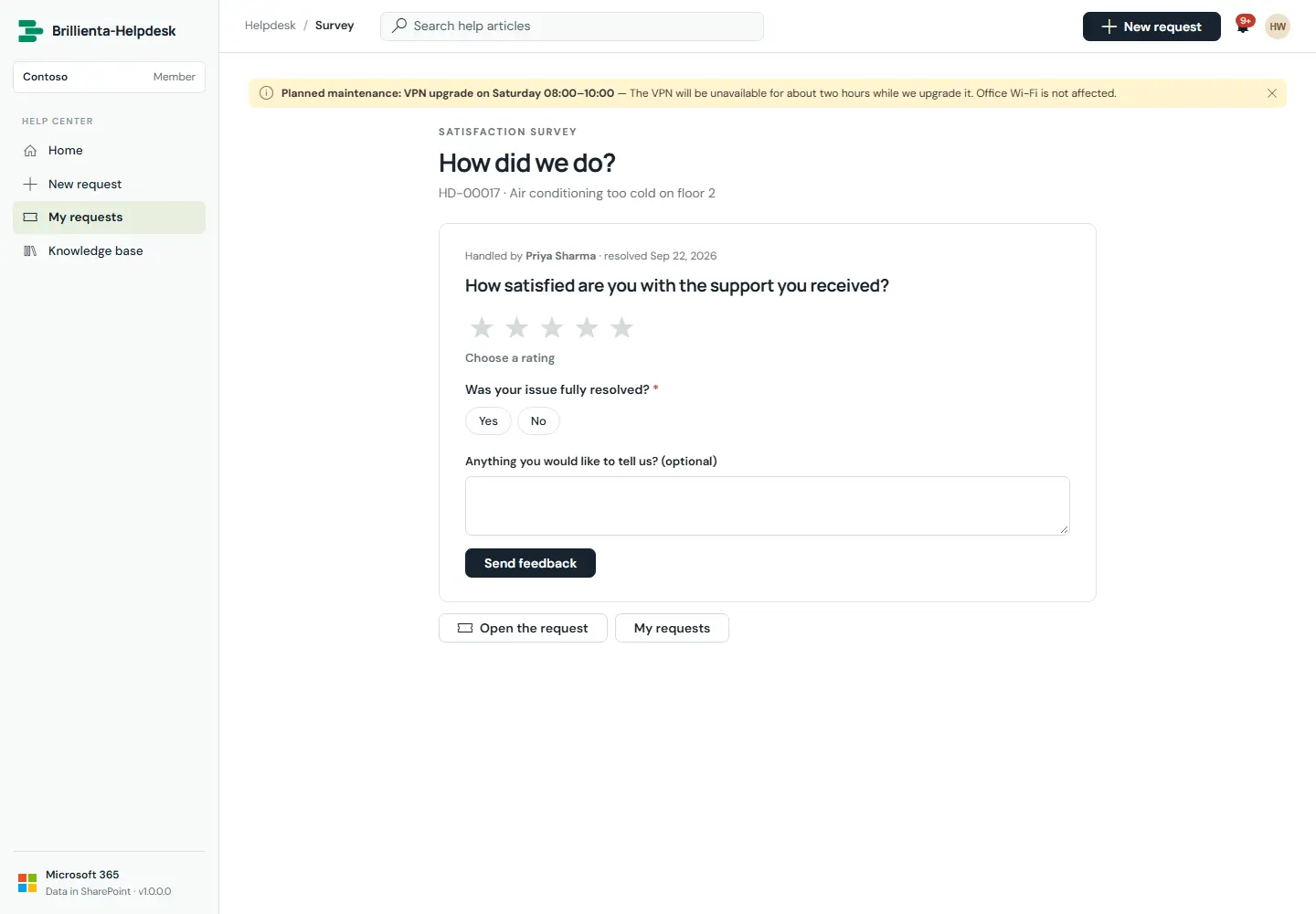
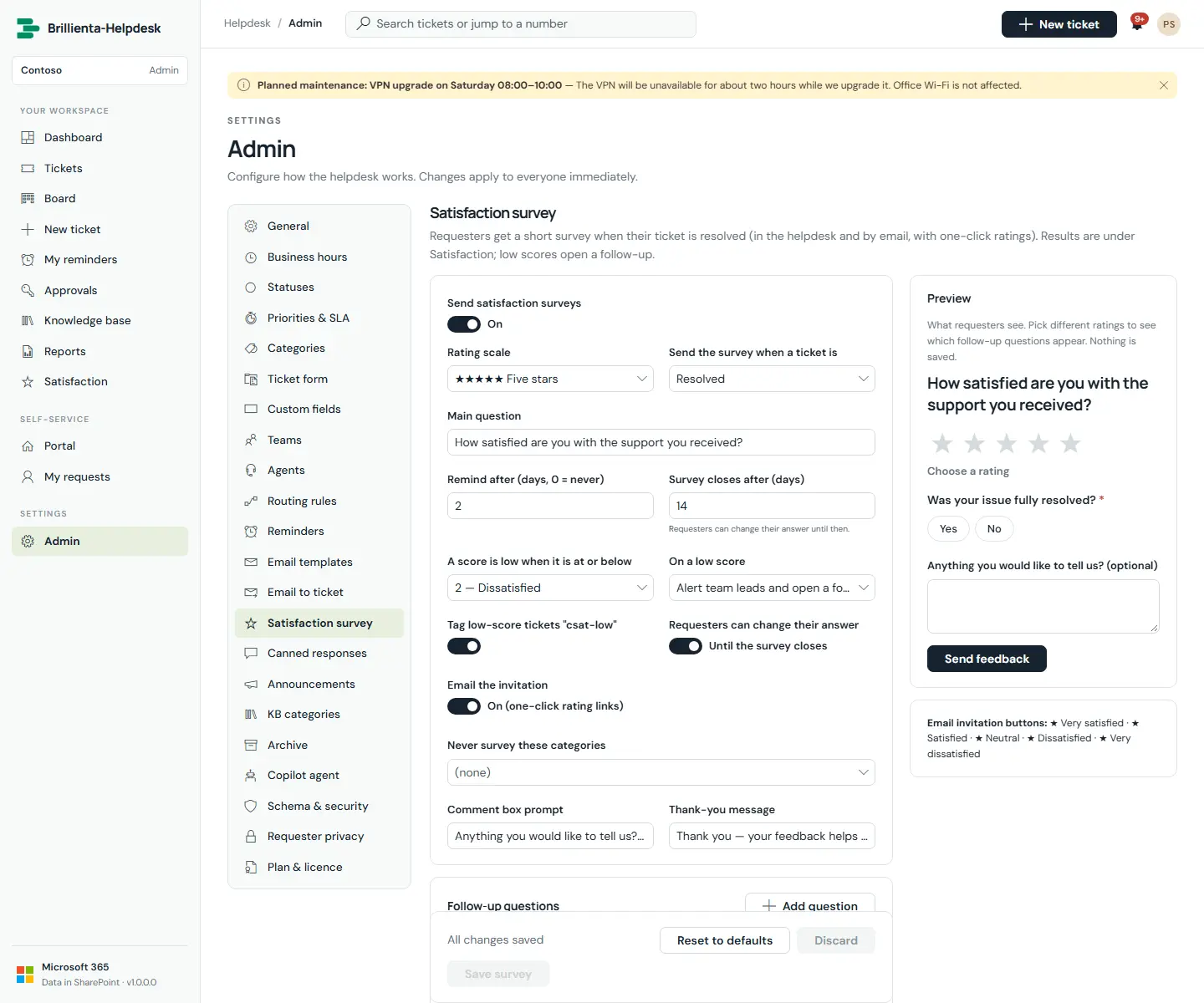
The survey sent automatically when a request is resolved: a rating (stars, faces or thumbs), follow-up questions that adapt to the score, and an optional comment. The invitation email carries one-click rating links.
Survey. Rating plus adaptive follow-ups; editable until the closing date only if the admin allows it.
How it works
Low scores can alert team leads, open a follow-up, tag the ticket and optionally reopen it.
Admins choose whether requesters may change their answer until the survey closes.
Knowledge base
Everyone
All plans
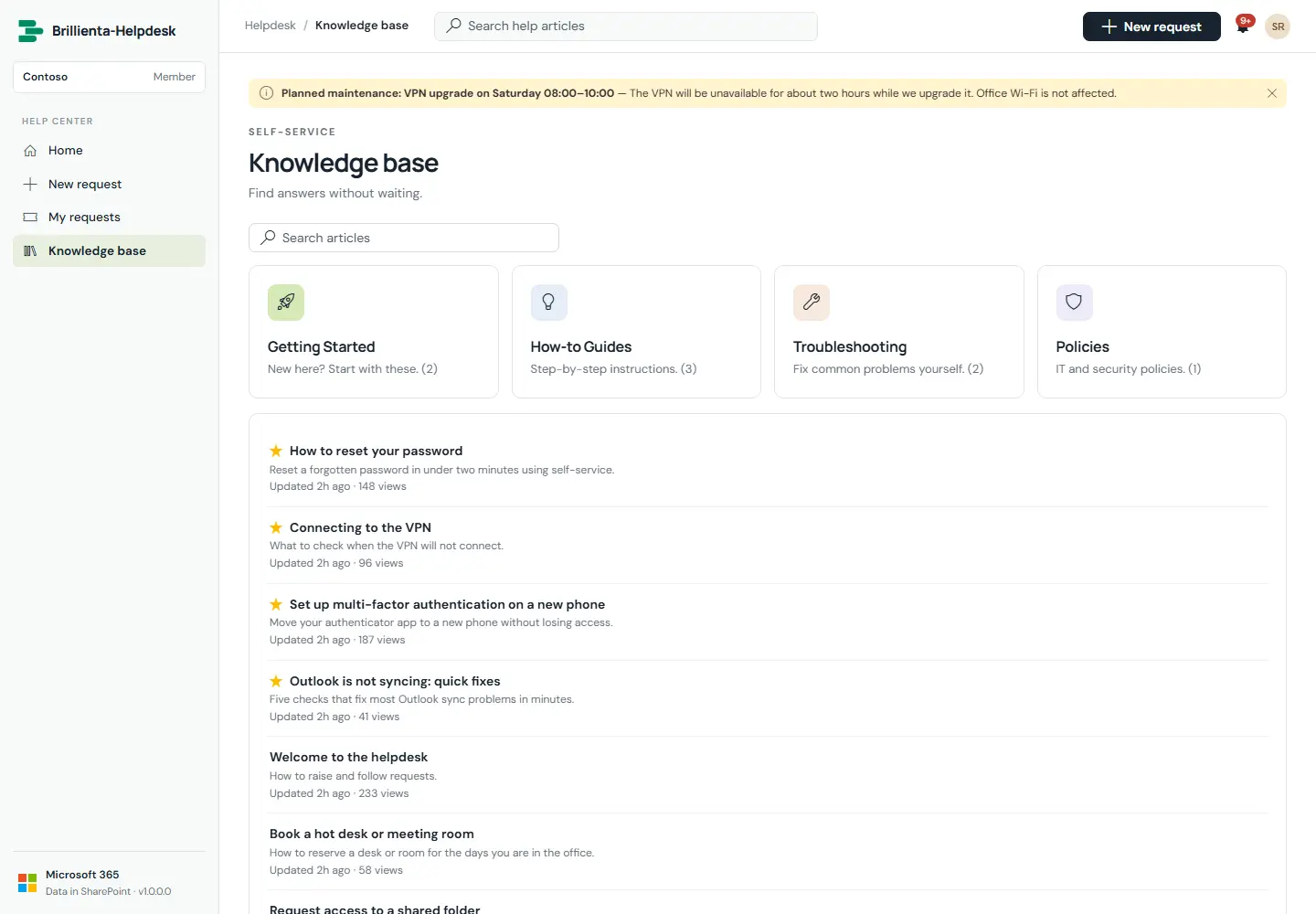
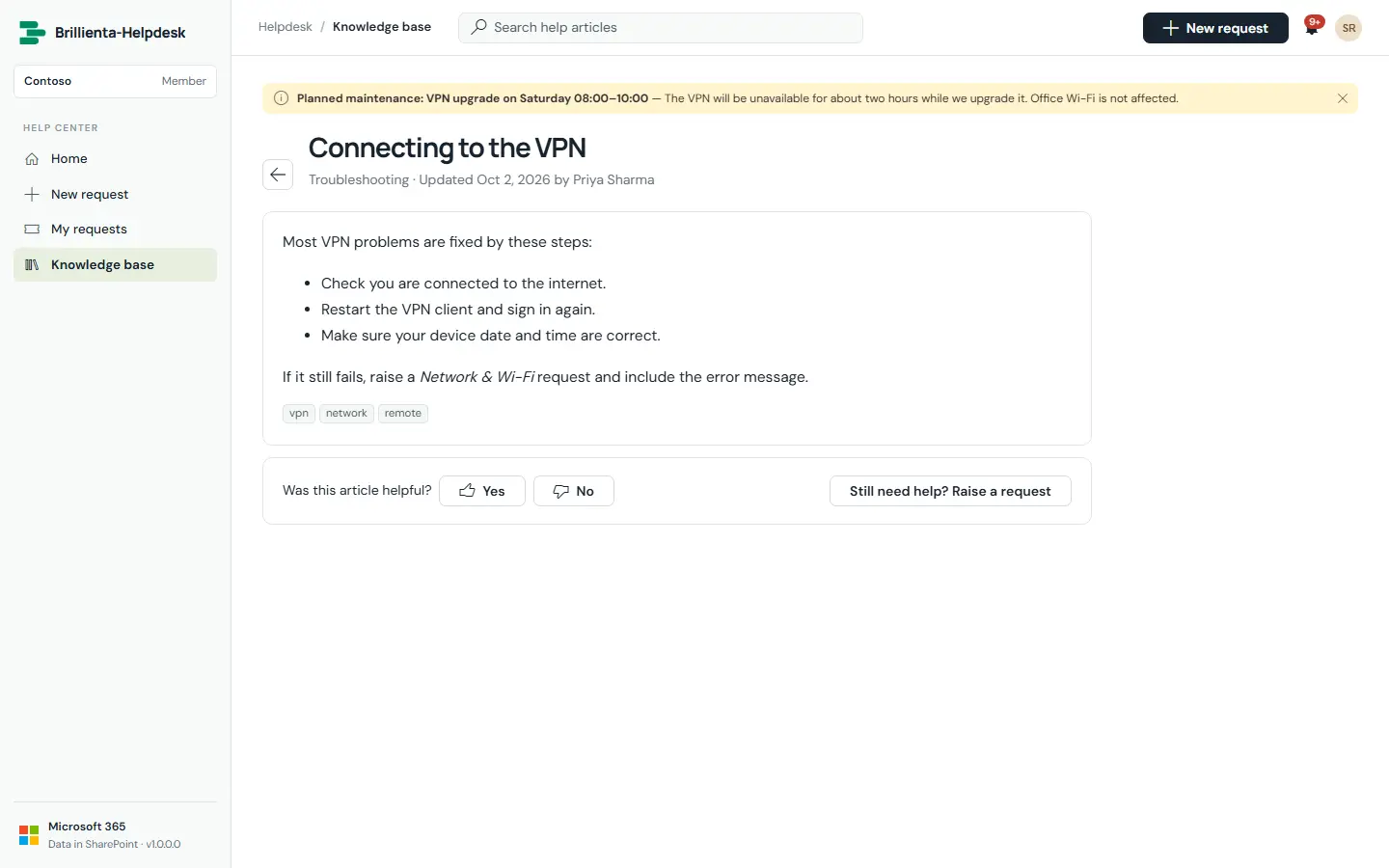
Self-service answers with categories and featured articles. Voting helpful / not helpful (with an optional comment) teaches the helpdesk which articles deflect tickets; view and deflection counts are recorded.
Knowledge base with categories and featured articles.
An article with feedback voting and a link to raise a request.
How it works
Drafts, published and archived states; internal (agents-only) articles; tags and featured flags.
Agents can create an article straight from a resolved ticket.
Approvals
Approvers
Pro and Enterprise
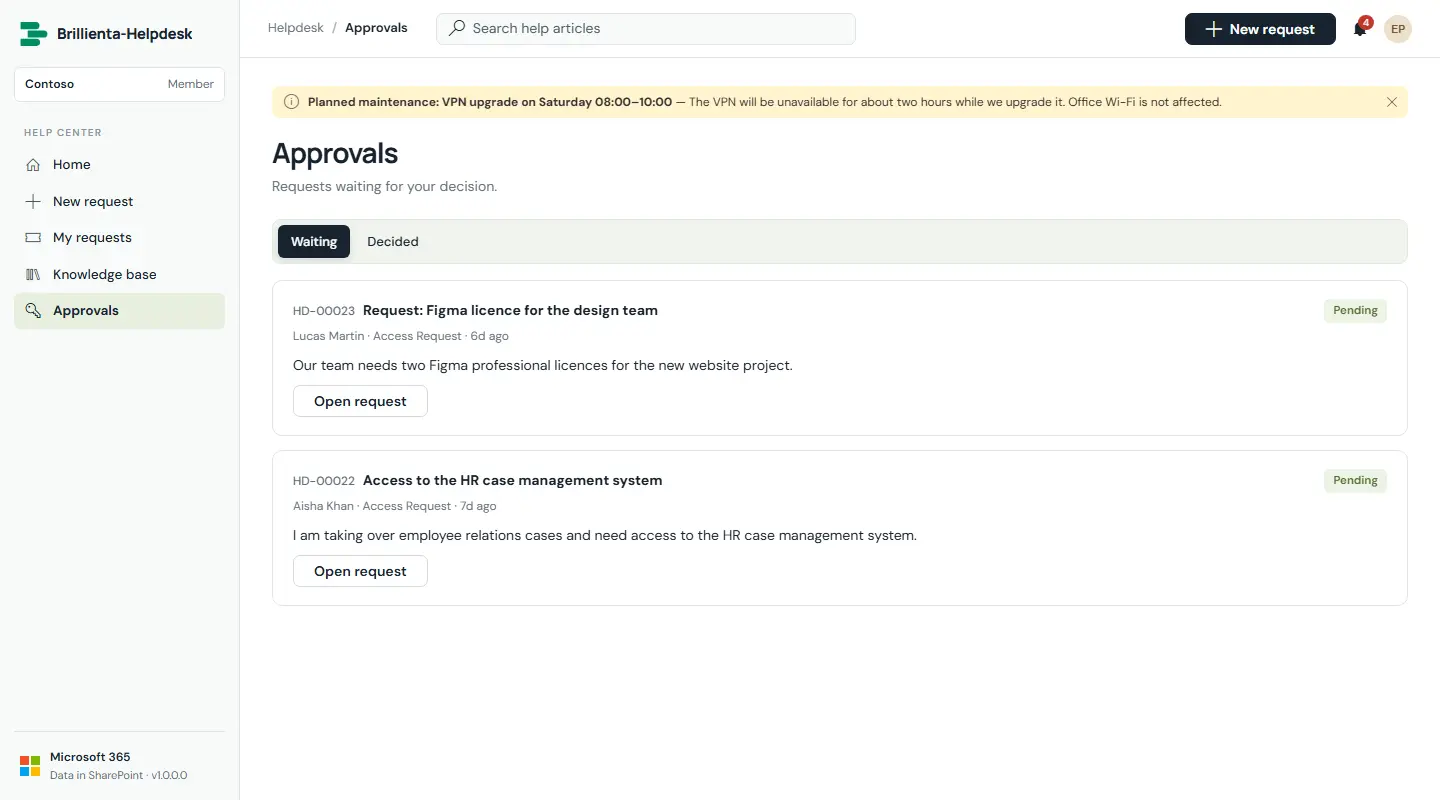
Categories can require approval by a named person or by the requester's manager (from the SharePoint user profile). The SLA starts only once the request is approved; a rejected request is closed and the requester is told why.
Approvals. Requests waiting for a decision, with approve / reject and a reason.
Dashboard
Agents
All plans
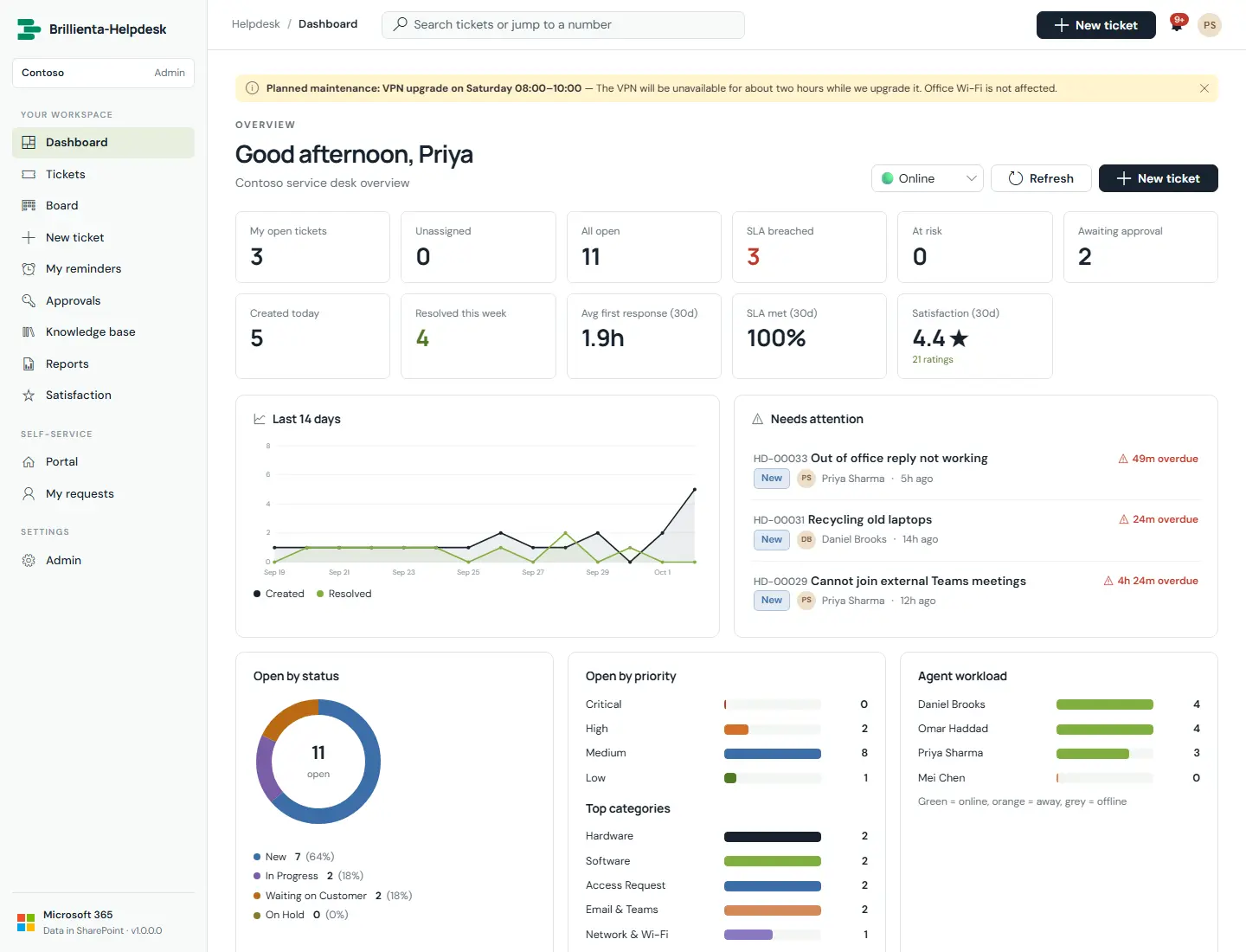
All the charts, in tabs, under a navy band with highlights: the few things worth knowing first, in plain sentences, each opening where to look closer. Key figures are clickable and open the matching tickets.
Dashboard. KPIs with trends, 30-day created-vs-resolved, needs-attention list, workload, backlog age, channels, arrival heatmap and feedback.
How it works
Tabs: Today, Trends, SLA, Agents & teams, Categories & services, Requesters, Satisfaction, Backlog — each compared with the previous equal-length period.
Agents set their availability (online, away, offline), which automatic assignment respects.
Export any view to Excel or PDF.
Ticket queue
Agents
All plans
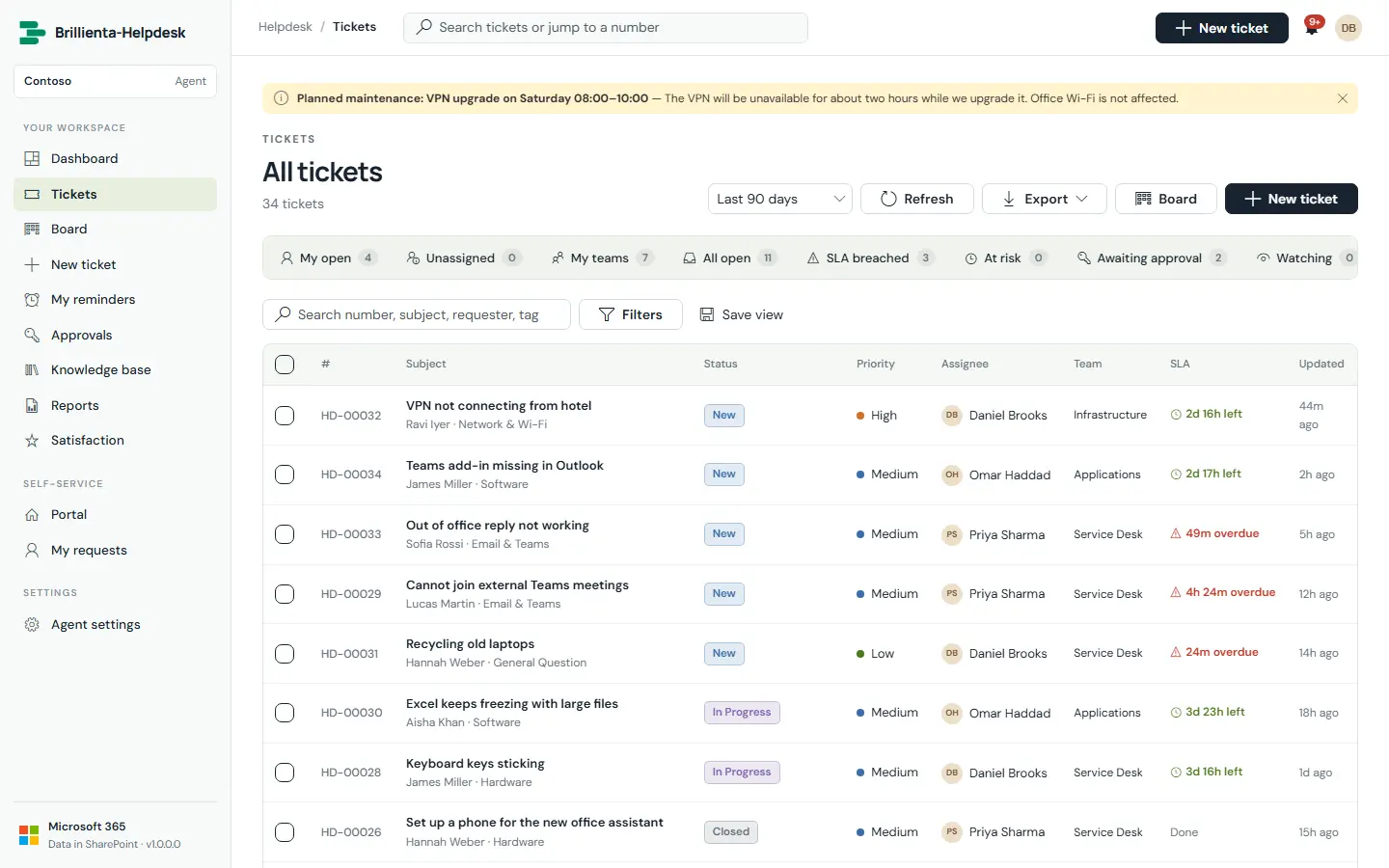
The agent work list: built-in views with live counts (My open, Watching, Unassigned, My teams, All open, Awaiting approval, SLA breached, At risk, Resolved, Closed, All), saved personal and shared views, search, inline filters, group-by, sorting, paging, confirmed bulk assign/status/priority/team, and export.
Queue. Views, search, filters and the SLA countdown for every ticket. Type a number to jump straight to it.
How it works
Columns adapt to the width (cards on phones). Queries are threshold-safe past 5,000 items.
Shortcuts: / search, n new ticket, g then d/t/r/b/k to move around.
Ticket workspace
Agents
All plans · time tracking: Pro
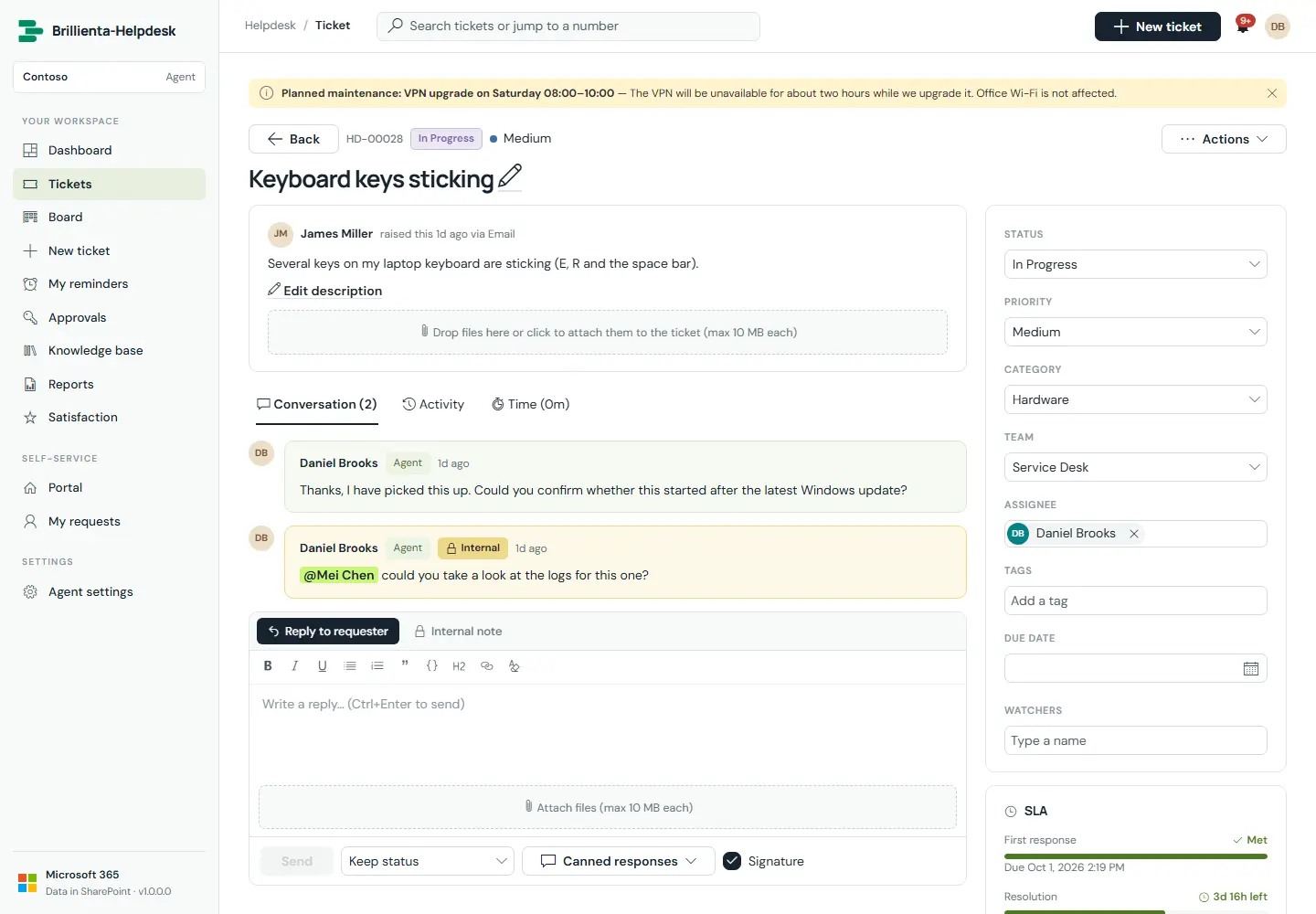
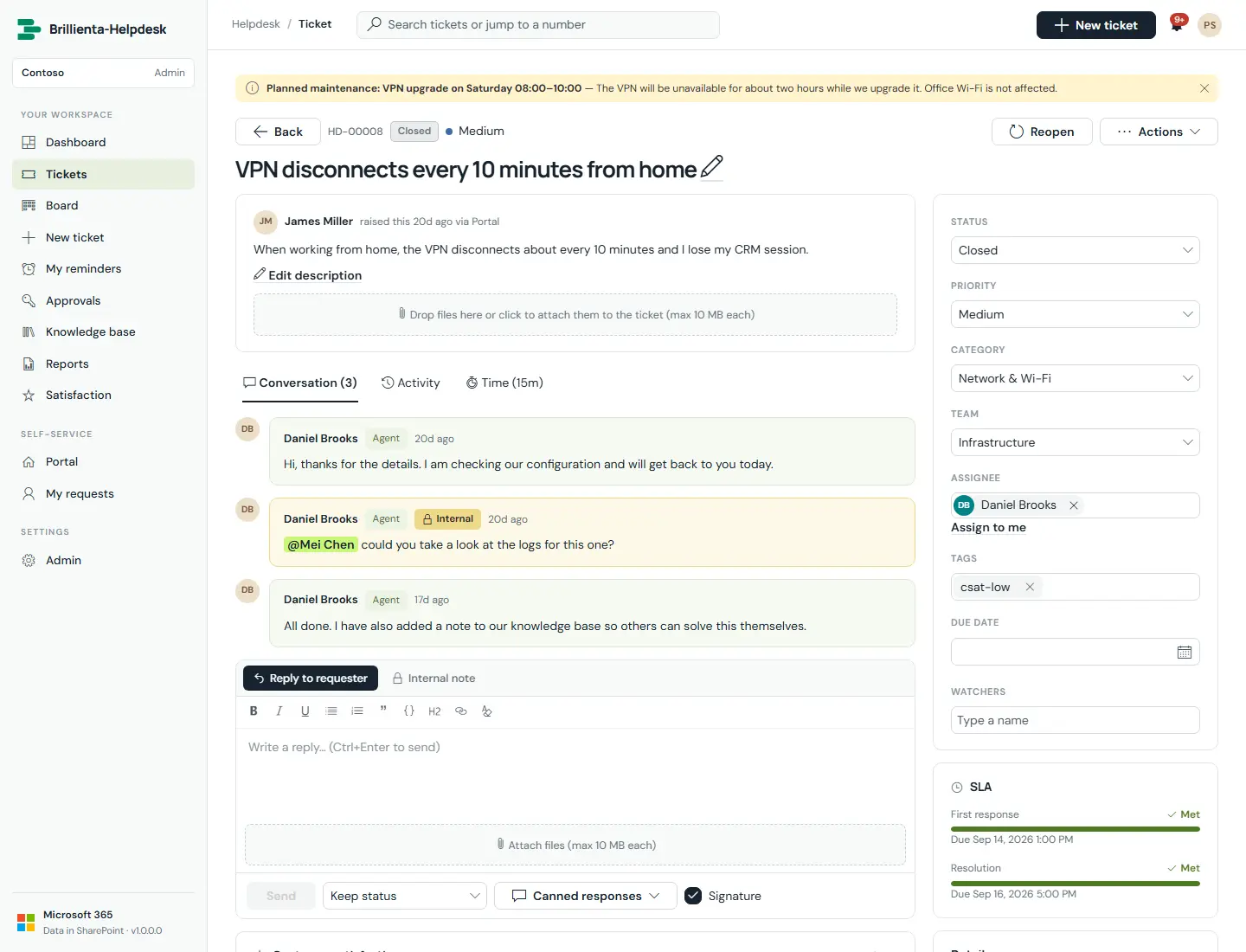
Everything about a ticket on one screen: public replies and internal notes with @mentions, canned responses with placeholders, macros, signatures, Ctrl+Enter to send, activity log, attachments, editable subject, property sidebar, SLA countdown bars and requester history.
Workspace. Conversation with an internal note and @mention, reply box with canned responses and signature, properties and SLA progress.
A resolved ticket after a low satisfaction score: auto-tagged, with both SLA targets shown as met.
How it works
Merge duplicates, link parent/child/related tickets, log billable time, create a KB article from the ticket, set a personal reminder, copy the secure link, or delete to the recycle bin.
Every change is written to the activity log with who made it and the old and new values.
Kanban board
Agents
Pro and Enterprise
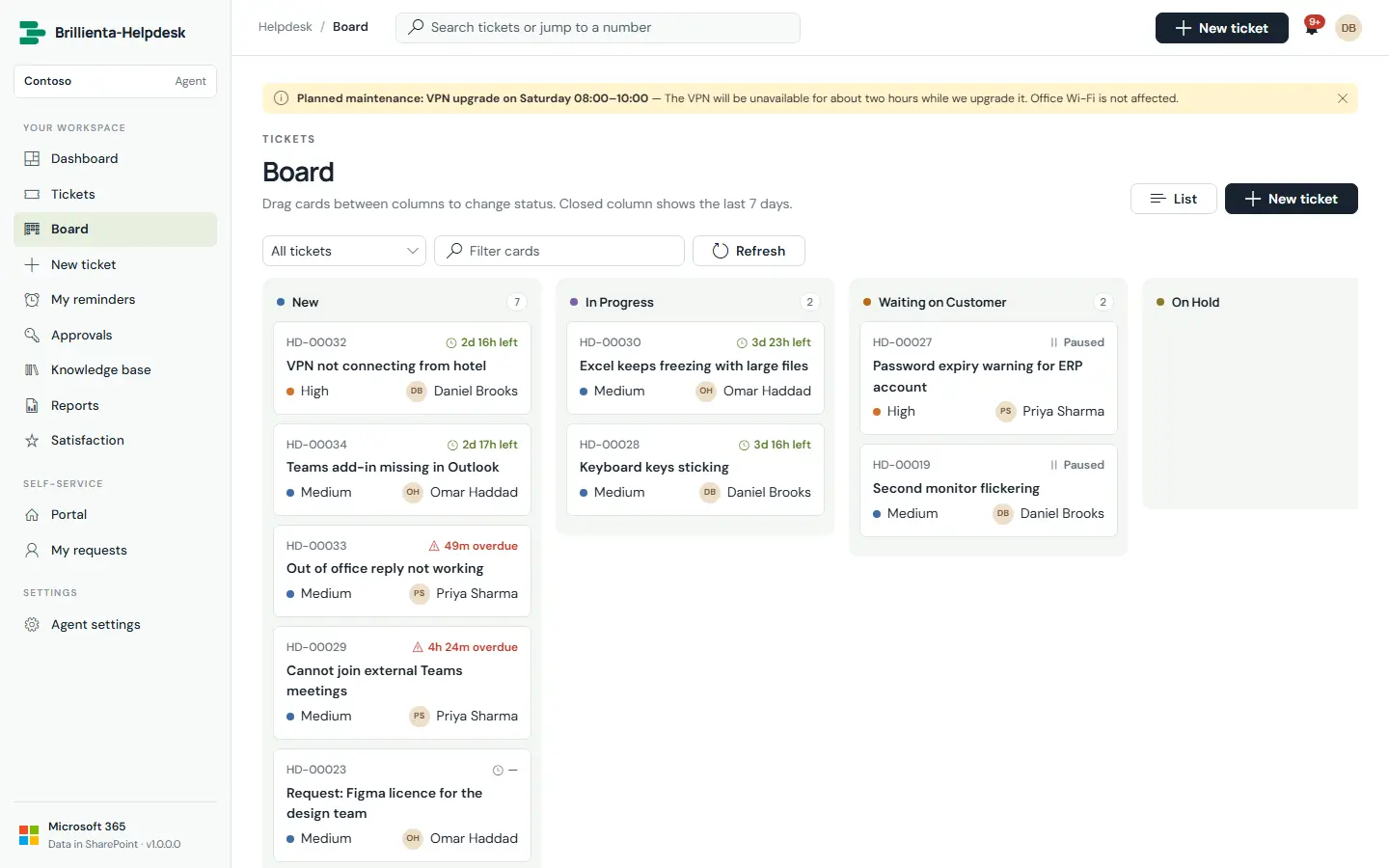
Drag cards between status columns. SLA timers pause while a ticket waits for the customer. Use it for stand-ups; use the queue for precise filtering and bulk work.
Board. Drag cards between status columns.
Notifications & reminders
Everyone receives
All plans
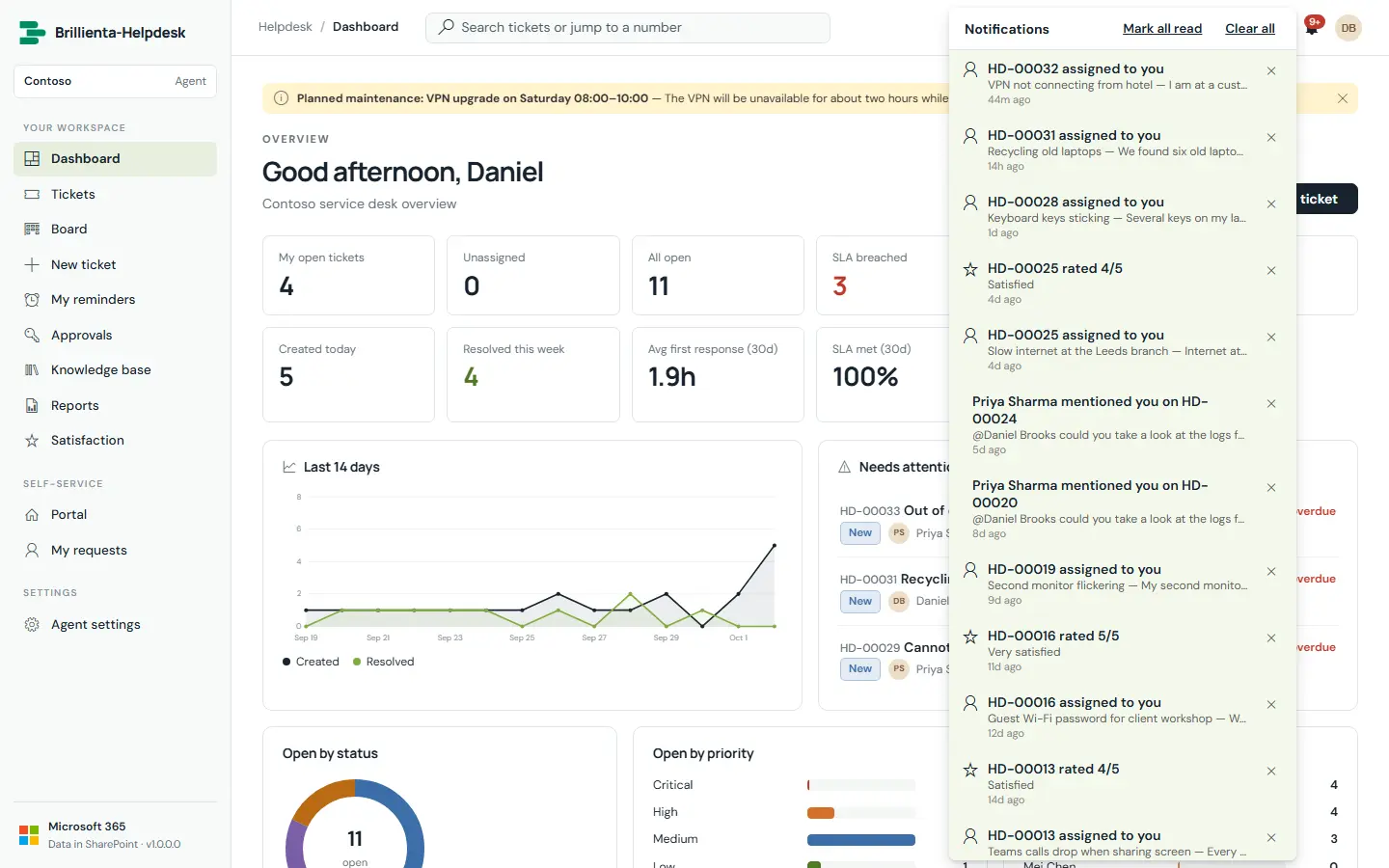
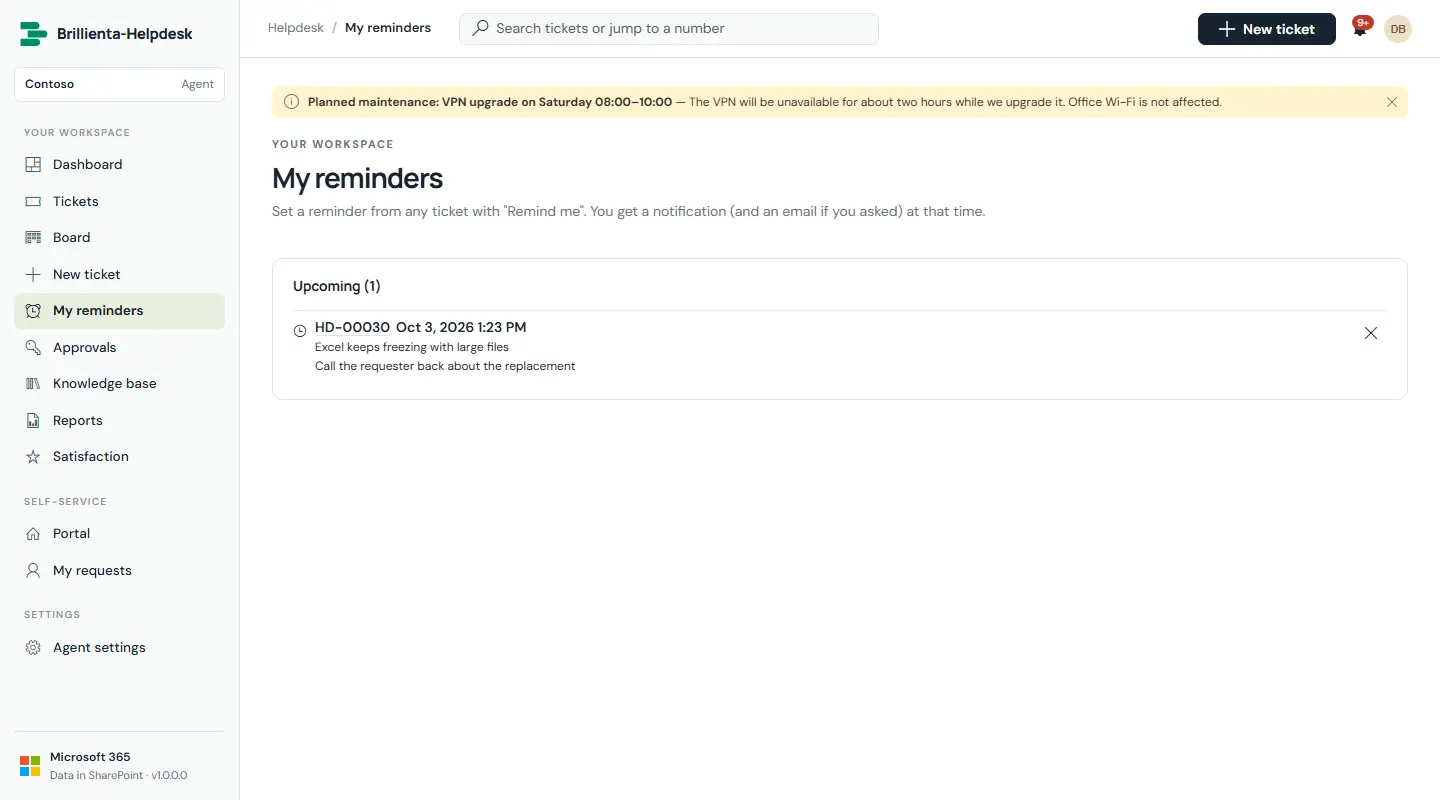
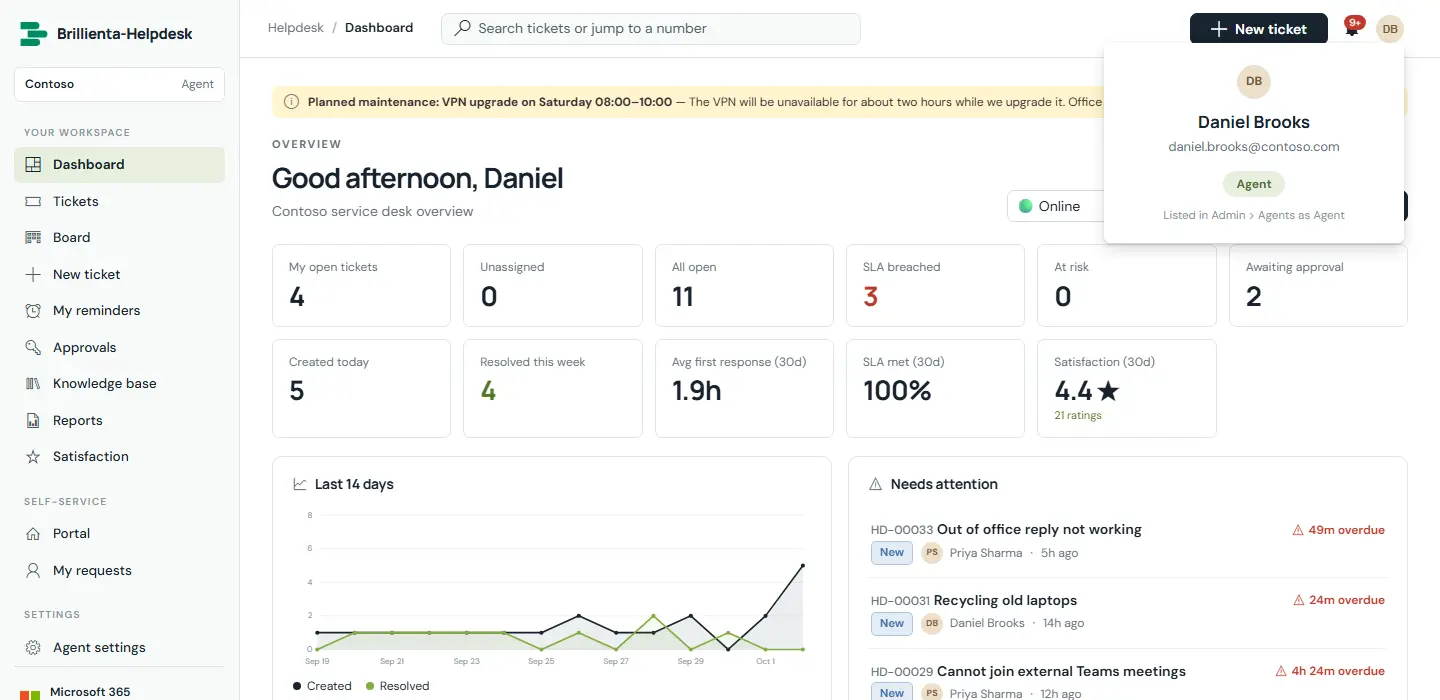
An in-app bell (polling) for assignments, replies, @mentions, SLA events, approvals and surveys — plus personal reminders agents set with "Remind me" on any ticket, delivered on time even when offline. Your profile card shows your name, email, helpdesk role and why you have it.
Notifications with mark-all-read and clear.
My reminders with quick times or an exact date, snooze and dismiss.
Profile. Role, reason, shortcuts and version; agents reach Display & shortcuts from here.
Reports
Agents
All plans
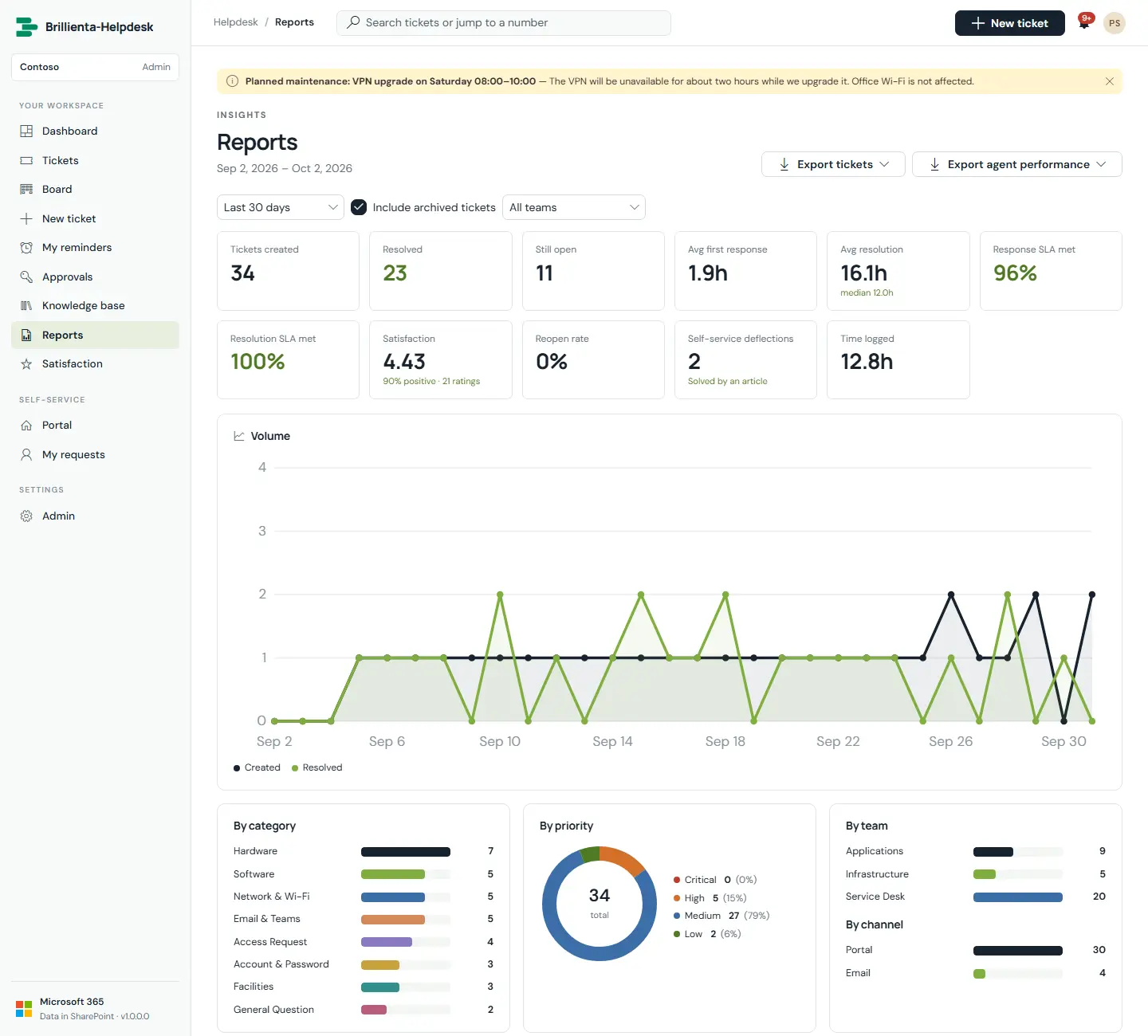
Tables and exports only (the charts live on the Dashboard), under a report cover: the period, the key figures in large type and "What stands out" in plain sentences. Tabs: Summary, SLA, Agents, Teams, Categories, Services, Requesters, Satisfaction, Backlog, Ticket list.
Reports for a chosen period and team, with per-group tables, totals, sorting and full-report export.
How it works
Date ranges, team filter, optional archived tickets. Every section exports to Excel or PDF; Export full report writes one workbook or one PDF.
Excel keeps real dates and numbers with filters; PDFs are A4 with page numbers (max 3,000 rows).
Satisfaction dashboard
Agents
Pro and Enterprise
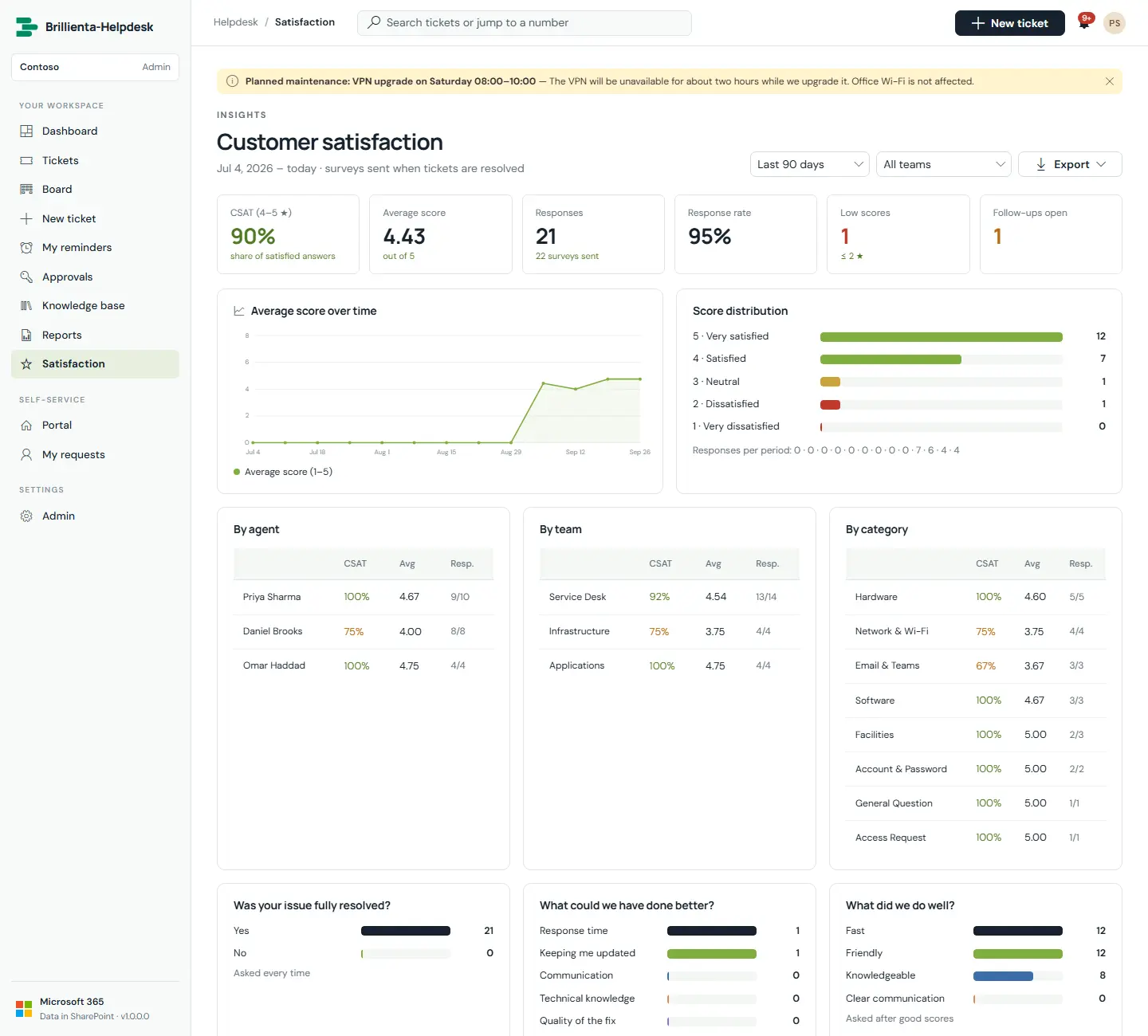
CSAT %, average score, response rate, low scores and open follow-ups; trends and distribution; results by agent, team and category; answers to every follow-up question; comments and export. Credit stays with the people who did the work: each survey records agent, team and category at send time.
Satisfaction. Scores, trends, breakdowns and every comment, exportable to Excel or PDF.
Part 4
Administration
Everything is configured in the Admin area. There are no web part properties to edit and no code to change. Search across every setting, read the summary cards, and edit in side panels. Changes apply to everyone immediately.
General & branding
Admins
All plans
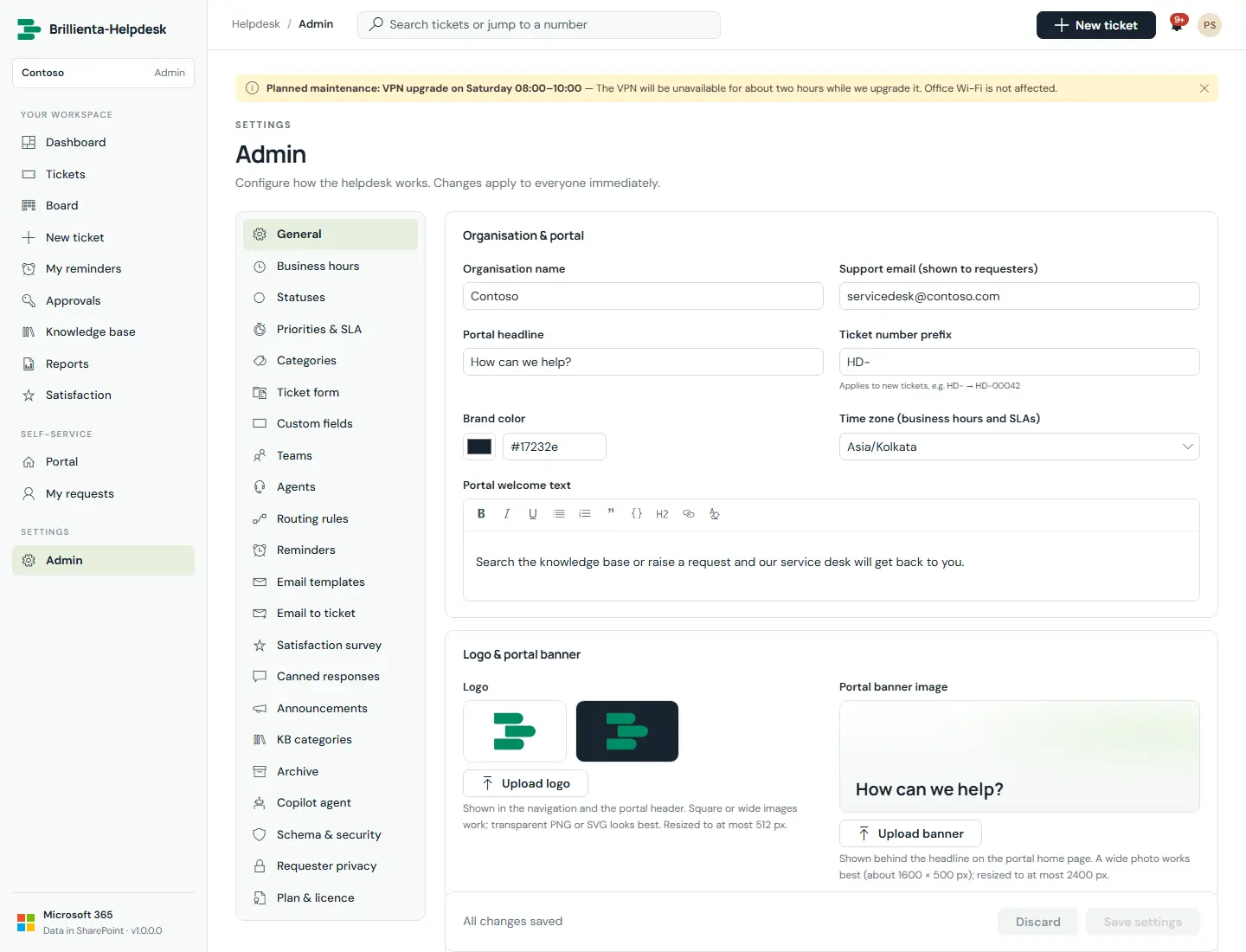
Organisation and portal text, support email, ticket number prefix, brand colour, time zone, logo and banner, features, workflow defaults, refresh interval and maintenance mode.
General. Identity, portal texts, numbering, brand colour, time zone, logo and banner, features and maintenance mode.
How it works
The logo (PNG/JPEG/SVG/GIF/WebP, redrawn to ≤512 px PNG) appears in navigation and the portal header; the banner sits behind the portal headline with a dark, light or no tint.
The time zone is IANA and DST-safe — all SLA math uses it. Maintenance mode pauses new requester tickets with your message.
Categories & services
Admins
All plans
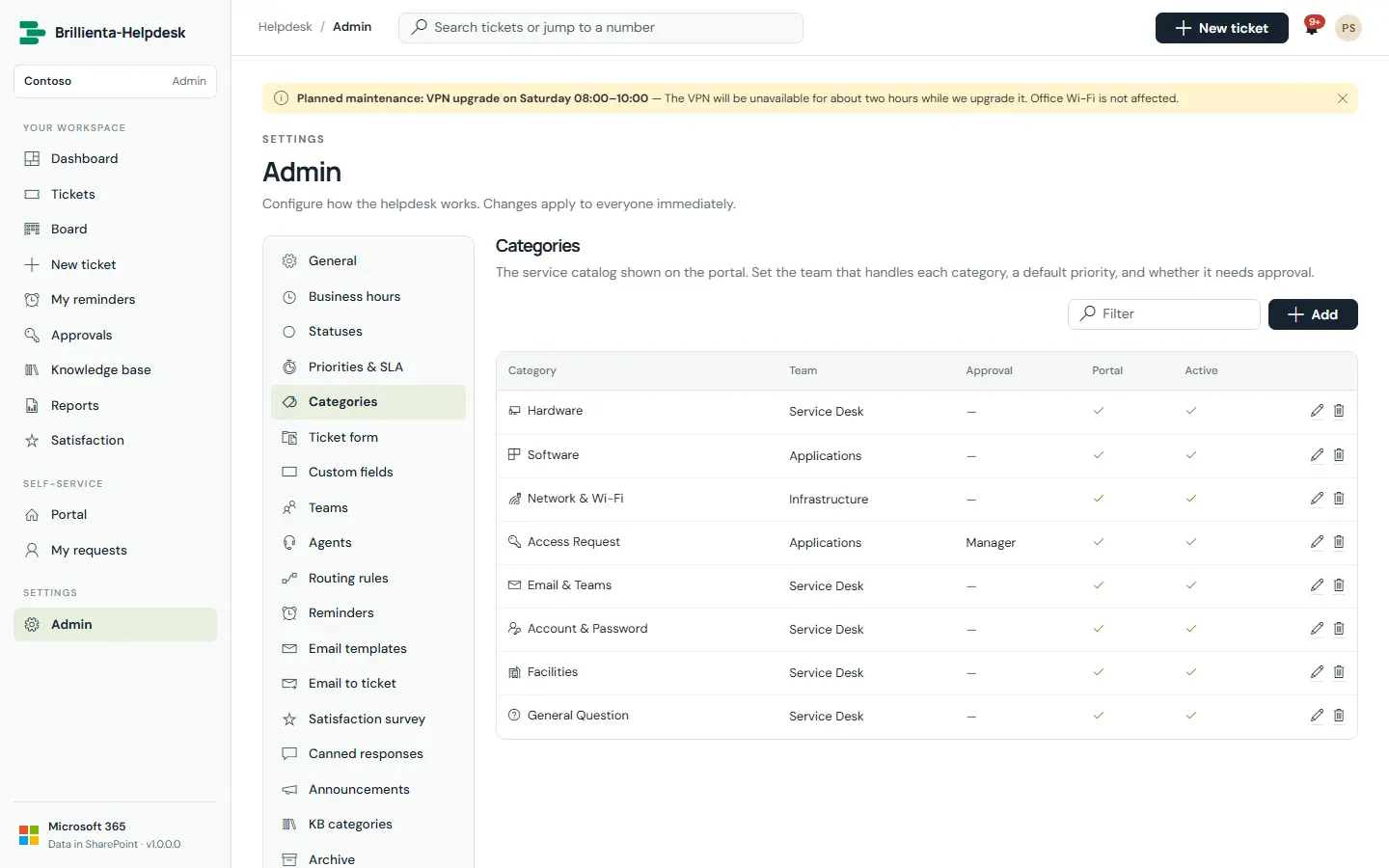
Categories are the service catalogue tiles: team, default priority, approval requirement and portal visibility. Services (for example Email & calendar, Devices) hold sub-services (Outlook, VPN, Wi-Fi), each switched on or off in one click, with an icon, a handling team and portal visibility.
Categories. The catalogue behind the portal tiles.
How it works
Deactivate instead of deleting: old tickets keep their category and service.
Services appear on forms, the ticket page, queue filters, routing rules, email placeholders, Dashboard and Reports.
Names & terms renames Ticket, Requester, Agent, Team, Category, Service and Sub-service everywhere (for example Team → Department).
Teams & agents
Admins
All plans
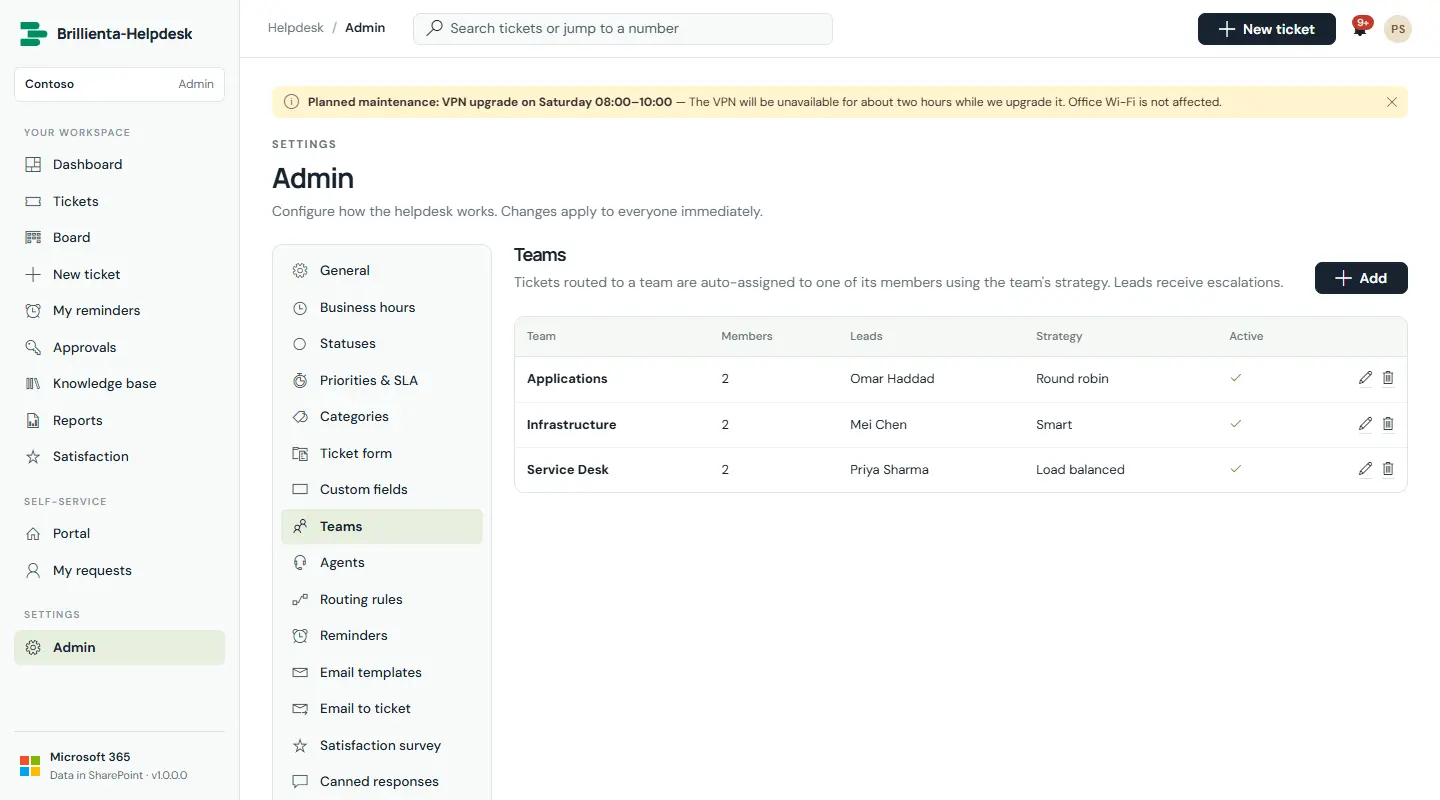
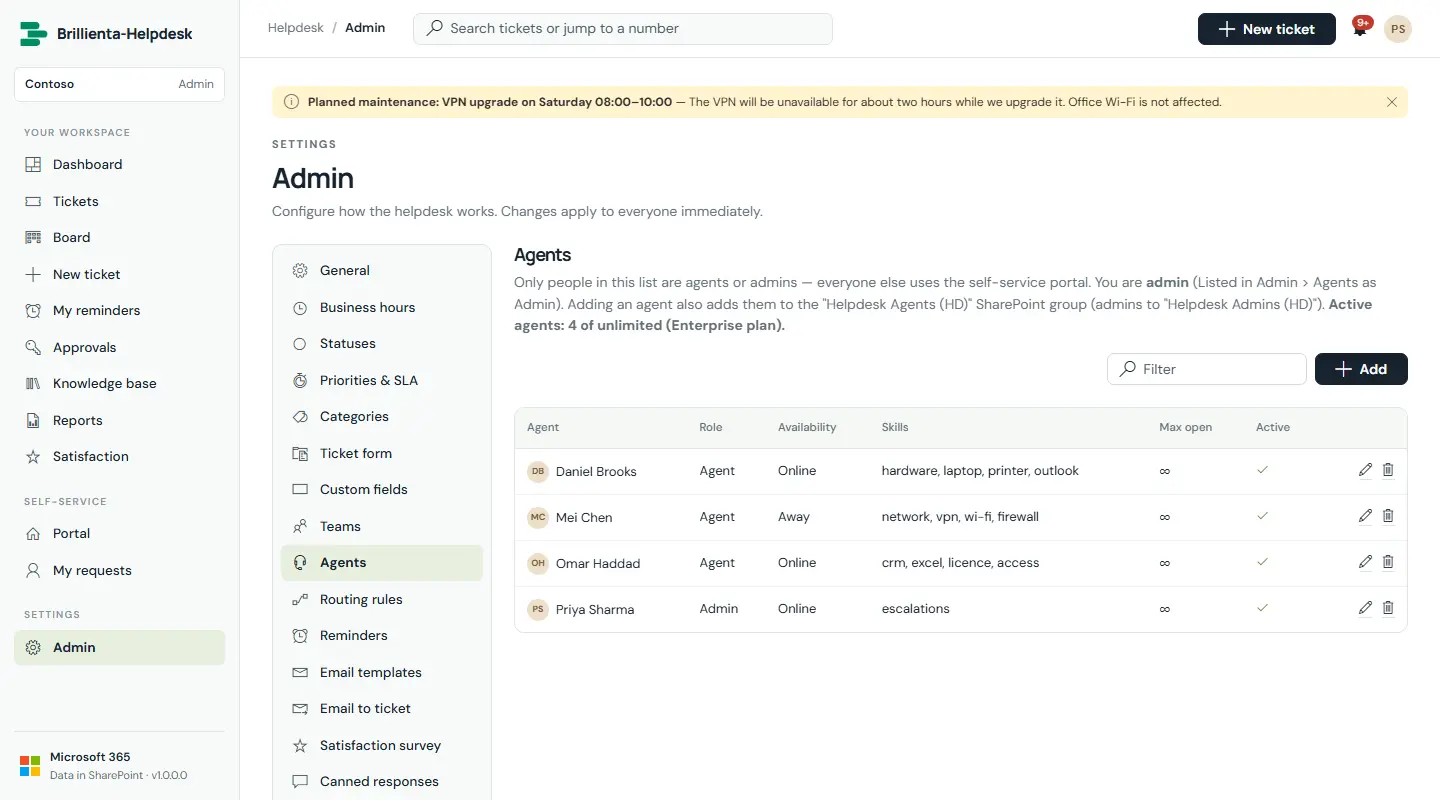
Teams with members, leads and an assignment strategy; agents with role, availability, skills, open-ticket caps and signatures. Saving an agent keeps the SharePoint groups in step.
Teams with members, leads and strategy.
Agents with role, availability, skills, limits and signatures.
Assignment strategies
Load balanced: the member with the fewest open tickets. Round robin: the member assigned least recently.
Smart: matching skills from the ticket text, plus workload and recent satisfaction. Manual: tickets wait to be picked up.
Online agents are chosen first, then Away; Offline agents are never chosen automatically.
Request forms & custom fields
Admins
Pro and Enterprise
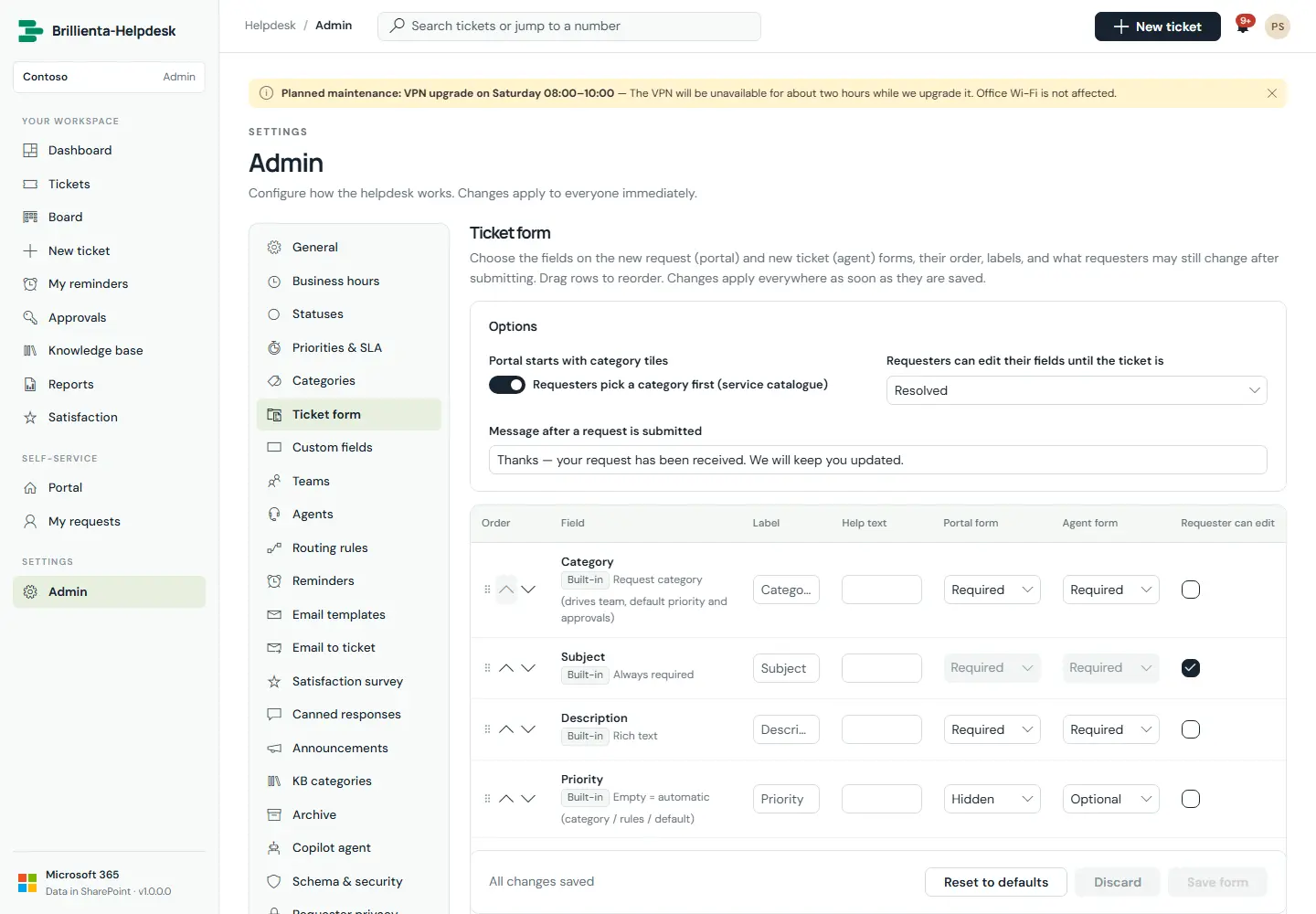
The standard form, plus optionally one form per team (department) with its own fields and header message. Drag to reorder; set every field hidden / optional / required separately for the portal and agent forms, and whether the requester may edit it after submitting.
Form designer. Labels, help text, order and per-form rules; extra fields per category.
Priorities, SLA & business hours
Admins
All plans · holidays: Pro
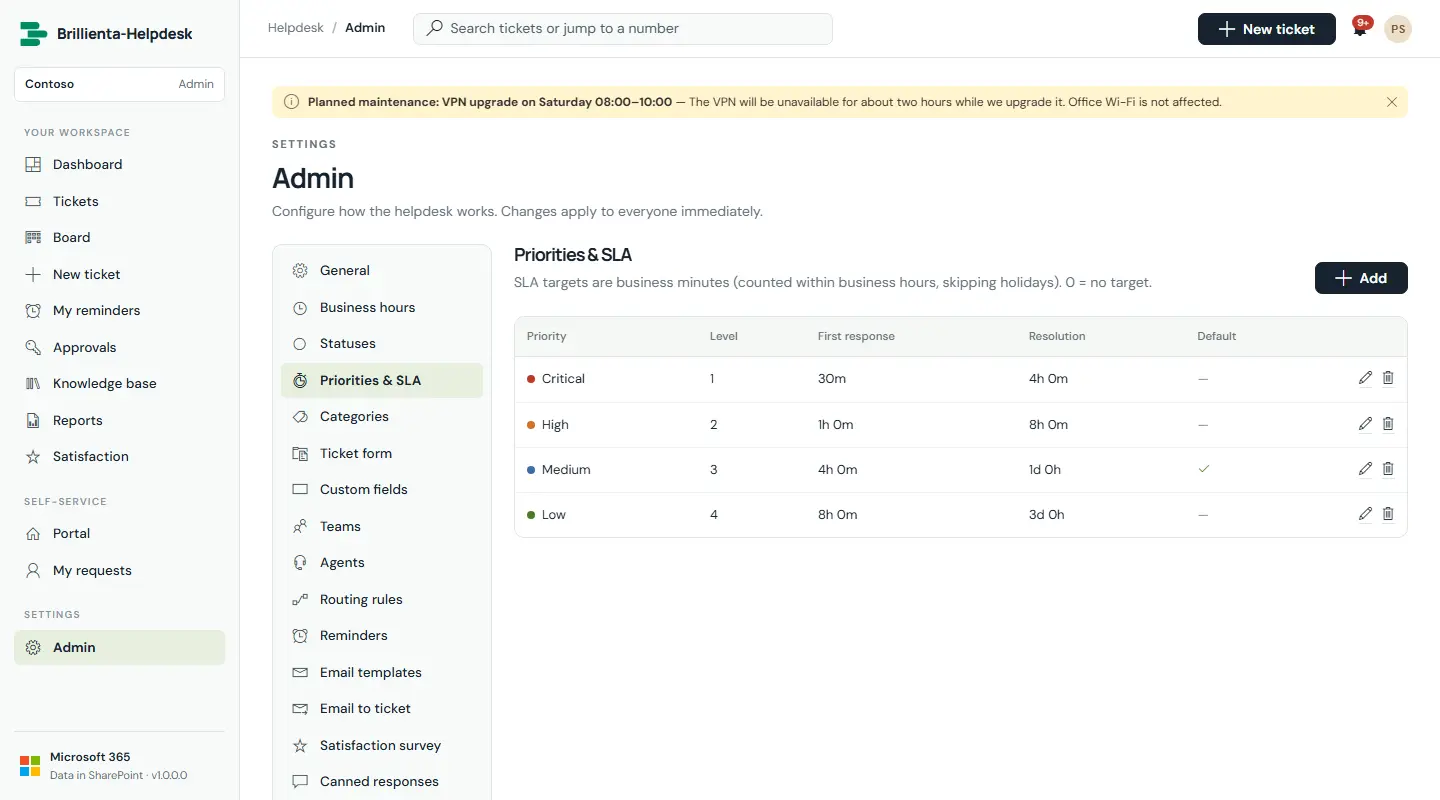
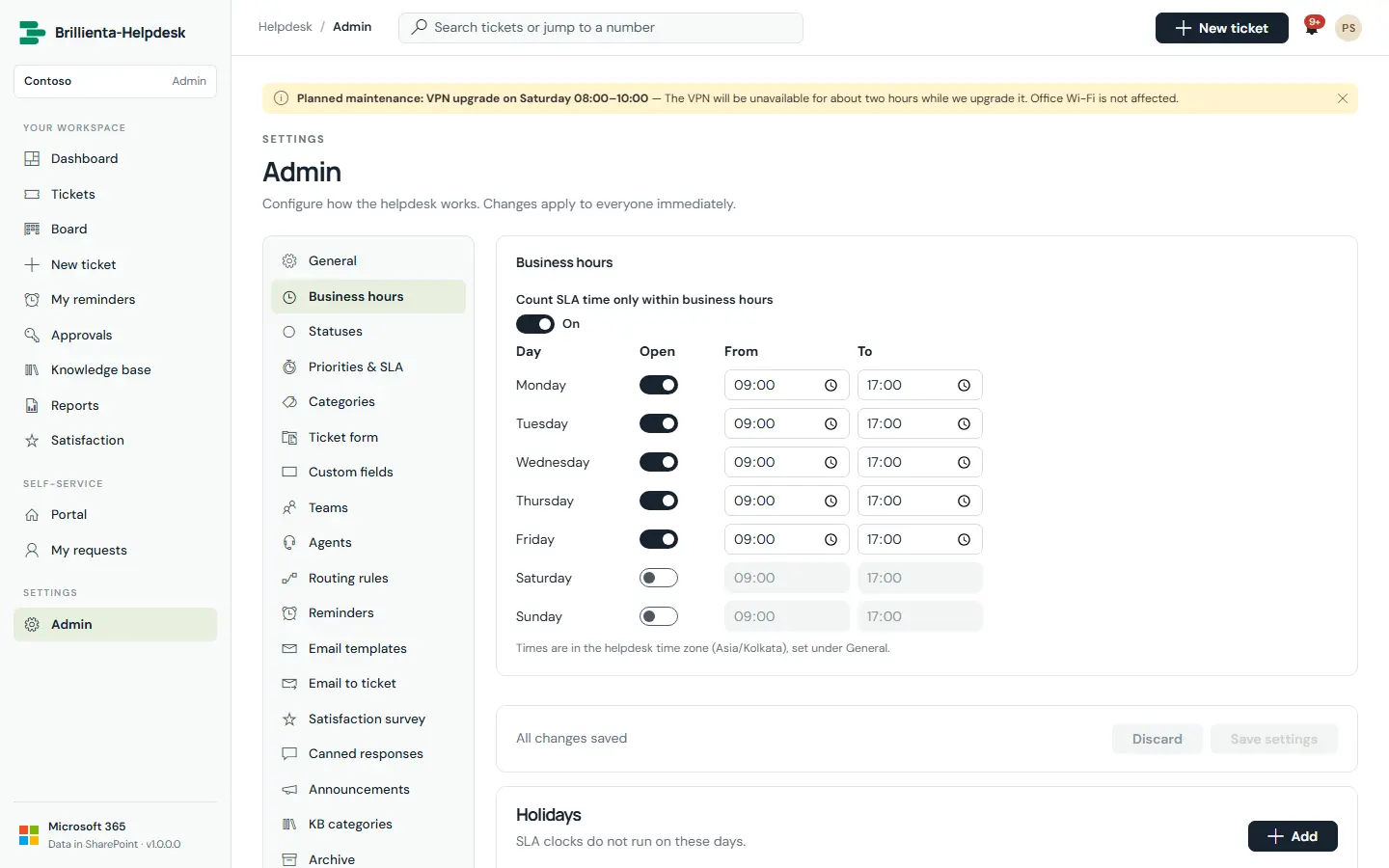
Each priority has a first-response and a resolution target in business minutes. Time counts only inside business hours in the helpdesk time zone, skipping evenings, weekends and holidays — DST-safe. The clock pauses while a ticket waits for the customer.
Priorities. Response and resolution targets per priority.
Hours & holidays. Working days, hours, one-off and yearly holidays.
How it works
At 75% agents get a warning; at 90% the ticket escalates to team leads; at 100% it is marked breached. Resolved tickets auto-close after a set number of days.
SLA checks run in any agent's open browser every 5 minutes; escalation levels prevent duplicate alerts.
Routing rules
Admins
Pro and Enterprise
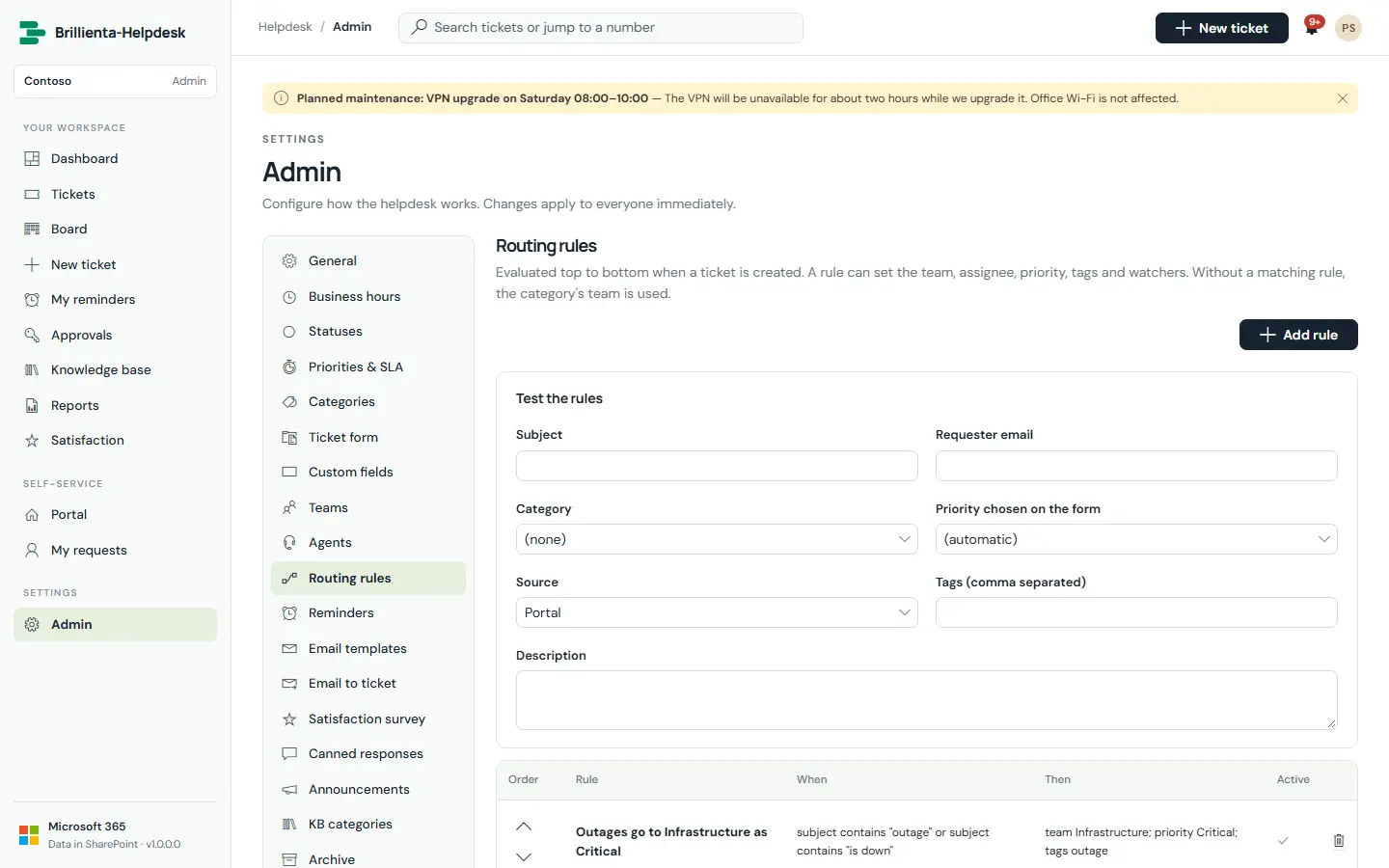
Rules with all/any conditions on category, service, sub-service, priority, subject, description, requester email, source, tag and custom fields — setting team, assignee, priority, tags and watchers. A built-in tester shows which rule a sample ticket would hit.
Routing. Conditions, actions and the live tester; every automatic decision writes its reason to the ticket history.
Email templates & flows
Admins configure
Standard wording: all plans · custom wording: Pro
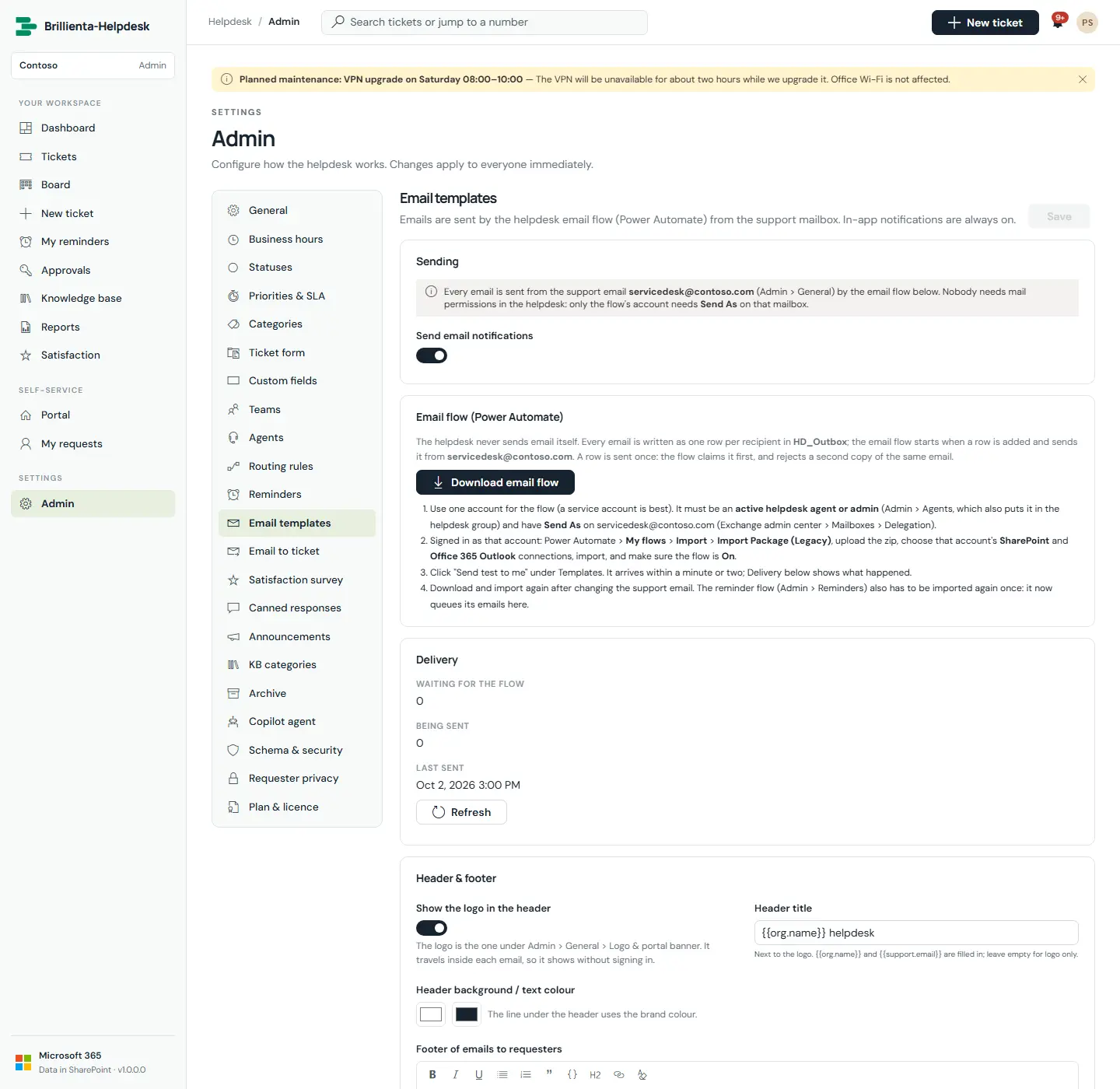
Master switch, branded header and separate requester/agent footers, and one template per event with enable toggle, subject, rich-text body, click-to-insert placeholders, reset to default, sandboxed preview and "Send test to me". Delivery shows what is waiting, sent, failed or rejected.
Emails. Templates, header and footers, the email flow and delivery status.
How it works
Every email is one Outbox row, sent once by your Power Automate email flow from the support mailbox. Duplicates within 10 minutes are rejected.
Placeholders include {{ticket.number}}, {{ticket.button}}, {{comment}} and {{survey.buttons}}. Rows queued by requesters may only go to their ticket's people.
Reminders
Admins configure
Requester & auto-resolve: all plans · others: Pro
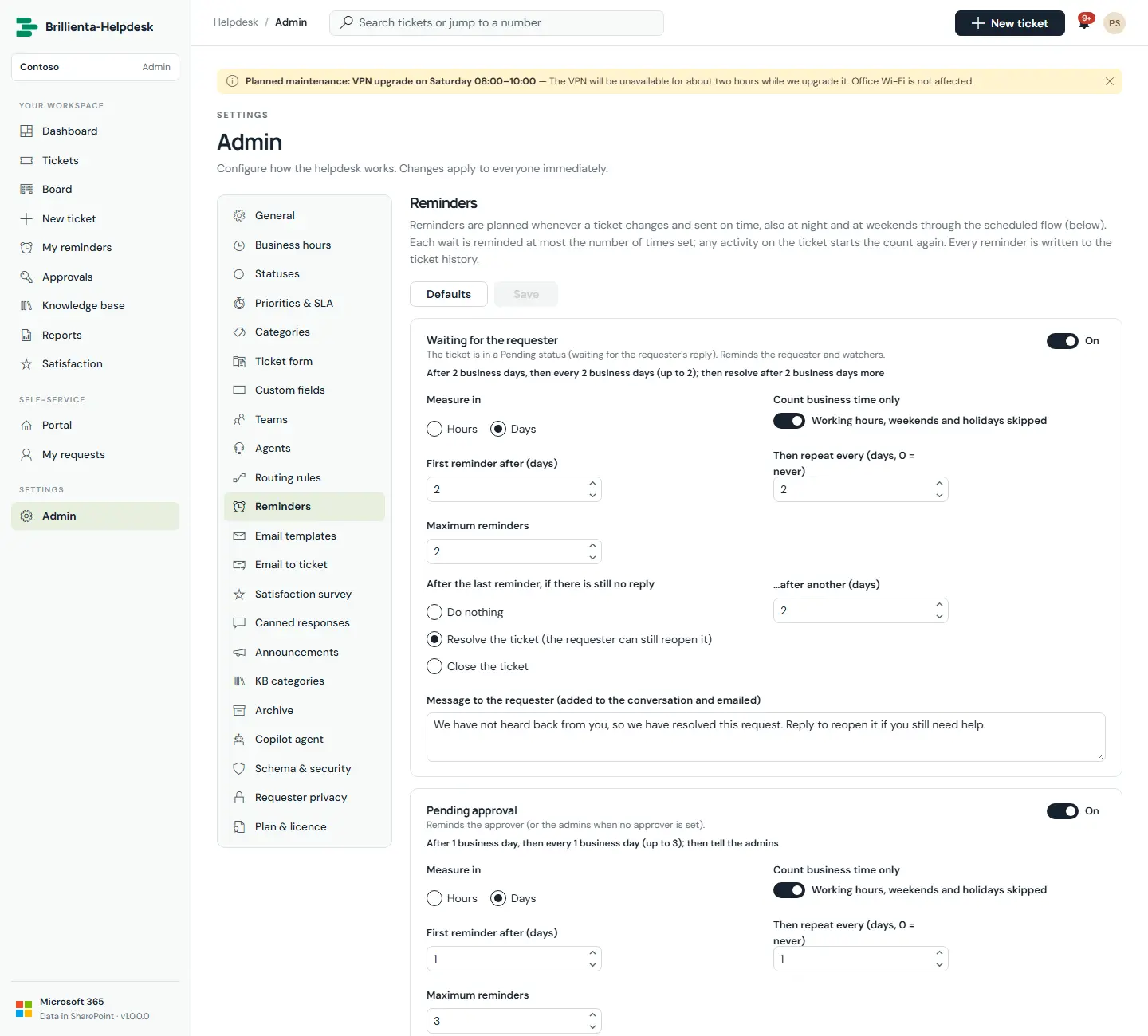
Waiting-for-requester (with optional resolve/close), pending approval, unassigned, no-activity, due-date and personal reminders. Each rule has a first delay, repeat interval, maximum count, hours or days, and business-time-only counting.
Reminders. Rules, the reminder flow, queue, schedule and "Plan all open tickets now".
How it works
Planned whenever a ticket changes; sent by an agent's open page within a minute, or by the scheduled flow when nobody is online.
Just before sending, the ticket is re-checked: if anything changed, the reminder is skipped and re-planned.
Satisfaction survey settings
Admins
Pro and Enterprise
Scale (stars, faces or thumbs), conditional follow-up questions, reminders and closing date, low-score actions, "requesters can change their answer" — all with a live preview.
Survey designer with live preview.
Archive & retention
Admins
Enterprise
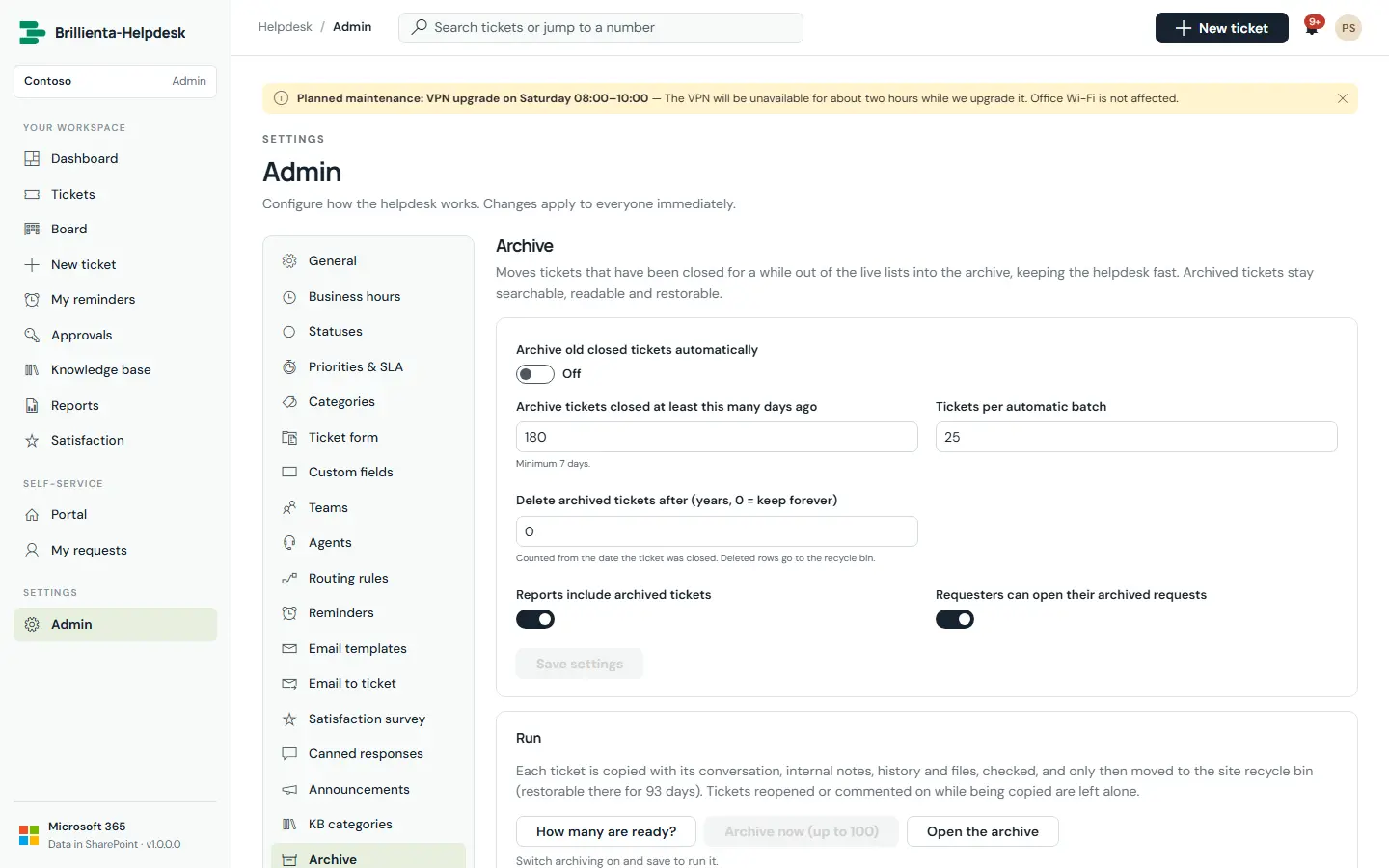
Tickets closed longer than a set time (180 days by default) move to the archive with their full conversation, internal notes, history and files. Each copy is verified before the original goes to the site recycle bin; interrupted runs redo safely. Archived tickets stay searchable, can be included in reports, and admins can restore them with their original number. Optional retention deletes after N years.
Archive. Age threshold, batch size, retention, Archive-now and restore.
Email to ticket
Admins
Enterprise
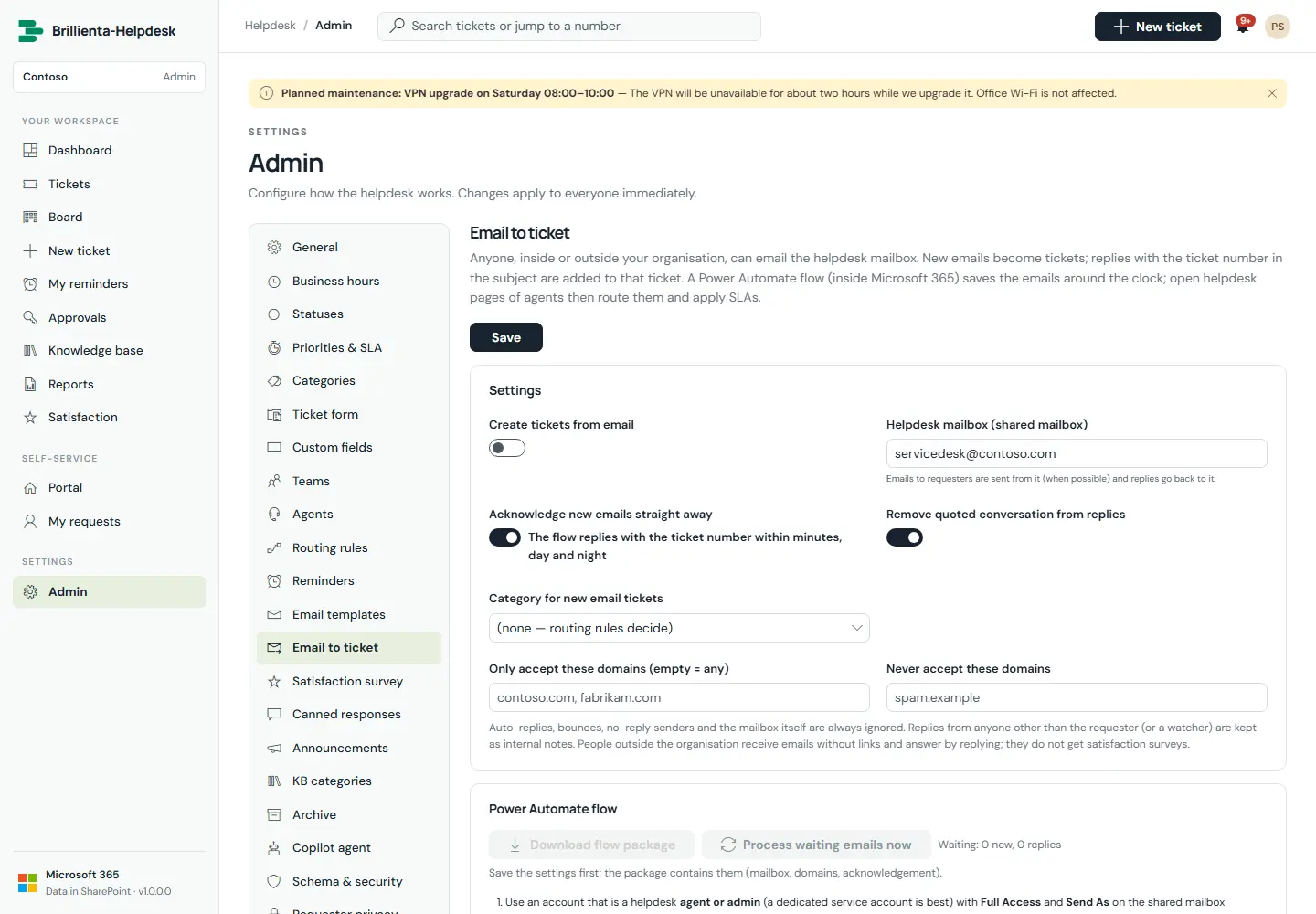
Turns emails to a shared mailbox into tickets and replies, for colleagues and external customers. Known [HD-00042] subjects become comments; otherwise new tickets (Source = Email). External senders become external requesters reached by reply-to threading, without surveys.
Email to ticket. Mailbox, allowed/blocked domains, acknowledgement, waiting emails and "Process now".
How it works
Auto-replies, bounces and no-reply senders are ignored. Agents' browsers finish processing every minute.
An optional instant acknowledgement gives the ticket number straight away, day and night.
Copilot agent
Admins
Enterprise
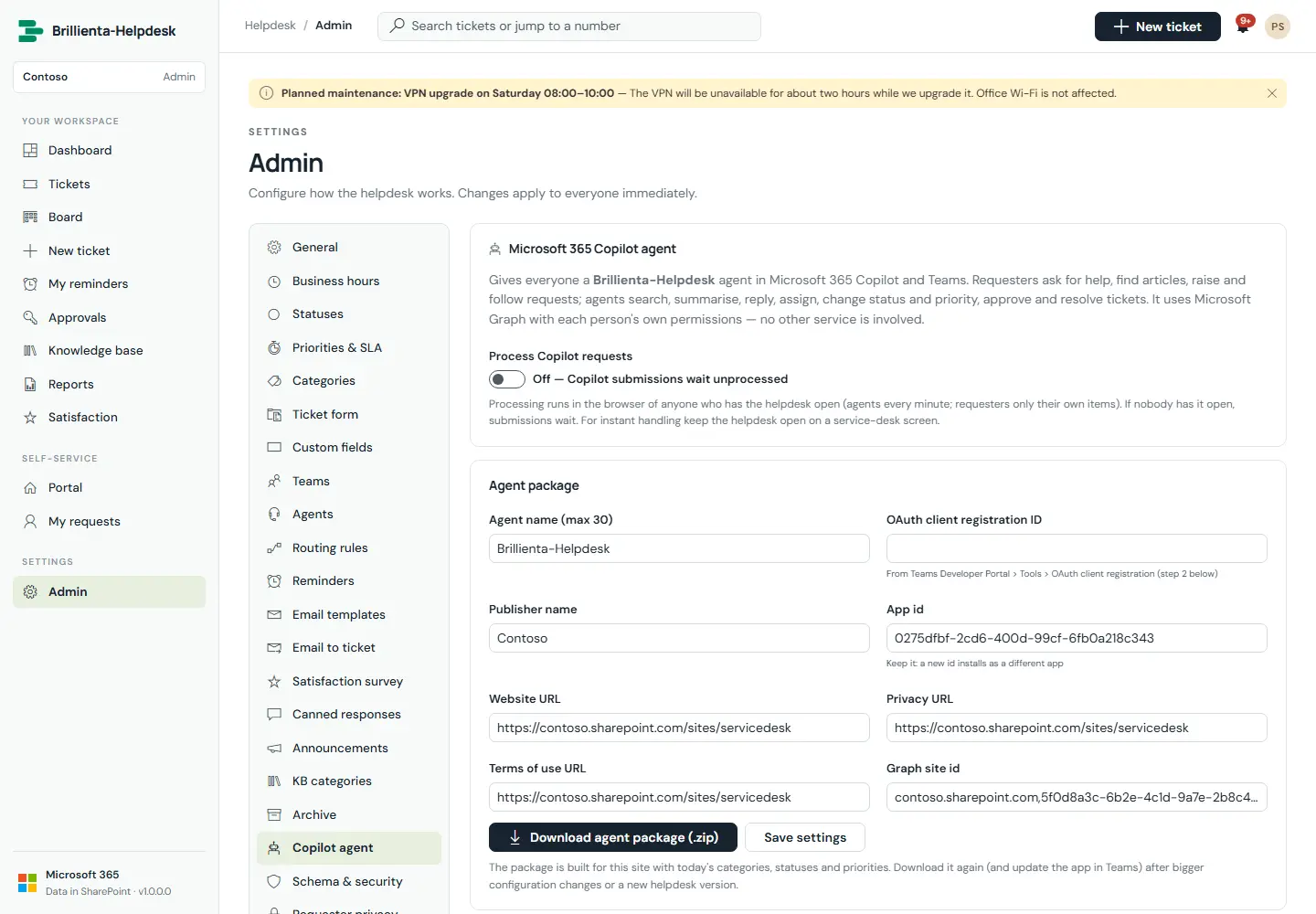
Builds a declarative agent for Microsoft 365 Copilot and Teams, tailored to the site (ids, prefix, categories, statuses, priorities, icons), as a ready-to-upload zip. Reads go through Microsoft Graph with delegated permissions; ticket creation answers instantly with the number; other changes queue and execute as the requester with the app's permission rules.
Copilot agent. Five checked steps, tailored package download, processing switch and troubleshooting.
Requester privacy, schema & licence
Admins · privacy switch: site owner
All plans
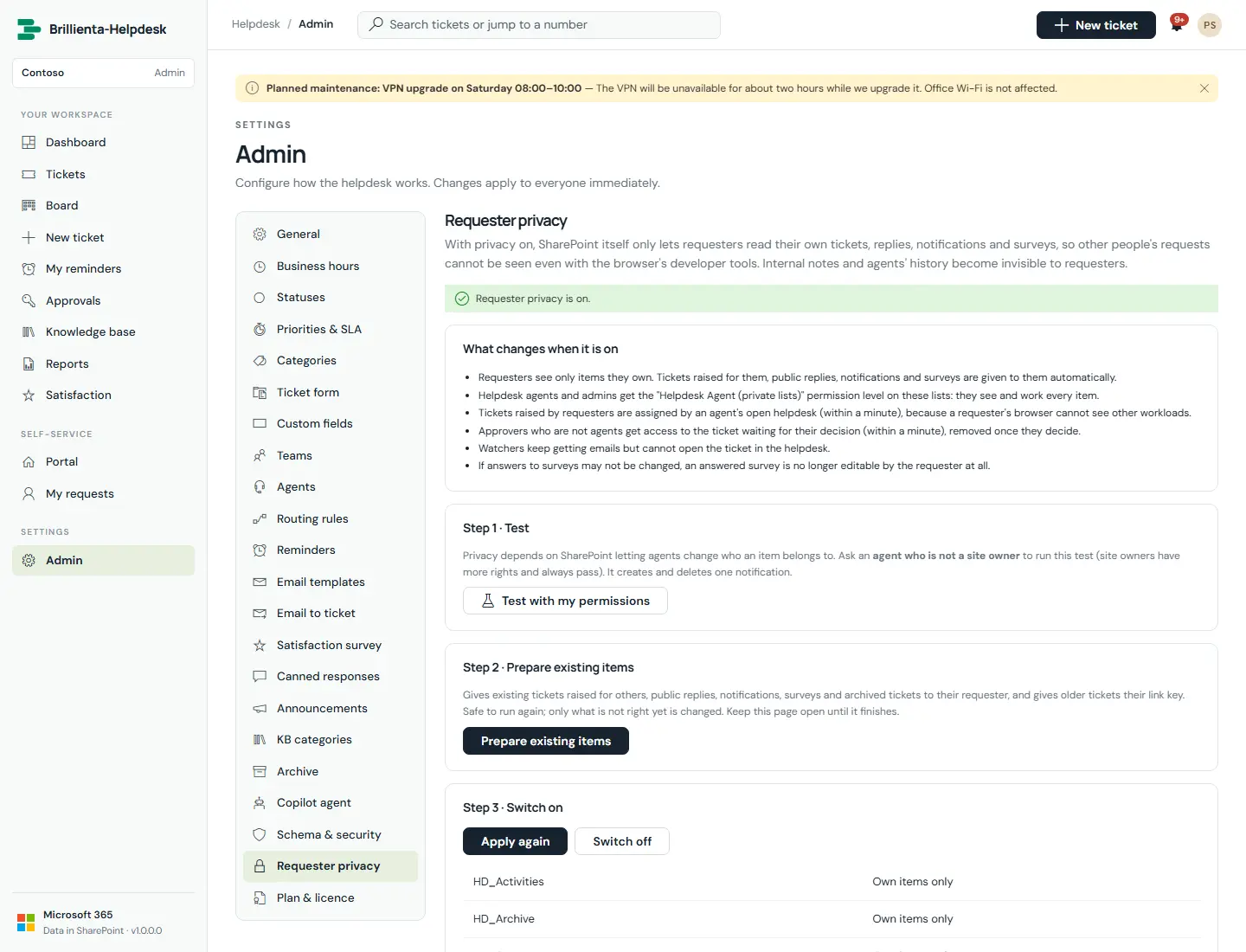
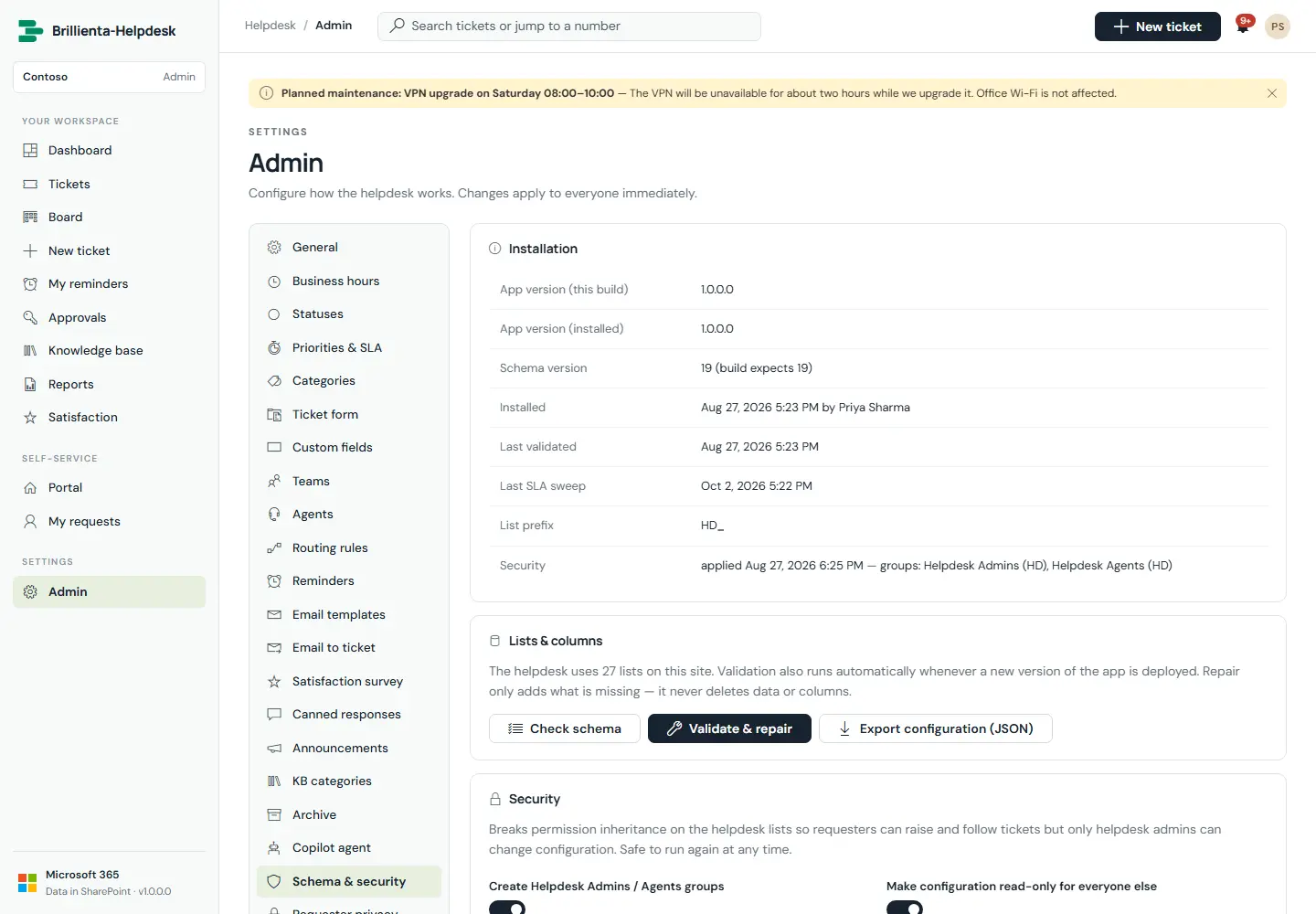
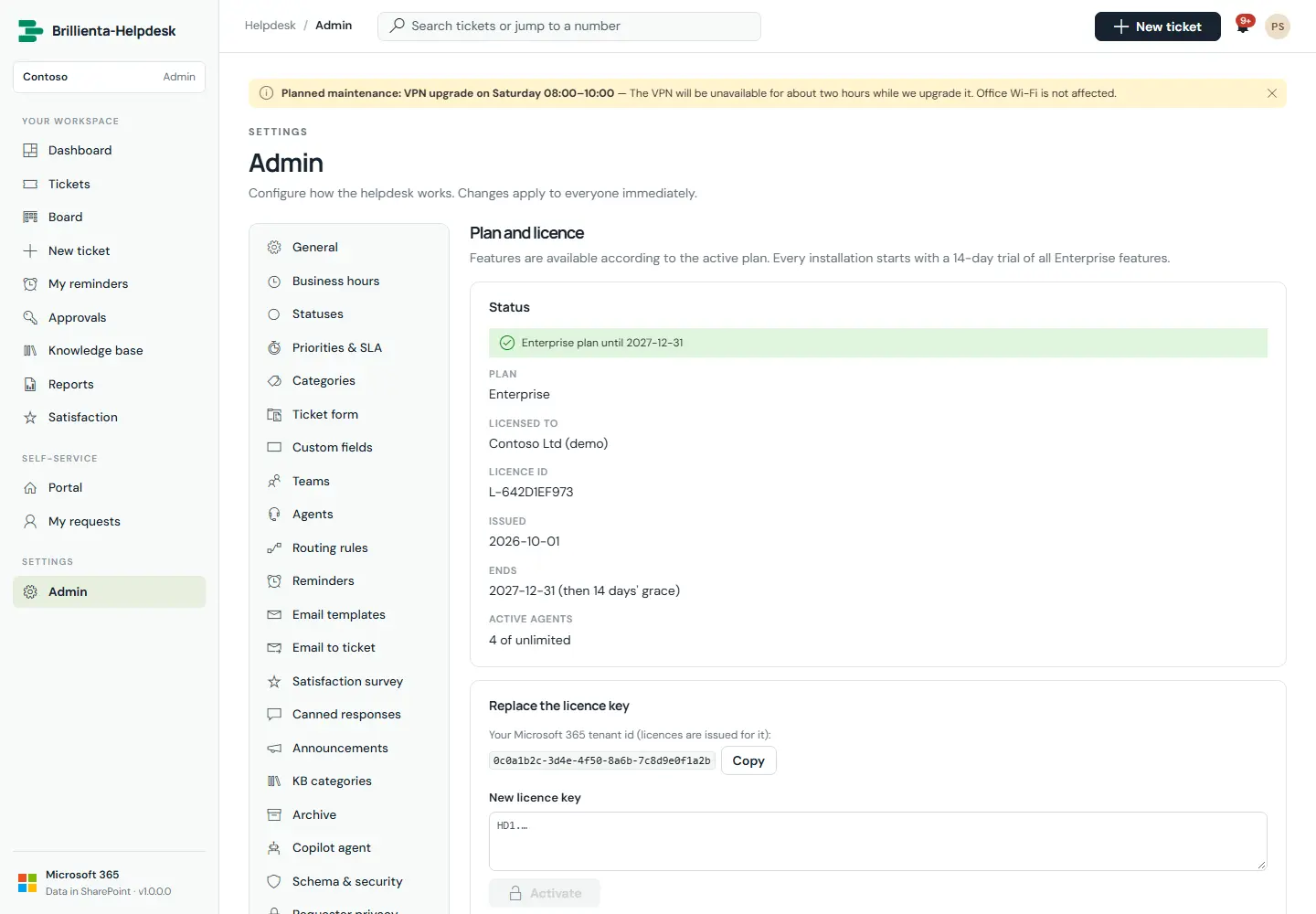
Requester privacy makes SharePoint itself enforce "own items only" for requesters (three guided steps: test, prepare, switch on). Schema & security validates and repairs lists, and applies the SharePoint groups and permission levels. Plan & licence shows the trial or key, seats and tenant ID.
Privacy. Test, prepare and switch on.
Schema & security. Validation, repair and permissions.
Plan & licence. Active plan, key entry and the tenant ID to share when ordering.
Part 5
Roles & permissions
There are three roles: Requester, Agent and Admin. The role decides what the screens offer. SharePoint permissions, set up by the app, decide what can actually be read and changed.
How a person's role is decided
App roles come from Admin → Agents (active Admin / Agent rows); everyone else uses the portal. Agents can edit the Agents list, so an Admin row counts only when SharePoint also lets the person edit the helpdesk Settings — otherwise they work as an agent. Saving the agent puts them in the right group. While no active Admin exists, site owners act as admins.
Capability
Requester
Agent
Admin
Raise requests, use the knowledge base, watch requests
✓
✓
✓
Reply, add files, mark resolved, reopen own requests
Own
✓
✓
Answer satisfaction surveys
Invited
—
—
Approve or reject requests
If assigned
✓ if assigned
✓
Work the queue, board, ticket workspace, time tracking
Security is enforced by SharePoint and Microsoft 365, not just by hiding buttons. The app configures SharePoint permissions on its own lists, and requester privacy makes SharePoint itself limit requesters to their own items.
Your tenant, your data
All helpdesk data lives in your SharePoint site and moves only through SharePoint and your Power Automate flows. There is no analytics, tracking or vendor cloud. Exports are created in the browser.
Least privilege
No Microsoft Graph permissions at all. The app always acts as the signed-in person and can never exceed their own rights.
Permissions the app sets up
Apply security creates the Helpdesk Admins and Helpdesk Agents groups and a Helpdesk Requester permission level (contribute without delete), and gives each list exactly the access it needs.
Requester privacy
When switched on, requesters read and edit only their own tickets, public replies, notifications, surveys and archive rows. Internal notes stay with agents. Approvers get the single ticket waiting for them.
Hidden and out of the way
All helpdesk lists are hidden from Site contents and navigation; people work through the helpdesk. Owners can still open lists by URL.
Tamper-resistant by design
Safe HTML cleaning on all formatted text, unguessable 20-character links, validated email queueing (requester rows may only reach their ticket's people), and a full audit trail with SharePoint version history.
Ticket data (tickets, replies, history, notifications, surveys, feedback)
Edit
Contribute
Add and edit, no delete
Agent-only data (time entries, reminders, saved views, setup log)
Edit
Contribute
No access
Agents may edit only three Settings rows (the background-work locks), so one agent's browser does the shared work while configuration stays read-only for them.
Apply security on every helpdesk siteUntil security is applied, the lists inherit the site's permissions. Setup applies security by default when a site owner installs. Admin › Schema & security shows whether it has been applied and can re-apply it at any time. Without requester privacy, list permissions are list-level: a requester with REST skills could read other tickets.
Part 7
Plans & licensing
Three plans, each including everything in the plan before it. Every organisation starts with a 14-day trial of all Enterprise features, counted per Microsoft 365 tenant.
Email notifications (standard wording), dashboard and reports
✓
✓
✓
Personal reminders, reminders to requesters and auto-resolve
✓
✓
✓
Routing rules, business hours and holidays
—
✓
✓
Custom fields, ticket form designer, approvals
—
✓
✓
Satisfaction surveys, time tracking, Kanban board
—
✓
✓
Suggested articles, custom email templates, all reminder types
—
✓
✓
Email to ticket and external requesters
—
—
✓
Microsoft 365 Copilot agent, archive and retention
—
—
✓
How licensing works
Trial. 14 days with every Enterprise feature, counted per organisation (tenant) from the earliest installation date found, using SharePoint's server clock. A reinstall or a changed PC clock does not restart it.
Licence keys are digitally signed by the vendor and issued for one Microsoft 365 tenant. Paste the key under Admin › Plan & licence. The app checks it itself, with no call to a licence server.
Plan limits. Features outside your plan are switched off (their saved settings are kept and return on upgrade). Only as many agents as the plan's seats are active: admins first, then by date added.
End of a licence. 14 days' grace after the end date. After that the helpdesk shows a lock screen until a key is activated. Your data is kept in your SharePoint lists.
Part 8
Why Brillienta-Helpdesk
When you compare service desks, these are the questions that decide cost, risk and adoption. Here is how Brillienta-Helpdesk answers each one.
Question to ask any service desk
Brillienta-Helpdesk
Where is our ticket data stored?
In SharePoint lists on a site in your own Microsoft 365 tenant, covered by the retention, eDiscovery and access policies you already use. There is no vendor cloud.
What infrastructure do we need?
None beyond SharePoint Online (plus Power Automate standard connectors for the flows). No servers, databases or Azure subscriptions.
Do people need another account or sign-in?
No. Everyone uses their Microsoft 365 account. Leavers lose access when their account is disabled; requesters are not counted against agent seats.
Is it more than a ticket list?
SLAs in business hours, routing, approvals, reminders, surveys, reports, archive, email to ticket and a Copilot agent — configured in the app, without code.
Who controls access, and how is it enforced?
Your SharePoint permissions. The app creates the groups and permission levels, with optional requester privacy enforced by SharePoint itself.
Can we prove who changed what?
Yes. Every change is written to the activity log, and tickets and articles keep SharePoint version history.
Can we make it ours?
Organisation name, logo, banner, brand colour, portal texts, terms, email header, footers and every email template (custom wording: Pro).
Does it work on phones and in Teams?
The layout adapts to phone width, and the package declares support for Teams tabs and personal apps.
How are upgrades handled?
Upload the new package. On the first visit by a site owner, the app checks its lists and adds anything new, without removing existing data.
What happens to our data if we stop?
It stays where it has always been: in your SharePoint lists, readable by tools such as Power BI.
Part 9
Deployment
A typical deployment takes less than an hour, most of it spent choosing categories, teams and the people for the agent and admin roles.
Requirements
Microsoft 365 with SharePoint Online, and access to the tenant (or site collection) app catalog.
A SharePoint site for the helpdesk, and a site owner for installation.
For email: a support mailbox in Exchange Online, and one account (a service account is best) that is a helpdesk agent or admin, has Send As on that mailbox, and can use Power Automate with the SharePoint and Office 365 Outlook connectors.
For the Copilot agent (Enterprise): an app registration in Microsoft Entra ID and upload rights in the Teams admin center. The Admin page lists every value needed.
Upload the package
Add helpdesk-system.sppkg to the app catalog, deploy it, and add the app to your helpdesk site.
Add the web part to a page
As a site owner, add Brillienta-Helpdesk to a page on the chosen site (a full-width section works best). It fills the whole browser window. It can also be added to Microsoft Teams as a tab or personal app.
Run the setup wizard
Open the page: enter organisation name, ticket prefix, time zone and business hours, choose admins and agents, and optionally add starter content and apply security.
Configure and import the flows
Review categories, teams, priorities and email templates; upload logo and banner. Download the email flow and the reminder flow from Admin and import them in Power Automate. Use Send test to me to confirm delivery.
Activate your licence
Copy the tenant ID from Admin › Plan & licence and send it to us. Paste the key you receive and select Activate. Until then, the 14-day trial runs with every feature.
Upgrades
Upload the new package to the app catalog. The next time a site owner opens the helpdesk, it checks and upgrades its lists automatically. Other visitors see a short notice until that happens. Admin › Schema & security › Check and repair can be run at any time.
Part 10
Good to know
Design decisions that follow from running without a server and from how SharePoint works. Knowing them helps you plan.
Background checks need an open page. SLA warnings, escalations, auto-close and queue processing run while an agent has the helpdesk open. Keep it open on a service-desk screen; emails and reminders outside working hours are delivered by the Power Automate flows.
Email comes from your support mailbox. The helpdesk never sends email itself. Every email is an Outbox row sent once by your email flow, which must be imported and switched on.
Requester privacy is list-level Plus. Without it, a requester with REST skills could read other tickets. Switch it on when tickets are confidential.
Archived tickets keep their snapshot. A requester can still read the internal notes of their own archived tickets, because the snapshot holds the whole conversation.
Large lists stay fast, with habits. Use indexed filters and date ranges; the queue reaches older tickets through search. Archive old closed tickets; export huge ranges from Reports → Excel.
Copilot submissions wait for an open page. Requests submitted through the Copilot agent are completed when someone has the helpdesk open.
Language. The interface is in English. Date, time and term names are configurable.
Appendix
Reference
A. Ticket lifecycle
Your administrator can rename or add statuses, but every status belongs to one of five stages. Reports, queues and SLA rules follow the stage: New (just raised) → Open (being worked) → Pending (waiting or approval; SLA paused) → Resolved (fix proposed; survey sent) → Closed (finished; auto-close after N days). Reopen within the window returns to Open; a reply to a long-closed ticket becomes a follow-up ticket.
B. Email events
Each event has its own template, placeholders and on/off switch under Admin → Email templates.
Ticket assigned, reply added, internal note with @mention, status changed, ticket escalated
SLA
Response warning, resolution warning, escalated to leads, breached
Approval
Approval requested, approved, rejected
Reminders
Waiting for requester, pending approval, unassigned, no activity, due date, personal
C. SharePoint lists created
All with the prefix HD_, all hidden from Site contents: Settings, Tickets, Comments, Activities, Statuses, Priorities, Categories, Services, Teams, Agents, AssignmentRules, CustomFields, CannedResponses, Holidays, Announcements, KBCategories, KBArticles, KBFeedback, TimeEntries, Notifications, SavedViews, CopilotActions, Surveys, Archive, Reminders, ReminderQueue, Outbox and SetupLog.
D. Keyboard shortcuts
/ search · n new ticket · g then h/d/t/r/b/k go to Home, Dashboard, Tickets, Reports, Board, Knowledge base · Ctrl+Enter sends a reply. Agents type a ticket number in search to jump to it.