A product guide and walkthrough: every app your HR team and employees use, how each workflow runs, who can do what, how your data is protected, and how to deploy it.
Product
Brillienta-HRMS for Microsoft 365
Version
2.1.0
Platform
SharePoint Online · SharePoint Framework
Edition of this guide
October 2026
Part 1
Overview
Brillienta-HRMS is a complete human resources system that runs inside a SharePoint page: directory, onboarding, leave and attendance, helpdesk, tasks, recruitment, performance, learning, expenses, assets, payroll, news and reports. All data lives in SharePoint lists on your own site. There is no server, database or third-party API.
0servers or databases to run
33SharePoint lists, created for you
21email templates with a Power Automate flow
15apps plus Settings, in one web part
14day trial with every feature
Your data stays in your tenant
Every record is a SharePoint list item on your HR site: the JSON record plus typed columns for views, Excel and Power BI. No vendor database, no external API.
Nothing to host or maintain
One package for the app catalog. The app creates, checks and repairs its own lists and upgrades itself additively — nothing is ever deleted.
Role-aware by design
HR gets an action centre with inline approvals; every employee gets a personal workspace with self-service: leave, tickets, tasks, goals, courses, expenses, payslips and equipment.
Security enforced by SharePoint
Four HRMS groups, per-list security profiles, employee privacy (own items only) enforced by SharePoint itself, and payroll closed to the HR team.
Email from your HR mailbox
The app queues mail in an Outbox list; a Power Automate flow you import sends it from your HR mailbox with duplicate and abuse protection.
Live, branded, exportable
Real-time refresh, your brand colour and logo with dark mode, command palette (Ctrl/Cmd+K), deep links to every record, and Excel / PDF / CSV export of every table.
About the screens in this guideEvery screenshot is the real app UI (version 2.1.0) captured from the running web part with the built-in sample organisation ("Contoso"). All people, names and figures shown are fictional demo data.
Part 2
How it works
One SharePoint Framework web part runs in each user's browser on your HR site page. It reads and writes only your site's lists through SharePoint's own REST API, calls Microsoft Graph with delegated permissions for directory and device sync, and queues email in an Outbox list for a Power Automate flow to send.
Your Microsoft 365 tenant
Brillienta-HRMS web part
Runs in the user's browser on a SharePoint page, as the signed-in user. Fills the window with sidebar, top bar and apps.
reads & writes
SharePoint Online: your HR site
33 hidden lists with the prefix HRMS: employees, leave, tickets, tasks, recruitment, performance, learning, payroll, expenses, assets, announcements and more, plus Settings, Workspace, Outbox and Setup log.
Microsoft Graph (delegated)
Directory users, managers, photos, Teams presence and Intune devices — only with the signed-in admin's permissions, run from an admin's open page.
Power Automate email flow
Watches HRMS Outbox and sends each queued email from your HR mailbox, then marks it Sent, Rejected or Failed.
Key ideas
No servers. Business rules run in the browser; several people can work at once with record-level saves and version-checked reference numbers (HD-1001, JOB-1001, PAY-1001).
Background work without a server. Directory and device sync plus daily reminders run in an administrator's open page, with locks and run logs.
Schema as code. Setup creates all lists and columns; each upgrade only adds. Your data and custom columns survive every release.
Live updates. Other people's changes arrive within seconds (configurable 5 s – 2 min) without reloading; open Settings drafts merge instead of overwriting.
Deep links. Hash routes (#/leave/<id>, #/leave/new, tab links like #/performance/goals) open records, forms and tabs from email and bookmarks.
Microsoft Graph permissions
Needed only for directory sync, Teams presence and Intune device sync. A SharePoint or global administrator approves them once, in the SharePoint admin center under API access.
Permission
Used for
If it is not approved
User.Read.All
Directory sync: users, managers, photos
No sync. The directory still works with people added by hand or CSV.
Presence.Read.All
Teams status badges on profiles
Status badges simply do not appear
DeviceManagementManagedDevices.Read.All
Intune device sync into the asset register (Enterprise)
No device sync; assets still managed by hand
Part 3
Feature walkthrough
A tour of the system as people use it, app by app. The tags beside each heading show who can use the feature and the lowest plan that includes it.
Overview home
HR: action centre
Employee: workspace
Plus
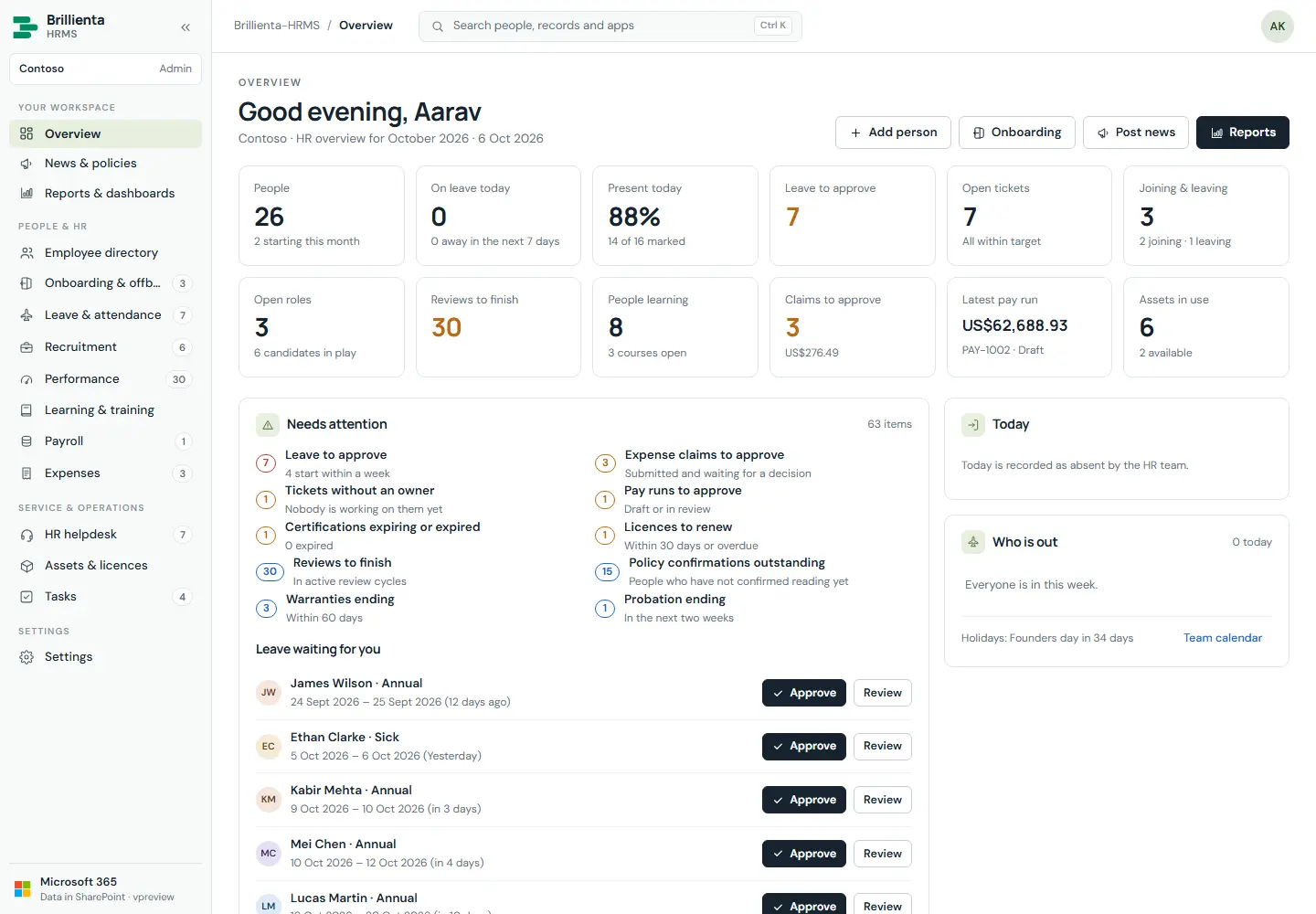
HR, administrators, asset managers and auditors get twelve headline tiles, an action centre of everything waiting — with leave approvals inline — plus clock in/out, who is out, celebrations, headcount trend, charts from every app, a per-department table, recent activity, news and the team checklist. Everyone else gets their own workspace: clock in/out, what is waiting for them, leave, tasks, goals, learning, requests, pay and claims, equipment, news and what is coming up.
Overview. Tiles (People, On leave today, Leave to approve, Open tickets…), Needs attention with counts, and Leave waiting for you with Approve in place.
How it works
Action-centre items appear only for people who can act on them (leave/expense decisions, unowned or overdue tickets, late onboarding steps, reviews, pay runs, expiries, renewals, probation).
Quick actions open the right new form (#/leave/new, #/helpdesk/new); waiting items open the record itself.
Sidebar badges are live open counts; a lock marks apps outside your plan.
Command palette (Ctrl/Cmd+K) jumps to people, records and apps from anywhere.
News & policies
Everyone reads
HR publishes
Plus
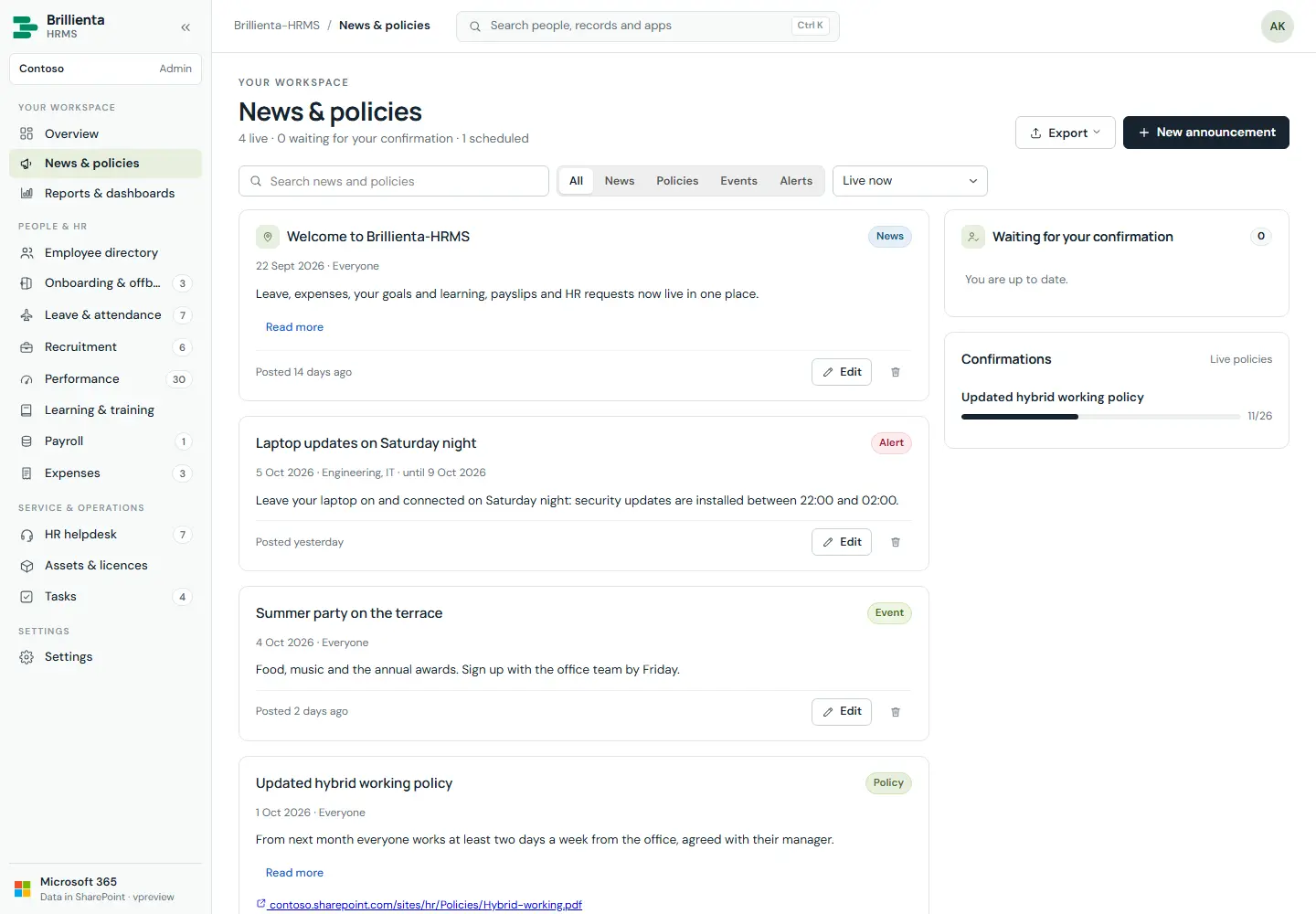
Announcements (news, policies, events, alerts) for everyone or for departments — pinned, scheduled with an end date. Policies can ask people to confirm reading, and HR sees who has and who has not, with export.
News & policies. Audience targeting, pinning, scheduling and read confirmations per policy.
How it works
Employees see only announcements published for everyone or their department; each confirmation is recorded once.
Post from News → New: title, body, audience, pin, schedule, end date, confirmation required.
Employee directory
Everyone
Plus · org chart & kudos: Pro
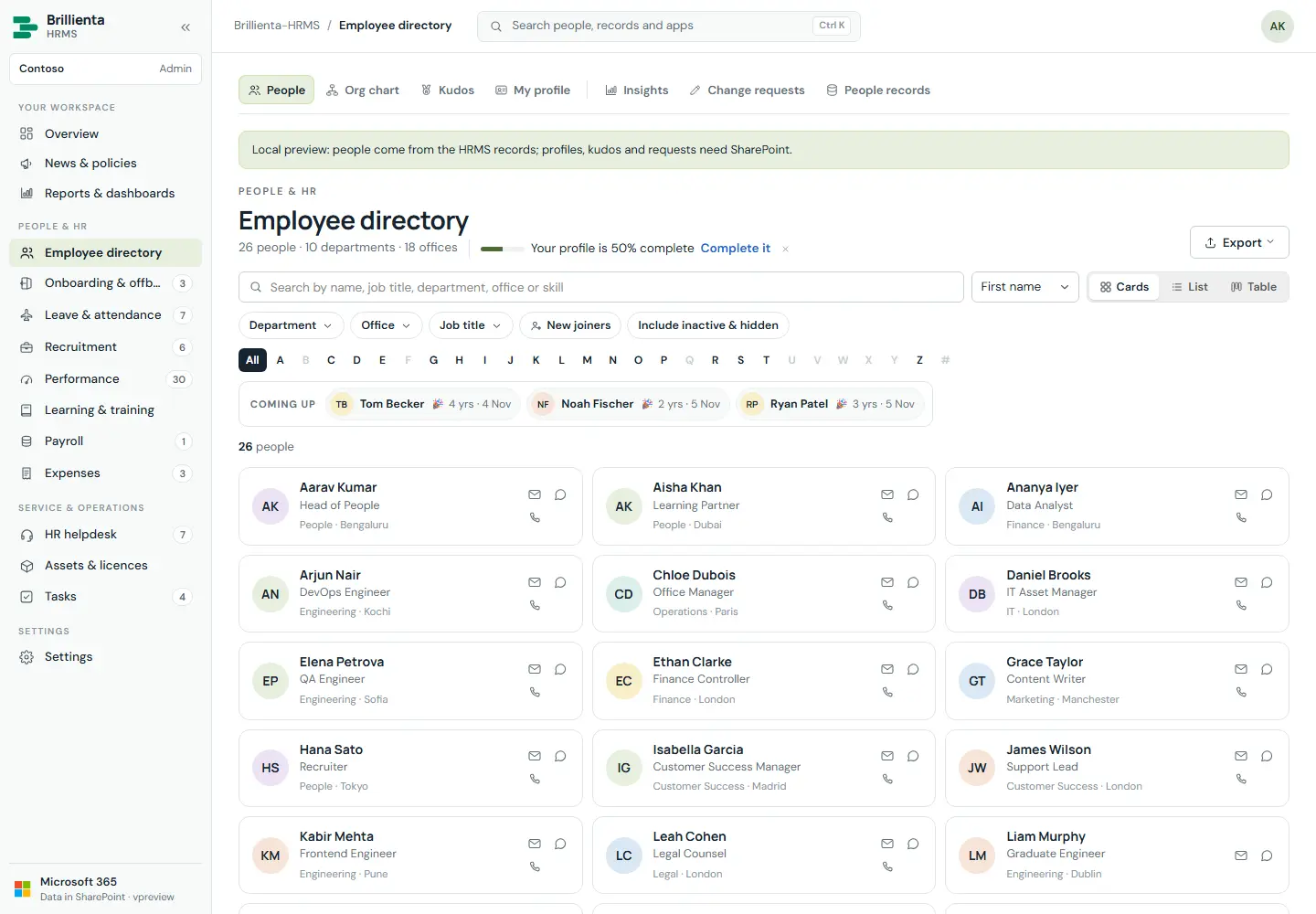
The Brillienta Employee Directory as a built-in module. People search with one search box, dropdown filters with counts, favourites, new joiners, A–Z and cards / list / table; rich profiles with photo, Teams presence, banner, skills, reporting line, kudos, vCard and QR code; self-service My profile (official-field edits become change requests to HR); interactive org chart; kudos wall; Insights workforce dashboard and HR reports; CSV import and Microsoft 365 sync with preview and safeguards.
People. One search over name, title, department, skills and office; Coming up line for birthdays, anniversaries and new joiners.
How it works
A synced or added person is everywhere at once — directory and all HR apps share one people list.
Card, list, table and org-chart appearance is configured under Settings → Employee directory → Cards & views, with live previews.
New people start with their full annual leave allowance; sync respects the plan's employee seats.
Onboarding & offboarding
HR runs · person ticks own steps
Plus
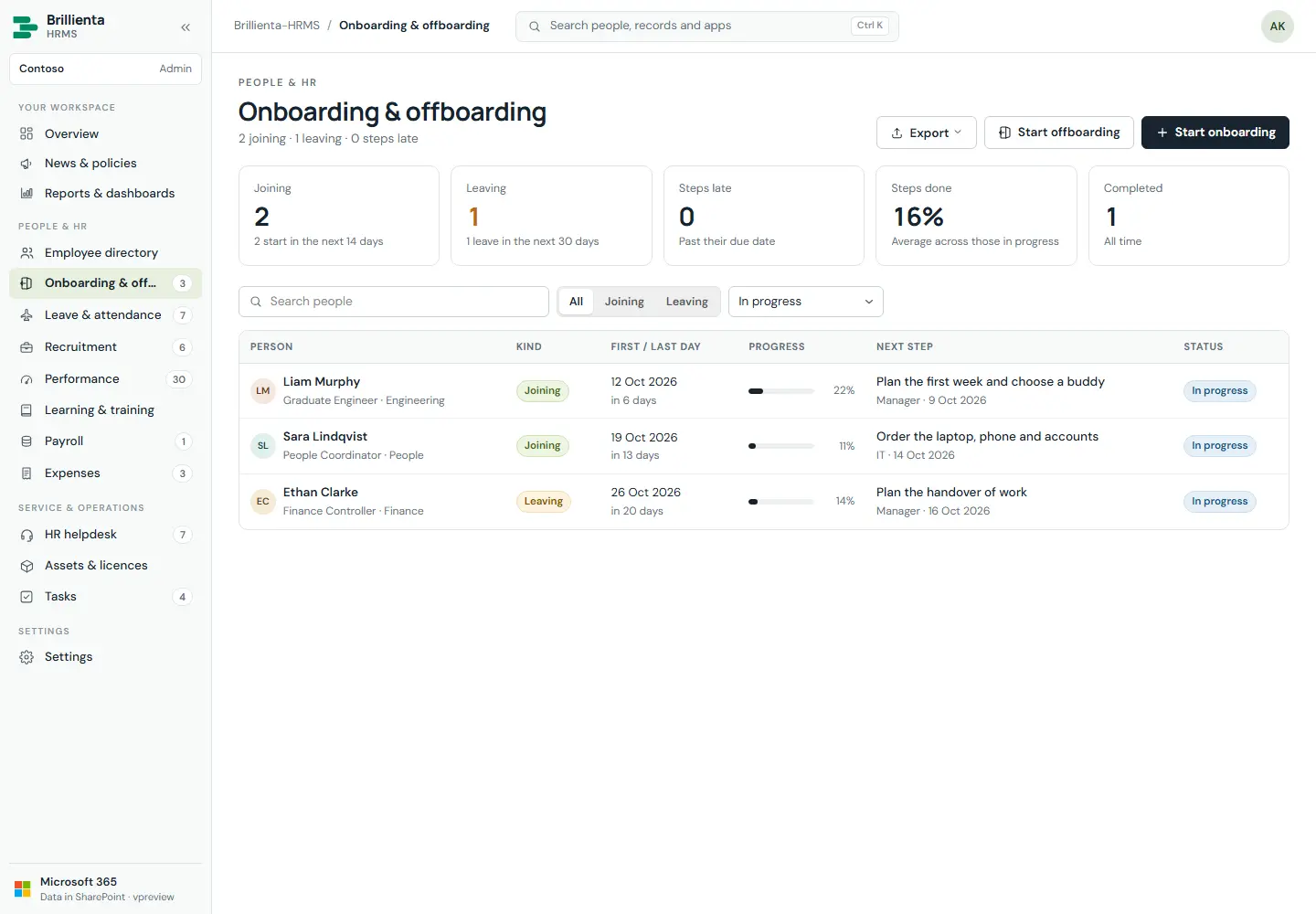
A dated checklist per person joining or leaving, copied from templates in Settings, shared between HR, manager, IT and the person. Offboarding lists equipment and licence seats to collect and deactivates the person on completion. Hiring a candidate can start an onboarding automatically.
Journeys. Owners per step (HR / Manager / IT / The person), due dates from first/last day, files, progress and late highlighting.
Leave & attendance
Everyone (self-service) · decisions: Admin
Plus
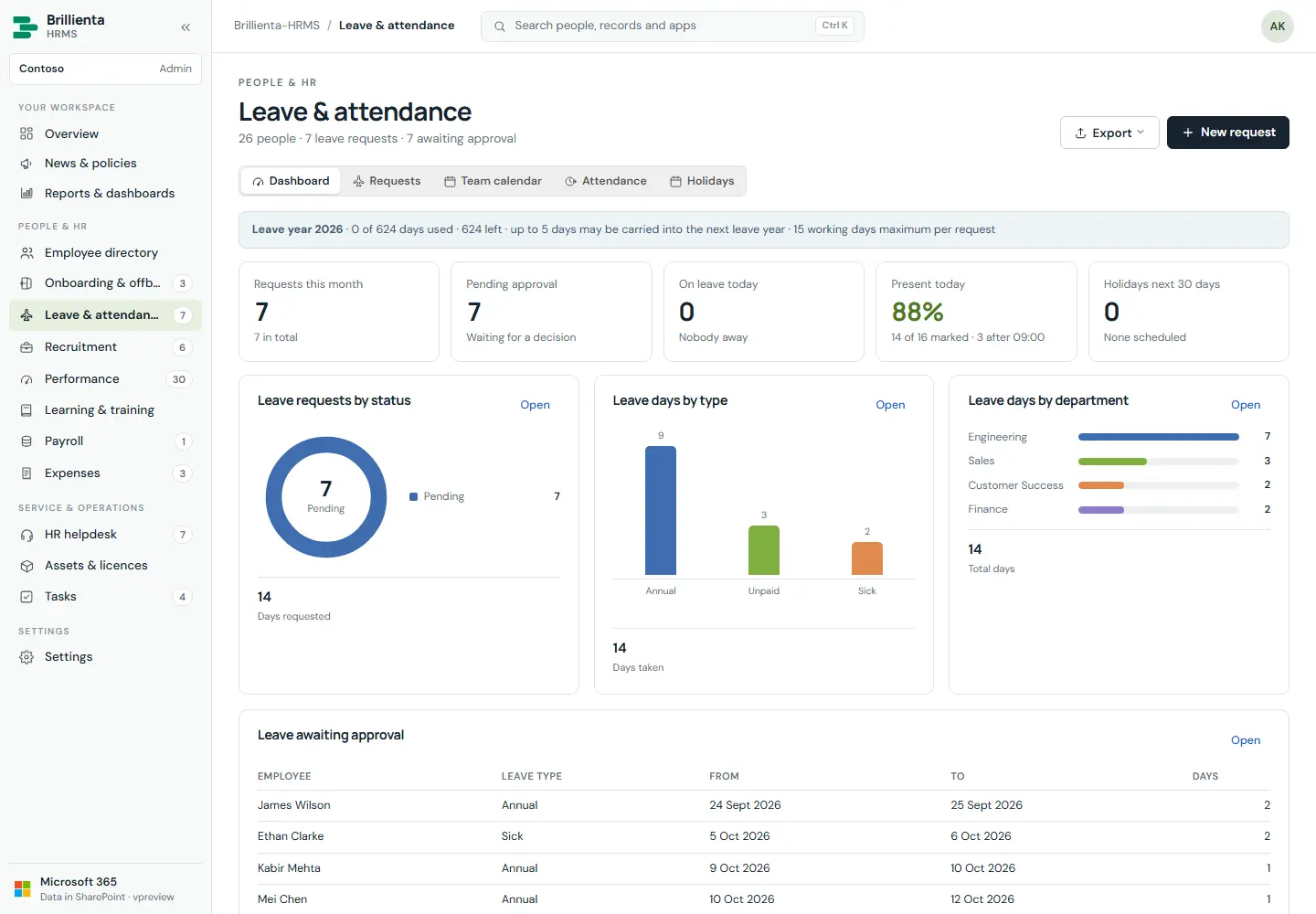
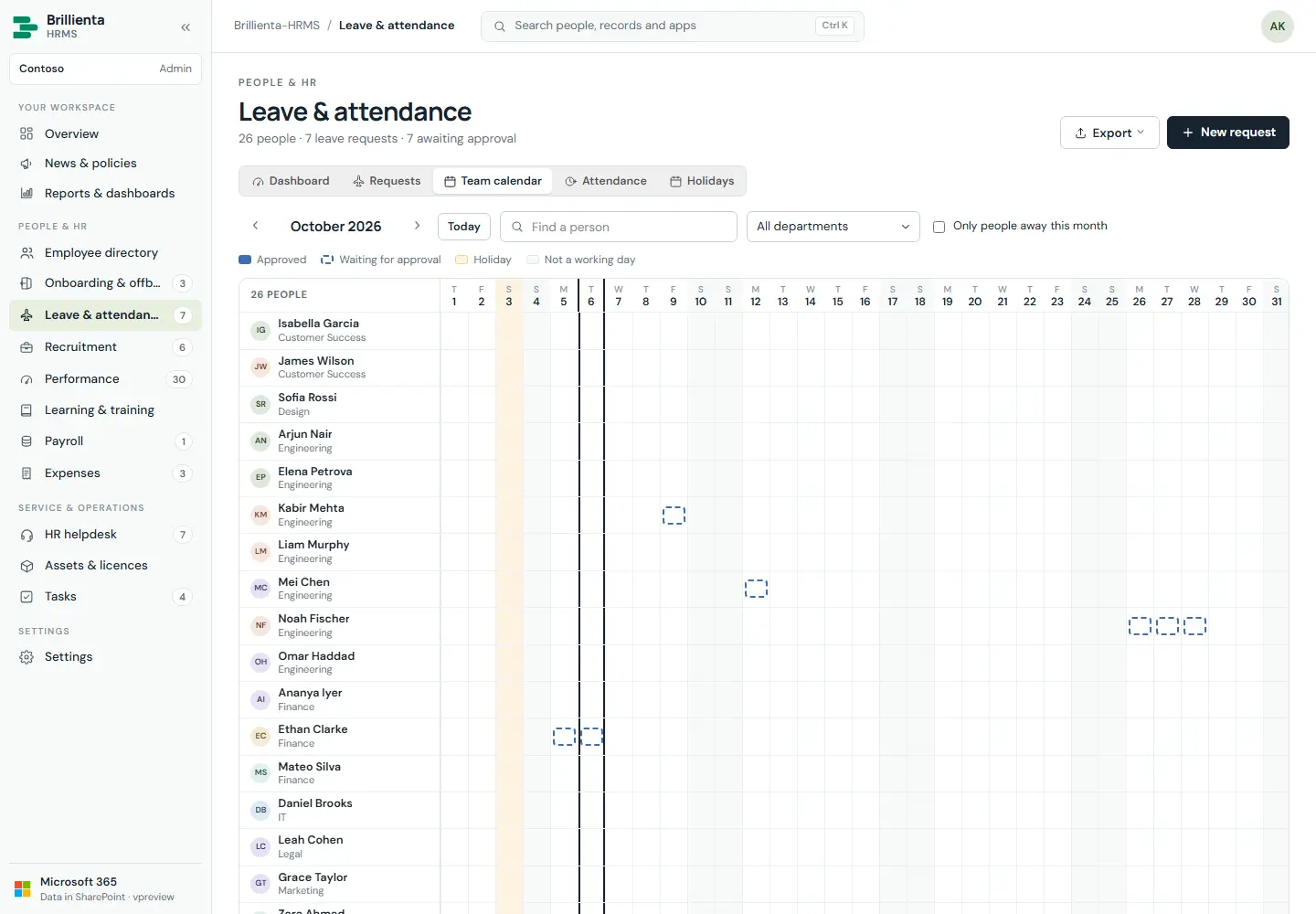
Requests with approval (Pending → Approved / Rejected / Cancelled); approved annual leave comes off leave days left and cancelling gives it back. Balances from leave year and carry-over; working days from work week and holidays. Team calendar (people × days), daily roster and timesheet with lateness and overtime, clock in/out, holiday calendar.
Leave dashboard. Balances, pending approvals, on-leave-today, charts by status, type and department, and the approval queue.
Team calendar. Who is away each day, with holidays and non-working days marked.
How it works
Employees request for themselves only; decisions and notes are Admin only. With approvals off, own leave is taken off by the next HR/Admin session.
Clock in/out covers today only (Present/Remote, valid times); HR-marked days (leave, training, absence) are preserved.
Policy (year, carry-over, longest request, types, work week, grace, overtime) lives in Settings → Leave and Attendance.
HR helpdesk
Everyone raises · HR resolves
Plus
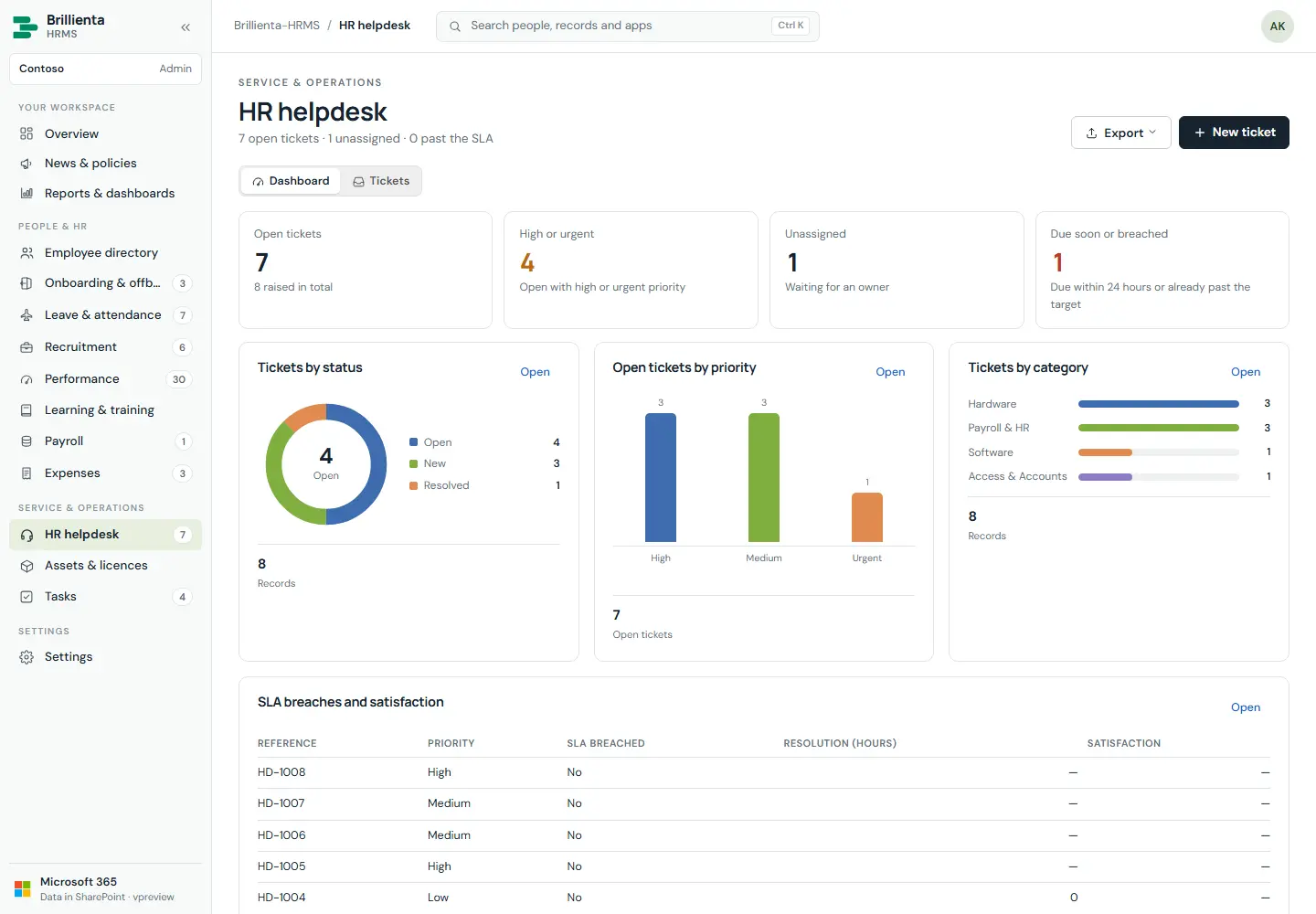
Tickets with reference numbers (HD-1001…), priority, category and SLA targets; public replies and internal notes; assignment; satisfaction rating. Employees raise and follow their own; the dashboard tracks open, high/urgent, unassigned and due-soon/breached tickets by status, priority and category.
Helpdesk. SLA targets per priority/category; breaches and satisfaction tracked per ticket.
How it works
Employees raise as themselves, edit title/description/category/tags, reply on own tickets, rate resolved tickets 1–5.
HR assigns, replies publicly or notes internally, resolves; emails fire on receive/new/assign/reply/resolve.
Tasks
Everyone (own tasks)
Plus
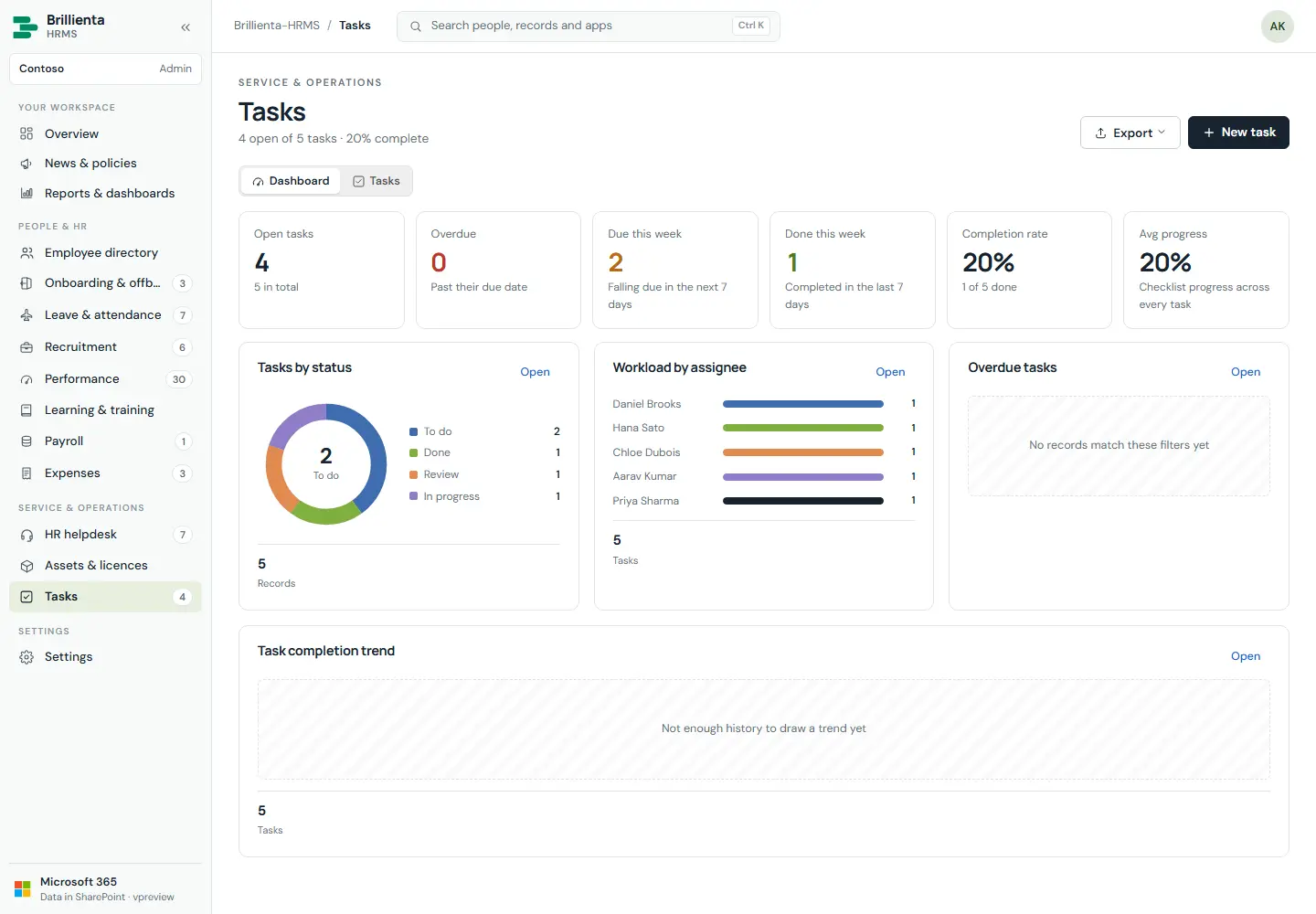
Board and list with sub-tasks, priorities and due dates. Employees update the status and checklist of tasks assigned to them; HR manages all tasks.
Tasks. Board + list, sub-tasks, overdue surfacing on the Overview.
Recruitment
HR
Pro
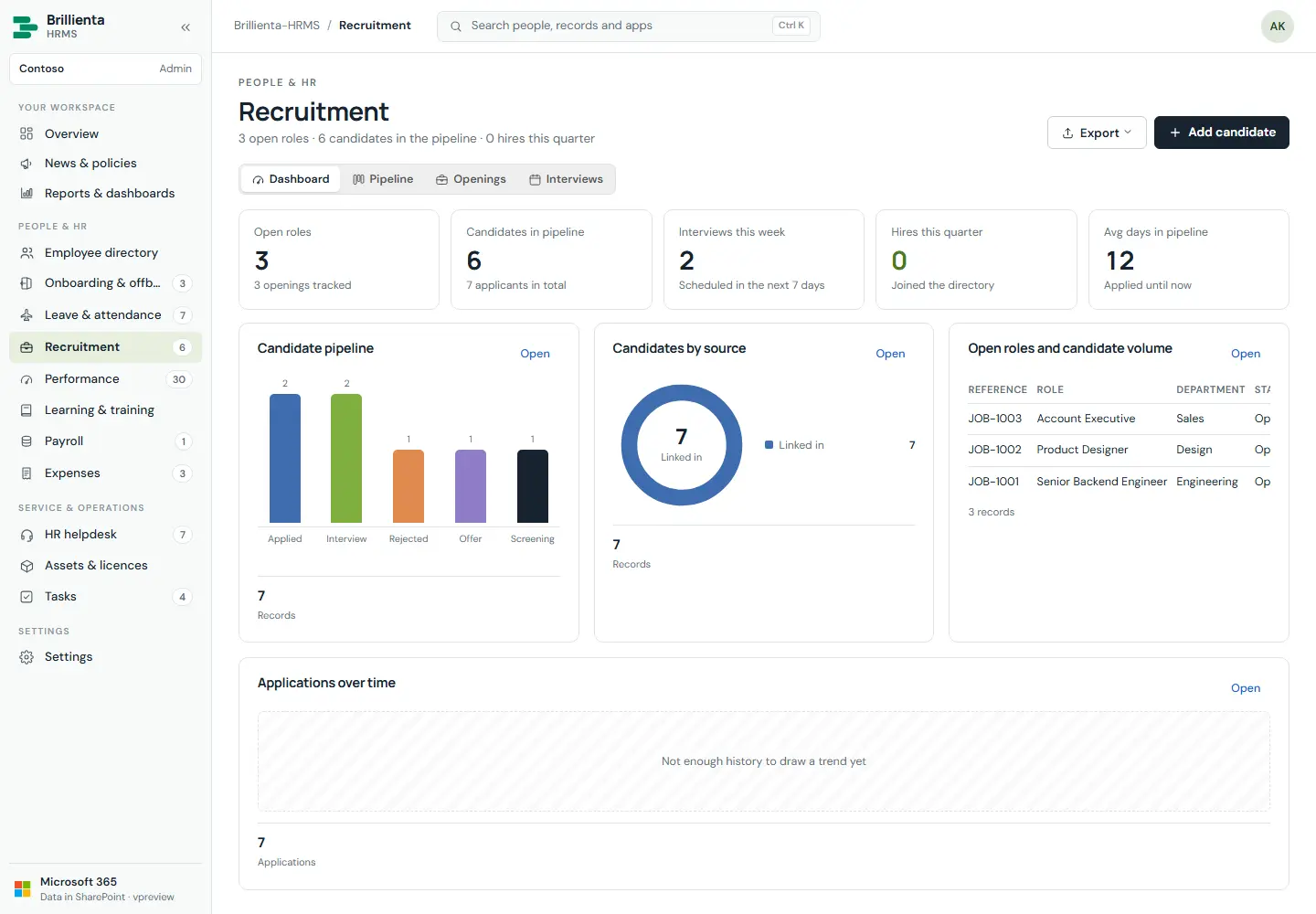
Job openings, candidate pipeline board (Applied → Screening → Interview → Offer → Hired / Rejected), interviews with scorecards, one-click hire into the directory. Card arrows follow the stages in Settings; moving to Hired asks for hire confirmation which creates the employee.
Recruitment. Pipeline board, scorecards, and hire-to-employee in one confirmation.
Performance
HR + employees (own goals)
Pro
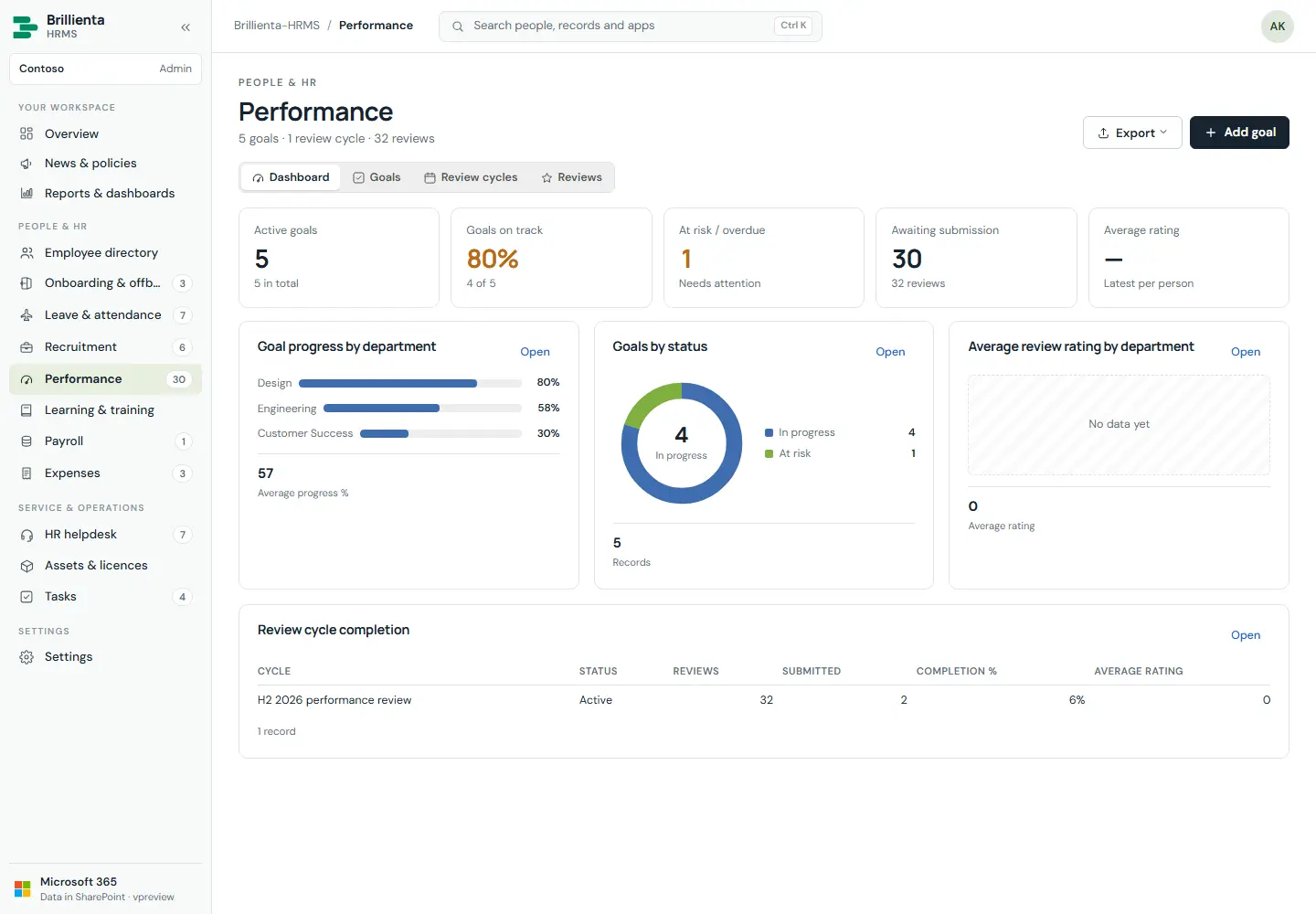
Goals with weights and progress (people update their own), review cycles, competency reviews on your rating scale (Not started → In progress → Submitted → Acknowledged). People confirm they have read their review.
Performance. Goal weights and progress, cycles and competency reviews on your scale.
Learning & training
Everyone enrols
Pro
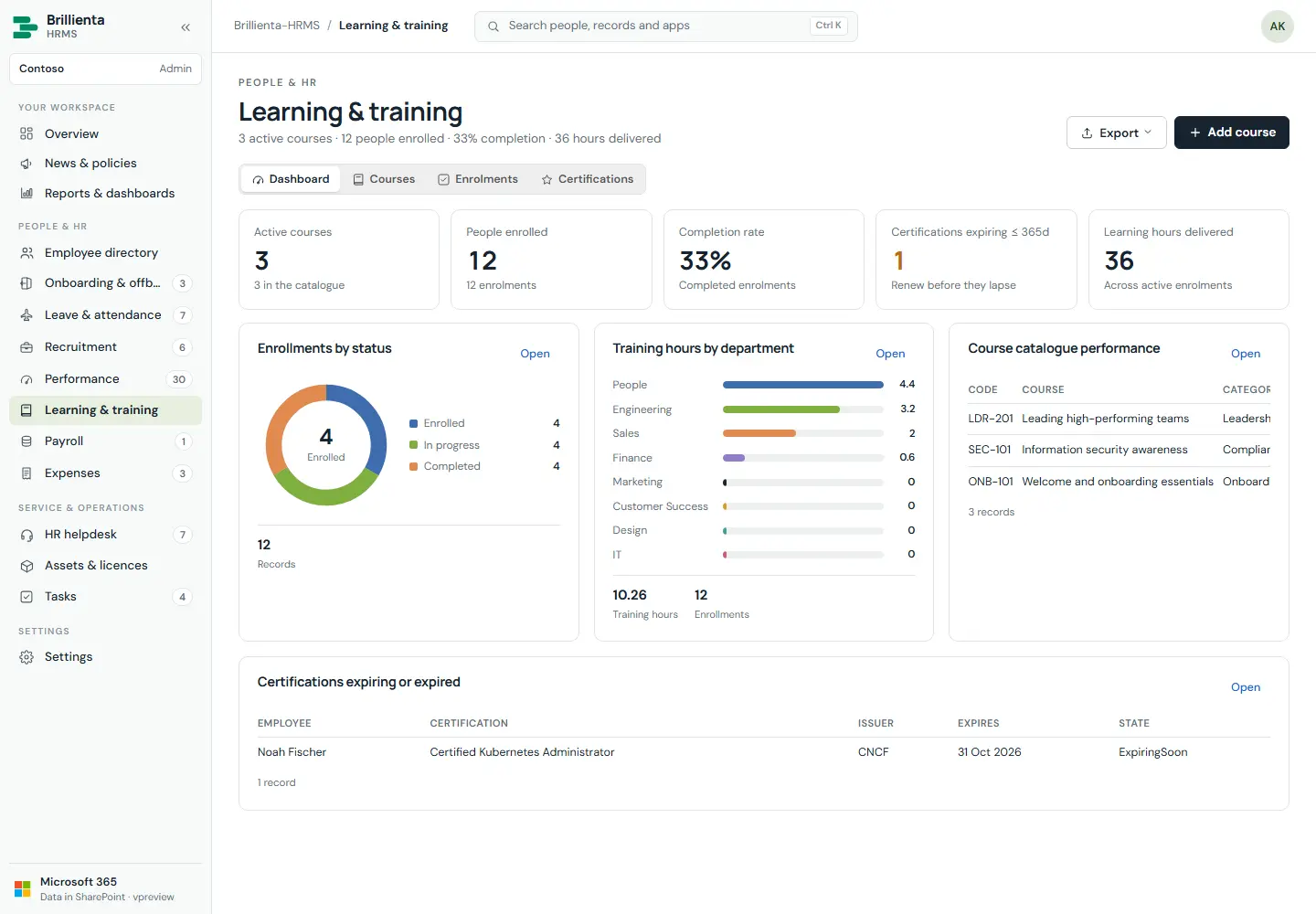
Course catalogue with seats (people enrol themselves), enrolments with progress and scores (completing needs 100%), certifications with expiry and renewal (people add their own). Dashboard flags overdue enrolments and expiring certifications.
Learning. Catalogue, self-enrolment, progress tracking and certification renewals.
Expenses
Everyone claims · Admin decides
Pro
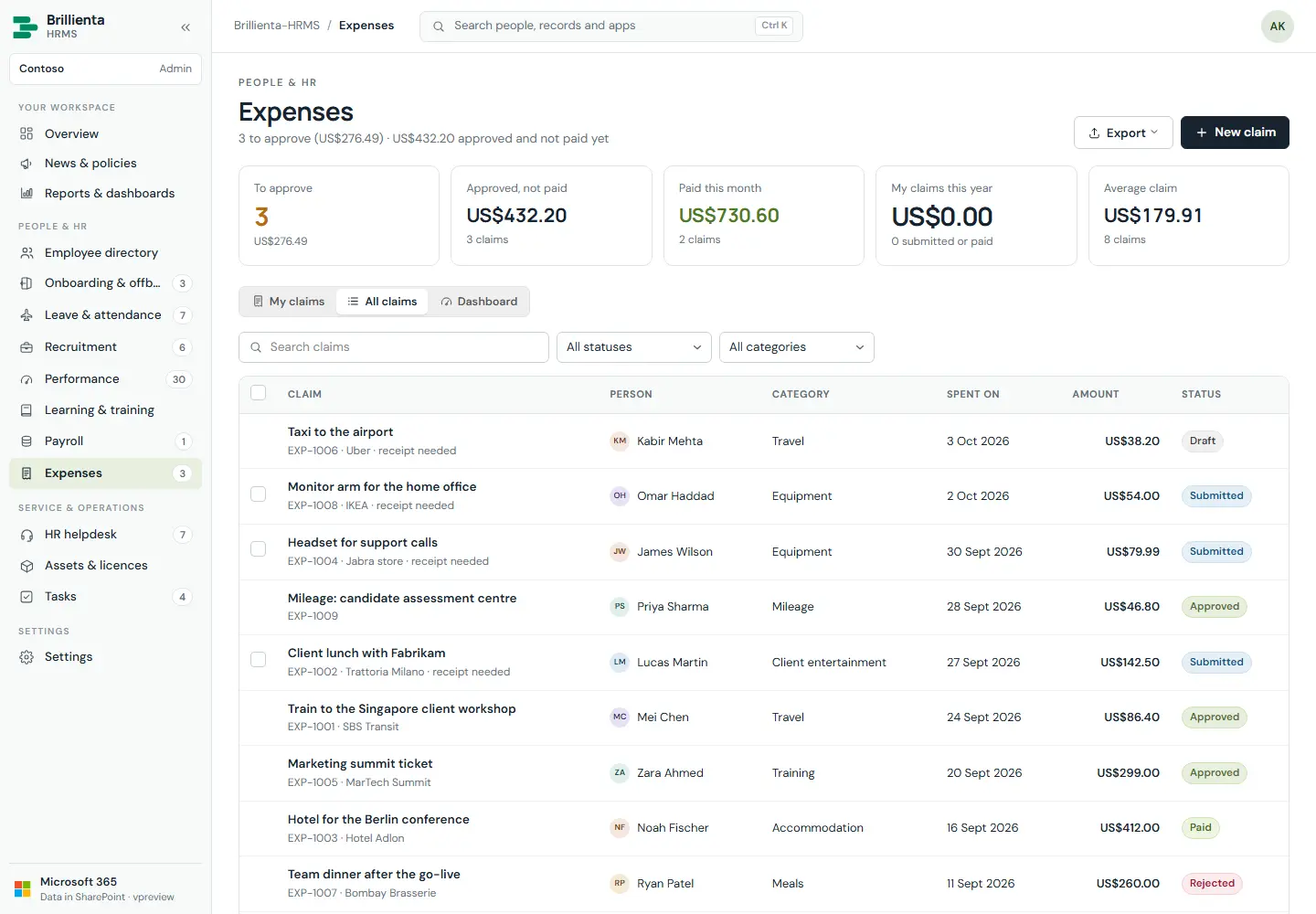
Claims with category, merchant, amount and receipts (required above a threshold). Draft → Submitted → Approved / Rejected → Paid; bulk approval; approved claims paid back with the next pay run (added to net pay, not taxed) or marked paid by hand. Dashboard by category, month, department and largest claimants.
Expenses. Receipts, bulk decisions, payroll payback and spend dashboards.
Assets & licences
Asset manager
Pro · device sync: Enterprise
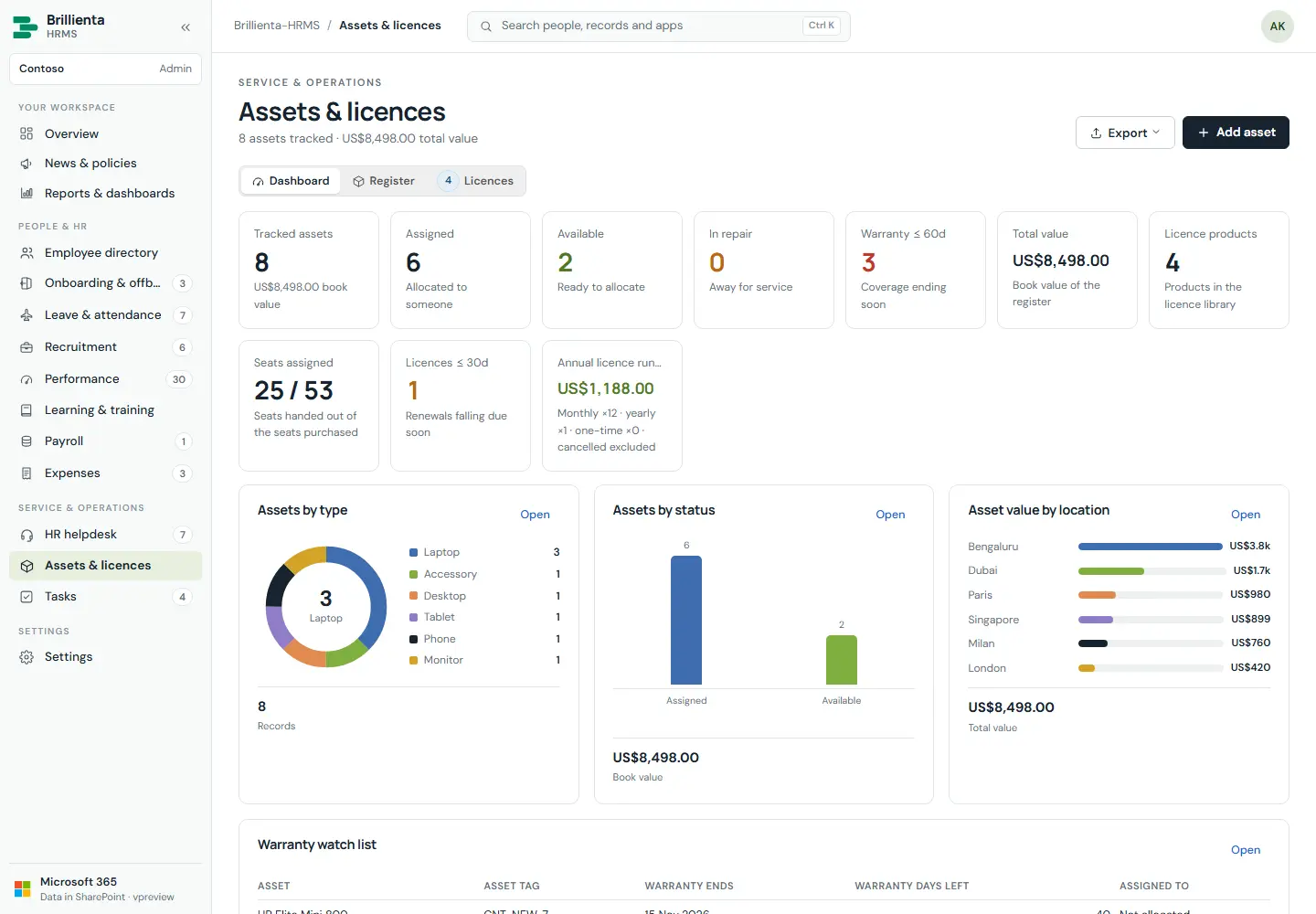
Equipment register with allocation, warranty and stale-device tracking; software licence library with seats for people and devices and renewal warnings (licence keys hidden from employees). Intune managed devices sync in daily (Enterprise), matched by device id/serial, keeping local purchase, warranty and notes.
Assets. Allocation, warranty windows, licence seats and renewal warnings.
Payroll & payslips
Payroll: Admin · slips: everyone
Enterprise
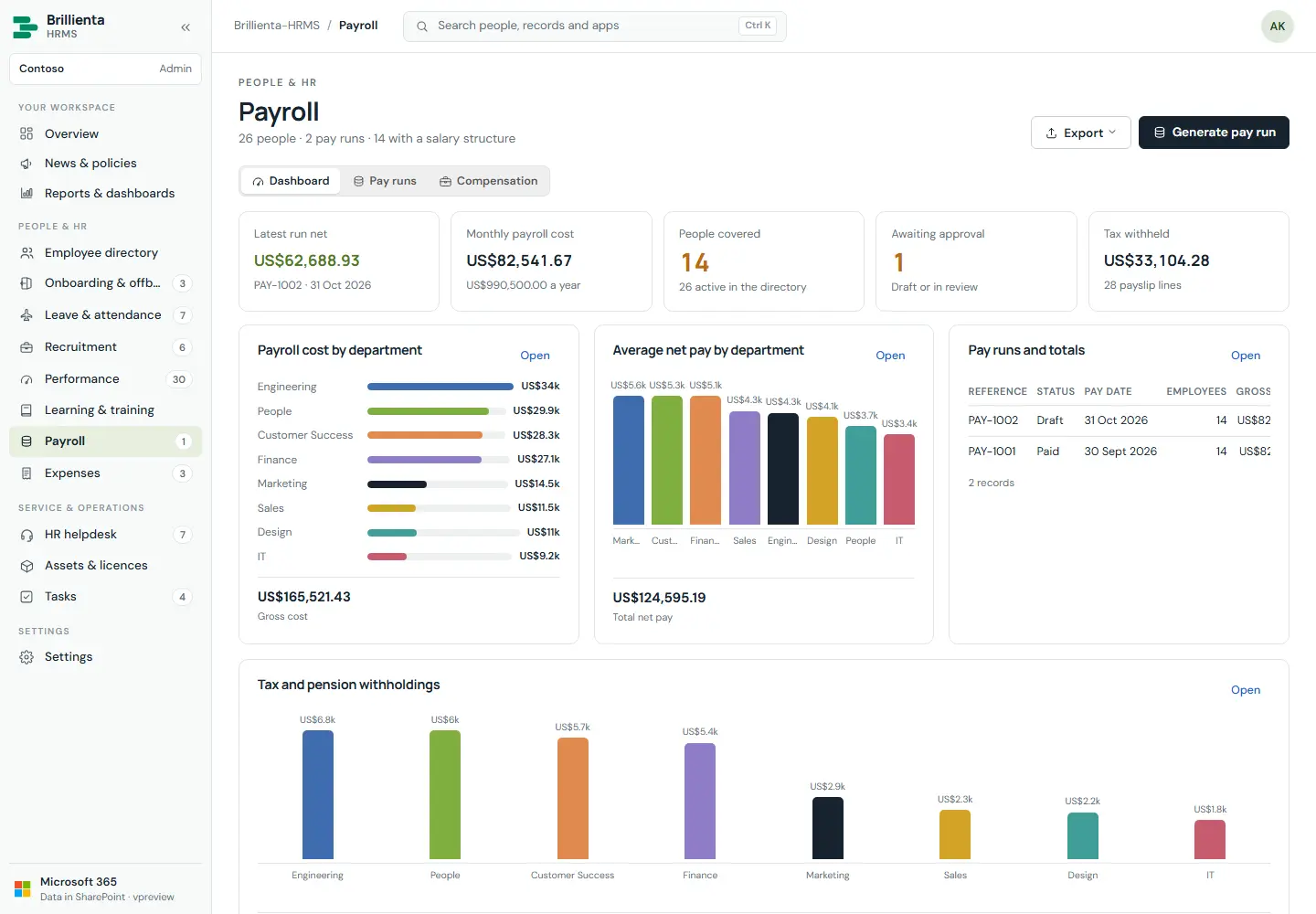
Salary structures, pay runs (Draft → Review → Approved → Paid, or Cancelled) generated from structures, pay lines with tax, pension and expenses paid back. Paying a run releases its payslips; everyone else sees My payslips with year-to-date totals and their salary structure. Payroll lists are closed to the HR team in SharePoint.
Payroll. Run lifecycle, tax/pension lines, and employee payslips released on payment.
How it works
Paying copies reference/period/pay date onto each pay line, because employees cannot read pay runs — that is how they receive slips.
Reopening or cancelling a run takes slips back; payslip emails carry no amounts.
Reports & dashboards
Everyone views · builder: HR
Plus · builder: Pro
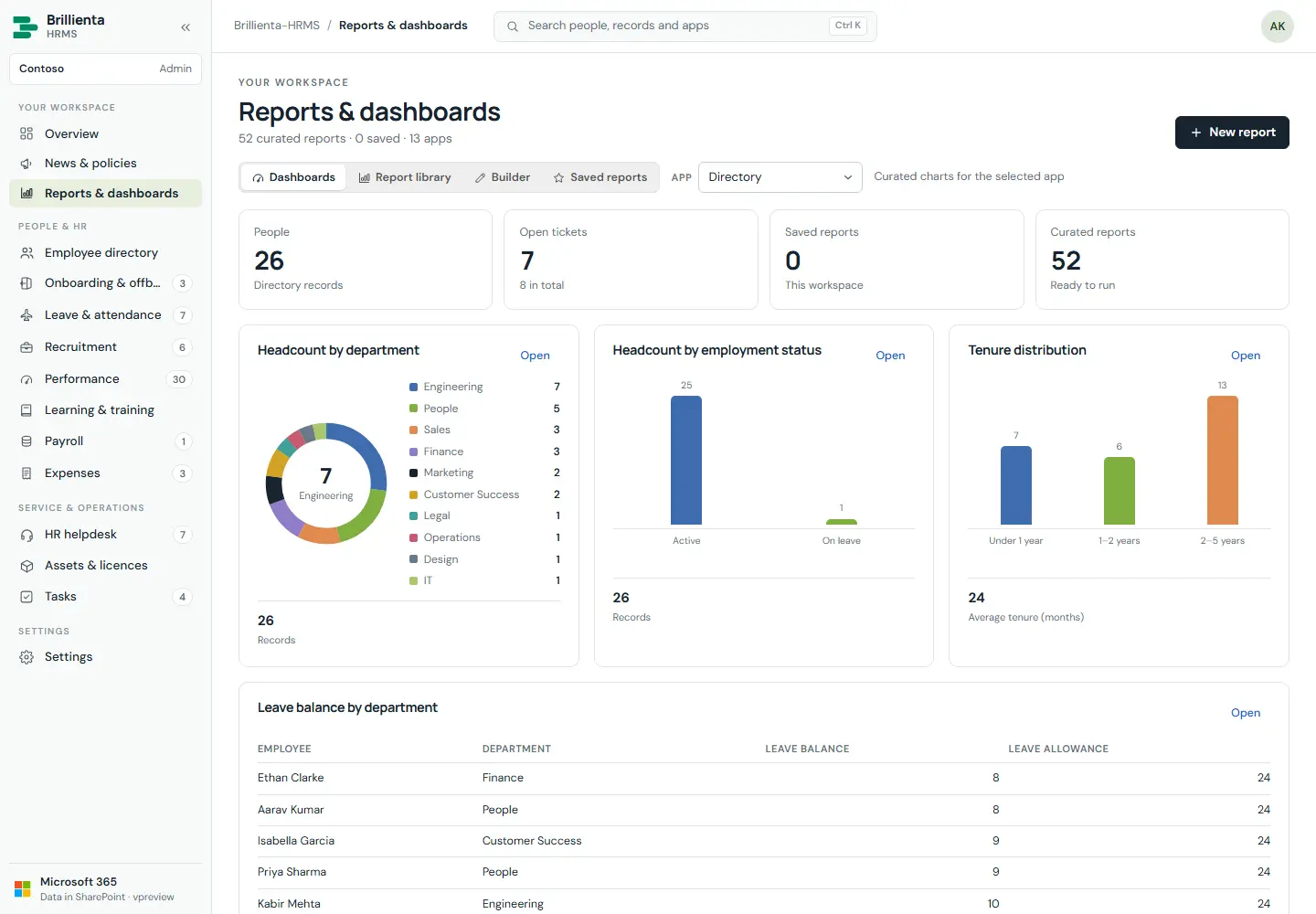
Each app has a dashboard tab (KPIs and charts from the same report engine; money as money, status codes as words). Library of built-in reports across apps, report builder (dataset, columns, filters, grouping with counts/totals/averages, chart) and saved reports shared with the team. Every table exports what is on screen.
Reports. Built-in library, builder and saved team reports with charts.
For employees: self-service
Employee
Plus
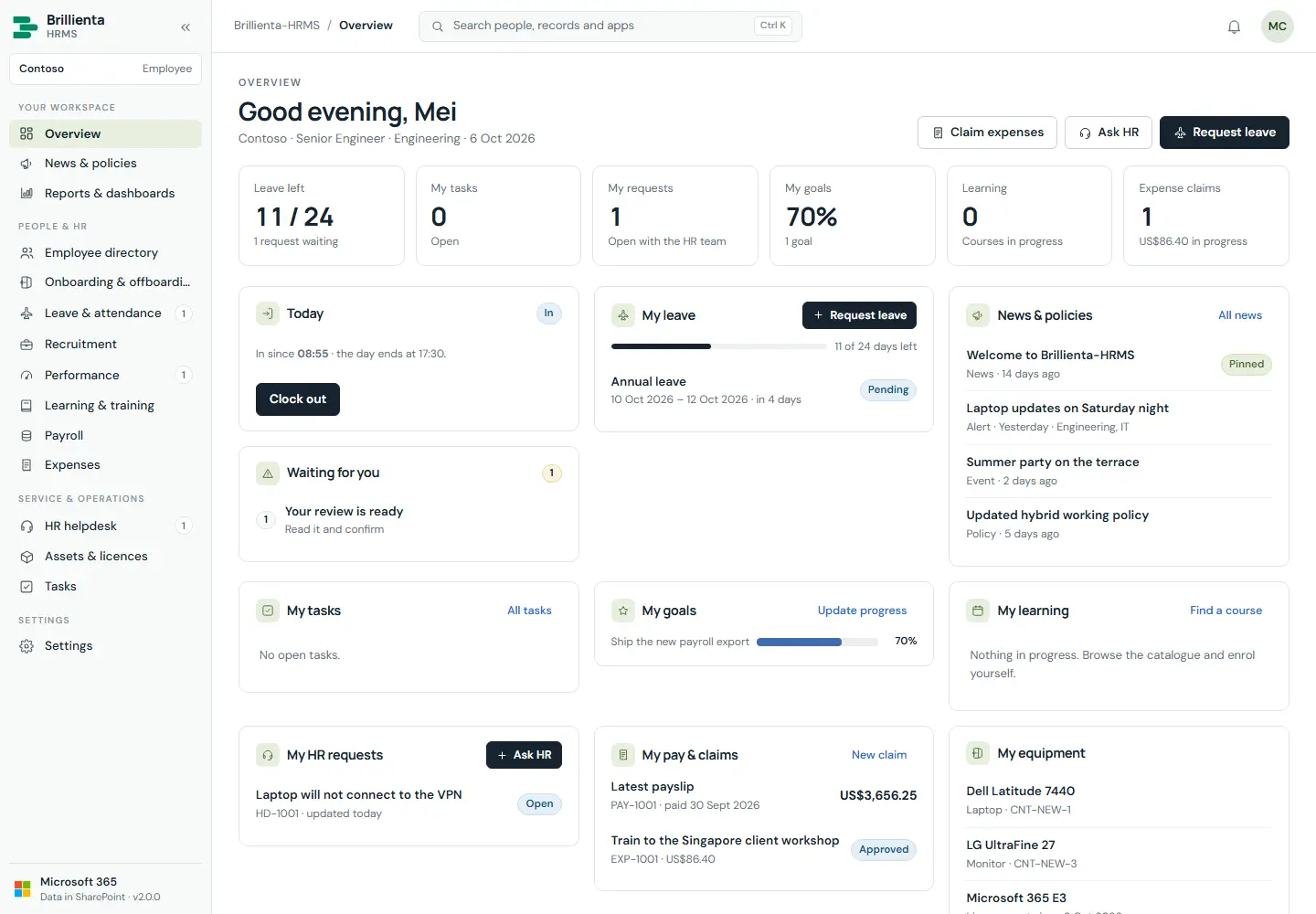
One workspace for everything personal: clock in/out, waiting items (policies/reviews to confirm, own onboarding steps, overdue tasks/courses, draft claims), own leave/tickets/tasks/goals/learning/expenses/equipment/payslips, news and celebrations. Screens outside one's role show an upgrade or access notice instead of data.
Employee view. Personal tiles and Waiting for you — everything else stays with HR and admins.
Part 4
Administration
Admins run the system from Settings. Each section edits a draft with a save bar (unsaved changes / all saved · Discard · Save settings) that lists problems and refuses to save until they are fixed. Leaving with unsaved changes asks first; other admins' saves merge in without overwriting your edits.
Setup wizard
List manager
All plans
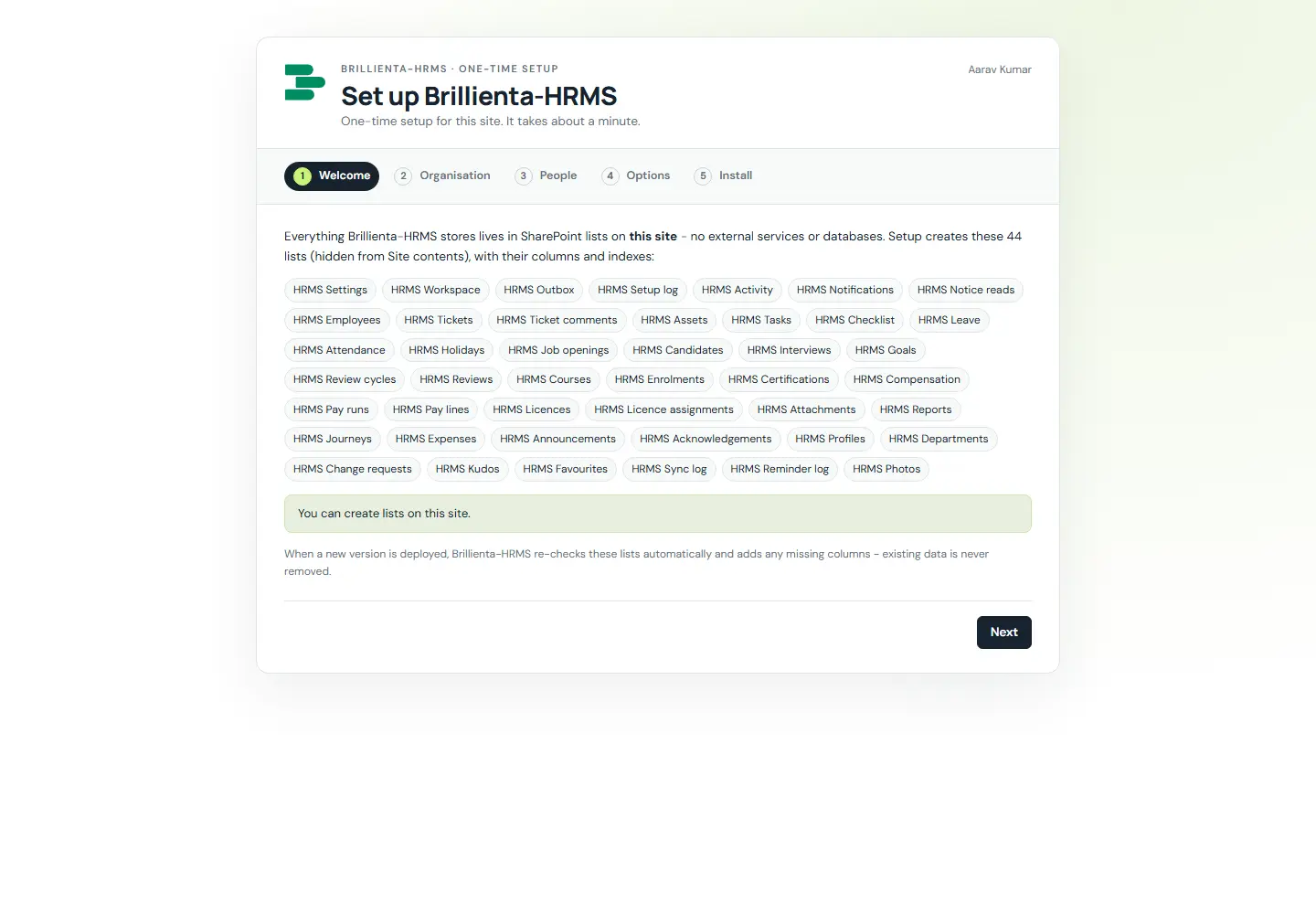
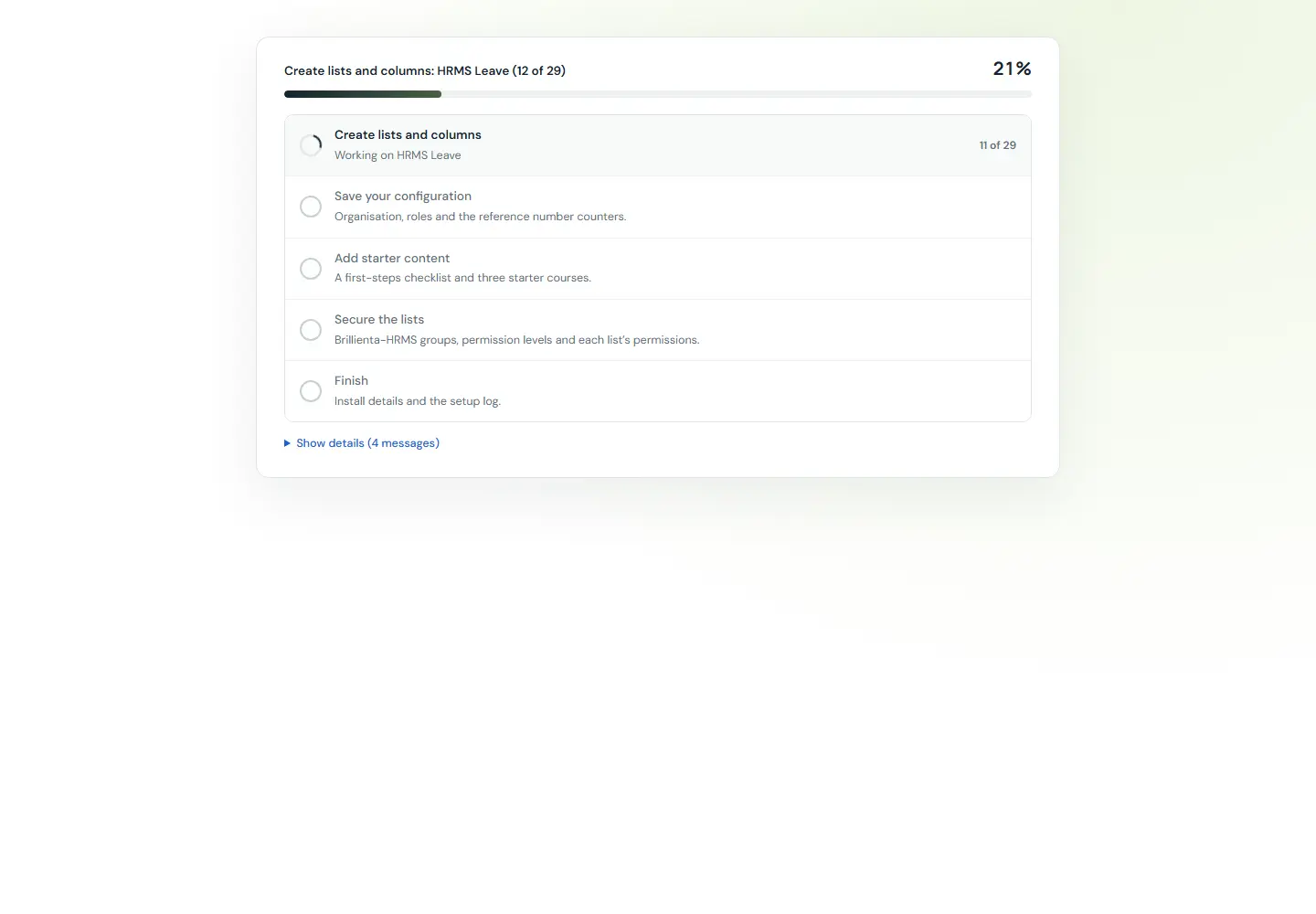
The first person who can manage lists gets a five-step wizard: Welcome → Organisation (name, HR email, time zone, currency, language, date format, ticket prefix, brand colour) → People (admins, HR, asset managers, auditors) → Options (starter content, email, secure the lists) → Install (creates 33 lists, writes config, live log). Everyone else sees "not set up yet" until then.
Setup. Organisation, people, options and install with a live stage log.
Installing. Stage checklist with per-list progress; safe to re-run after a stop.
How it works
Each release upgrades on first visit by a list manager: only adds lists, columns, indexes, choice values and missing config; never deletes.
Earlier HRMS releases keep their lists and data; Schema & security can validate and repair at any time.
General & branding
Admins
All plans
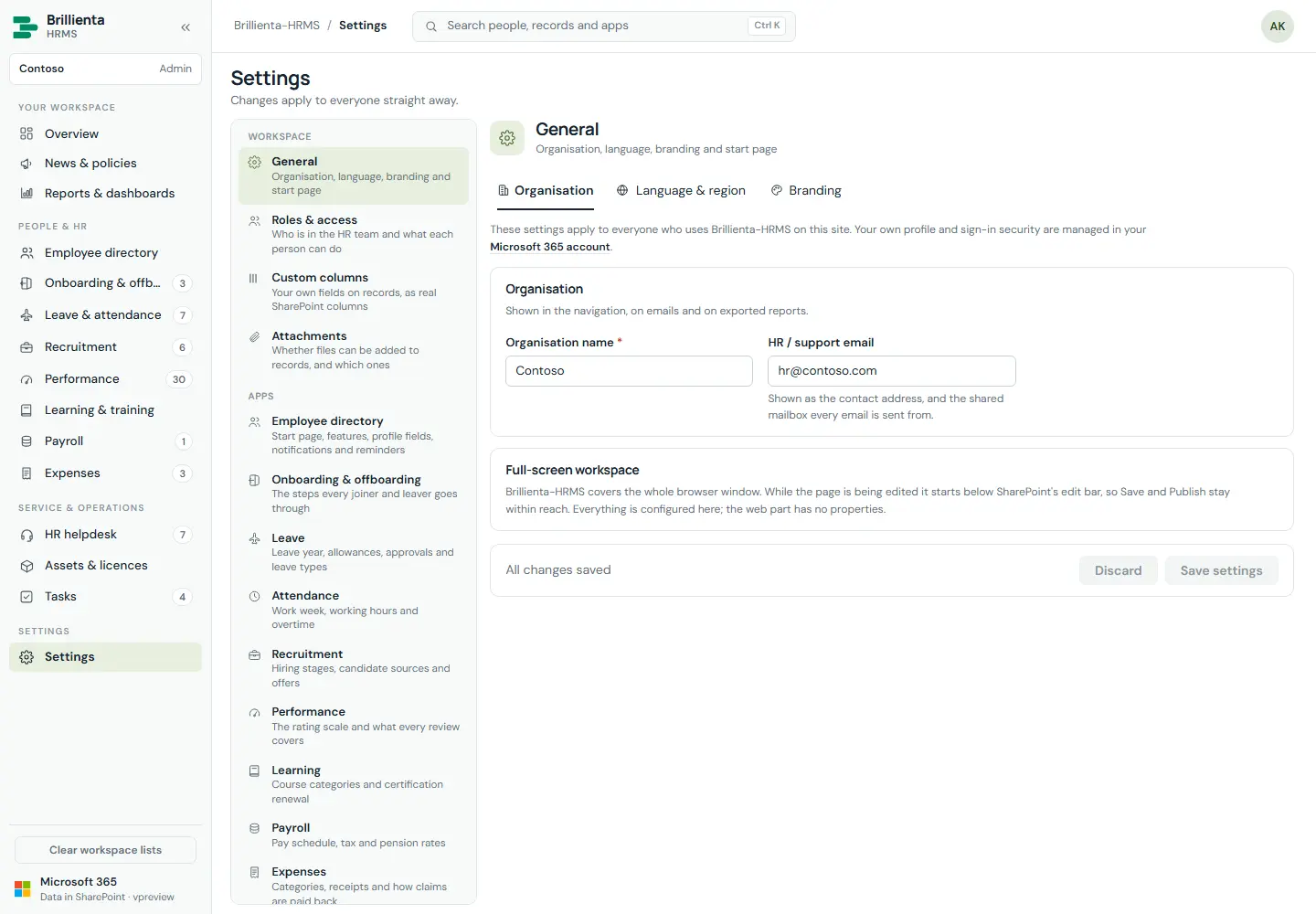
Organisation, language & region, branding: brand colour (buttons, links, email header), logo (upload or SharePoint URL), light / dark / follow SharePoint, landing app, and refresh seconds (5 s – 2 min).
General. Identity, region, brand colour, logo, theme and live-refresh interval.
Roles & access
Admins
All plans
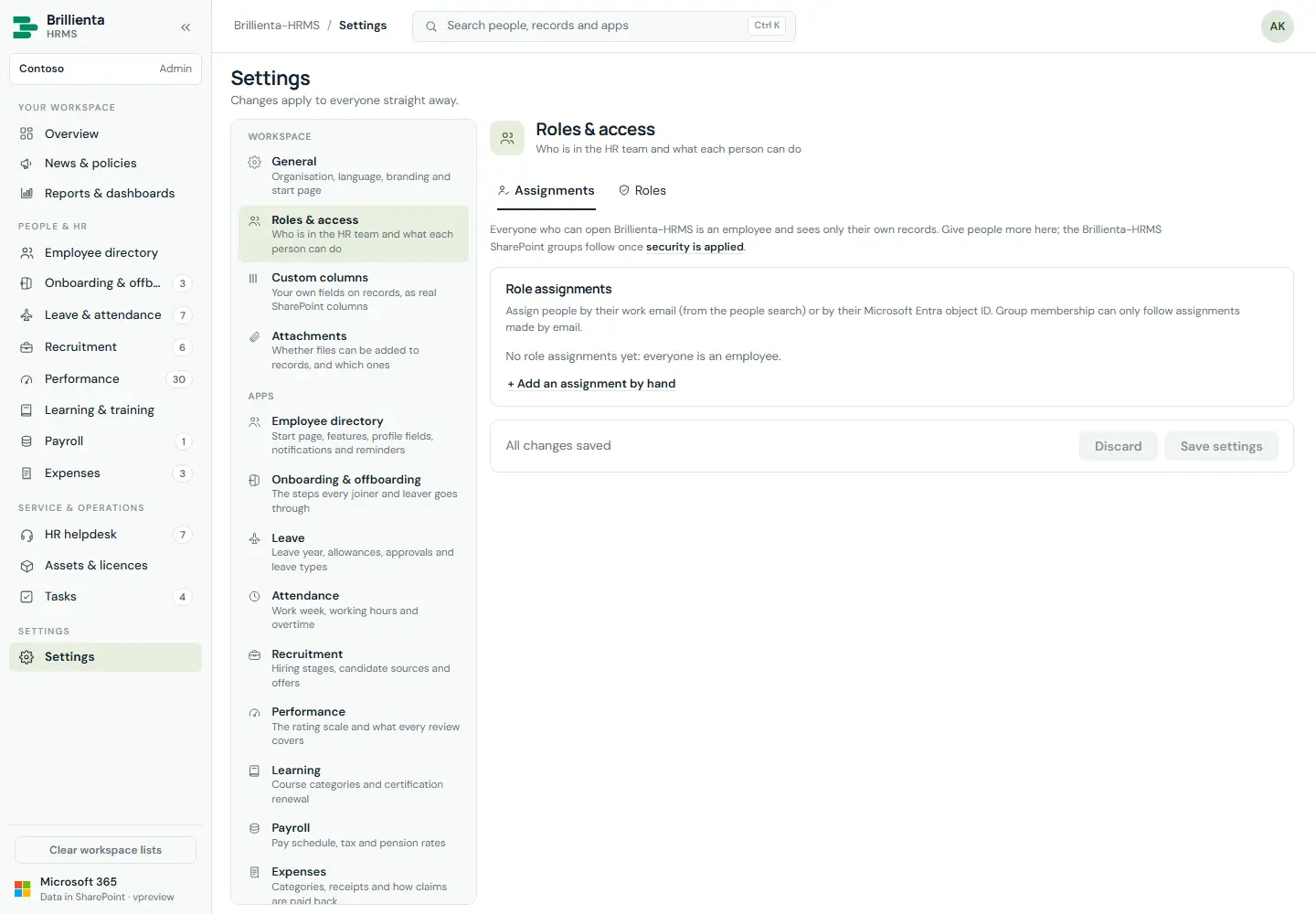
Assign Admin, HR team, Asset manager and Auditor by person or email; everyone else is an Employee. Saving keeps the SharePoint groups in step, so app roles and real permissions always agree.
Roles. Assignments drive group membership; site collection admins are always Admin.
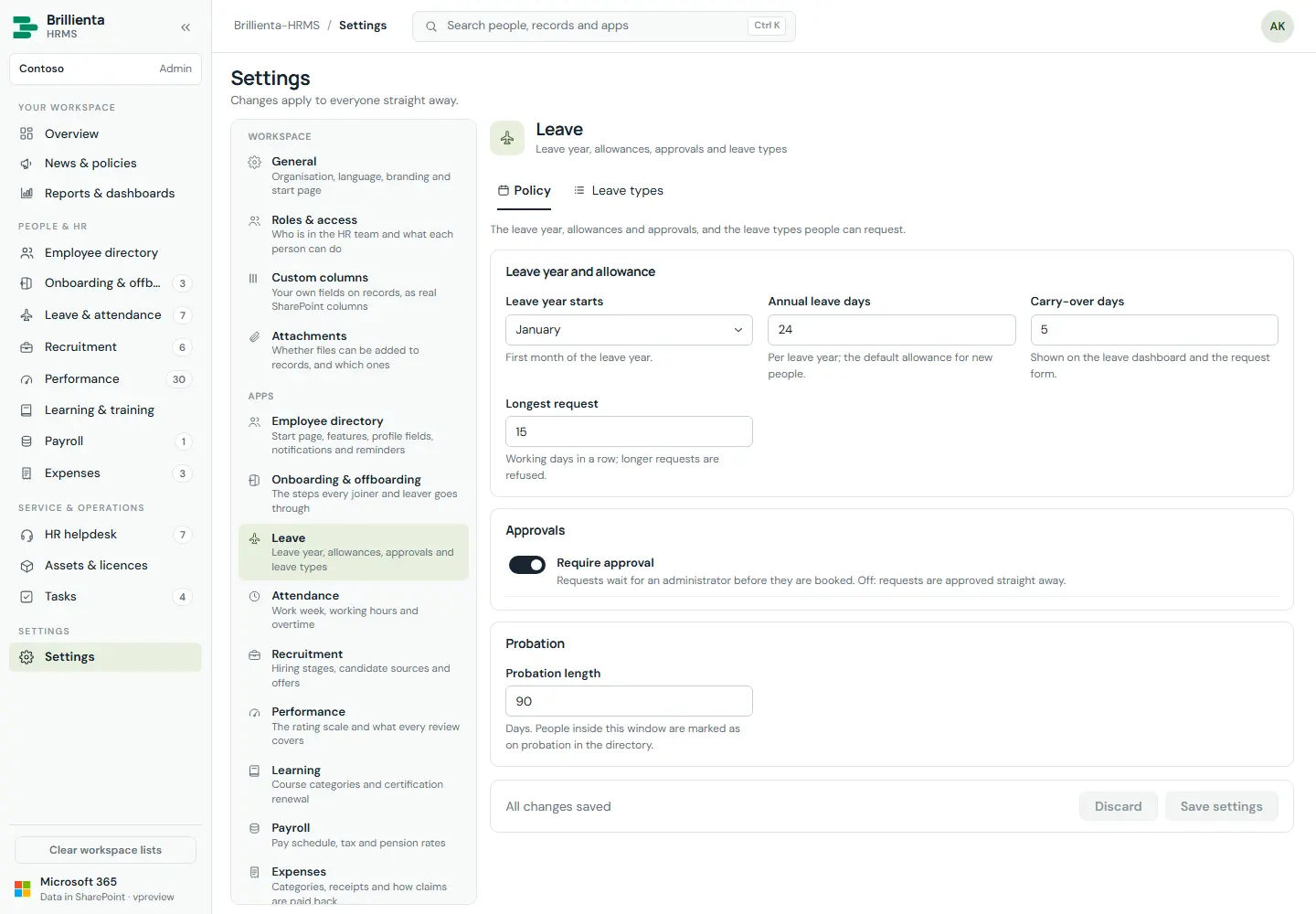
Leave policy & app settings
Admins / HR
All plans · custom columns: Pro
Every setting drives behaviour: leave year, carry-over, work week, approval rule, longest request, types; attendance hours/overtime; recruitment stages; rating scale; certification renewal; SLA targets; warranty/stale windows; expense categories and receipt threshold; onboarding/offboarding templates; custom columns (14 record types, 11 field types → real SharePoint columns); attachments policy.
Leave policy. Year, balances, approvals and types — the same pattern as every app's settings.
Email notifications & flow
Admins
Standard: Plus · custom wording: Pro
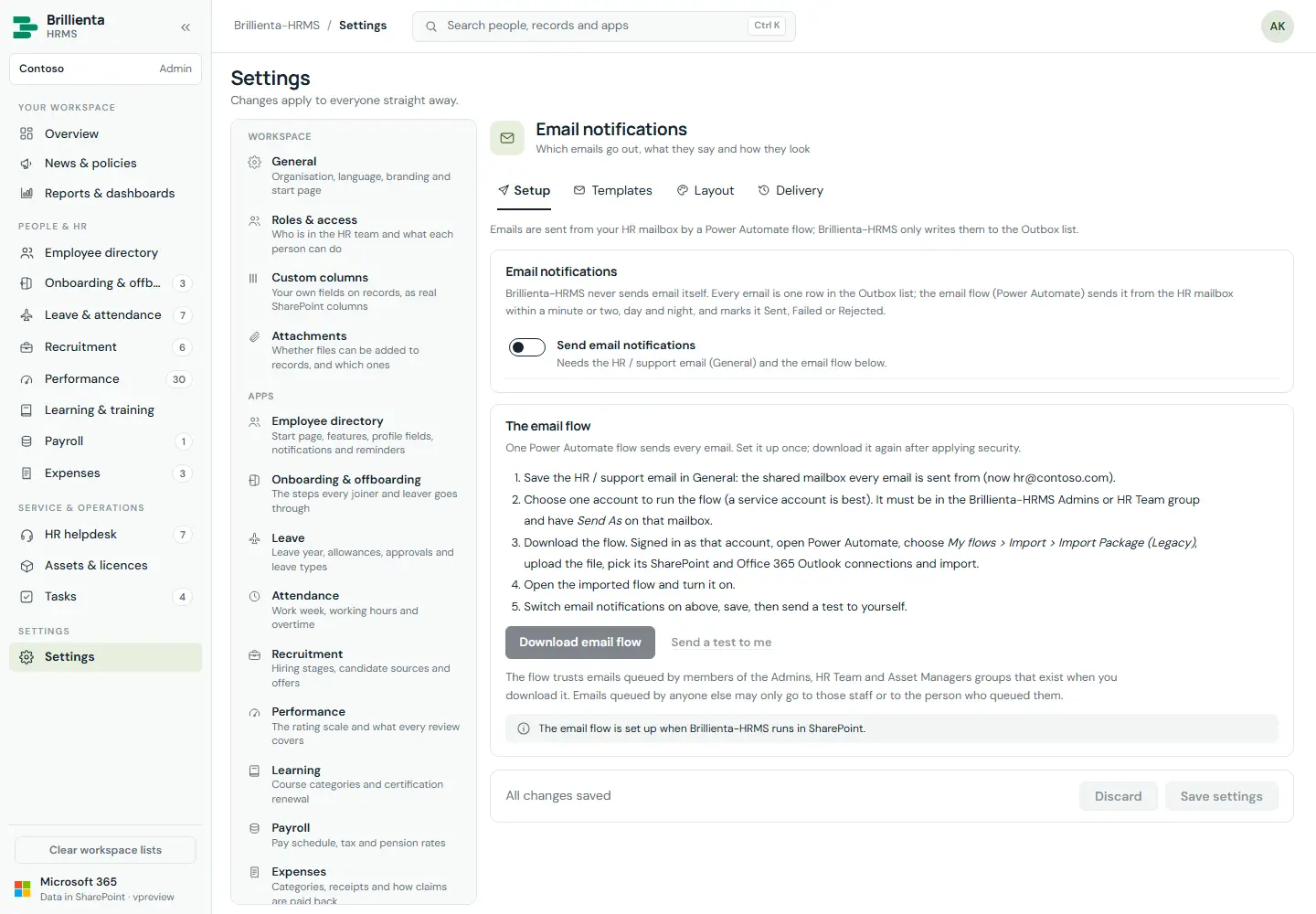
21 emails, each with on/off, subject and body, placeholders and branded layout. Setup builds the Power Automate import package for this site; Delivery shows recent Outbox rows (Sent/Rejected/Failed) and flow health. Import the package as the runner account (service account with Send As on the HR mailbox) and turn the flow on.
Email. Setup → Templates → Layout → Delivery, with duplicate protection and sender checks in the flow.
Schema & security
Site owner
All plans
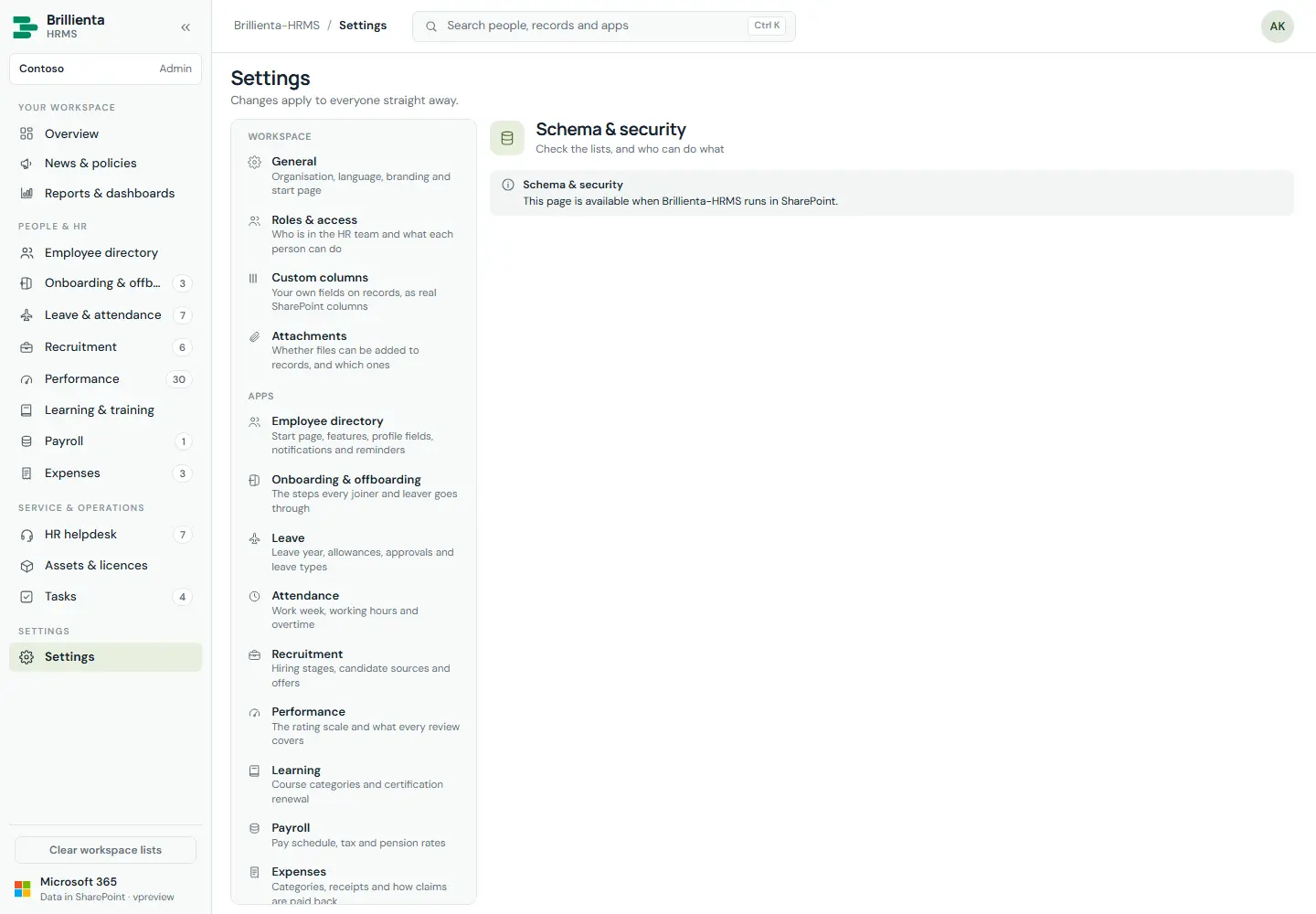
Validate every list and column (read-only report), validate & repair, apply security (groups, permission levels, per-list profiles), export configuration as JSON, and read the setup log.
Schema & security. Validation, repair, security profiles and the install/upgrade history.
Employee privacy
Site owner
All plans
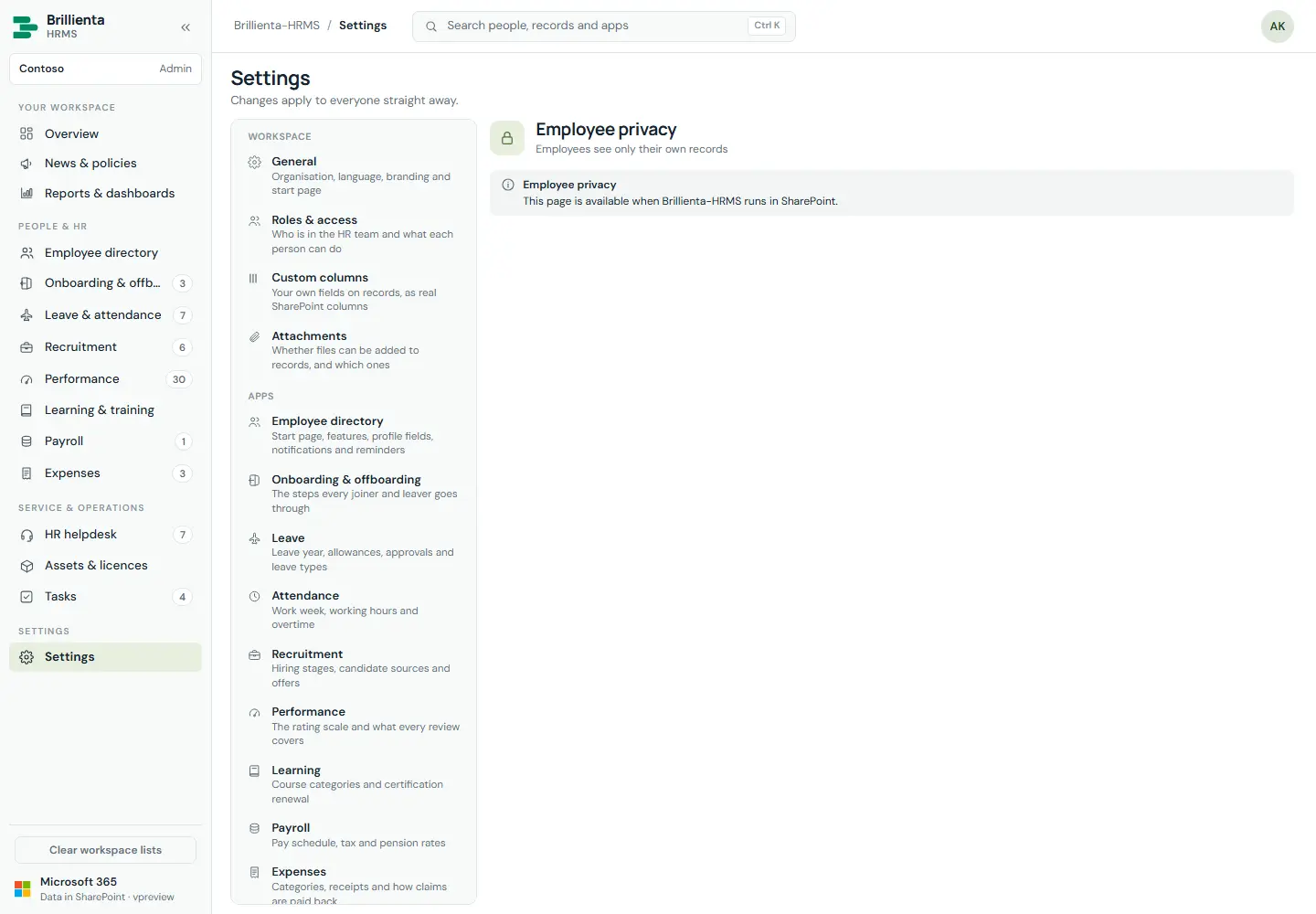
Employees see only their own records, enforced by SharePoint (own items only). Three steps: test, prepare existing items, switch on. Shows ownership problems (records that could not be given to their employee).
Privacy. Test → prepare → switch on; required for payslips and reviews to reach employees.
Plan & licence · Directory sync
Admins
All plans
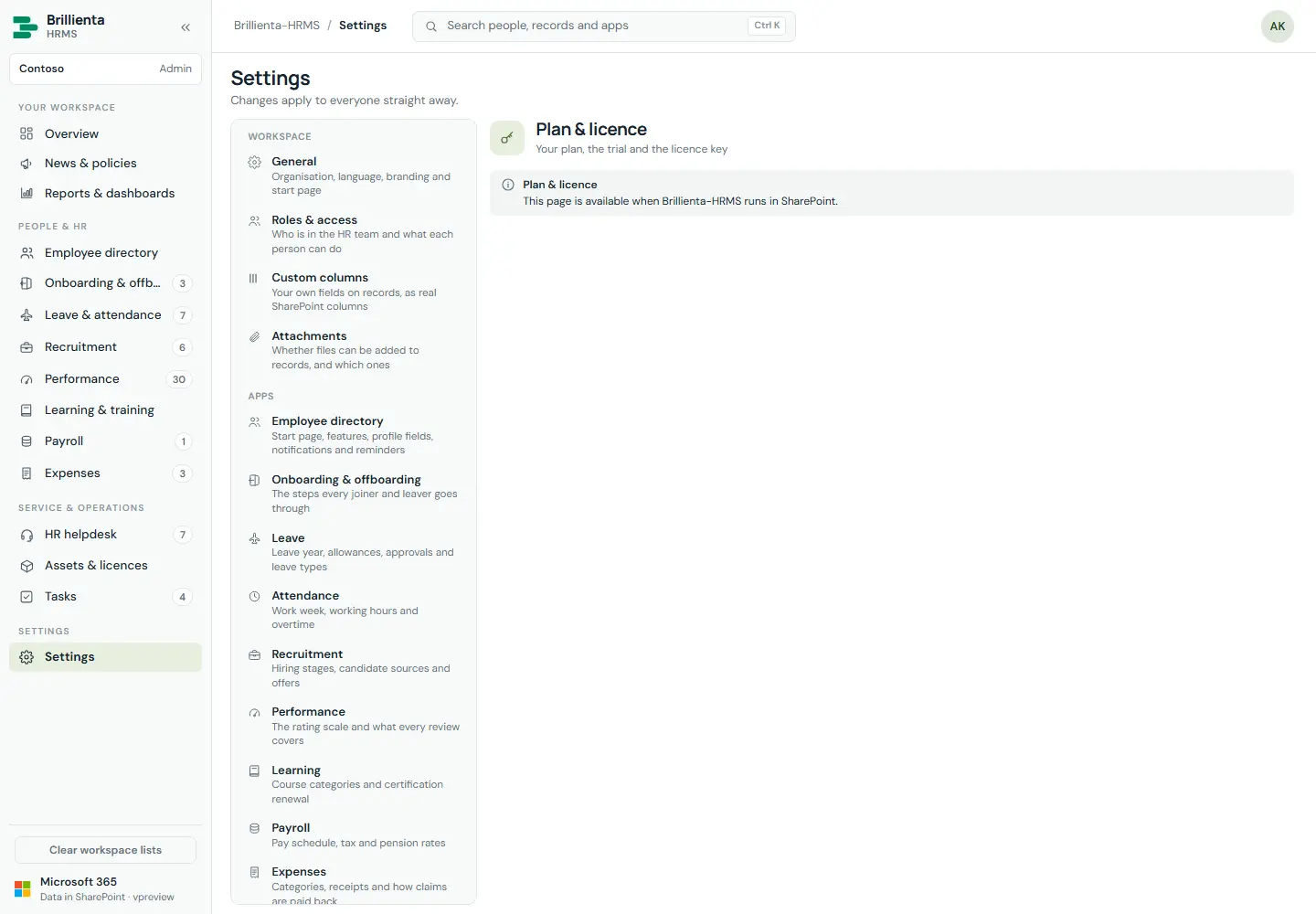
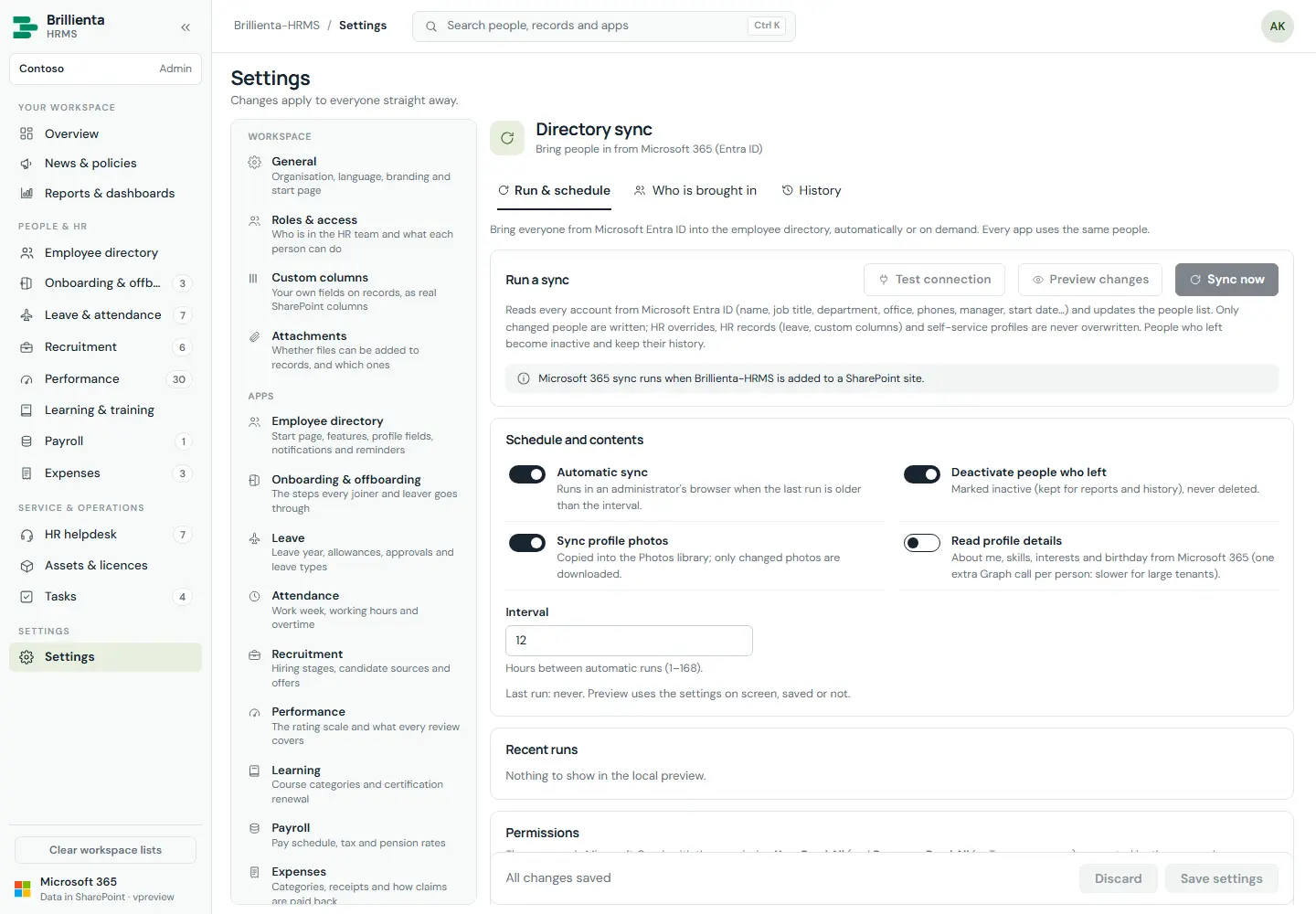
Plan comparison, trial status, licence activation (paste the key), active employees against the limit. Directory sync: run now, preview what would change, test connection, filters (guests, disabled, mailboxes, domains, departments), automatic interval; device sync schedule and history.
Plan & licence. Trial countdown, seats used, tenant-bound signed key with grace period.
Directory sync. Preview before writing; safeguards hold back mass deactivations.
Part 5
Roles & permissions
Five app roles. A person can hold several; the most permissive wins per capability. Site collection administrators are always Admin; while no Admin is assigned, site owners act as Admin so the first one can be set.
Capability
Employee
HR team
Asset mgr
Auditor
Admin
Own leave requests, clock in/out, own tickets + replies, assigned tasks, own goals progress, course enrolment, own certifications, own expense claims, own onboarding steps, confirm policies/reviews, own payslips + equipment
Read everything incl. payroll and activity (changes nothing)
—
—
—
✓
✓
Record rules apply on top (e.g. employees edit pending own leave only; tickets create as New/unassigned; goals progress on own goals; decided claims closed). Features also depend on the plan (Part 7).
Part 6
Security
Three independent layers. SharePoint is the security boundary: what the app hides is also closed over REST unless SharePoint closes it.
Your tenant, your data
All state in your site's HRMS lists; Graph calls delegated; email only via your Power Automate flow from your HR mailbox.
SharePoint layer
Four groups (Admins, HR Team, Asset Managers, Auditors), an Employee level without delete, and a security profile per list: payroll closed to HR, reviews/recruitment closed to employees, licence keys closed to employees, config read-only except admins.
App layer
Capability matrix, record-level change rules and visibility rules checked on every mutation, whatever screen made it.
Plan layer
Features outside the plan are off whatever settings say; saving preserves locked values so upgrades restore them. No active licence → read-only.
Employee privacy
Optional own-items-only enforced by SharePoint; staff keep full access via private-list levels; auditors keep read. Records HR saves for someone are given to that person.
Tamper-resistant mail
Flow sends only rows queued by staff, to staff, or self-mails; duplicate keys stop repeats; mailbox abuse is structurally impossible.
Operating notes
Apply security (wizard or Schema & security) after install; re-apply any time. Options: restrict other site groups, let everyone use the HRMS, let everyone read the site.
Give a role: Roles & access → add → Save (joins the group). Remove → Save (leaves the group, becomes Employee).
Locked out: any site collection administrator is Admin and can assign a new one.
Payslip/review not visible: privacy must be on and the directory email must match the Microsoft 365 account.
Audit: config rows record changed on/by; SharePoint version history; Setup log; Activity log for sync runs; Outbox delivery states.
Service account for emailRun the flow as a dedicated account in Admins/HR Team with Send As on the HR mailbox, so mail does not stop when a person leaves.
Part 7
Plans & licensing
Three plans, each including everything before it. Every installation starts with a 14-day trial of all Enterprise features for the tenant.
Licence keys are signed by the vendor and bound to your Microsoft 365 tenant (prefix HR1). Paste under Settings → Plan & licence.
Seats: active employees counted against the plan (or the key's number); sync stops adding past the limit. End date: 14 days' grace, then read-only until renewed. Downgrading keeps locked settings for later.
Part 8
Why Brillienta-HRMS
Questions that decide cost, risk and adoption — and how this system answers each one.
Question to ask any HR system
Brillienta-HRMS
Where is our HR data stored?
In SharePoint lists on your own HR site. No vendor database, no third-party service.
What infrastructure do we need?
None beyond SharePoint Online. No servers, jobs or connectors to run or pay for (one optional Power Automate flow for email).
Do people need another sign-in?
No. Employees use their Microsoft 365 identity, inside SharePoint, with self-service everywhere.
How do concurrent edits stay safe?
Record-level saves, version-checked reference numbers, and live refresh — a stale page can never delete others' records.
Who controls access, and how is it enforced?
Your SharePoint permissions plus app roles plus plan. Payroll, reviews, recruitment and licence keys closed in SharePoint; privacy enforced by SharePoint.
Can we prove who changed what?
Decision trails on records, setup/upgrade logs, sync activity, Outbox delivery states, SharePoint version history.
Is it more than forms?
Action centre with inline approvals, team calendar, pipeline board, scorecards, dashboards per app, report builder, org chart, kudos, reminders.
Can we make it ours?
Brand colour, logo, theme, landing app, leave/attendance/SLA/expense/payroll policies, custom columns, email wording and layout — all in Settings, no code.
How are upgrades handled?
Deploy the package; first list-manager visit upgrades additively. Validate/repair any time.
What happens to our data if we stop?
It stays where it always was: in your SharePoint lists, readable in views, Excel and Power BI.
Part 9
Deployment
A typical deployment takes under an hour, most of it choosing the site and the people for the roles. Node.js 22 is needed only to build the package.
Build / take the package
npm install then npm run build produces sharepoint/solution/brillienta-hrms.sppkg (type-checked, unit-tested, verified).
Upload and deploy
Tenant app catalog → upload brillienta-hrms.sppkg → deploy. Approve Graph permissions (User.Read.All, Presence.Read.All, DeviceManagementManagedDevices.Read.All) in SharePoint admin center → API access — only needed for sync/presence.
Add the web part
On the HR site, add Brillienta-HRMS to a page (full-width section works best; the app fills the window anyway).
Run the setup wizard
Organisation → People → Options (keep Secure the lists on) → Install. Then activate the licence and import the email flow (§ Admin).
Operate
Assign roles, set policies, run sync, switch on privacy, and hand employees their workspace. Upgrades deploy the same way and apply themselves.
Part 10
Good to know
Design decisions that follow from running without a server and from how SharePoint works.
Scale. Lists read whole in id-ordered pages, so the 5,000-item threshold does not apply; tens of thousands of records per list are comfortable in a browser.
Background jobs need an admin visit. Directory/device sync and reminders run while an administrator has the page open (configurable interval / daily UTC time).
Email comes from your HR mailbox via the flow's runner account — prefer a service account.
Local preview.npm run preview then open preview-dist/index.html (demo records; ?dark=true, ?mode=app runs the setup-to-ready flow in-memory).
Exports contain what is on screen (filters/search applied, only records the viewer may see); PDFs cap at 3,000 rows.
Privacy test first: switch employee privacy on only after the built-in test and preparing existing items.
Language. Organisation language, time zone, currency and date format are configurable in Settings → General.
Appendix
Reference
A. Email templates (21)
Group
Emails
Helpdesk
Request received · New ticket (HR) · Ticket assigned · Reply to requester · Requester replied · Request resolved
Leave
Leave request to approve · Approved / declined · Cancelled (off by default)
Tasks
Task assigned
Recruitment
Interview scheduled
Performance
Review to write (off by default) · Review ready
Learning
Enrolled on a course
Assets
Equipment assigned · Licence assigned (never the key)
Payroll
Payslip available (no amounts)
Expenses
Claim to approve · Approved / rejected (with reason) · Paid (no amounts)
News
Please read a policy (off by default, one per person)
B. SharePoint lists (33, prefix HRMS)
Settings, Workspace · Employees · Leave, Attendance, Holidays · Tickets, Ticket comments · Tasks, Checklist · Job openings, Candidates, Interviews · Goals, Review cycles, Reviews · Courses, Enrolments, Certifications · Compensation, Pay runs, Pay lines · Assets, Licences, Licence assignments · Journeys · Expenses · Announcements, Acknowledgements · Attachments, Reports · Outbox, Setup log. Each record list holds one item per record (JSON in Payload plus typed columns); configuration is one row per app in Settings.
C. Links
Record: #/leave/<id> · new form: #/<app>/new · tab: #/performance/goals · team calendar: #/leave/calendar. Command palette: Ctrl/Cmd+K.