Updated for release 2.4. The screenshots in this guide show Intranet Builder 2.4. The text was written for 2.1 and still applies; since then, 2.2 added a guided setup that installs without typing commands (about 30 minutes), 2.3 added search pages, redesigned templates and the news slideshow, call-to-action, quote and contact-table web parts, and 2.4 added the design studio (starting designs, surfaces, dark themes, patterns and fonts) and new mega menu designs. The product now has 47 modules, 39 web parts and 9 extensions. See what's new in 2.2–2.4 →
Intranet Builder
The company intranet that lives in your Microsoft 365
A product guide and walkthrough: the home, department, HR and knowledge sites your people use every day, the extensions on every page, the setup tools your administrators use, and the provisioning engine behind it all.
Product
Intranet Builder for Microsoft 365
Version
2.4.0 (text written for 2.1)
Platform
SharePoint Online · SharePoint Framework 1.22.1
Edition of this guide
October 2026
Part 1
Overview
Intranet Builder creates and maintains a modern intranet on SharePoint Online: a corporate home site, department and HR sites, knowledge sites and a restricted administration site, from approved templates and modules. Administrators design each site in Setup Center and install it with a PowerShell provisioning engine that is idempotent, resumable and verified. Employees use SharePoint Framework web parts and extensions that read the intranet lists with their own permissions.
39web parts in six packages
9extensions on every page and list
47versioned modules, 5 site templates
9PowerShell scripts, one engine
3administration pages: setup, configure, health
Your data stays in your tenant
Everything is stored in SharePoint lists and libraries on your own sites. There is no vendor database and no third-party service.
Designed, then provisioned
Setup Center builds a validated deployment configuration from approved templates. The engine plans every change before it touches anything, and verifies the site afterwards.
Safe to run again
Installations are idempotent and resumable: re-running never duplicates lists, pages or links, and an interrupted job continues where it stopped.
Security enforced by SharePoint
Web parts run with each reader's own permissions. Audience targeting only changes presentation; SharePoint permissions remain the authorization.
Grows with you
Updates are additive: new columns, views and settings are added, nothing is removed or renamed. New modules are opt-in per site.
Two ways to install
Administrator-run PowerShell, or the optional automated mode: an Entra ID protected API with a queued worker on Azure Functions, using managed identities only.
About the screens in this guideEvery screenshot is the real app UI of version 2.4.0 running with the built-in sample organisation ("Contoso"). All people, names and figures shown are fictional.
Part 2
How it works
Six SharePoint Framework packages provide the web parts and extensions. A PowerShell provisioning engine creates what each site needs: lists and libraries, pages, navigation, extension registrations, permissions and settings. Administration pages on a restricted site design, configure and check every intranet site.
Your Microsoft 365 tenant
Administration site
Setup Center, Configuration Manager and Health Dashboard, with provisioning history and approved templates.
provisions
Home, department, HR, knowledge sites
39 web parts and 9 extensions reading the site's lists with the reader's own permissions.
Provisioning engine
PowerShell IntranetBuilder module: validates, locks, inspects, plans, applies and verifies. Nine scripts for administrator-run installation; the same engine runs in the Azure worker for automated mode.
Key ideas
Packages only make components available. Deploying the six packages to the tenant app catalog never creates lists or pages. The provisioning engine creates site resources from the configuration.
Modules are the unit of installation. Each of the 47 modules names its package and components, its lists (created or mapped), its dependencies, its Graph permissions and its guidance. core-config is required by every module.
Templates are complete site designs. Five templates (administration, corporate home, department hub, HR portal, knowledge hub) define the site role, modules, pages, navigation and settings defaults.
Delegated access only. Components always act as the person using them, through SharePoint REST and delegated Microsoft Graph permissions approved in API access.
Presentation is not authorization. Audience targeting and hidden navigation only change what is shown. SharePoint permissions decide what can be opened.
Microsoft Graph permissions
The packages request only the Graph permissions their modules need. A SharePoint administrator approves them once, in the SharePoint admin center under Advanced › API access.
Package
Requests
Needed by
Core
User.Read
Audience targeting of content
Extensions
User.Read
Audience targeting of navigation links
People
User.Read, User.Read.All
Employee directory, organization chart
Integrations
User.Read, Tasks.Read
My tasks (To Do / Planner)
Administration
user_impersonation on the Provisioning API
Automated installation only
Web parts whose permission is not approved show that they are not available yet (IB3001); nothing else is affected.
Part 3
Feature walkthrough
A tour of the intranet as people use it. The tags beside each heading show who can use the feature. Every content web part shares the same three-page property pane: content, layout, and appearance with audience targeting. Each web part family also has its own signature color — news raspberry, events teal, people green, documents navy, policies deep teal, ideas purple — on headings, badges, avatars and icons, while buttons and links stay on your brand color.
Corporate home
Everyone
Corporate template
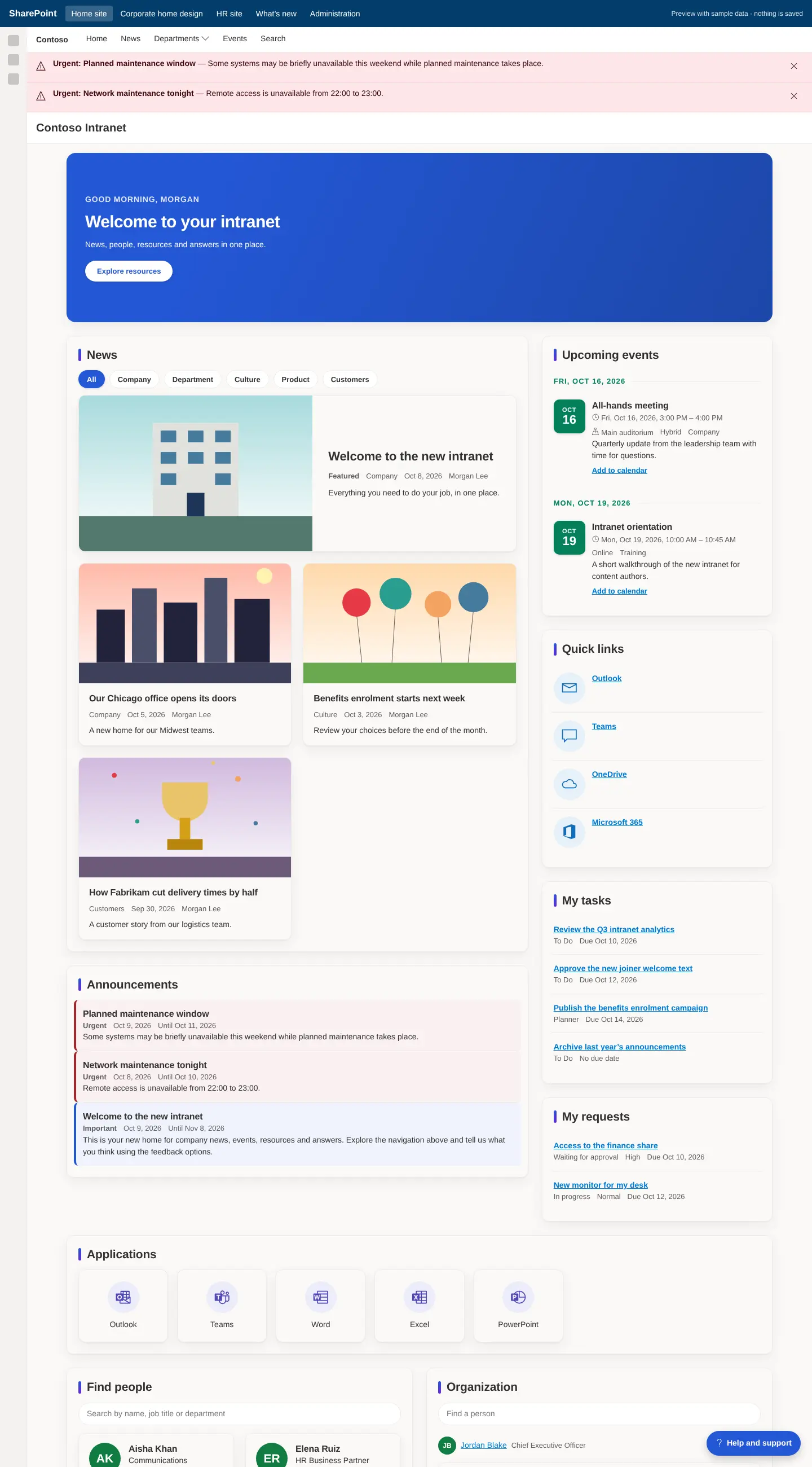
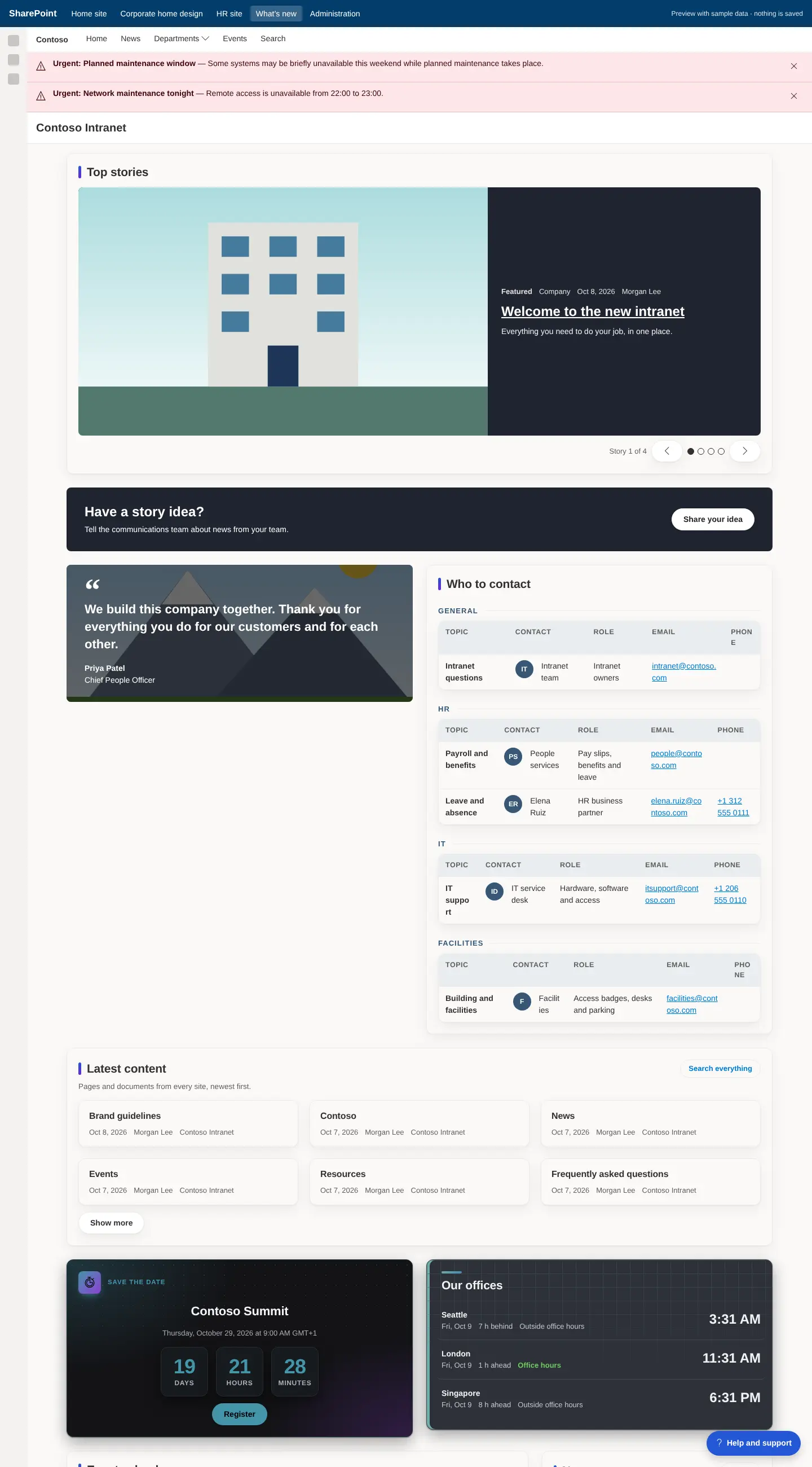
The front door: a personal greeting with campaigns, featured news, announcements, events, quick links, personal tasks and requests, applications, people, ideas and documents, then search and page feedback. Global settings and shared lists live here; the other sites read them from here.
Corporate home. Hero, news and announcements first; events, links and personal work beside them; people and documents further down.
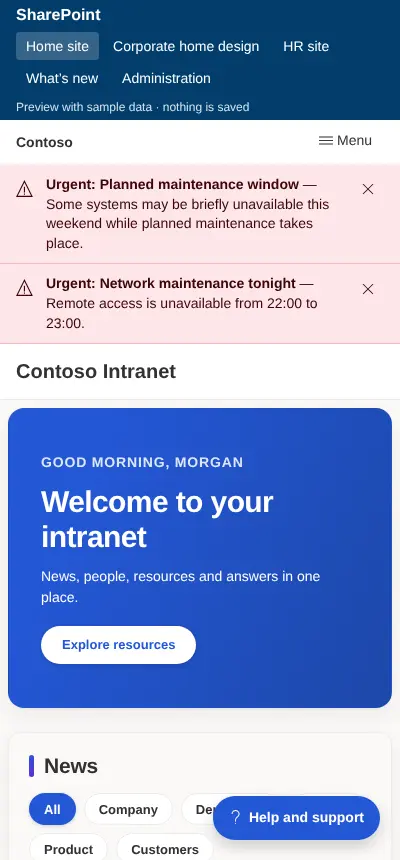
Hero and welcome. A personal greeting with time-limited campaigns and calls to action at the top of the home page.
How it works
Template pages are recorded as managed: editing a page protects it from being overwritten by later updates.
Every content web part offers a description, a "See all" link, a frame, compact or comfortable spacing, hiding when empty, and Entra ID group audience targeting.
List queries select only needed columns, filter and sort on indexed columns and page on the server, so large lists keep working.
Published configuration is cached with explicit expiry; personal data is never cached in storage.
Search & content rollup
Everyone
Core package
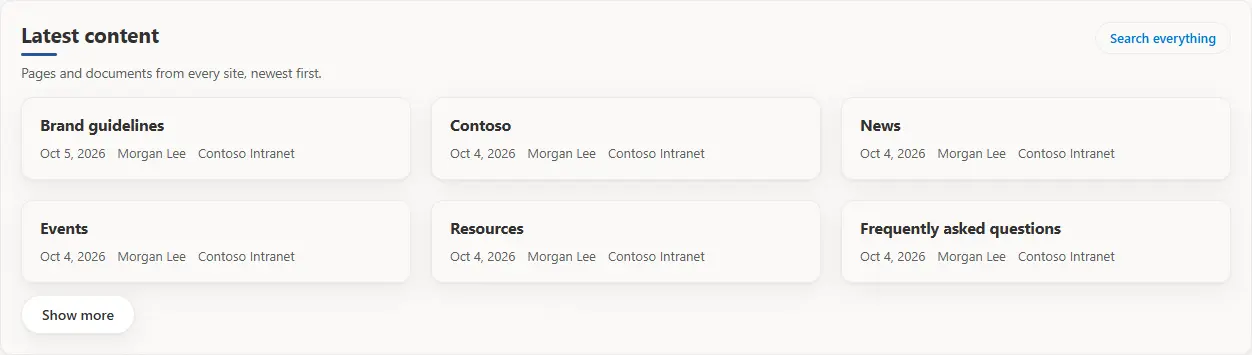
Both search web parts use SharePoint Search with the reader's own permissions: every result is security-trimmed, so each reader only sees content they may already open. New content appears once SharePoint has indexed it, usually within minutes.
Search center. Verticals (All, Documents, Pages, News, People, Sites), file-type and date filters and paging. The query and vertical stay in the page address, so a search can be shared as a link.
Content rollup (new in 2.1). The latest pages, news and documents from this site, its hub, chosen sites or all of Microsoft 365, as cards, a list or a compact list. Queries use KQL, for example ContentType:Policy.
How it works
Search scope: all of Microsoft 365, this hub, this site, or the intranet search setting (Configuration Manager › Search).
Content excluded from search (sites or libraries with search visibility off) never appears.
A hub scope on a site that is not in a hub falls back to this site: the web part never searches more widely than chosen.
To route the SharePoint search box to the intranet search page, a SharePoint administrator sets the site search results page.
News, events & campaigns
Everyone reads · Authors publish
Core package
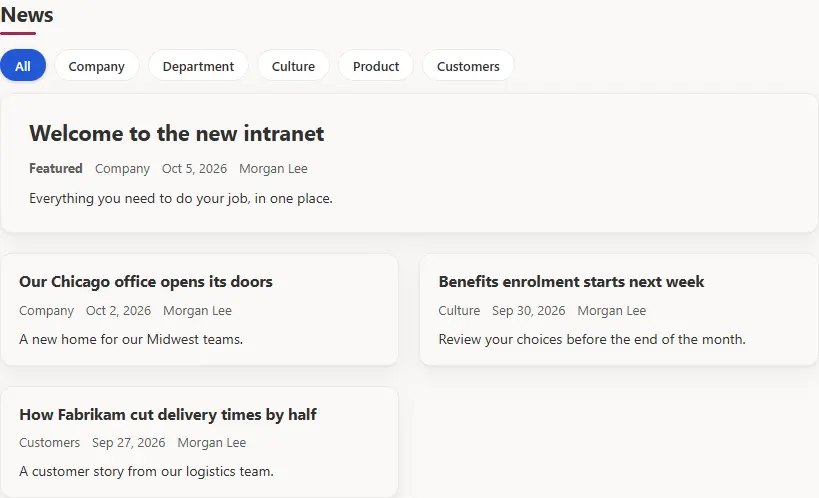
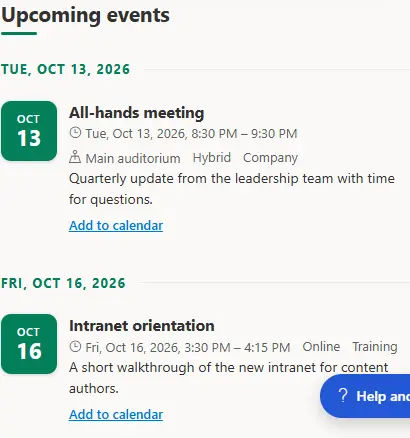
Featured and published news from Site Pages with categories and departments; scheduled announcements with priority and expiry; upcoming events as an agenda or a calendar with categories, locations and registration links; quick links and the application launcher for workplace tools.
News center. Featured stories plus published news, filtered by category and department.
Events. Agenda or calendar layout, categories, online meetings and registration links. Conditional new and edit forms adapt to in-person, online and hybrid events.
How it works
News comes from the Site Pages library; announcements from the Announcements list with start and end dates.
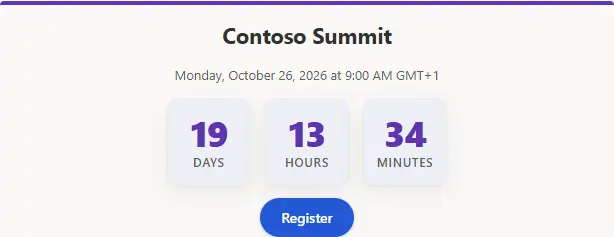
Countdown counts days, hours and minutes to a launch or deadline, with a registration link and a message once the date has passed.
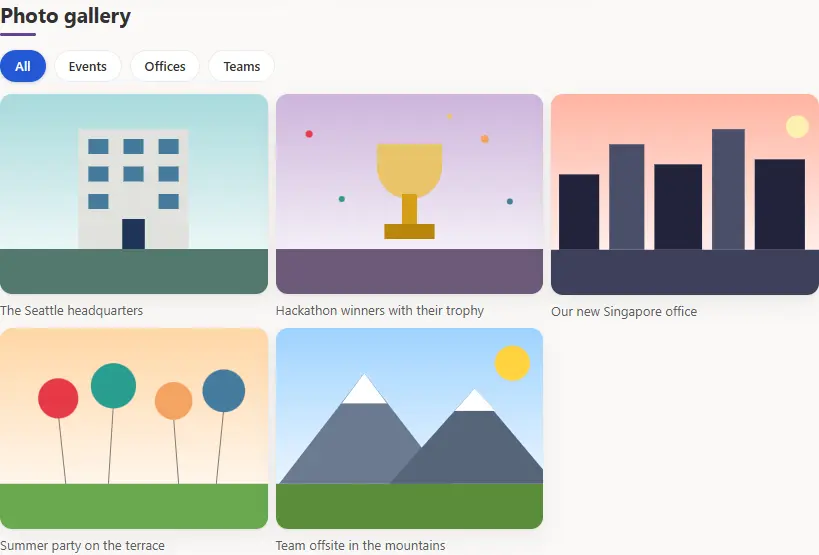
Key figures show targets and trends; the image gallery shows the photo library as a grid or slideshow with albums and full-screen view.
Authors publish through lists and pages; approvers moderate where the template requires it.
People
Everyone
People package
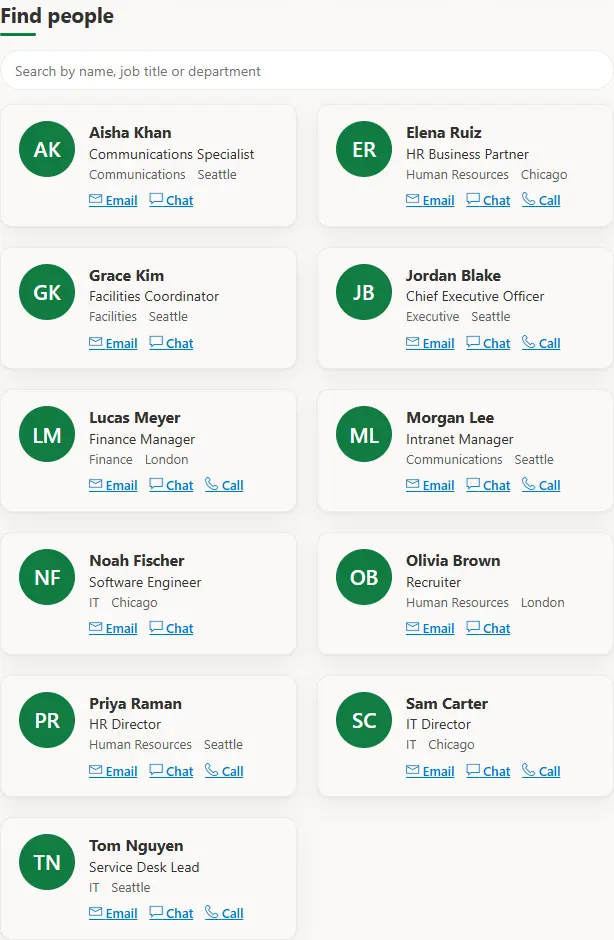
Find colleagues with filters, people cards and contact actions; the manager hierarchy with expandable reporting lines; welcome cards for new joiners; work anniversaries and consented birthdays; peer kudos with badges after moderation; key contacts per topic; internal openings; and a personal onboarding checklist.
Employee directory. Search colleagues with filters and contact actions, from Microsoft Graph or an approved employee list. Needs User.Read.All for Graph photos and hierarchy.
How it works
Directory and org chart read Microsoft Graph with delegated permissions; celebrations and new joiners need recorded consent.
Recognition and ideas use contribute-own lists with content approval: everyone adds, approvers publish.
My links and onboarding progress are private lists: people add, change and read only their own items.
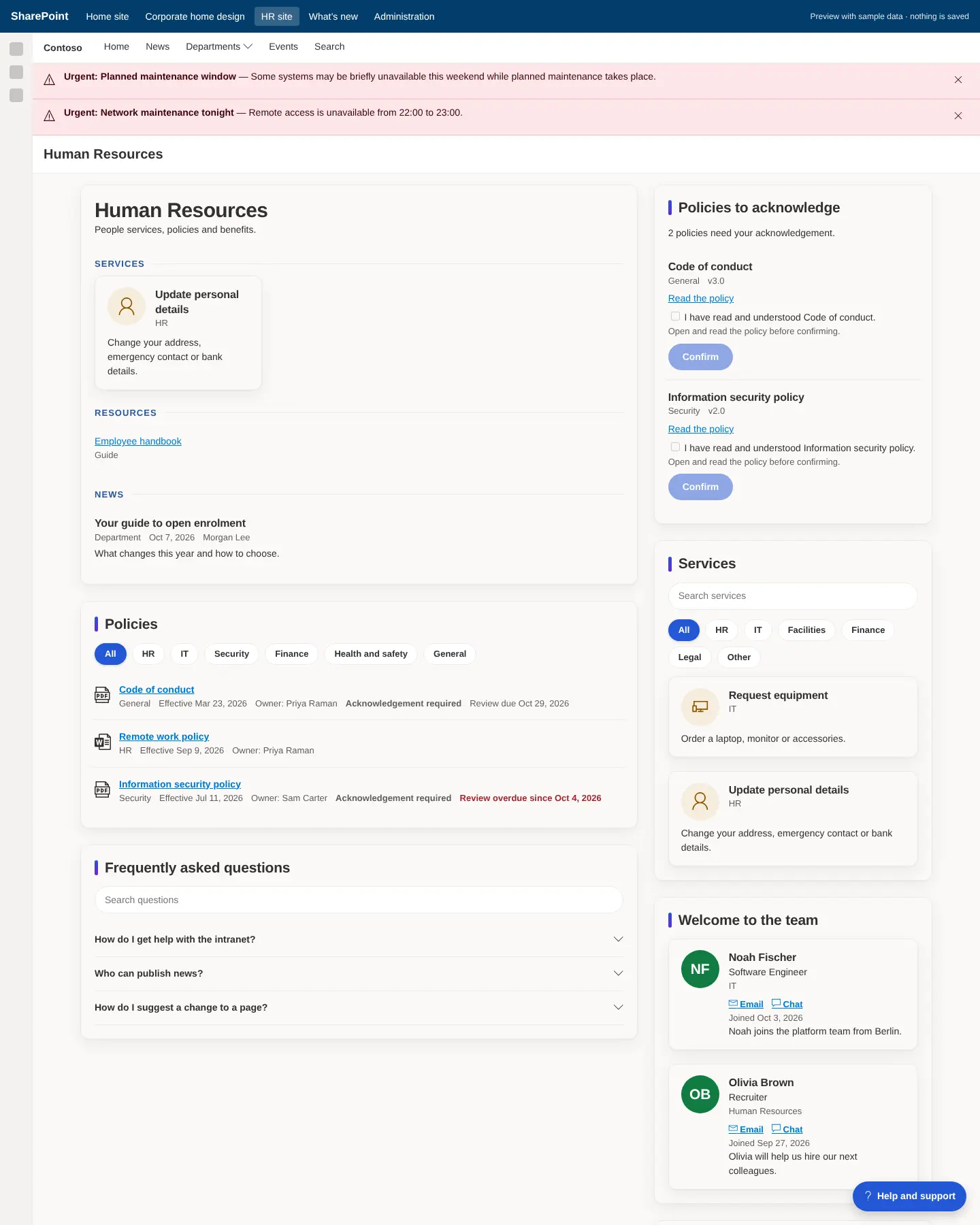
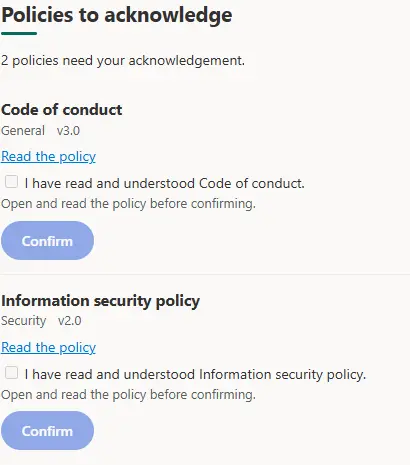
HR portal. Policies with review status, read-and-confirm acknowledgements, services, new joiners, celebrations and recognition in one place.
Documents, policies & services
Everyone reads · Authors publish
Workplace package
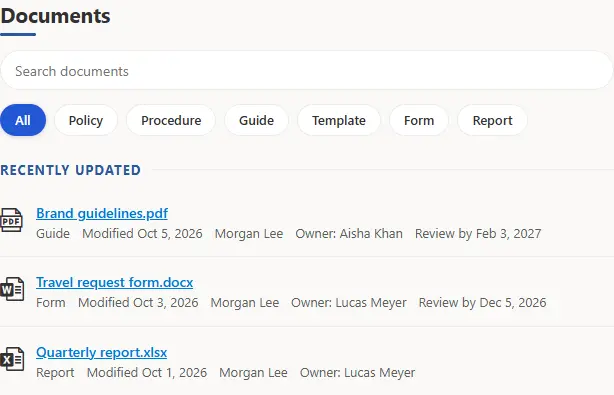
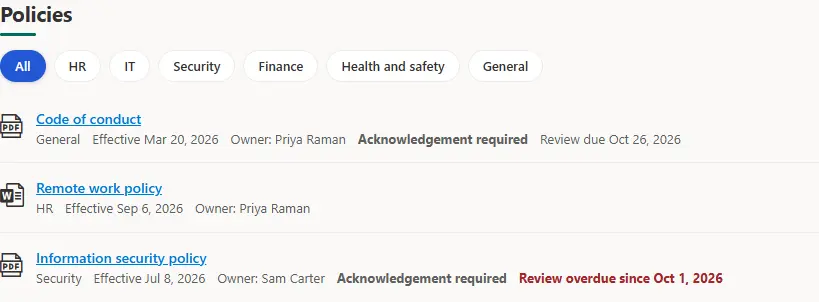
Recent documents with category filters and full-text search; approved policies with owners, categories and review dates; read-and-confirm with personal completion status; department profiles; the HR/IT/facilities service catalog; employee ideas with moderation and visible status; offices with local time; and IT's system status board.
Document center. Browse, filter and full-text search over the site's Documents library, with each reader's own permissions. Document actions in the toolbar submit for review or acknowledge policies.
Policy center. Approved policies with owners, categories and review dates, from the Policies library.
Policy acknowledgements. Read-and-confirm for policies that require it; each person's confirmations stay in a restricted list.
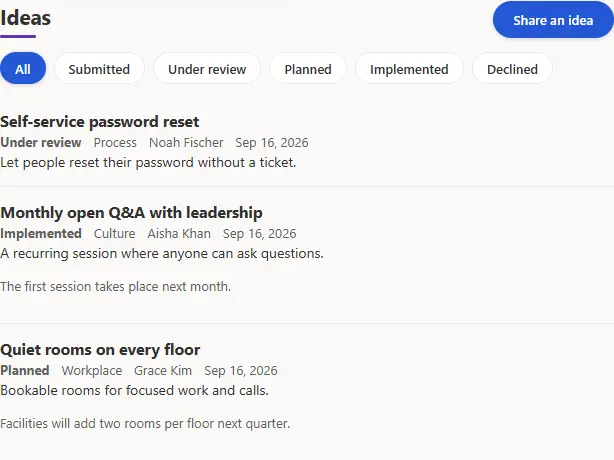
Feedback and ideas. Employee suggestions with moderation and a visible status from Submitted to Implemented.
How it works
Command sets add Submit for review / Acknowledge policy / Request changes to library toolbars and Validate metadata / Request publication to list toolbars.
Status columns render as accessible pills through the status field customizer.
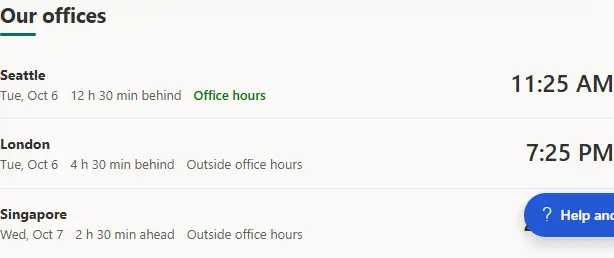
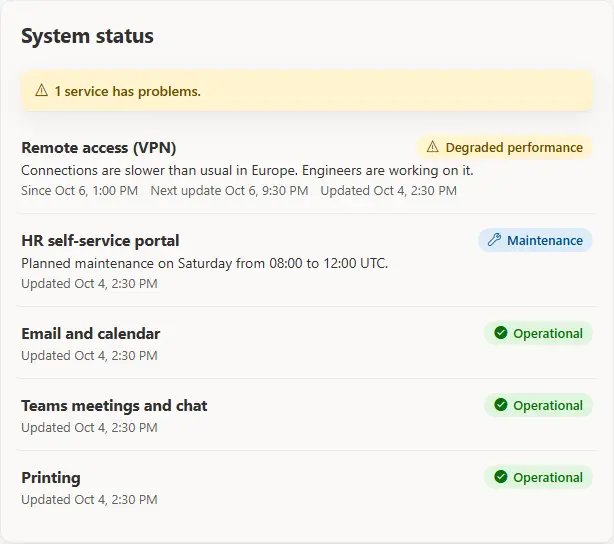
World clock shows office times with office-hours flags; office locations add addresses, directions and contacts; system status shows operational, degraded, outage and maintenance states.
Knowledge & feedback
Everyone
Core package
Searchable questions and answers grouped by category with helpful/not-helpful feedback; terms and abbreviations browsable A to Z; and a "Was this page helpful?" question whose answers stay in a restricted feedback list.
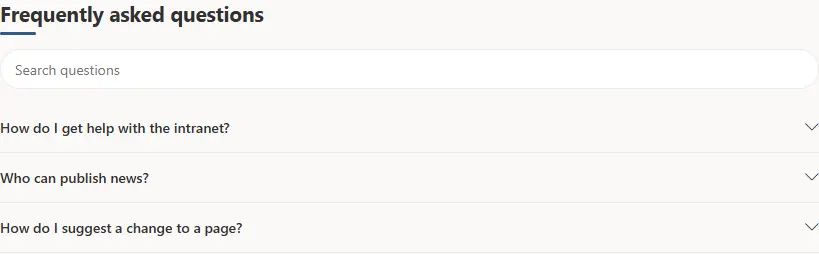
FAQ and knowledge base. Searchable answers with category filters and feedback votes, from the FAQ list of the site.
How it works
Guided submission forms with inline guidance and validation cover announcements, resources and events.
Feedback and acknowledgements use submit-only lists: everyone adds and reads only their own items.
My work
Everyone (own items)
Integrations package
Each employee's open tasks with due dates from Microsoft To Do, Planner or a connected system; their service requests from the helpdesk API or a mapped list; and personal links kept on the home site so they appear on every site, with suggestions from the pinned quick links.
How it works
Connected business systems are called with the reader's own token for their Entra ID application.
My tasks needs User.Read and Tasks.Read, approved in API access.
Extensions on every page
Everyone
Extensions package
Application customizers render only in SharePoint's supported Top and Bottom placeholders; they never change SharePoint's own header or page markup. They are registered per site where enabled, never tenant-wide by default.
Global navigation and alert banner. Configurable links with a mega menu, optional search box, and time-limited operational alerts until they expire or are dismissed. Footer and help launcher appear at the bottom of every page.
How it works
Global navigation: styles, alignment, search box, mega-menu columns, opening on hover.
Alert banner: styles, urgent-only and non-dismissible alerts.
Footer: layouts, colors and a back-to-top link. Help launcher: position, style and sections.
Registrations are verified by Health Dashboard and restored with Repair-Intranet.ps1 -Resource Extensions. Disabling a module removes its registrations and keeps its content.
What is new in 2.1
Everyone
Release 2.1.0
Twelve new web parts with new layouts (cards, lists, tiles, tables, calendars, grouped and compact views), column counts, filters, sorting and show/hide details; configurable navigation, alerts, footer and help; and a three-page property pane on every content web part. New modules are opt-in: updating a site never changes pages that authors edited.
Release 2.1 showcase. Content rollup, countdown, world clock, key contacts, job openings, system status, key figures, glossary, photo gallery, my links and the onboarding checklist.
Countdown. Days, hours and minutes to an event, with a link and an end message.
World clock. The time where colleagues work, with differences and office-hours flags.
System status. Business services maintained by IT: operational, degraded performance, outages and maintenance.
Image gallery. Photos from the Photo Gallery library as a grid or slideshow, with captions, albums and full-screen view.
On a phone
Everyone
All packages
The layout adapts down to phone width: sections reflow to a single column and navigation collapses into the SharePoint mobile chrome. Browser tests cover employee and administrator journeys at desktop and phone sizes.
Home at 400 px.
HR portal at 400 px.
Part 4
Setup tools
Three administration pages on the restricted administration site: design each site in Setup Center, change branding and settings in Configuration Manager, and check every site in Health Dashboard.
Setup Center
Intranet team
Admin package
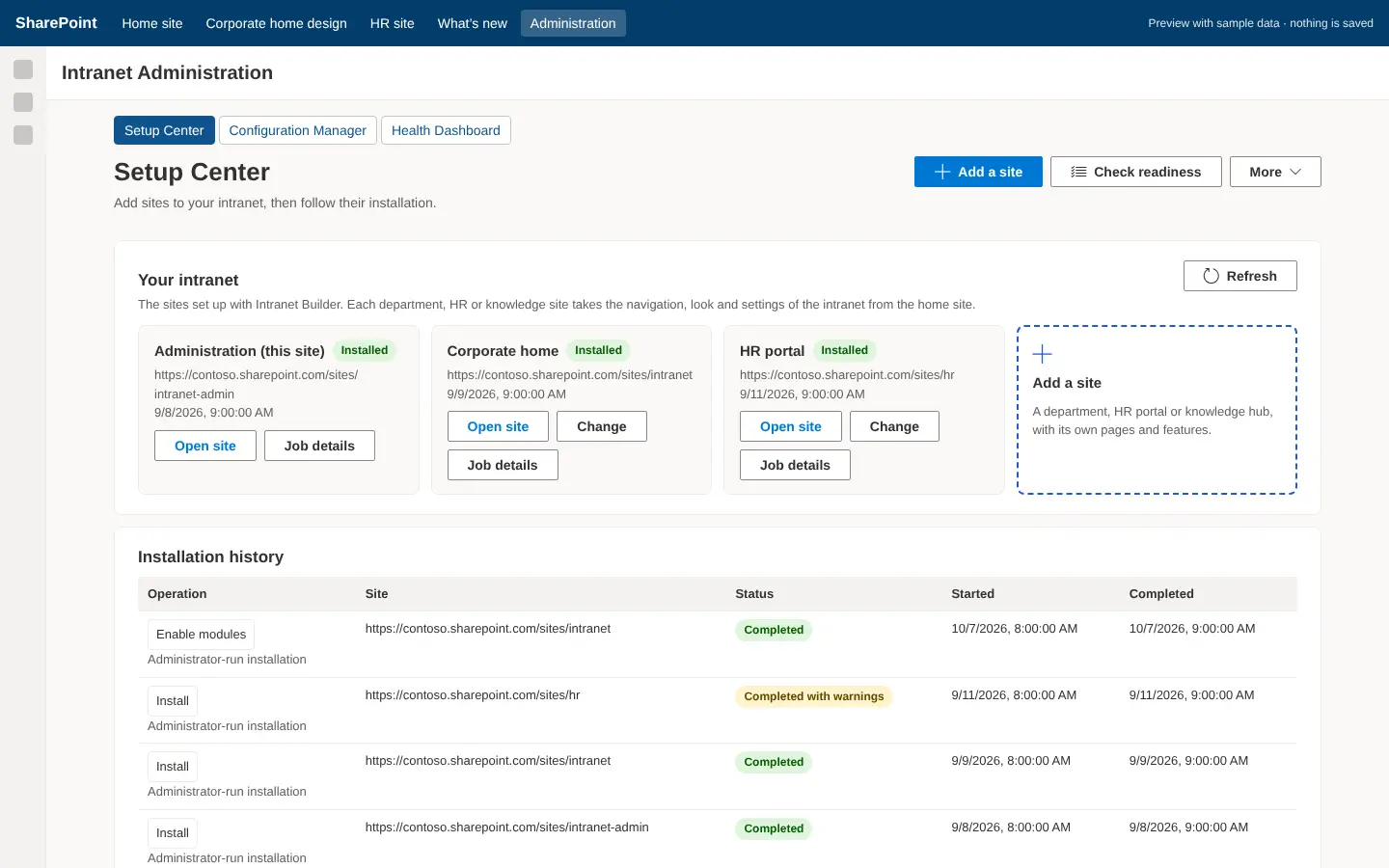
A ten-stage deployment wizard: prerequisites, deployment target, template, modules, branding, data sources, permissions, change preview, provisioning and launch checklist. It produces the configuration file and the exact commands to run, then follows the job.
Setup Center. Recent jobs with operation, site, status and times. New deployments walk through the ten stages; the change preview shows every creation, update and conflict before anything changes.
How it works
Prerequisites checks the app catalog, packages, permissions, API access and installation mode (administrator-run or automated).
Modules add their dependencies automatically; the module guides describe each one.
Data sources create new lists or map existing ones; a mapping is validated against the live list.
Change preview marks each operation + create, ~ update, = ensure, ! conflict, x error. Resolve conflicts before installing.
Provisioning downloads the JSON configuration and shows the three commands; the launch checklist verifies content, links, permissions and publication.
Configuration Manager
Intranet team
Admin package
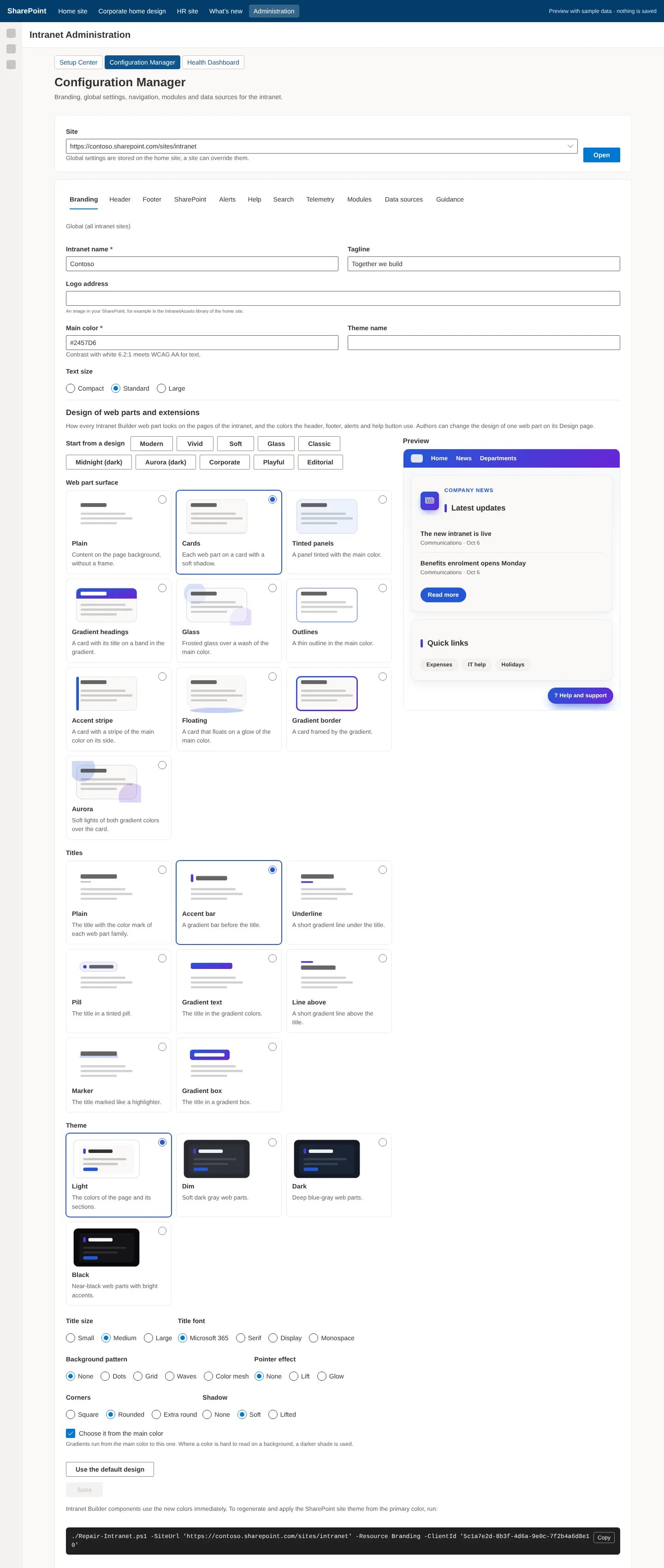
Edit branding, global settings, navigation, module settings and data-source mappings with validation, conflict protection and version history. The same module guidance shown here ships in docs/guidance/.
Configuration Manager. Branding (logo, colors with accessible contrast, text size), navigation, footer, alerts, help, search, telemetry, modules, data sources and guidance per site.
How it works
Global values live on the home site; a site can override them key by key. Invalid values are ignored and reported instead of breaking pages.
Earlier versions stay in the Intranet Settings version history and can be restored.
Health Dashboard
Intranet team
Admin package
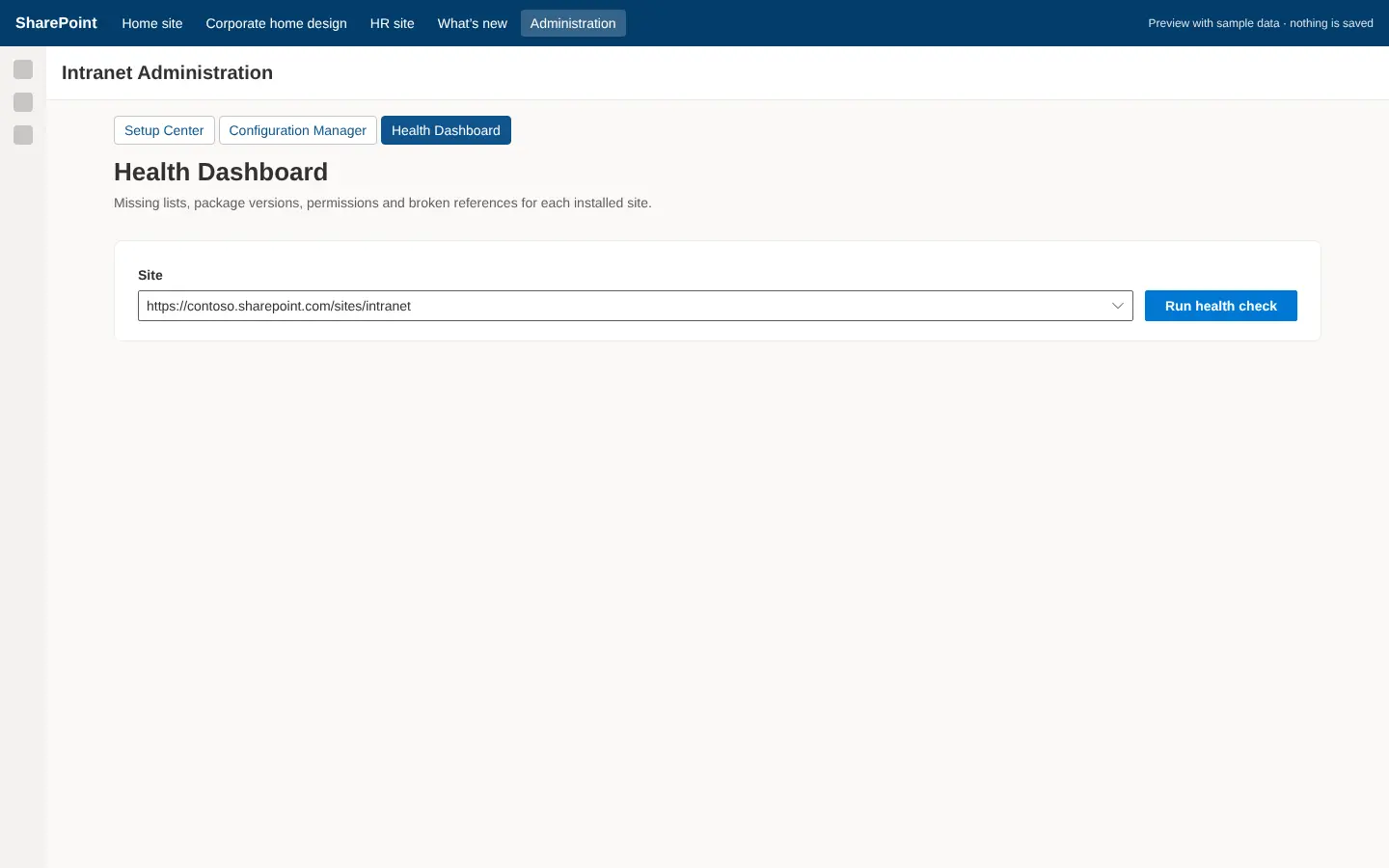
Compares each installed site with its recorded configuration and reports drift, broken references and access problems by category (configuration, packages, lists, permissions, pages, navigation, extensions, integrations) and severity. It prints the exact repair and update commands.
Health Dashboard. Run a health check per site; findings link to the repair commands. Same checks as Test-Intranet.ps1.
Part 5
Roles & permissions
Three everyday roles plus the teams that install and maintain the intranet. SharePoint permissions, applied by the provisioning engine, decide what can actually be read and changed.
Acknowledge policies; keep my links; follow onboarding
Own
Own
Own
Own
Add and edit content in module lists
—
✓
✓
✓
Approve and moderate ideas, recognition, content
—
—
✓
✓
Manage pages; see error resolutions
—
—
—
✓
Setup Center, Configuration Manager, Health Dashboard
—
—
—
Intranet team only
Run the PowerShell installer
—
—
—
Full Control + role (see Part 9)
List permission profiles
The engine applies a profile per data source. Restricted stores are always created by the installer and cannot be mapped to customer lists; site owners can read every item, so the web parts query them for the signed-in person explicitly.
Security is enforced by SharePoint and Microsoft 365, not just by hiding buttons. Provisioning uses either the administrator's own permissions or the worker's managed identity, limited to granted sites.
Your tenant, your data
All intranet data lives in your SharePoint sites and moves only through SharePoint and Microsoft Graph. No certificates, secrets or elevated tokens are stored in bundles, lists or settings.
Least privilege
Delegated permissions for components; the administrator's own permissions (administrator-run) or Sites.Selected (automated) for provisioning. Site creation, app catalog and hubs stay separate from routine site changes.
Server-side authorization
The provisioning API validates token issuer, audience, tenant, scope and role, derives the tenant from the verified token and authorizes every target site. UI checks only improve the experience.
Approved content only
Only validated configurations of approved templates and packages; package files are checked against SHA-256 hashes; never uploaded scripts.
Audit
Job records (requester, executor, operation, outcome), migration records and SharePoint version history of settings. Logs and telemetry leave out personal data and credentials.
Presentation is not authorization
Audience targeting and hidden navigation never protect content; SharePoint permissions do. Approvers receive a custom Intranet Approver level on moderated lists.
Telemetry is off by defaultUnless an administrator sets an Application Insights connection string. Only allow-listed, non-personal properties are sent: component, module, error code, operation and correlation ID.
Part 7
Provisioning engine & PowerShell
Nine PowerShell scripts over the IntranetBuilder module. A job runs validate › lock › inspect › plan › steps (site, packages, lists, permissions, branding, pages, navigation, extensions, settings, sample content, hub) › verify › release. Requires PowerShell 7.4.6+ and PnP.PowerShell 3.1.0–3.x (validated 3.4.1). Full reference: docs/POWERSHELL.md.
Script
Changes SharePoint
Purpose
Test-Prerequisites.ps1
No
Pre-flight: versions, config schema, sign-in, site permissions, catalog and packages, locks, Graph permissions
Get-DeploymentPlan.ps1
No
Grouped change plan (+ create, ~ update, = ensure, ! conflict, x error); blocked plans exit 1
Install-Intranet.ps1-Bootstrap
Yes
Once per tenant (SharePoint Admin): deploy 6 packages, create the restricted admin site, install the 3 admin pages, record the mode
Install-Intranet.ps1-ConfigurationPath
Yes
Install a Setup Center configuration (release-pinned, SHA-256-checked packages)
Enable-IntranetModule.ps1
Yes
Add modules plus dependencies; keeps admin-changed settings; -WhatIf previews
Disable-IntranetModule.ps1
Yes
Remove registrations, mark disabled; lists, pages and content are kept
Update-Intranet.ps1
Yes
Bring a site to the bundle release (additive); edited pages kept and reported; order: bootstrap › pilot -WhatIf › pilot › test › home › rest
Test-Intranet.ps1
No
Health check (same as Health Dashboard); prints the repair and update commands
Repair-Intranet.ps1
Yes
Repair lists, pages, navigation, extensions, permissions, branding, settings or the lock; content never removed
Export-IntranetConfiguration.ps1
No
Rebuilt deployable configuration from a site's records (a record of the installation and a starting point for another site)
Jobs, resumption and locks
Idempotent. Every step inspects the site and changes only what differs; re-running never duplicates lists, pages, links, registrations or samples.
Resumable. Checkpoints in .intranet-builder/ record completed steps; run the same command again after a failure or Ctrl+C. -Restart re-evaluates everything (use after manual edits).
Verified. After the steps the site is inspected and planned again; remaining work fails the job with IB8006.
Locked. A job holds the site's deployment lock (renewed every 30 minutes, expiring after 2 hours); a second job stops with IB1009. Clear a stale lock with Repair-Intranet.ps1 -Resource Lock.
Owned. Created resources are tracked and marked; lists, pages and links the installer did not create are never changed. A page edited after installation is a conflict (rebuildable with -OverwriteCustomizedPages; history preserved).
The same engine, run as queued jobs in your own Azure subscription. Setup Center submits jobs to an Entra ID protected API; a PowerShell worker performs them with its managed identity. The API never calls SharePoint. Details: docs/AUTOMATED-MODE.md and docs/PROVISIONING-API.md.
How a job flows
Setup Center calls POST /api/jobs with an Entra token (user_impersonation scope + Intranet.Provision role).
The API validates the token and configuration, authorizes the target site against the approved site patterns, stores the job (Table + Blob) and queues it.
The worker claims the job with a lease and runs it with the engine under its managed identity (Sites.Selected, granted sites only), writing progress and checkpoints as it goes.
Jobs can be listed, inspected, cancelled and resumed from Setup Center. No secrets or keys exist anywhere: Storage refuses shared keys and Application Insights accepts only Entra ID telemetry.
Setup (after the first administrator-run sites)
Deploy infra/main.bicep (two Function Apps, identities, Storage, App Insights) with tenantId, sharePointHostName and approvedSitePatterns.
Zip-deploy provisioning-api.zip and provisioning-worker.zip (npm run build:api).
Register-ProvisioningApi.ps1 -FunctionAppName -AssignTo creates the Entra registration and role assignments.
Approve the Administration package's user_impersonation request, then switch Setup Center to Automated mode and test the connection.
LimitsInstall cannot deploy packages, register hubs or create sites unless allowSiteCreation (needs Sites.FullControl.All). One changing job per site (IB1009). Plan/Test are read-only.
Part 9
Deployment
A typical first installation: verify the bundle, register the installer app, bootstrap the administration site, approve API access, design the home site, run the three installer commands, then repeat per site. Full guide: docs/INSTALLATION.md.
Extract and check the bundle
Match Get-FileHash ./intranet-builder-<release>.zip -Algorithm SHA256 against the published hash, extract, then Get-ChildItem -Recurse | Unblock-File. Run every command from the extracted folder.
Register the installer application
Once per tenant (Entra administrator): Register-PnPEntraIDAppForInteractiveLogin -ApplicationName 'Intranet Builder Installer' -Tenant contoso.onmicrosoft.com. Consent, and note the client ID (not a secret).
Prepare the administration site
As SharePoint Administrator: ./Install-Intranet.ps1 -Bootstrap -AdminSiteUrl https://contoso.sharepoint.com/sites/intranet-admin -HomeSiteUrl https://contoso.sharepoint.com/sites/intranet -PackagePath ./packages -ClientId <id>. Add the intranet team as owners.
Approve API access
SharePoint admin center › Advanced › API access: approve the Graph requests of the packages you use (see Part 2).
./Test-Prerequisites.ps1 -ConfigurationPath ./intranet-xxxx.json -ClientId <id>, then ./Get-DeploymentPlan.ps1 … (resolve conflicts), then ./Install-Intranet.ps1 …. Progress appears in Setup Center.
Check and launch
Health Dashboard or Test-Intranet.ps1; apply the printed repairs; complete the launch checklist; author content. Repeat for department, HR and knowledge sites.
Upgrades and removal
Upgrade: extract the new bundle, run -Bootstrap from it, preview a pilot site with Update-Intranet.ps1 -WhatIf, update the pilot, test it, then update the home site and the rest. Additive: missing columns, views and settings are added; edited pages are left alone.
Remove from a site: disable its modules (content is kept; delete lists and pages yourself after exporting). To remove the components from the tenant, retract the packages in the app catalog.
Part 10
Good to know
Design decisions that follow from delegated permissions and from how SharePoint works. Knowing them helps you plan.
Audience targeting is presentation only. If a Graph membership check fails, items are shown. It never grants or restricts access.
Configurations are release-pinned. A bundle refuses configurations from another release; keep each bundle until its sites are upgraded.
Run site commands from the same folder so they find their pending jobs in .intranet-builder/. Keep the folder until the job completes.
Hub association needs a SharePoint Administrator when the configuration registers or associates a hub.
Site owners see resolutions; employees see safe messages. Every failure carries an error code (IB1001–IB9999) with a correlation ID and a link to the guidance.
Graph approval is tenant-wide. Approving a permission for SharePoint Framework solutions makes it available to every SPFx solution in the tenant.
Language. The interface is in English. Date and time formats follow the site locale.
Troubleshooting shortcuts
Code
Meaning
Fix
IB8001
PowerShell or PnP.PowerShell missing or too old
pwsh ≥ 7.4.6, PnP.PowerShell 3.1.0–3.x
IB8002
Sign-in failed
Check the installer client ID and its consent
IB8003
Needs a SharePoint Administrator
Site creation, package deploy, hub registration
IB4001 / IB4002
Package missing or older than the release
Deploy the current packages tenant-wide; update the site app
IB1009
Another job holds the lock
Wait, or clear with Repair -Resource Lock when sure idle
IB3001
Graph permission not approved
Approve in API access
IB5001 / IB5002
Extension missing or outdated
Repair -Resource Extensions
IB8006
Verification found remaining work
Re-run the install; inspect the remaining plan
Every code with its resolution: docs/TROUBLESHOOTING.md. Job logs: .intranet-builder/logs/<jobId>.log (personal data and tokens removed).
Appendix
Reference
A. Packages and what they contain
Package
Deployment
Contents
intranet-admin
Administration site
Setup Center, Configuration Manager, Health Dashboard
After Import-Module ./IntranetBuilder/IntranetBuilder.psd1 and Connect-IntranetTenant: Read-IntranetConfiguration, Test-IntranetPrerequisites, Get-IntranetDeploymentPlan, Install-IntranetSite, Initialize-IntranetAdministration, Enable/Disable-IntranetSiteModule, Update-IntranetSite, Test-IntranetSite, Repair-IntranetSite, Clear-IntranetDeploymentLock, Export-IntranetSiteConfiguration, Test-IntranetConfiguration, Get-IntranetSiteConfiguration, Get-IntranetDeploymentLock, Invoke-IntranetJob, Get-IntranetCatalog. Each has Get-Help … -Full and returns a result object.
D. Where to read more
docs/INSTALLATION.md installing and maintaining · docs/POWERSHELL.md scripts, jobs, locks · docs/AUTOMATED-MODE.md Azure mode · docs/PROVISIONING-API.md API and worker · docs/ARCHITECTURE.md architecture and data model · docs/MODULES.md all 45 modules · docs/guidance/ per-module guides (also in Configuration Manager) · docs/TROUBLESHOOTING.md every error code.