The task manager that lives in your SharePoint
A product guide and walkthrough: what every feature does, how work flows from request to done, who can use what, how your data is protected, and how to deploy it.
- Product
- Brillienta TaskManager for Microsoft 365
- Version
- 1.0.0
- Platform
- SharePoint Online · SharePoint Framework
- Edition of this guide
- October 2026
Part 1
Overview
TaskManager is a complete task and project manager that runs inside a SharePoint page. All data lives in SharePoint lists on the host site. Every call goes to that site's own REST API through the authenticated SharePoint Framework channel. There is no server, database or Azure function. Emails, reminders when nobody is online, the daily directory sync and optional generative AI run as Power Automate flows that the app generates for you.
Your day, planned for you
My day greets each member with today's numbers, a one-line natural-language add box and an AI focus plan that weighs due dates, priority, risk, what others wait for and available hours.
Every way to see the work
Lists, Kanban board, month calendar, Gantt timeline, project pages, workload, dashboard and reports — all reading the same tasks, all updating in real time.
Requests without accounts
Guests raise requests from tiles, track them, comment and approve — without being members and without extra licences.
Automation without code
Rules on created, assigned, completed and overdue; recurring tasks; reminders with escalation; a daily digest; and an AI assistant that triages, summarises and plans.
Connected to Microsoft 365
Planner two-way sync, Azure DevOps work items, Teams channel posts, Outlook calendar files, and people/device sync from Microsoft Entra ID and Intune.
Yours to govern
Roles, teams, working hours, approvals, email wording, privacy and licence — every option lives in Admin, in plain language, with validation before anything saves.
Part 2
How it works
TaskManager is a single SharePoint Framework (SPFx) web part. It runs in each user's browser, inside a SharePoint page, always acting as the signed-in person. Task data is read and written only through your site's SharePoint REST API. Scheduled work runs either in an open member page or in the Power Automate flows.
TaskManager web part
Runs in the user's browser on a SharePoint page, as the signed-in user. Covers the full browser window. No web-part properties — every option is in Admin.
SharePoint Online: your task site
Hidden lists with the prefix TM_: tasks, projects, comments, history, members, teams, statuses, reminders, notifications, outbox, directory, devices, logs and settings.
Power Automate flows (generated)
Email & email flow, reminders & digest, daily Graph sync and AI assistant — imported from packages the app builds for you, running on your connections.
Key ideas
- Delegated access only. The app always acts as the person using it. Integrations run in the browser with each person's own access — it can never read or do more than that person could.
- Background work without a server. Reminder planning, automations, risk scores and recurring catch-up run every few minutes in one member's open page (shared lock). The reminder flow covers times when nobody is online.
- Schema as code. The app knows exactly which lists and columns it needs. Setup creates them. After an upgrade, the first visit by a site owner checks them and adds anything missing. Existing data is never removed.
- Live updates. Every open page checks every few seconds which TaskManager lists changed and refreshes only what changed — everyone sees others' edits without reloading.
- Plans decide what runs. Features outside your plan are off whatever the settings say (saved choices are kept for an upgrade), and only as many members as there are seats stay active.
Microsoft Graph permissions
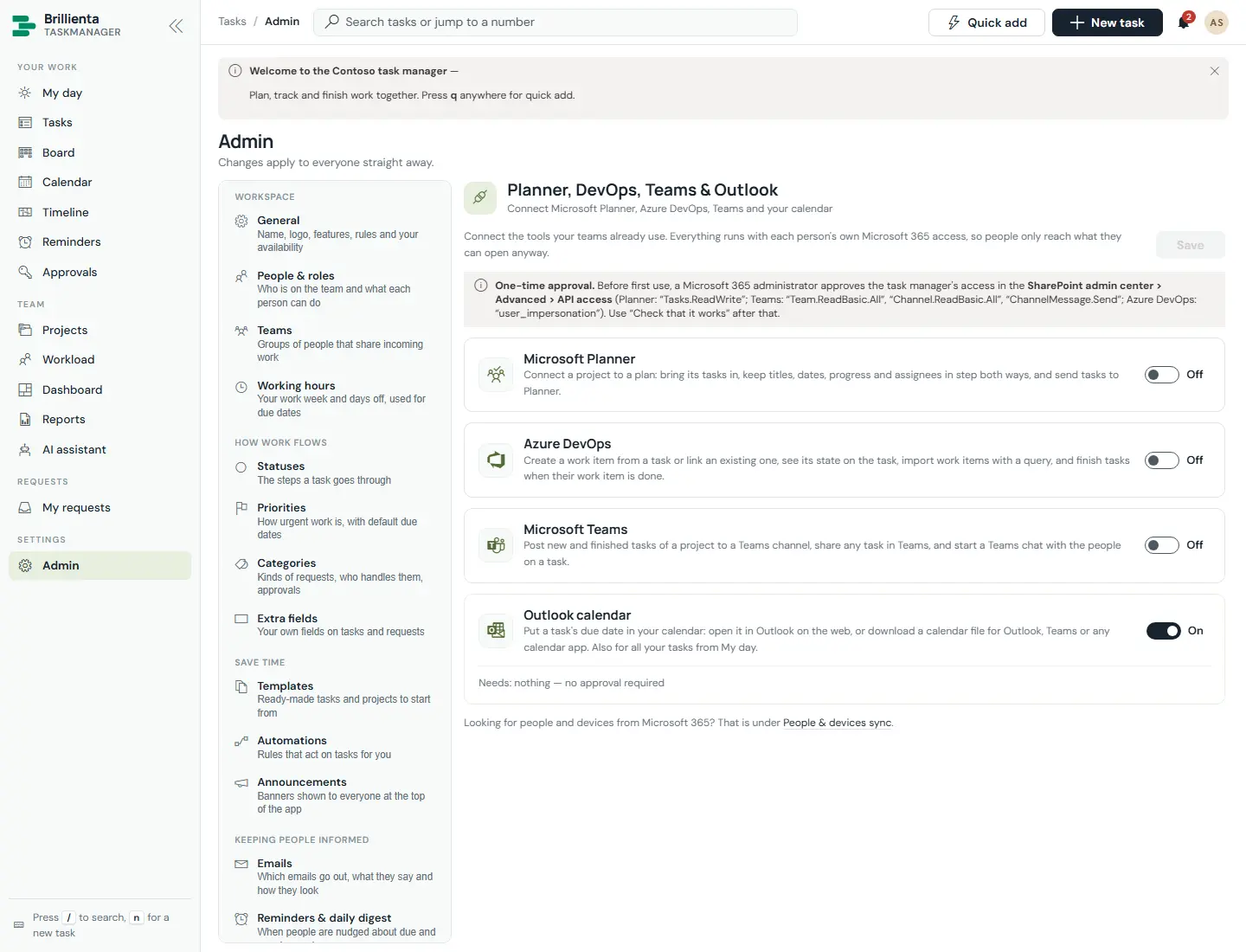
Most of the app works with no Graph permissions at all. Approve these only for the integrations you switch on, in the SharePoint admin center under Advanced > API access. Use Check that it works on each Admin > Integrations page.
| Permission | Used for | If it is not approved |
|---|---|---|
| User.Read.All | Syncing people from Microsoft Entra ID (Sync now and the daily flow) | Directory sync stays off; members are managed by hand |
| Device.Read.All, DeviceManagementManagedDevices.Read.All | Syncing devices from Intune / Entra ID and raising device tasks | Devices page stays off |
| Tasks.ReadWrite | Microsoft Planner two-way sync | Planner connections stay off |
| Team.ReadBasic.All, Channel.ReadBasic.All, ChannelMessage.Send | Posting project updates to Teams channels | Channel posts stay off; sharing links still works |
Part 3
Feature walkthrough
Every screen in the app, in the order a new member meets it. Each feature lists who it is for and which plan includes it.
My day
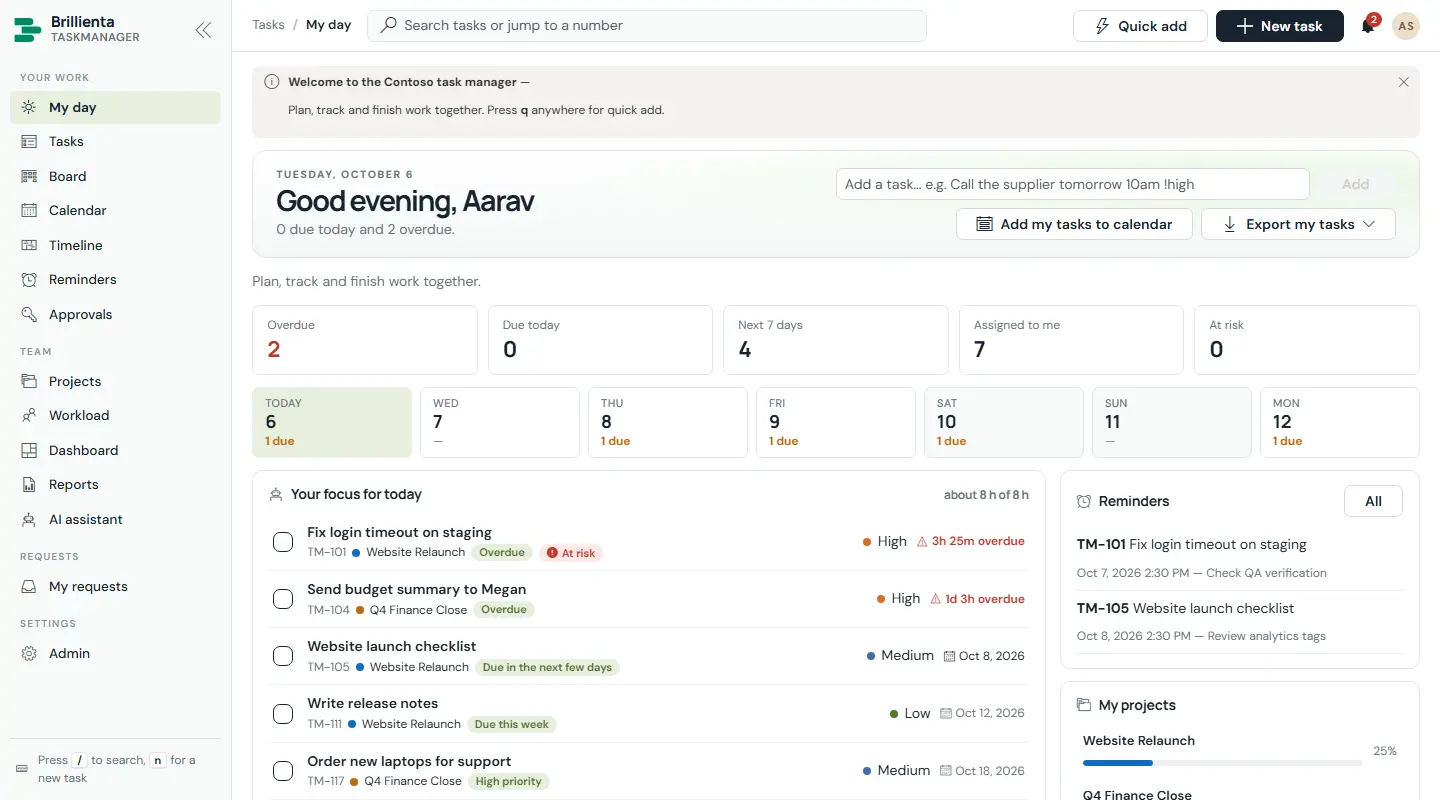
A member's home: what needs attention today. A greeting with today's numbers, KPI cards (Overdue, Due today, Next 7 days, Assigned to me, At risk — each jumps to that Tasks view), a 7-day strip with due counts, and the AI focus plan ("Your focus for today") ordered by due date, priority, risk, what others wait for and available hours, each line saying why it is next. Below: Overdue, Due today and Next 7 days with one-click complete, plus reminders, projects with progress, recently done work and items the member asked others for.
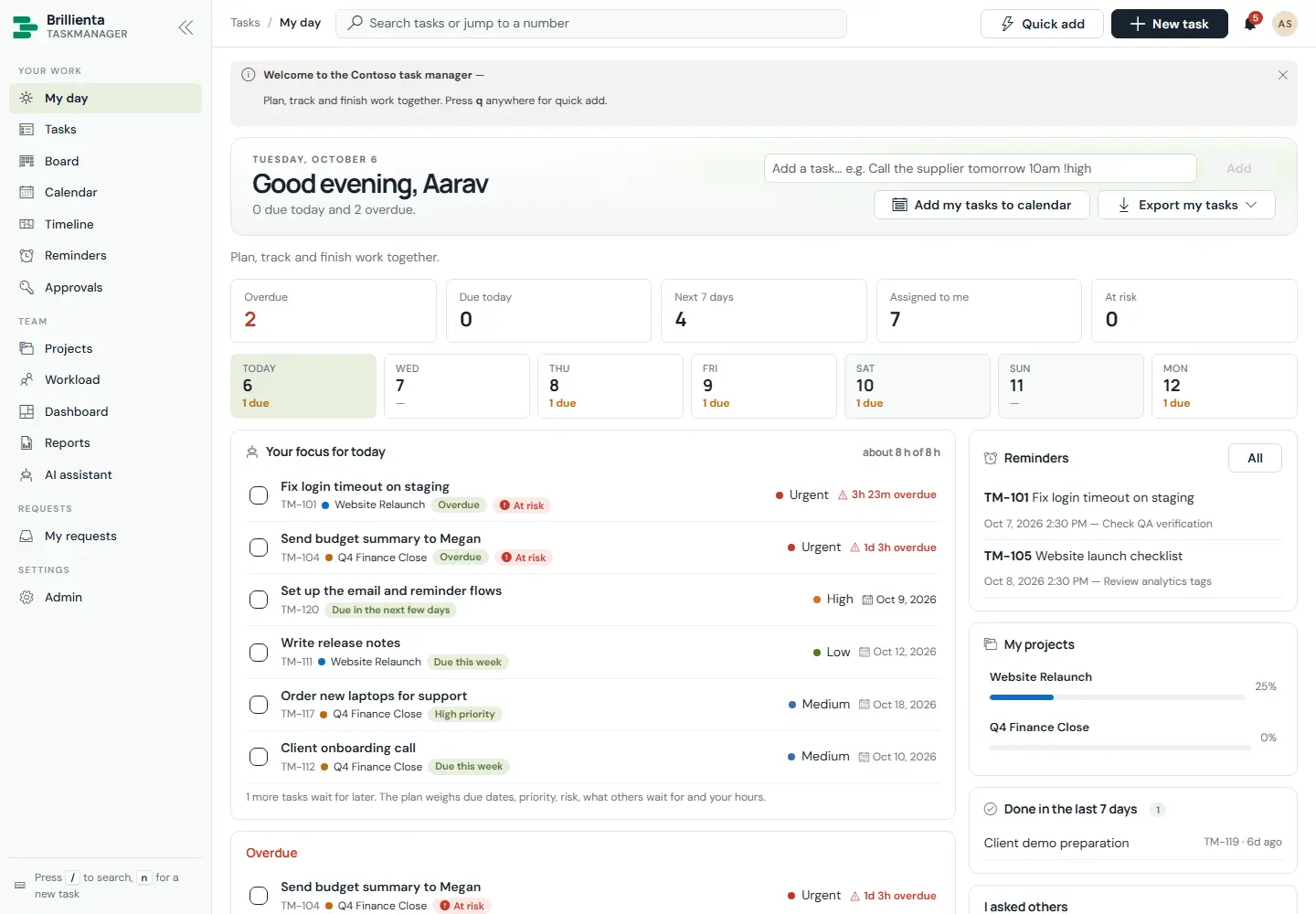
How to use it
- Type a task in the quick-add box and press Add — plain words work ("Call Alex tomorrow 3pm #sales !high").
- Click a KPI card to open that filtered view in Tasks.
- Tick a checkbox to complete; click any row, reminder or project to open it.
- Keyboard:
/search,qquick add,nnew task,gthen a letter to go to a page. - The bell (top right) holds assignments, status and due-date changes, mentions and approvals in real time.
- Search accepts words, tags, people — or a task number (1042) to jump straight to it.
Tasks
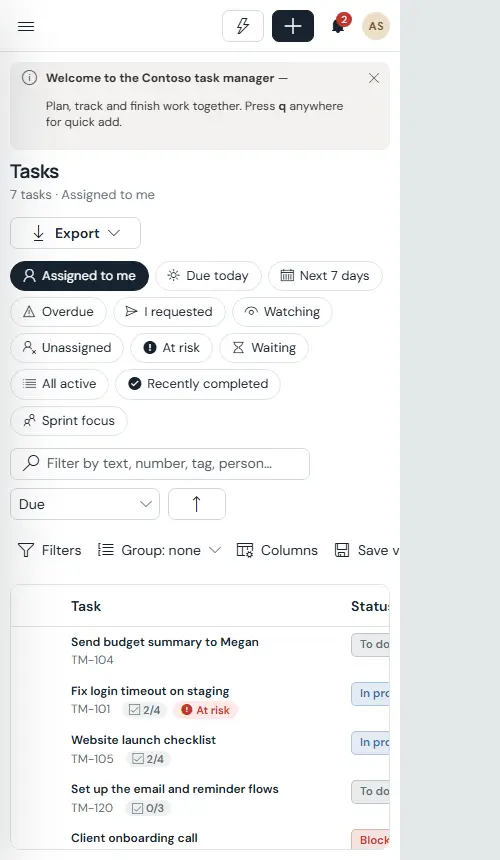
The master list. Eleven built-in views — Assigned to me, Due today, Next 7 days, Overdue, I requested, Watching, Unassigned, At risk, Waiting, All active, Recently completed — plus saved personal and shared views (a shared one, Sprint focus, is marked with a star). Text search, filters (status, kind, priority, project, category, team, assignee, tags, due, risk, milestones, subtasks), sorting, grouping (status, project, assignee, priority, due) and bulk change (status, priority, project, assignee, shift dates, add tag, delete). The table offers 21 columns; headers drag to reorder and edges drag to resize, remembered per browser. Everything exports to Excel or PDF.
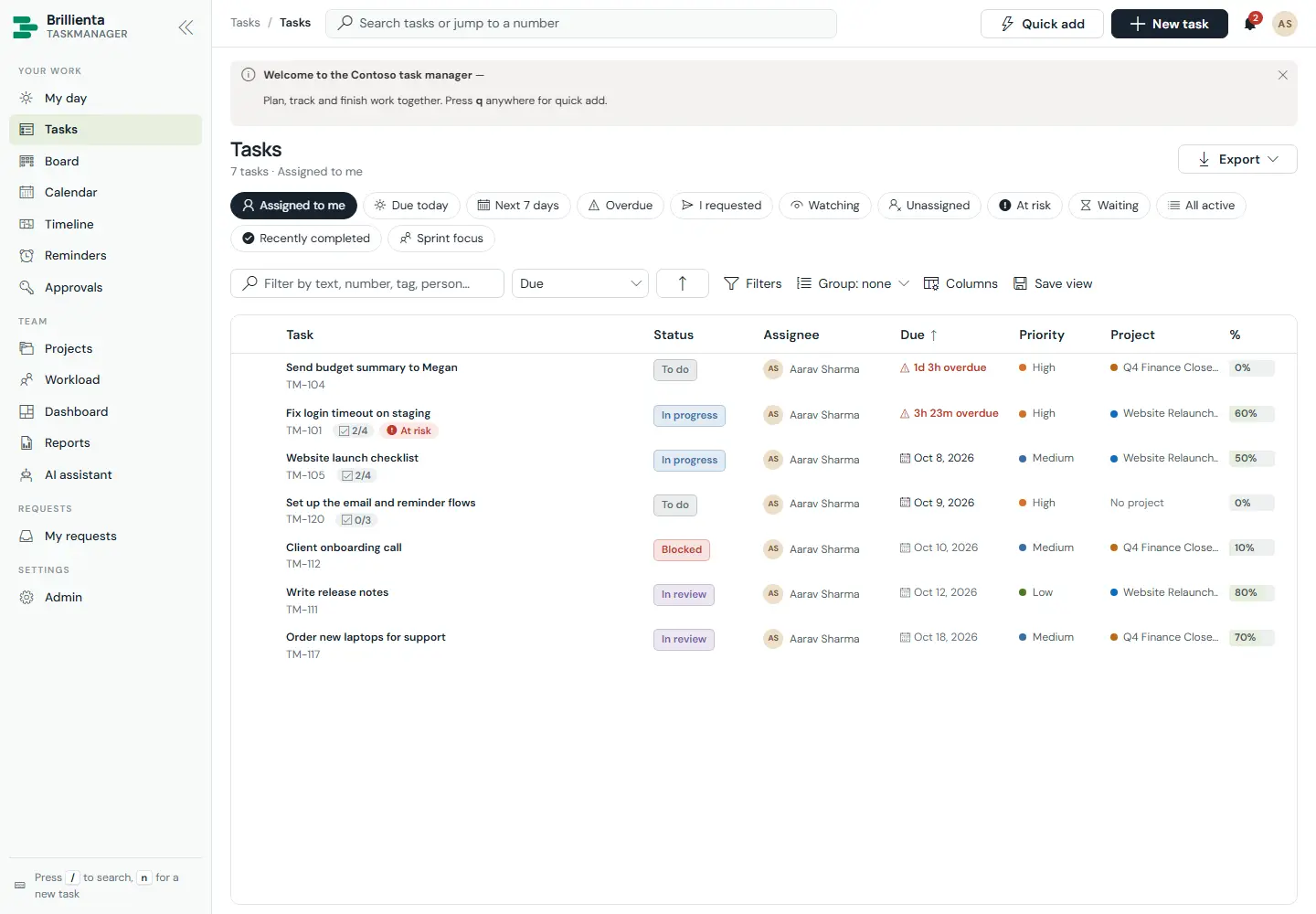
How to use it
- Open Filters, set what you need, choose Done; Clear all resets. Group with the Group menu.
- Save any arrangement with Save view — keep it private or share it (managers).
- Tick rows, open Change N selected, set fields or shift dates by ± days, then Apply.
- Click a column header to sort; drag headers to reorder and edges to resize.
- Delete moves tasks to the site recycle bin (recoverable).
- Export downloads the current list to Excel (.xlsx, keeps every character) or PDF.
Task page
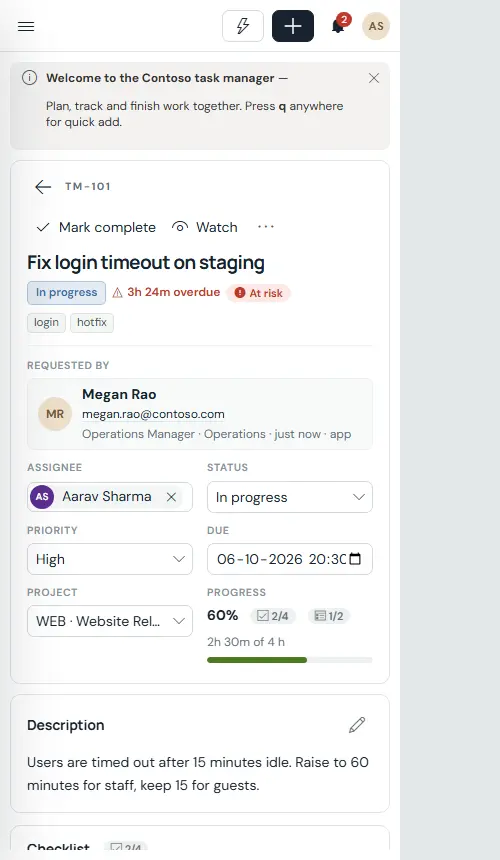
Everything about one piece of work. The header has Back, the task number, Mark complete / Reopen, Watch / Stop watching and a menu (Copy link, Duplicate, Create follow-up, Save as template, Delete). Status chips show status, due, risk, approval state, milestone, recurrence and tags. Key facts, an inline-edited description with @mentions, a checklist (recording who ticked what), subtasks, dependencies (waits for / blocks, with loop detection), attachments, an AI panel with a conversation summary, and Conversation / History / Time tabs. The sidebar holds collaborators, watchers, dates, section, category, team, progress, estimate, tags, custom fields, personal Remind me and calendar links.
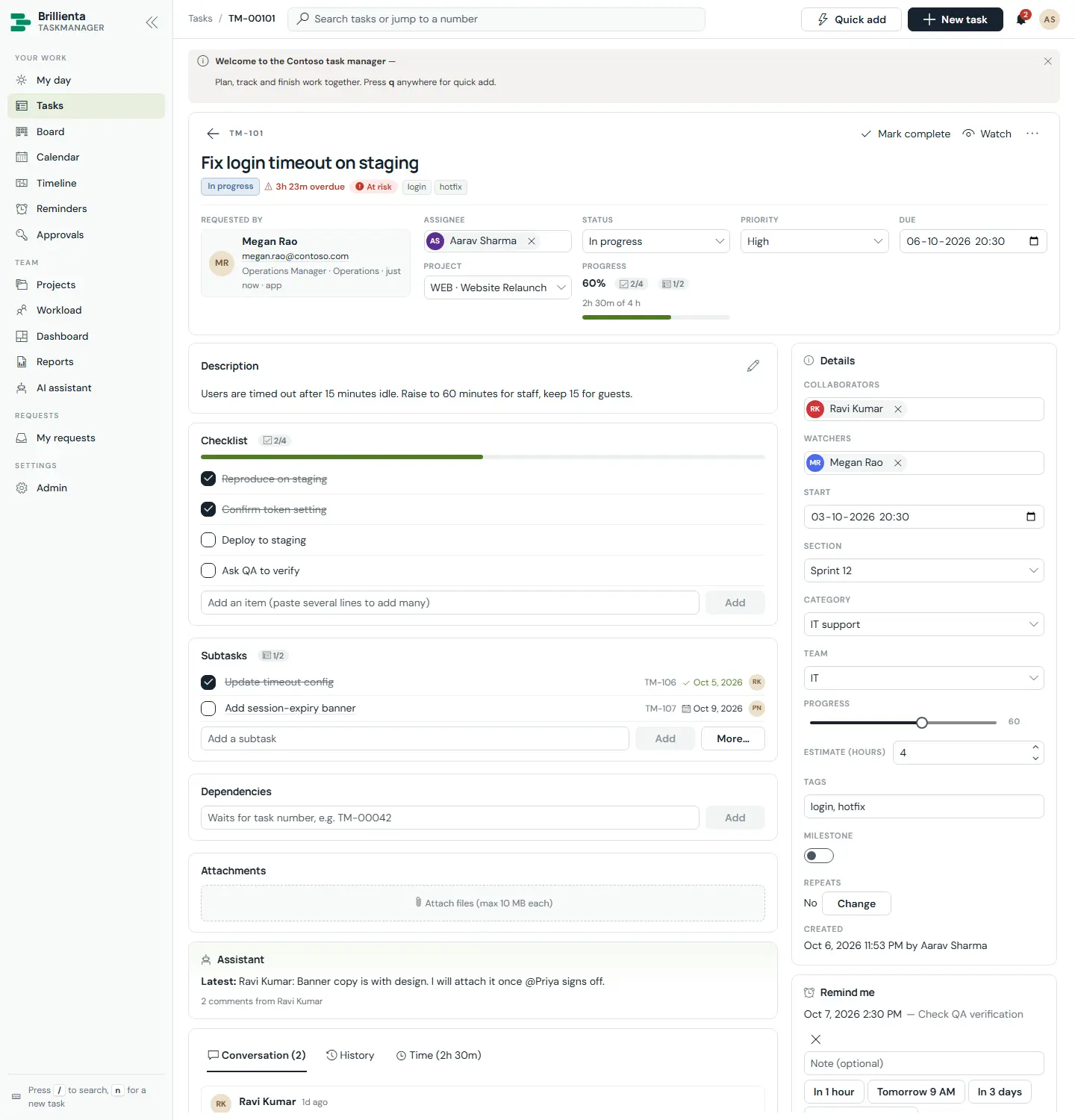
How to use it
- Change assignee, status, priority, due date or project inline — everything auto-saves and lands in History.
- Add subtasks by typing and pressing Add; link dependencies by task number (TM-42).
- Comment with @mentions and pasted files; use Members only for internal notes guests never see.
- Log time on the Time tab (billable optional); set a personal Remind me with snooze.
- Approvers decide with Approve / Reject plus an optional comment, here or on the Approvals page.
- Use the AI panel to summarise the thread, break work into subtasks or draft the description.
New task & quick add
Two speeds for creating work. New task starts from a template, parses the title typed in plain words, and offers suggestions learned from your own tasks (category, team, assignee, priority, project with confidence), a duplicate warning with links, recurrence, start/due, estimate, collaborators, watchers, checklist, custom fields and attachments. Quick add (press q anywhere) takes one task per line in plain words — dates, times, people, priority, tags, project, estimate and repeats are recognised and shown as chips before creating.
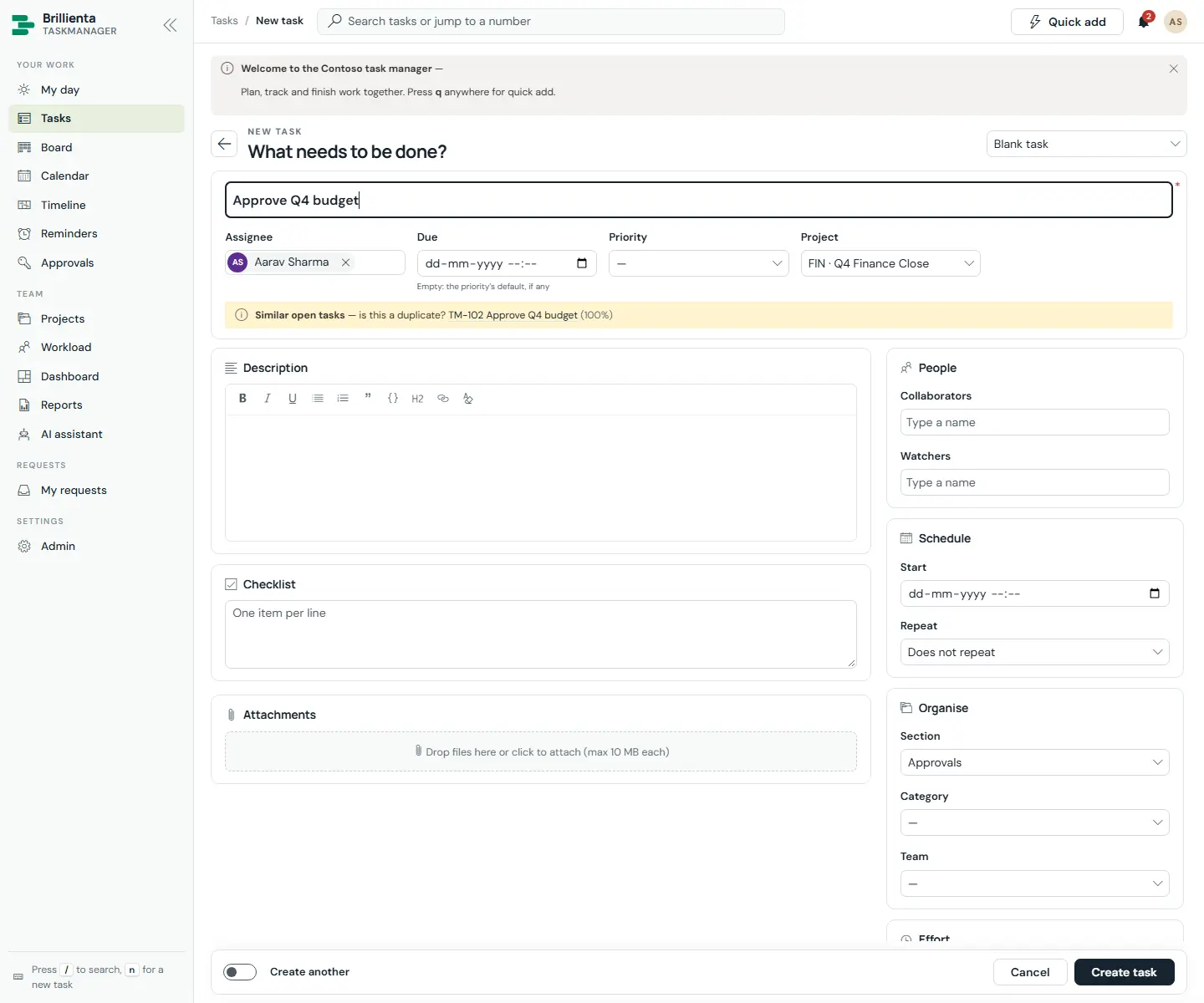
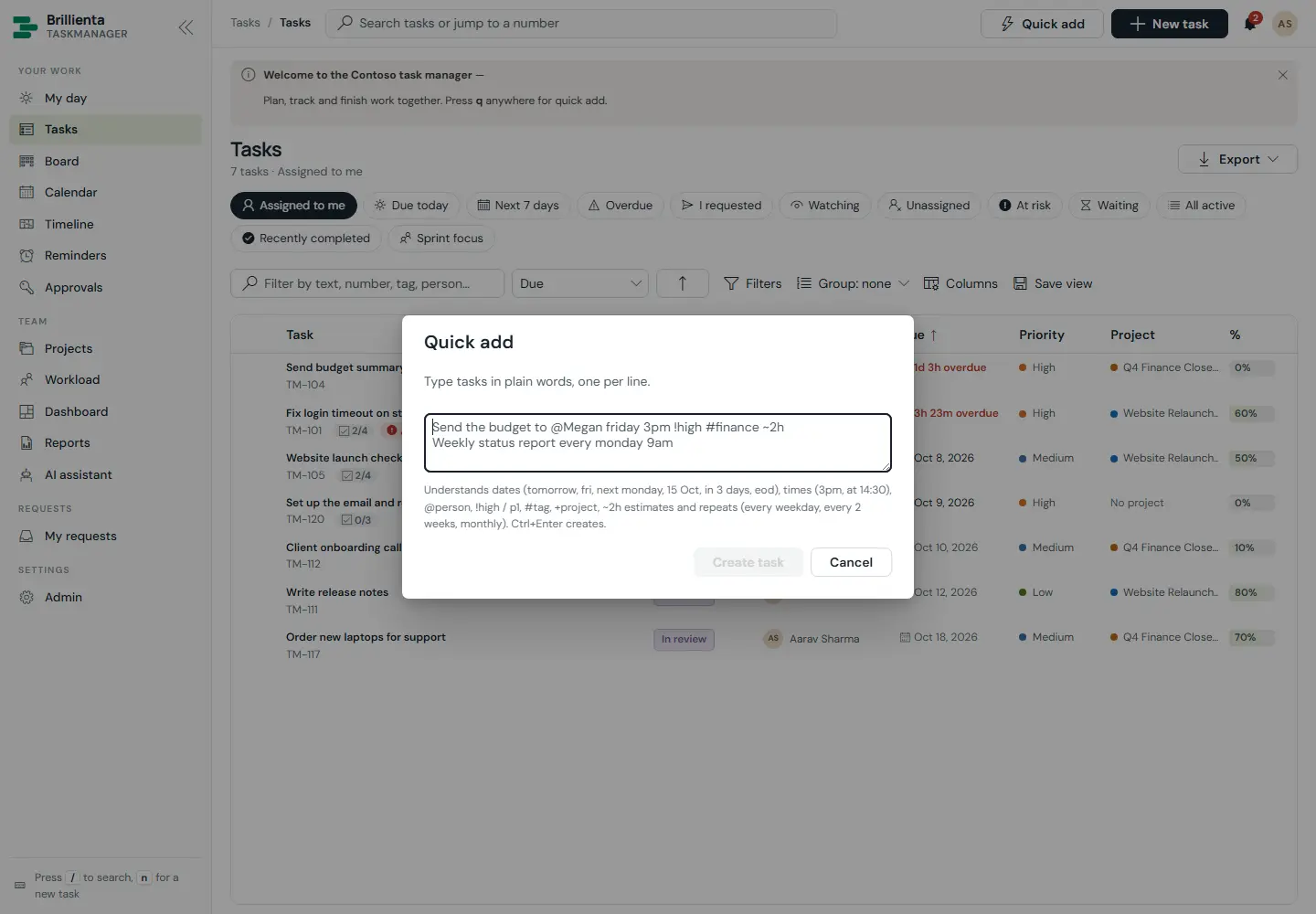
Send the budget to @Megan friday 3pm !high #finance ~2h +WEB every week becomes a fully-filed, repeating task. Ctrl+Enter creates; Enter starts a new line.What quick add understands
- Dates & times:
tomorrow,friday,next monday,15 Oct,in 3 days,eod,3pm,14:30. - People
@Megan, priority!high/p1, tags#finance, project+WEB.
- Estimates
~2hand repeats (every weekday,every 2 weeks,monthly). - Guests see a simpler New request form instead: category, needed-by date, details and files.
Board
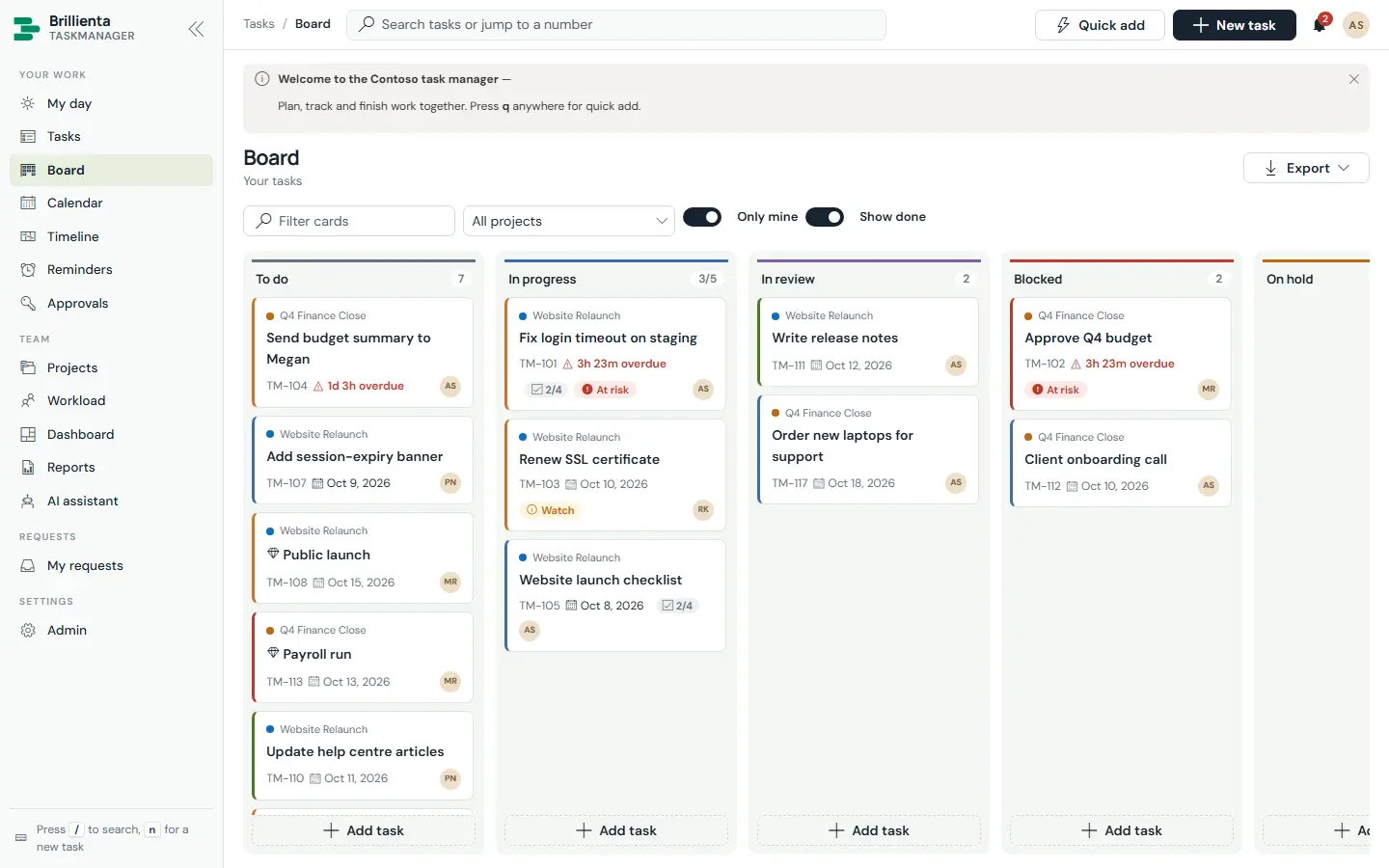
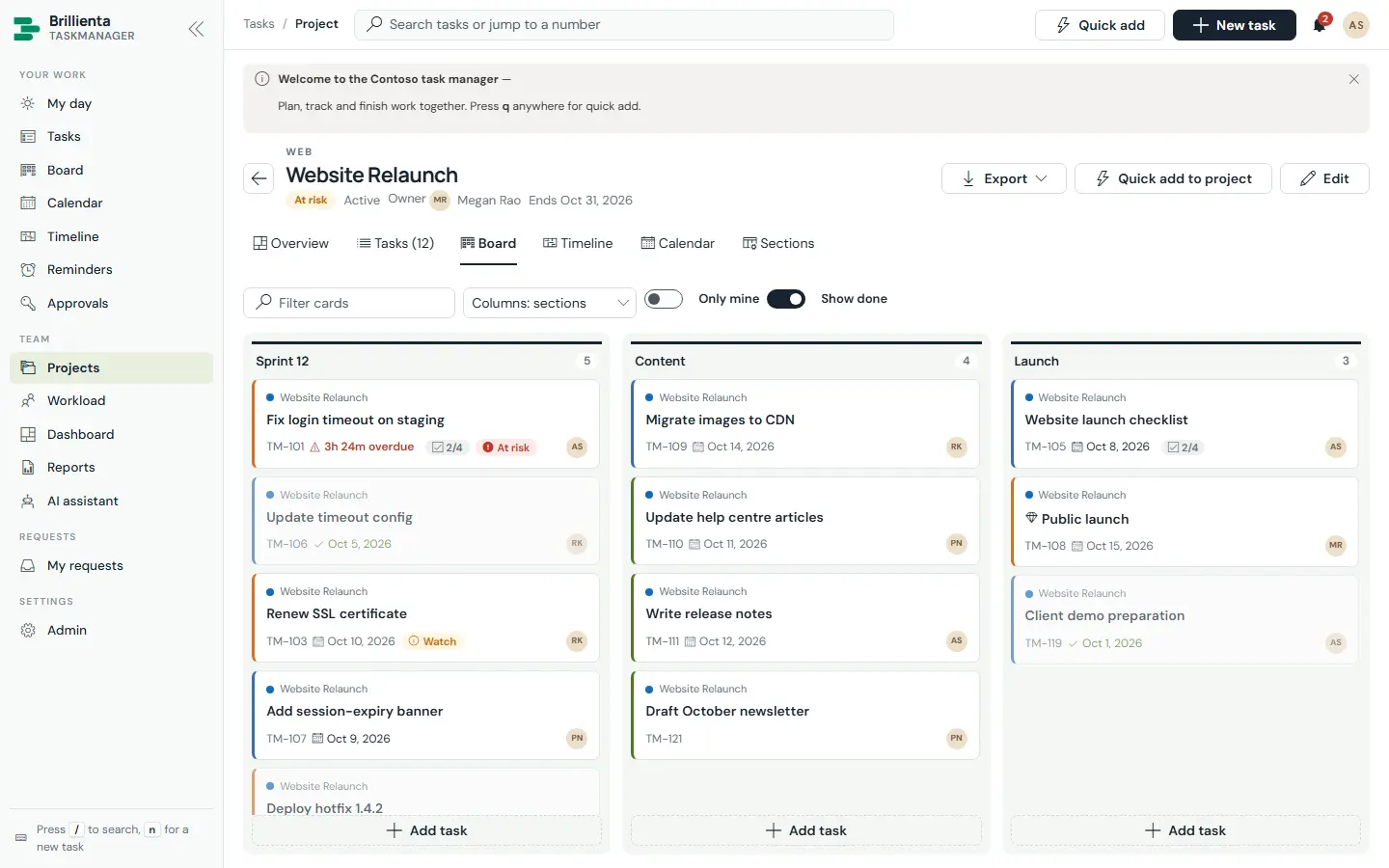
Kanban by status — or, inside a project with sections, by that project's sections. Drag and drop changes status (order is kept), with WIP limits per status, quick add per column, and only-mine / show-done filters. Cards show project, title, number, due chip, checklist progress, risk and assignee; a red edge marks high priority.
Calendar
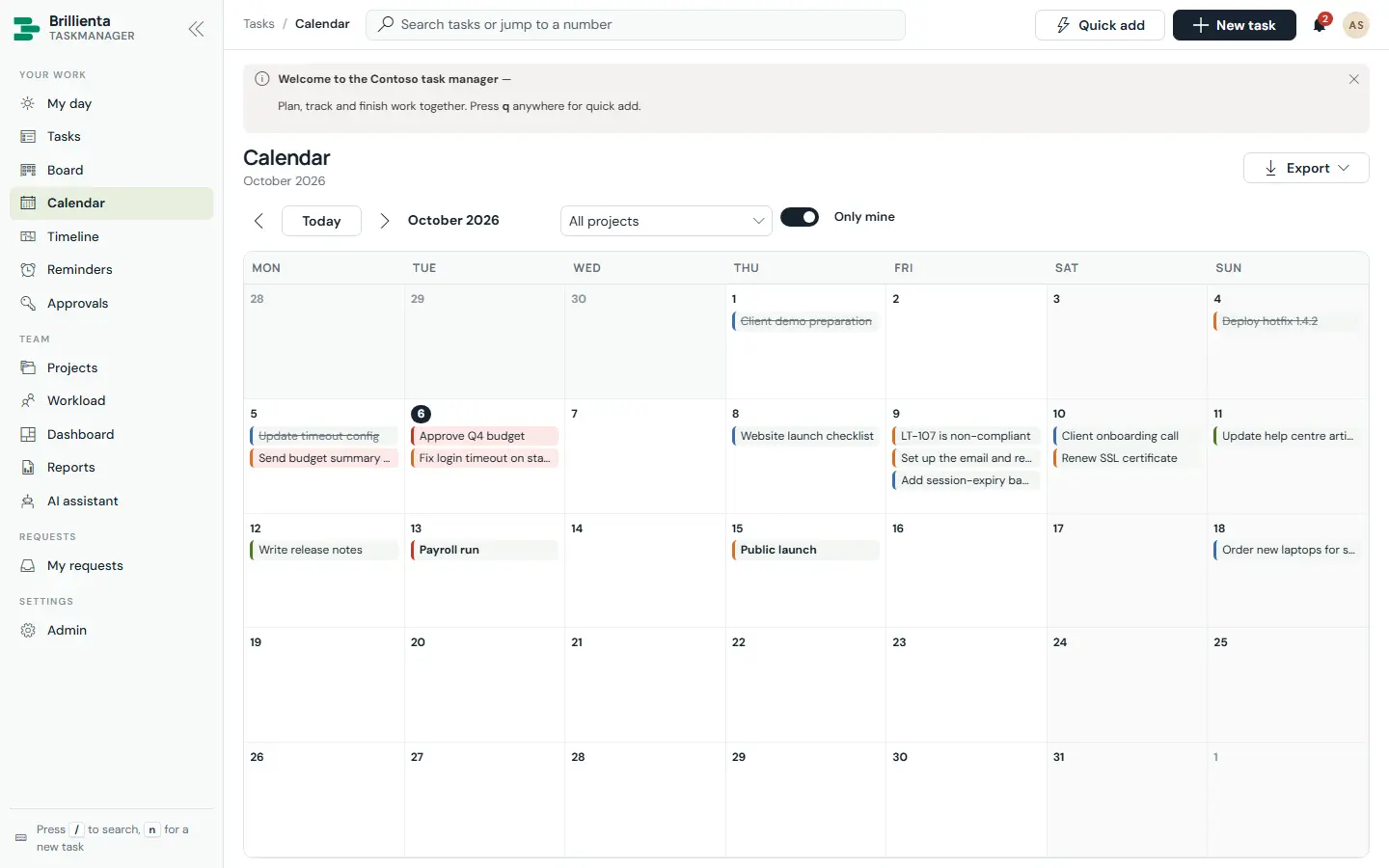
A month view of due dates with holidays and weekends marked. Drag a task to another day to re-date it (time kept; start shifts to stay before due); double-click an empty day to add a task due that day. Crowded days expand with +N more.
Timeline
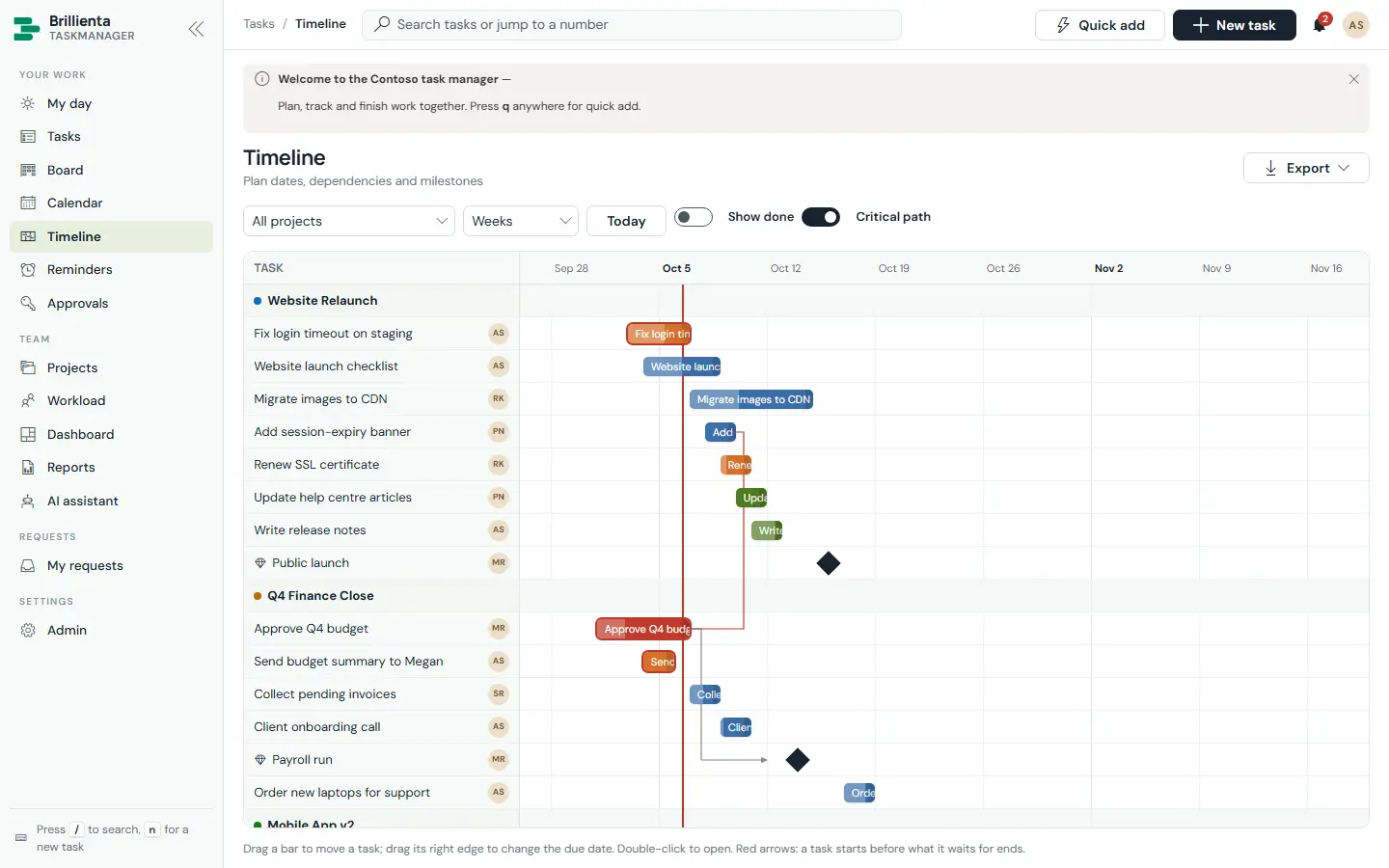
Gantt bars by project with milestones, dependency arrows (red when a task starts before what it waits for ends) and the critical path. Drag a bar to move start and due together; drag its right edge to change the due date — tasks waiting on it move along. Day/week/month zoom, today line, and double-click to open.
Projects
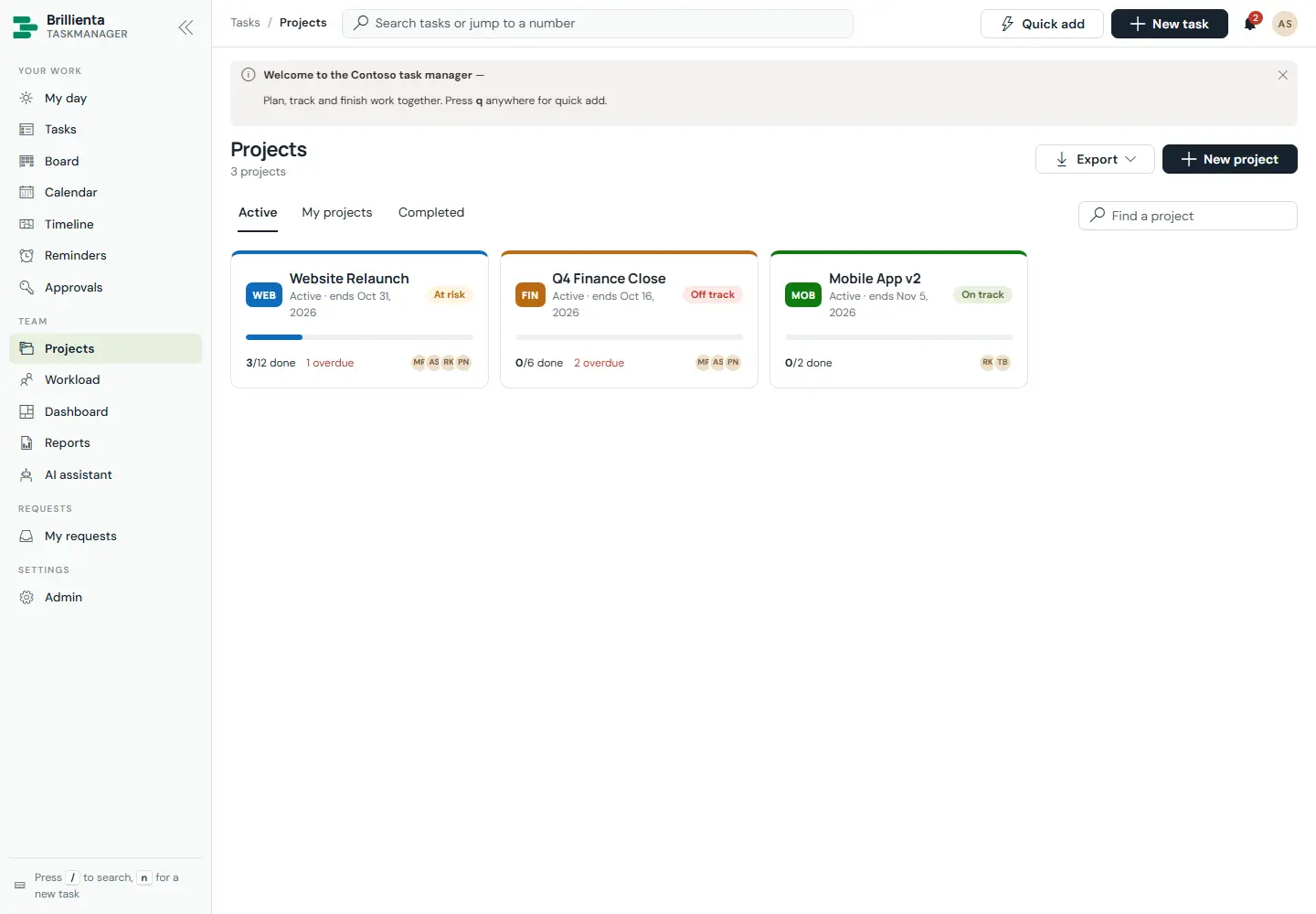
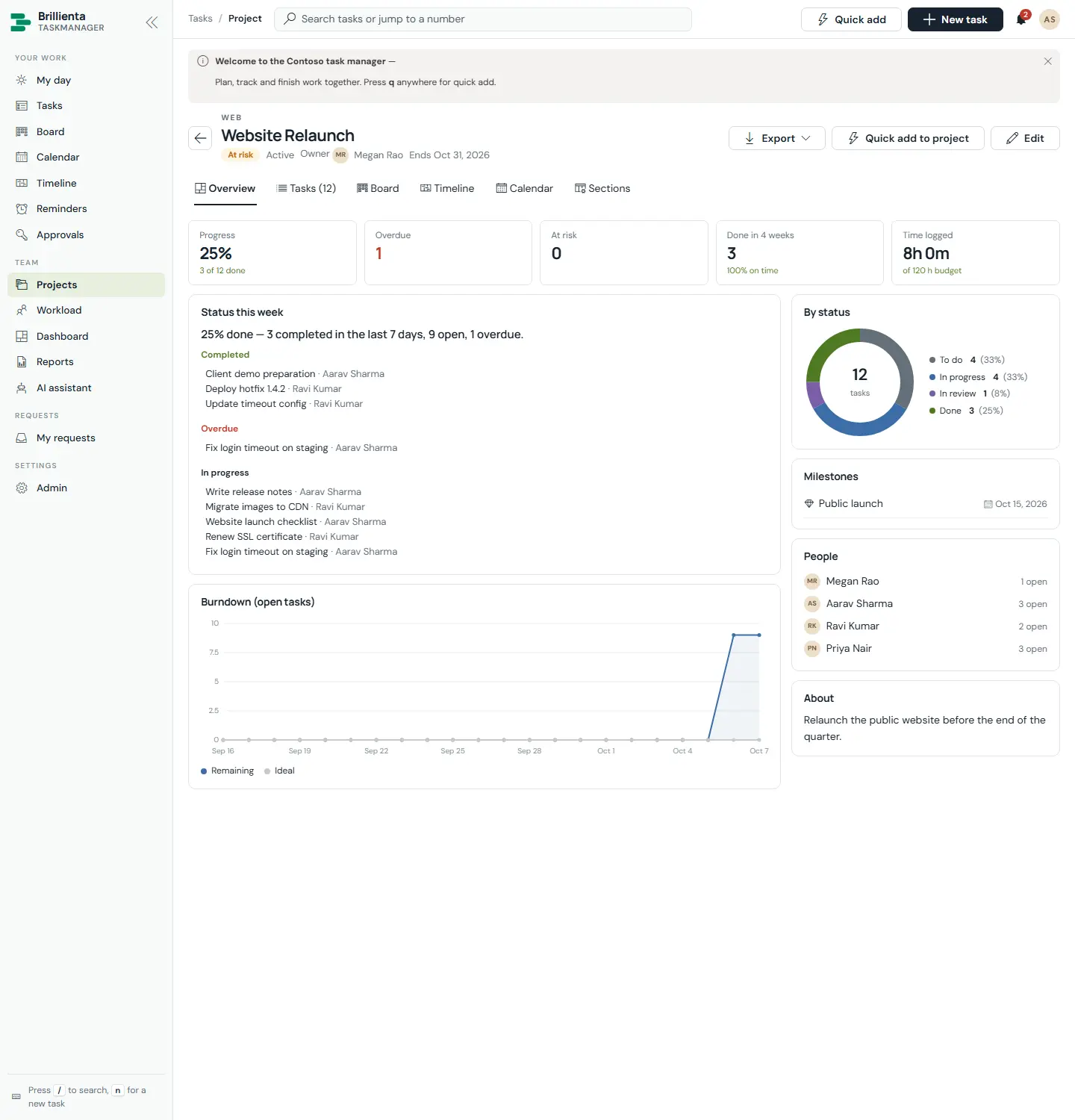
Cards with health (On track / At risk / Off track), progress, overdue and at-risk counts, owners and end dates — here Website Relaunch is At risk, Q4 Finance Close Off track, Mobile App v2 On track. Each project page has Overview (KPIs, status this week, burndown, by-status chart, milestones, time against budget), Tasks grouped by section, Board, Timeline, Calendar, a sections editor and connections. Managers create projects empty or from project templates (sections, scheduled tasks with dependencies and milestones), and can draft the weekly report with Write a status update with AI.
Workload
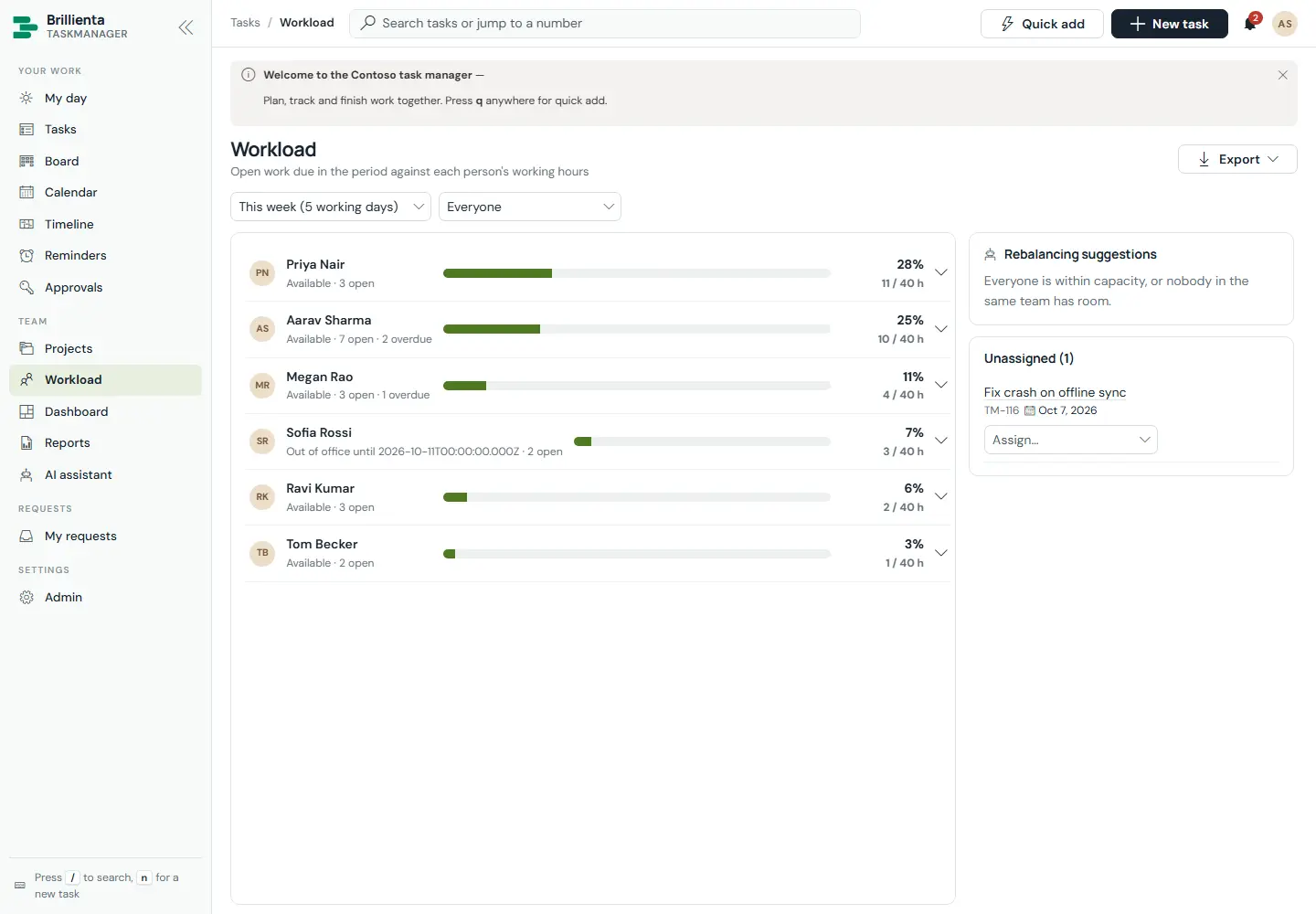
Hours of work left per person against their capacity for 1–4 weeks, with out-of-office, overdue counts and drill-down to each person's tasks. AI rebalancing suggestions move work from overloaded people to teammates with room and matching skills in one click; unassigned work gets a load-aware assign menu.
Dashboard
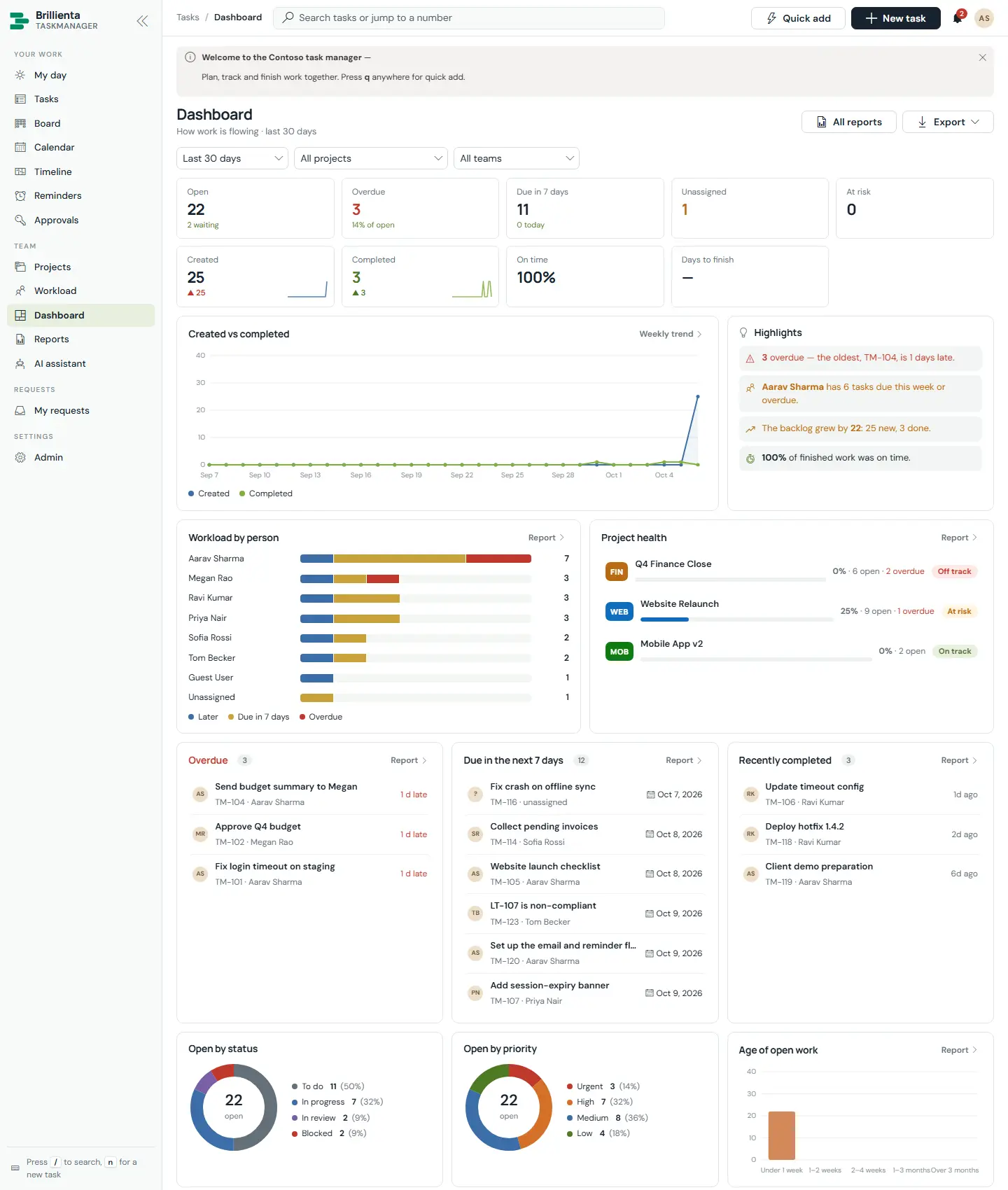
The executive overview: KPIs with change against the previous period (open, overdue, due soon, unassigned, at risk, created, completed, on-time %, days to finish), plain-language highlights that jump to the right list, created-vs-completed, workload by person, project health, overdue / due-soon / recently-completed lists, open by status, priority and category, age of open work, on-time by priority, most completed and time by person and project. Filter by 7 / 30 / 90 days, project and team; export everything.
Reports
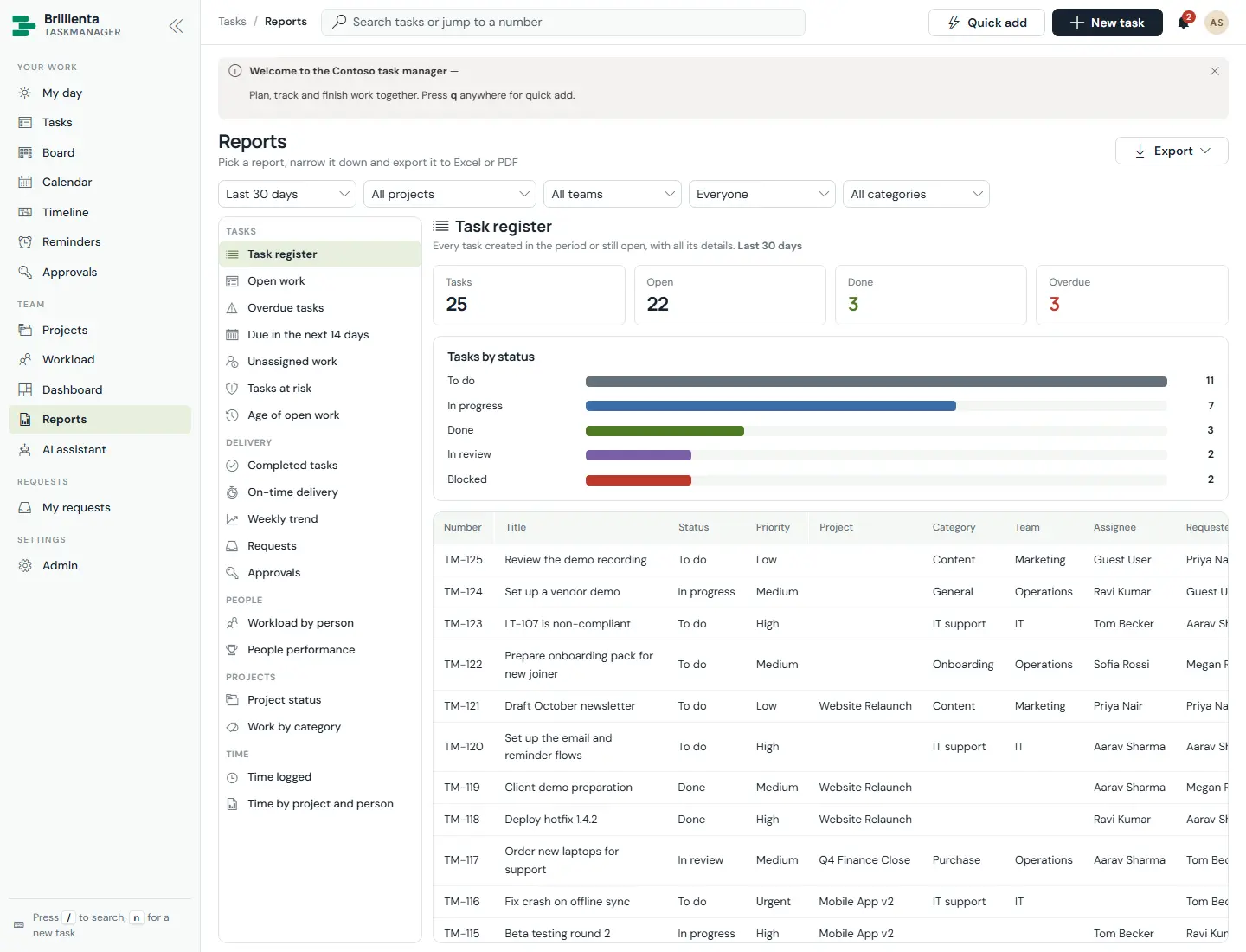
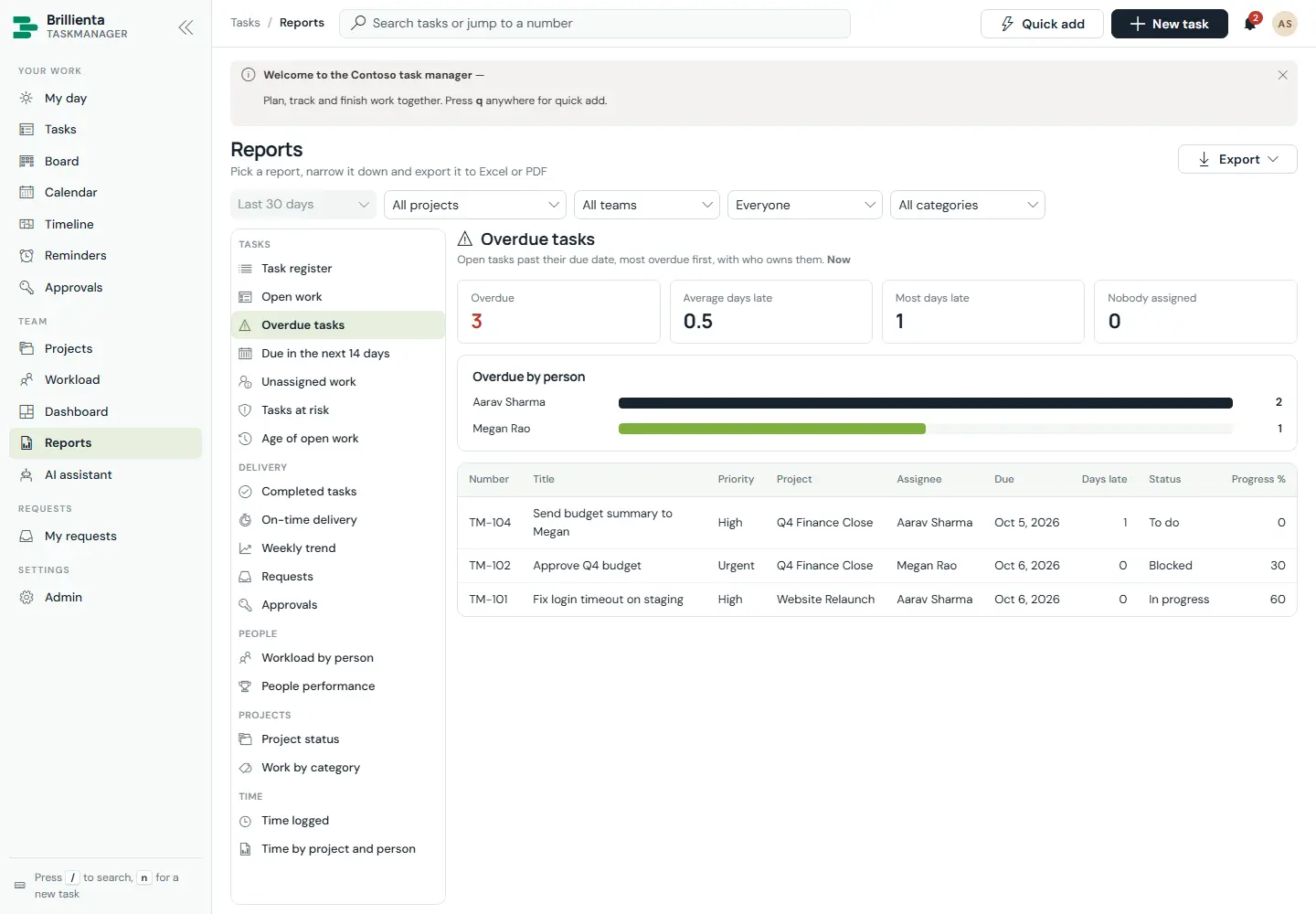
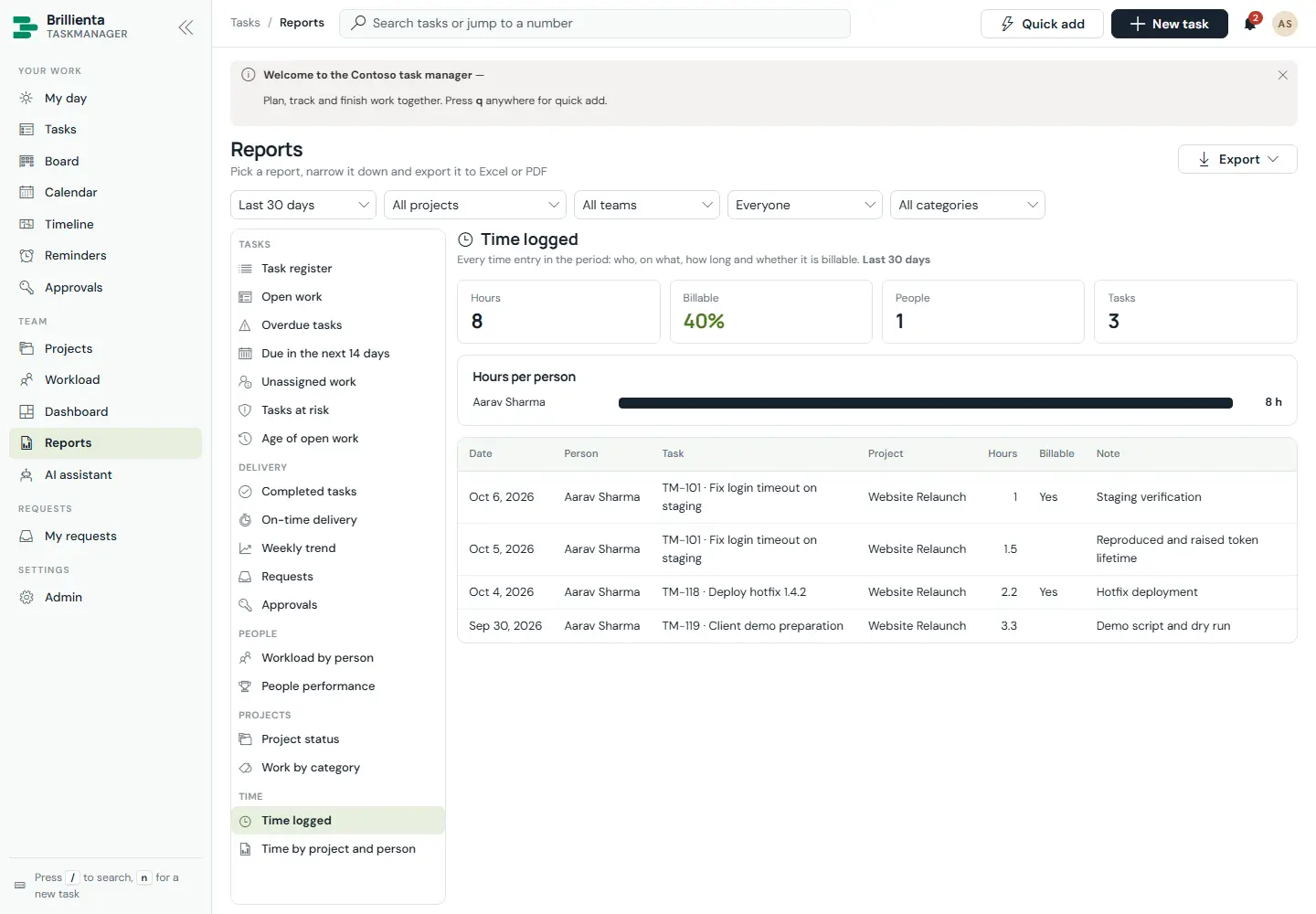
Eighteen reports sharing one pattern: pick from the left list, set period / project / team / person / category, read the summary numbers, the chart and the sortable table (click any header), then export to Excel or PDF. Groups cover tasks (register, open, overdue, due in 14 days, unassigned, at risk, age), delivery (completed, on-time, weekly trend, requests, approvals), people and projects (workload, performance, project status, by category) and time (logged, by project and person).
Reminders & notifications
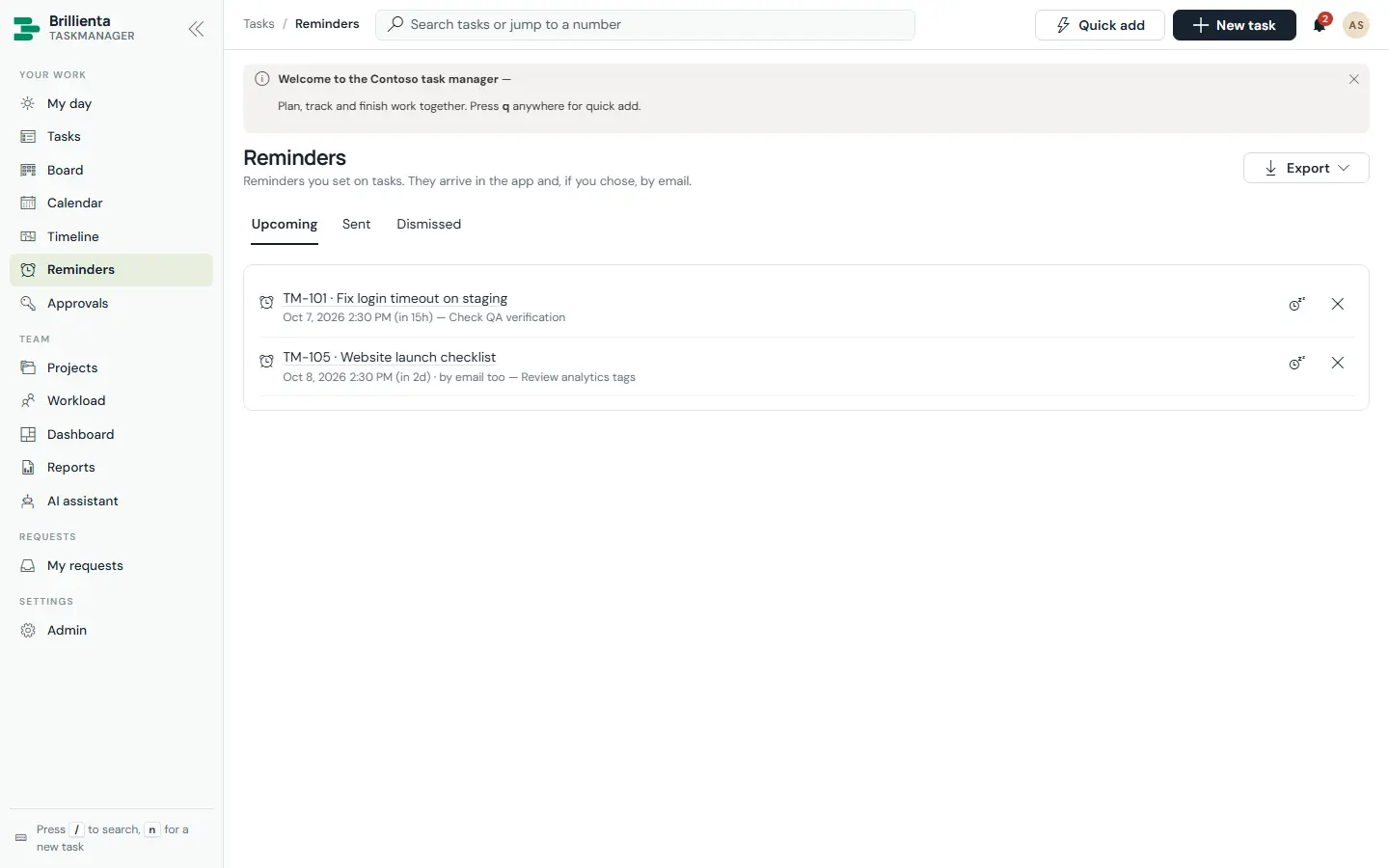
The in-app bell (real time) plus email from your mailbox once the email flow exists. Automatic reminders cover due-soon, overdue (repeating, then escalating to team leads and the project owner), starts-today, pending approval, unassigned, no-progress and still-waiting — each with first delay, repeat, maximum and working-time counting. A daily digest summarises overdue, due today, starting, approvals and at-risk items (managers get a Monday team summary). Personal Remind me on any task supports snooze; the Reminders page keeps Upcoming / Sent / Dismissed tabs.
Approvals
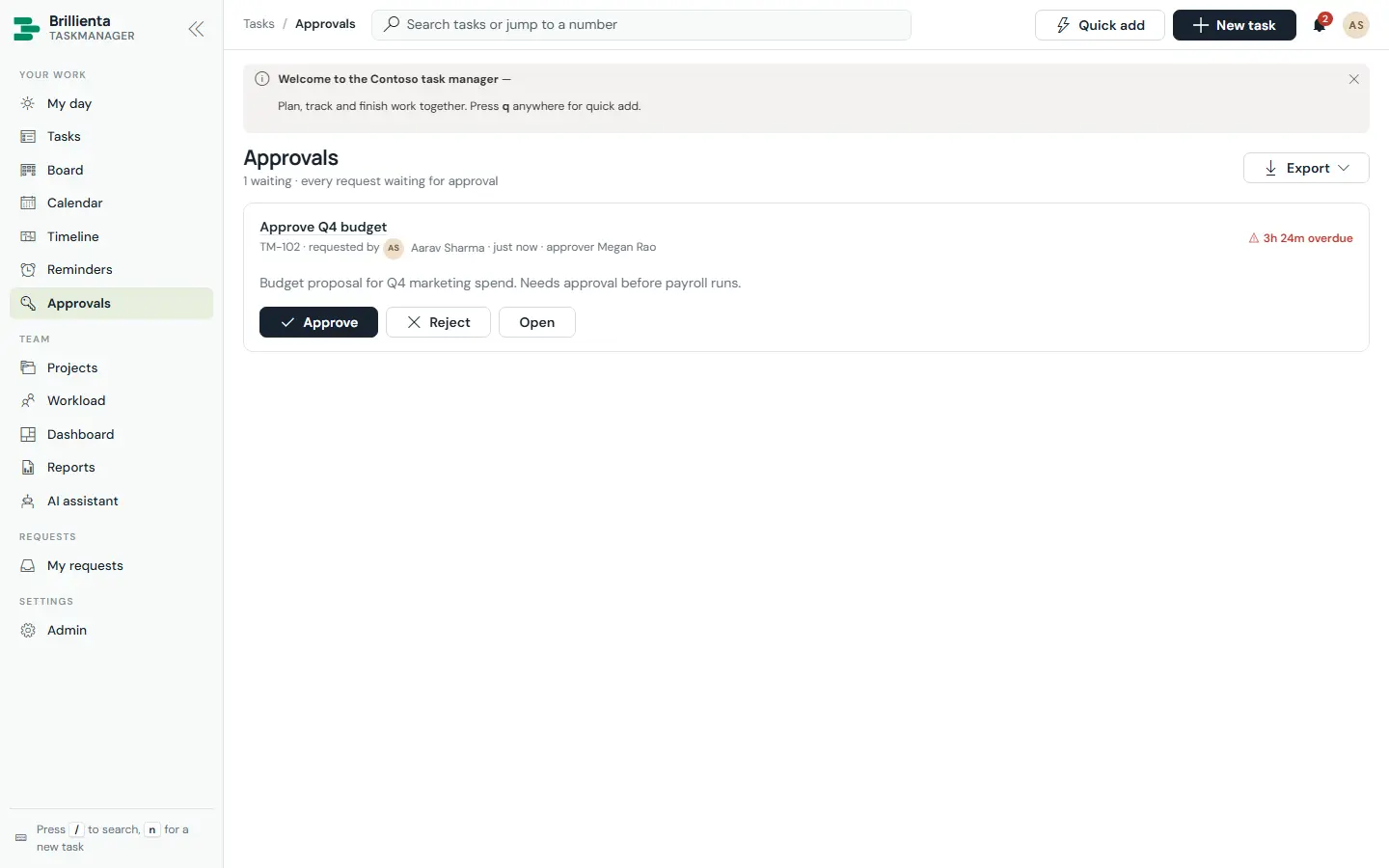
Categories can require approval by a named person, the requester's manager (from the directory) or the project owner. Approvers decide with a comment on the task or on the Approvals page; requesters are notified and the decision is logged to history.
Requests (guests)
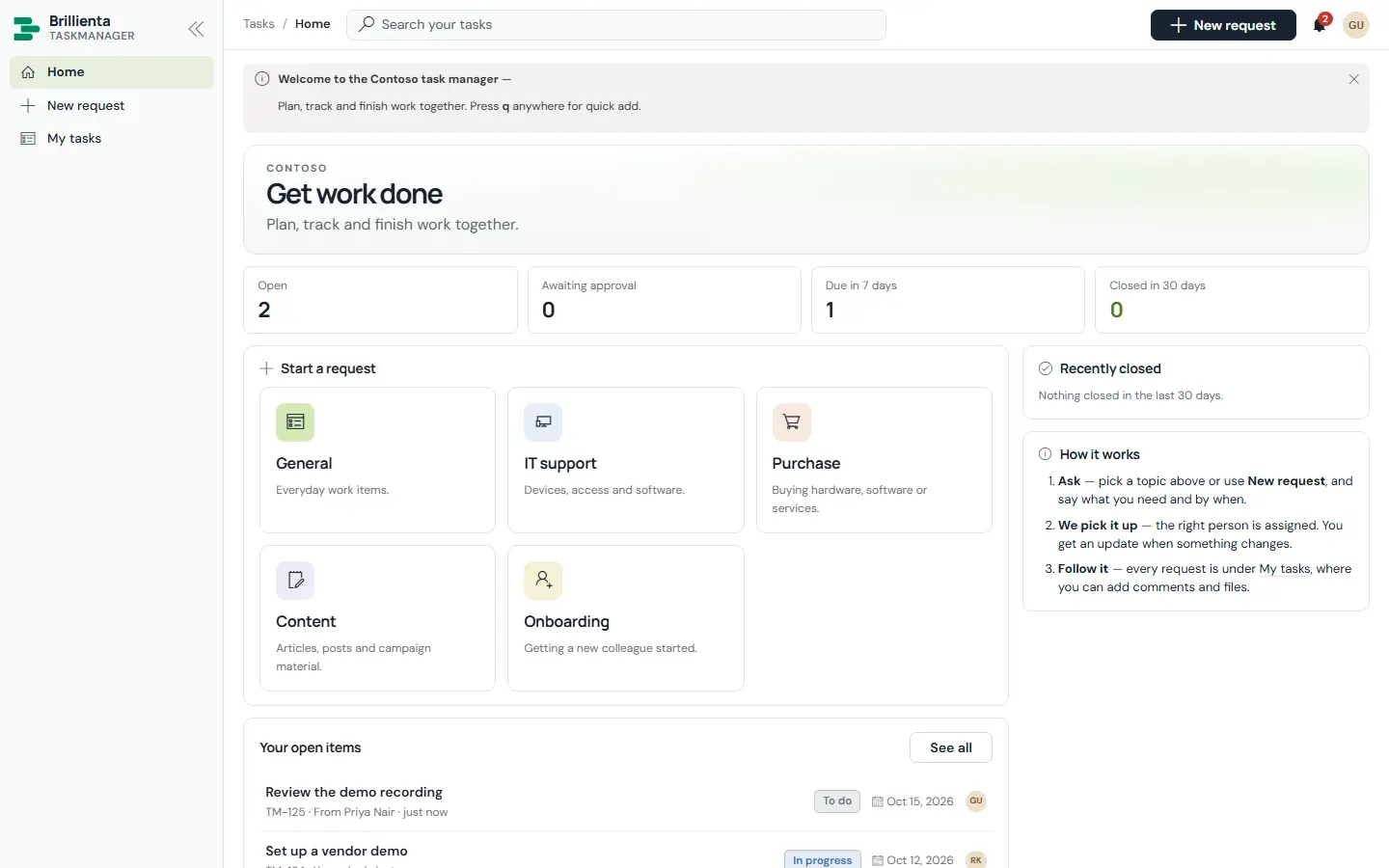
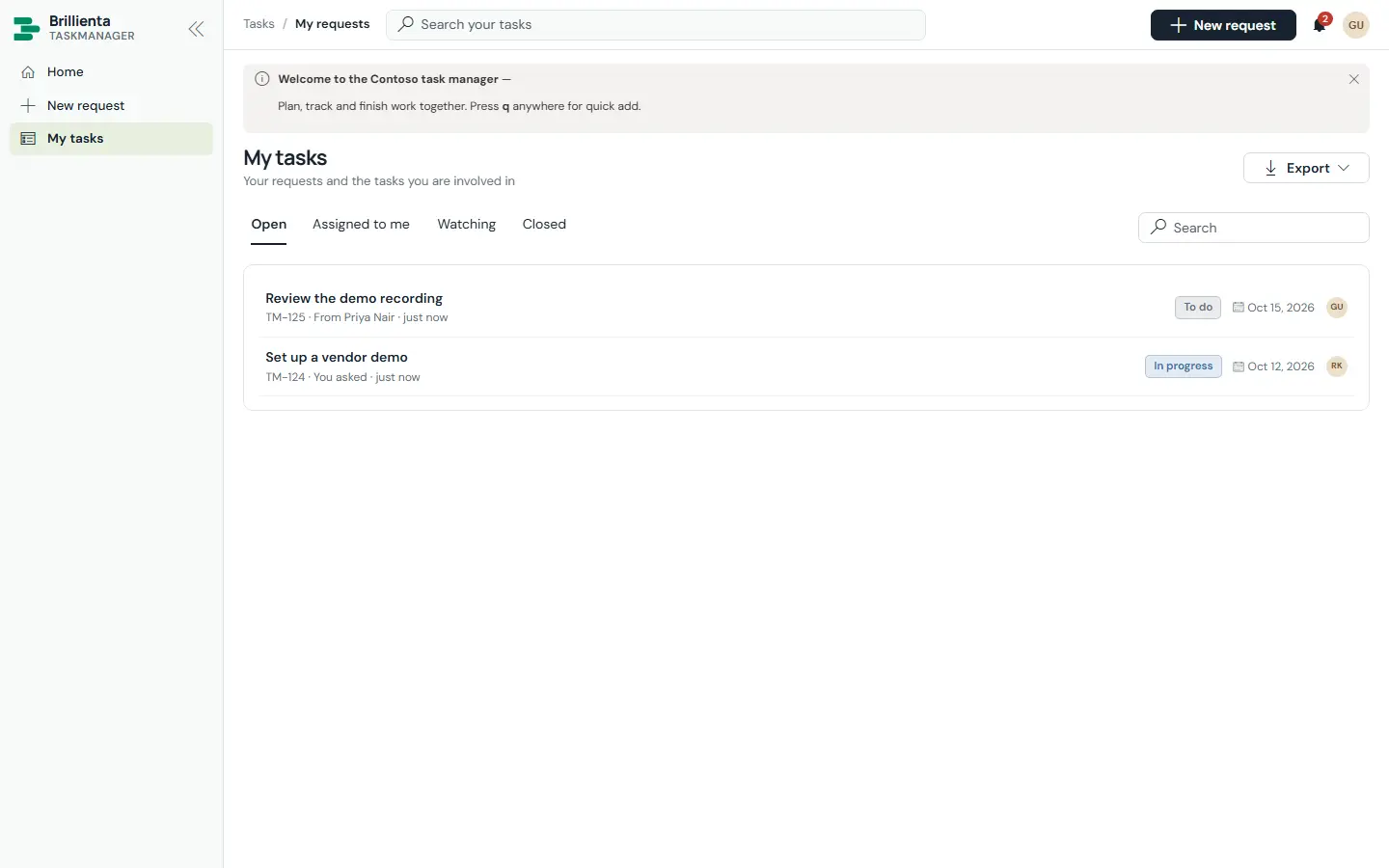
People who are not members get a home page with request tiles per category, a request form (category, details, needed-by date, custom fields, attachments), My tasks (requested, assigned, watching, closed) and approvals waiting for them. Guests follow progress and comment on their own requests, and can open tasks assigned to them or they watch.
AI assistant
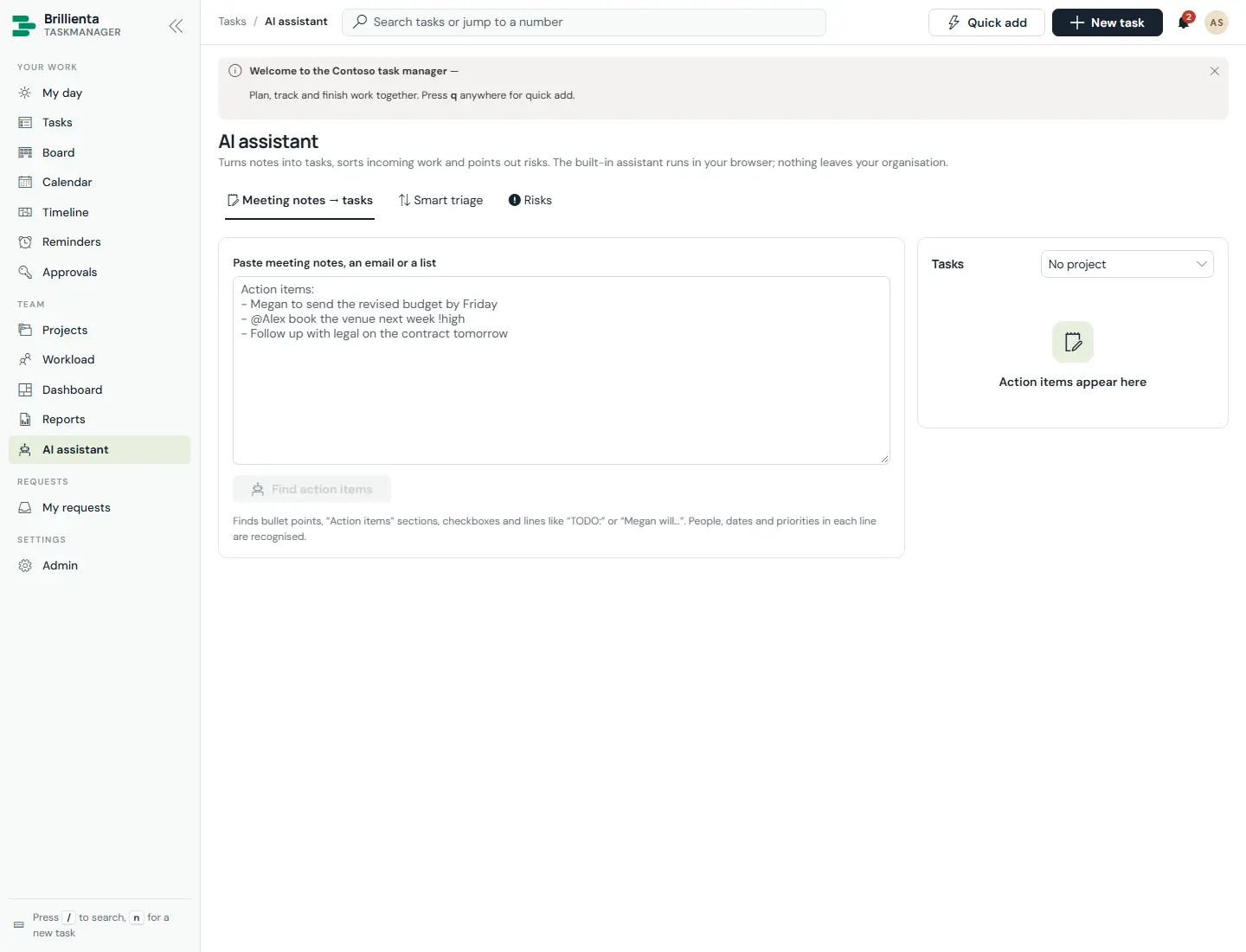
Built in, in the browser — nothing leaves SharePoint: quick add, suggestions, duplicate warnings, per-task risk scores with at-risk alerts, the daily focus plan, rebalancing, meeting notes → tasks, smart triage of unsorted work (optionally automatic above a confidence you choose) and conversation summaries. With your own Azure OpenAI deployment through the AI flow: summarise, subtasks, descriptions, status updates, action items and Ask AI about your work.
Devices & directory (Graph sync)
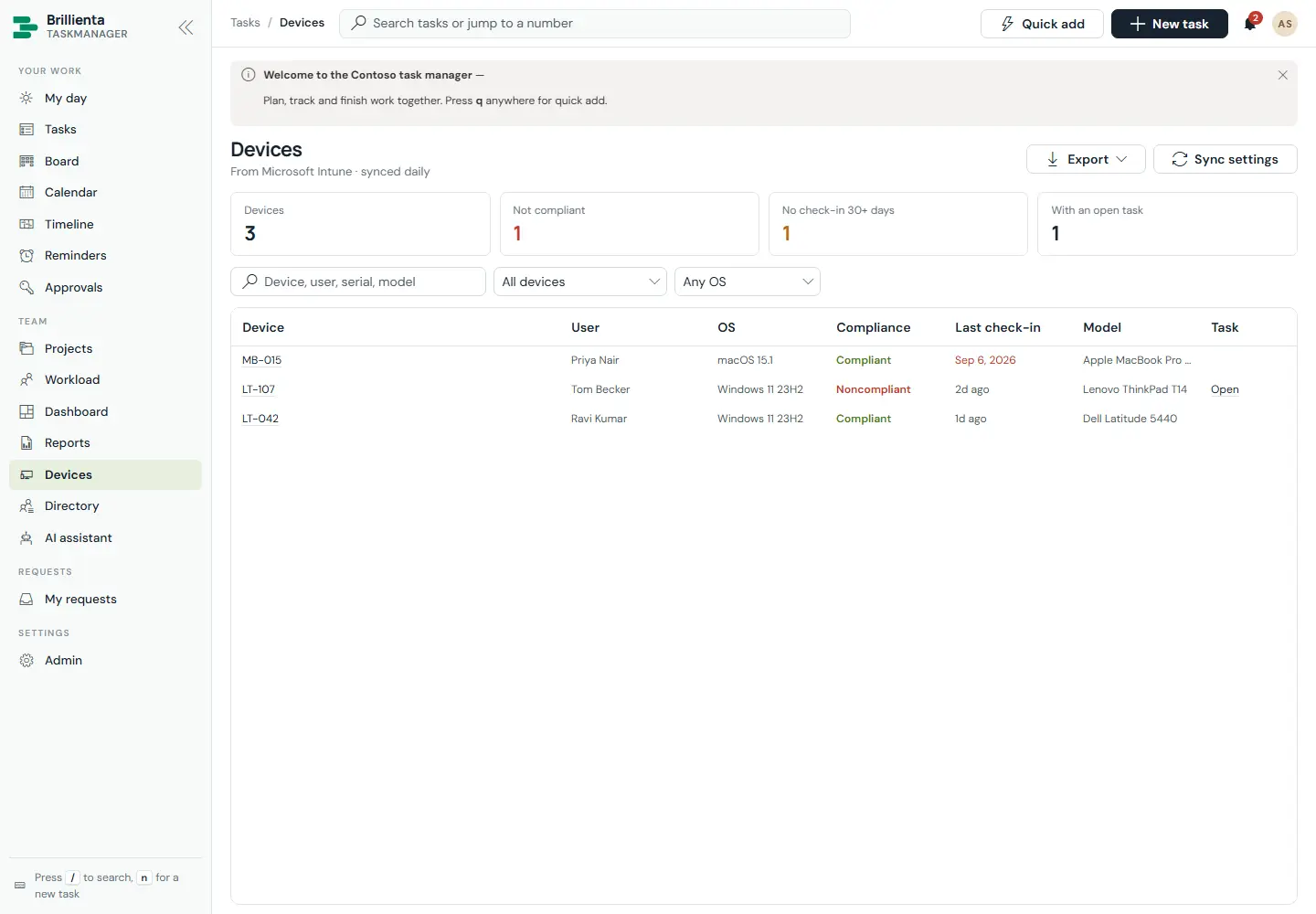
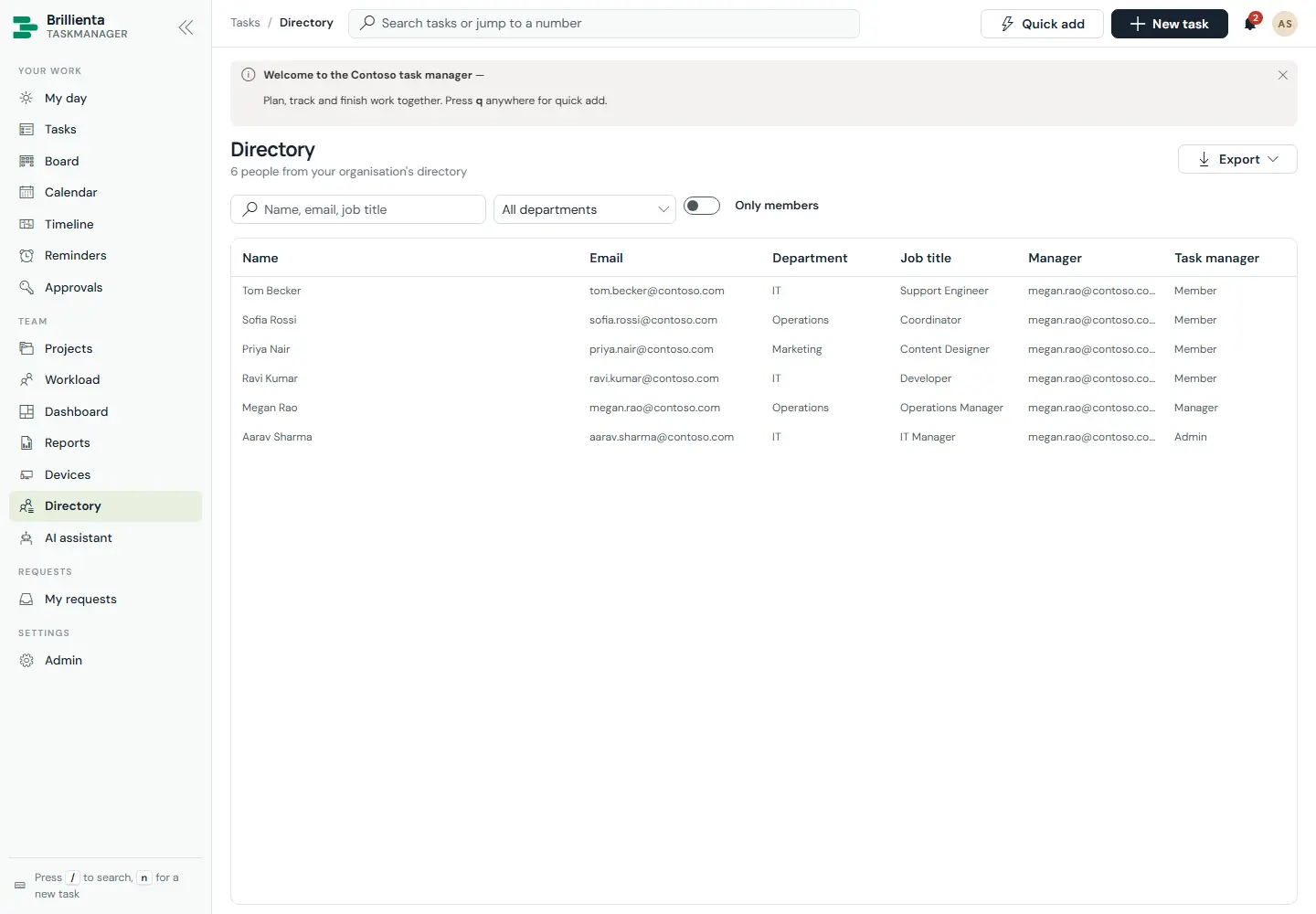
People from Microsoft Entra ID and devices from Intune (or Entra ID) sync into SharePoint: Sync now in the browser plus a generated daily flow using your app registration. The Devices page shows compliance, last check-in, OS, model, user and export; the directory mirrors department, title and manager. One task per non-compliant or stale device is raised automatically (here TM-123 for LT-107), members' details follow the directory, and offboarding hands a leaver's open tasks to their manager or team lead.
On a phone
The layout fills the window and scrolls inside its own panels; grids add columns as the screen widens and stack on tablets and phones, where the menu becomes a drawer. The same tasks, board, calendar and approvals work one-handed.
Part 4
Administration
No web-part properties — every option lives in Admin, grouped with a plain description per section. Every save is validated first, asks before big changes (pausing work, switching features or emails off) and confirms when done; leaving a section with unsaved changes asks first.
Setup wizard
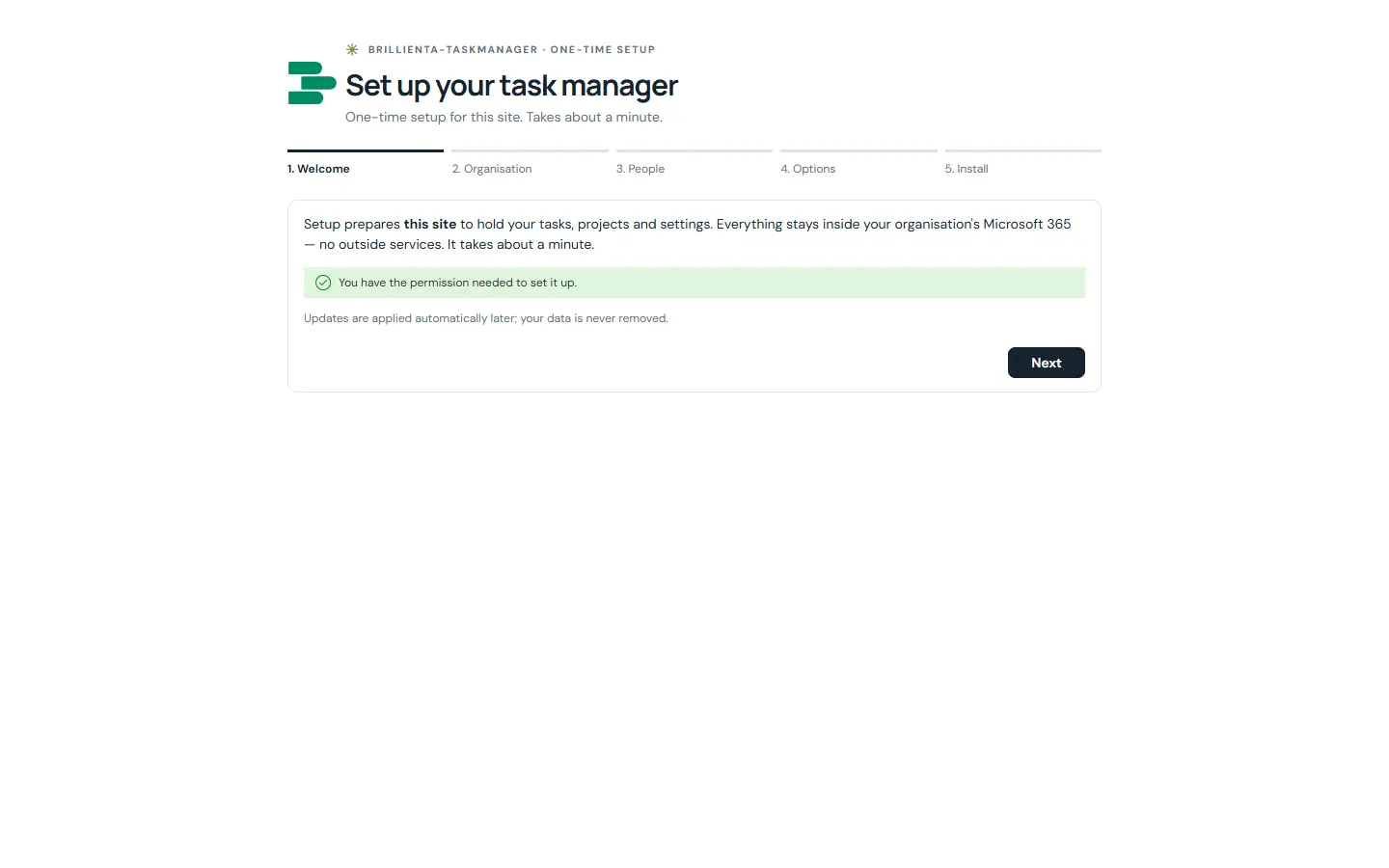
The first time a site owner (Manage Lists permission) opens the page, a five-step wizard shows the 26 lists it will create (prefix TM_) and checks permissions; asks for organisation name, task number prefix, time zone, headline, brand colour and working hours; adds other admins, managers and members; optionally adds starter content (teams, categories, task and project templates, automations, a Getting started project), chooses features, turns on email and secures the lists. Safe to re-run — it continues where it stopped.
Workspace & how work flows
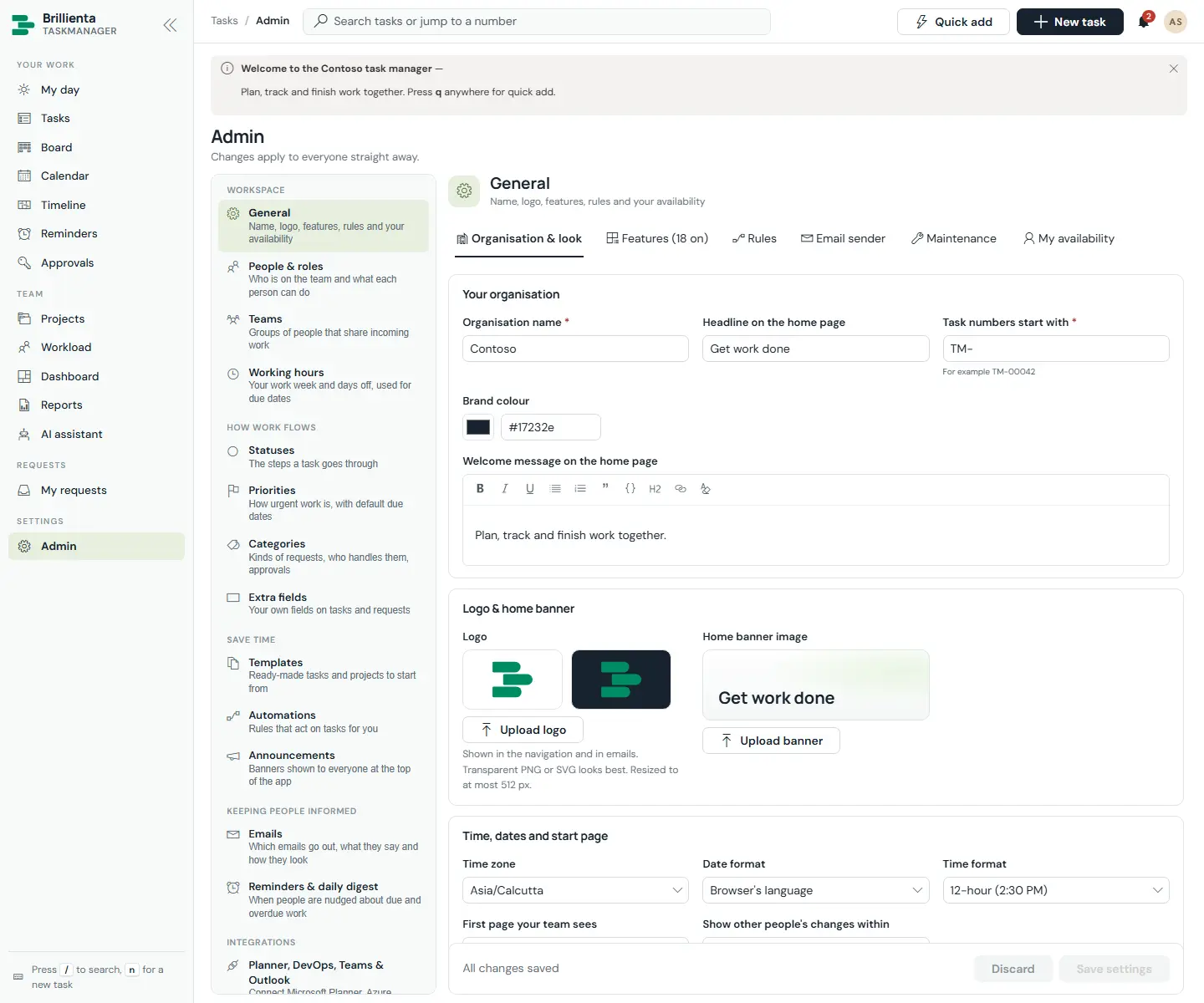
General covers organisation & look, features, workflow rules, email sender, maintenance and availability. People & roles manages members, roles, availability and seats (saving a member puts them in the matching SharePoint group). Teams share incoming work with Load-balanced, Round-robin, Smart or Manual strategies, out-of-office delegates and per-person active-task caps. Working hours (week plus holidays) drives due dates, reminders and risk. Statuses are the board columns with WIP limits; Priorities carry default due-in days; Categories define kinds of request with teams, checklists and approvals; Extra fields add custom Text/Note/Number/Date/Choice/Boolean per category or project.
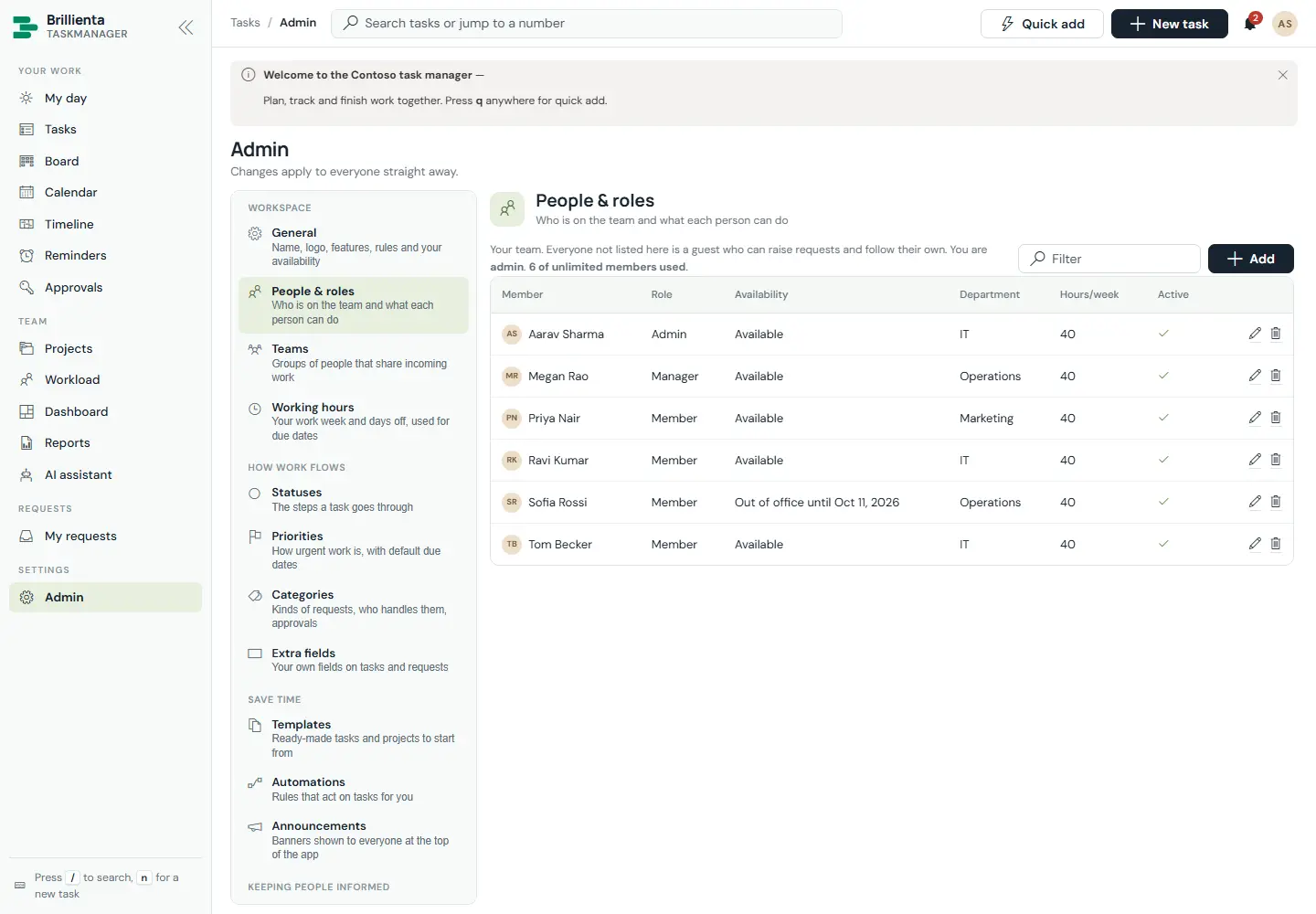
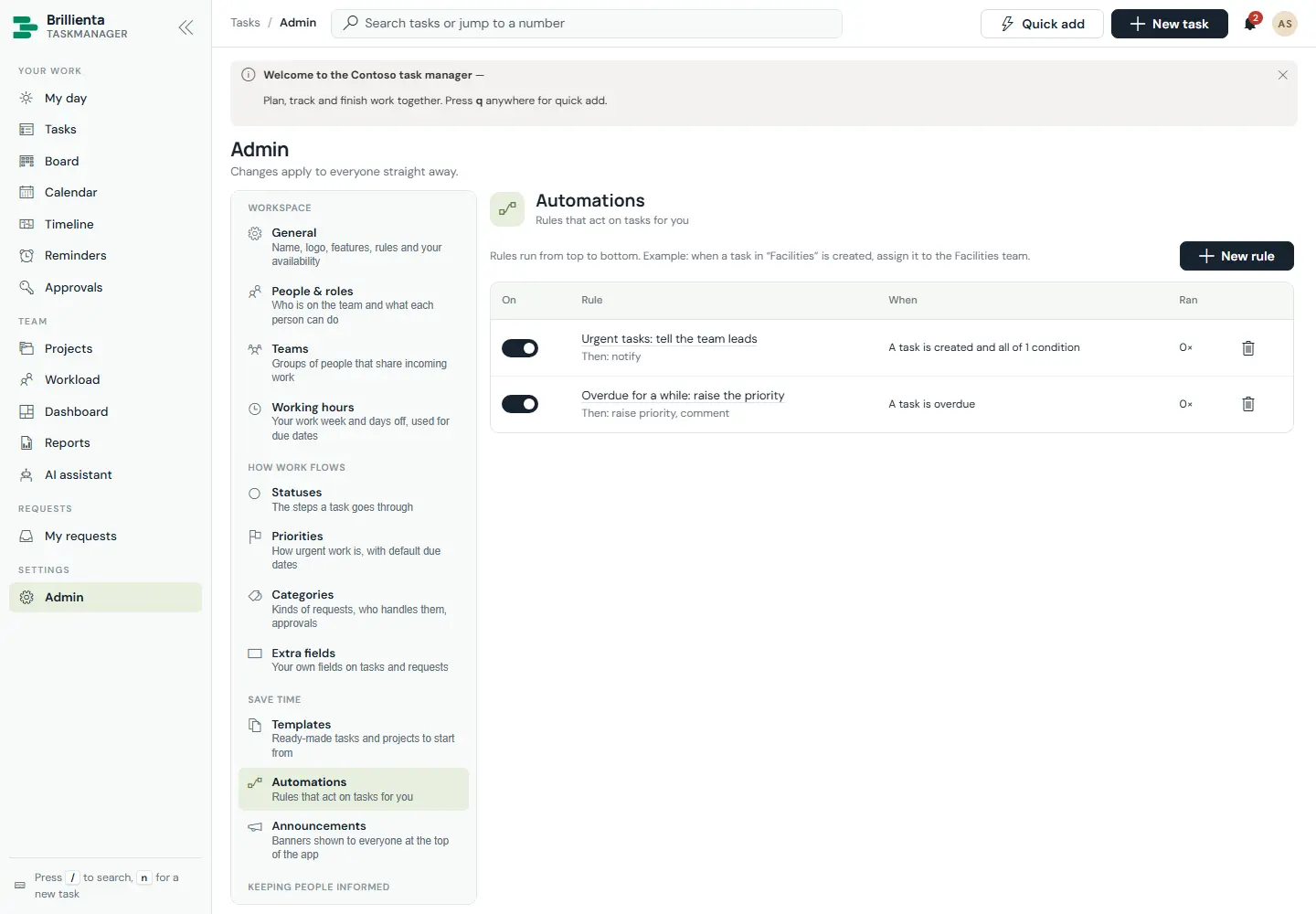
Save time: templates, automations, announcements
Task and project templates (like New laptop with its three subtasks, or Product launch) start work pre-filed. Automations fire on created, status changed, assigned, completed, commented, due soon and overdue, with all/any conditions, setting teams (by strategy), assignees, fields, dates, tags, checklist items, subtasks, comments, watchers and notifications. Announcements pin banners for everyone or members inside a time window.
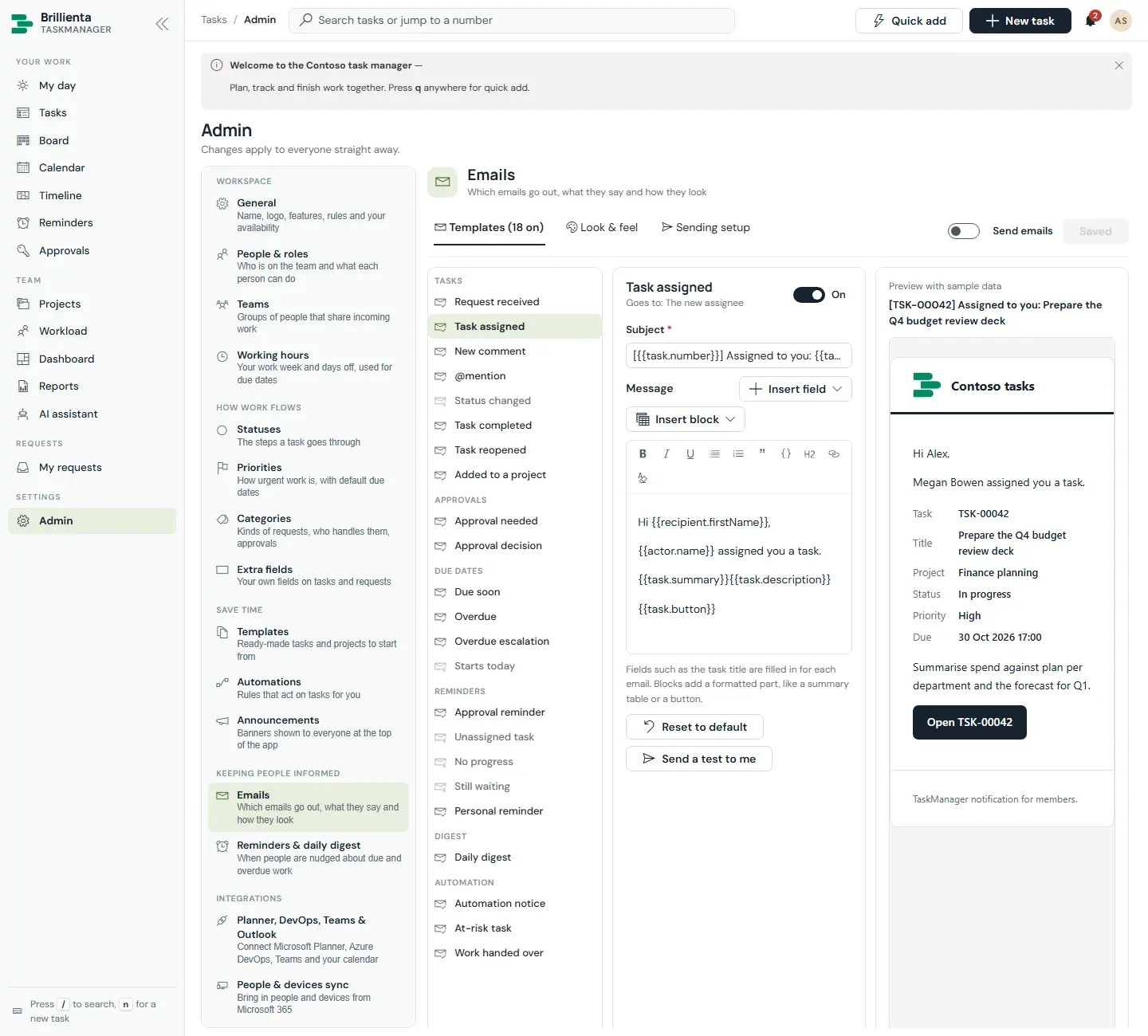
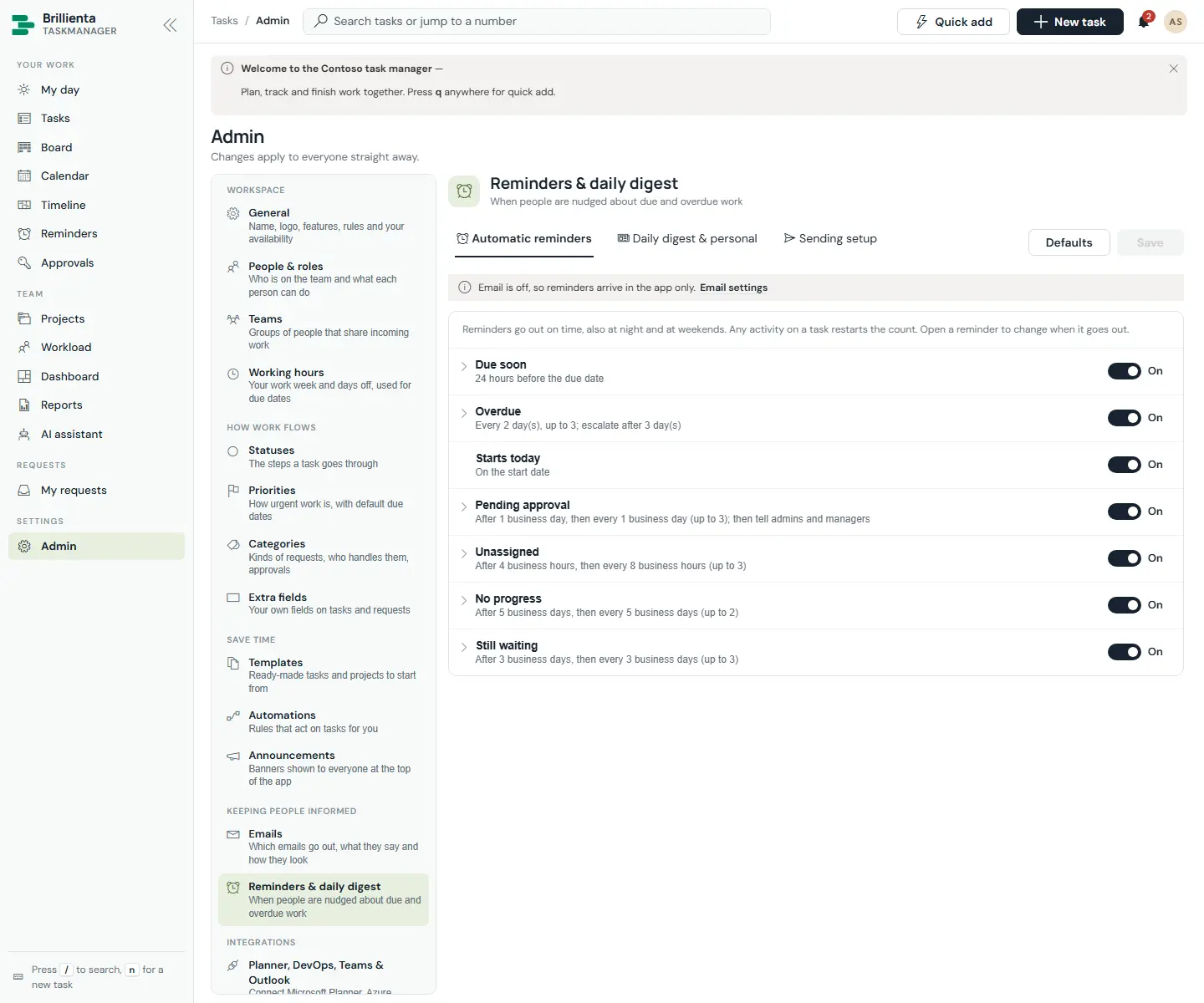
Keeping people informed: emails, reminders, integrations
Emails offers an editable template per event (18 on here, of 23), header/footer/logo styling, live preview with sample data and Send a test to me, plus sending setup and recent-delivery health. Reminders & daily digest sets first delay, repeat, maximum and working-time counting per rule, digest time and the queue view. Integrations connects Planner (two-way sync), Azure DevOps (create, link, import with WIQL), Teams channel posts and Outlook files — each with Check that it works. People & devices sync runs Graph sync now or daily; AI assistant configures suggestions, risk, summaries and the optional Azure OpenAI deployment (the key lives only in the flow).
Security & licence
Private requests (guest privacy) makes SharePoint itself show guests only their own items. System health & access validates and repairs lists and re-applies security. Licence shows the plan, trial countdown, seats in use and activation. Members get their own view too: Availability and preferences under the avatar (out-of-office, delegate, capacity, skills).
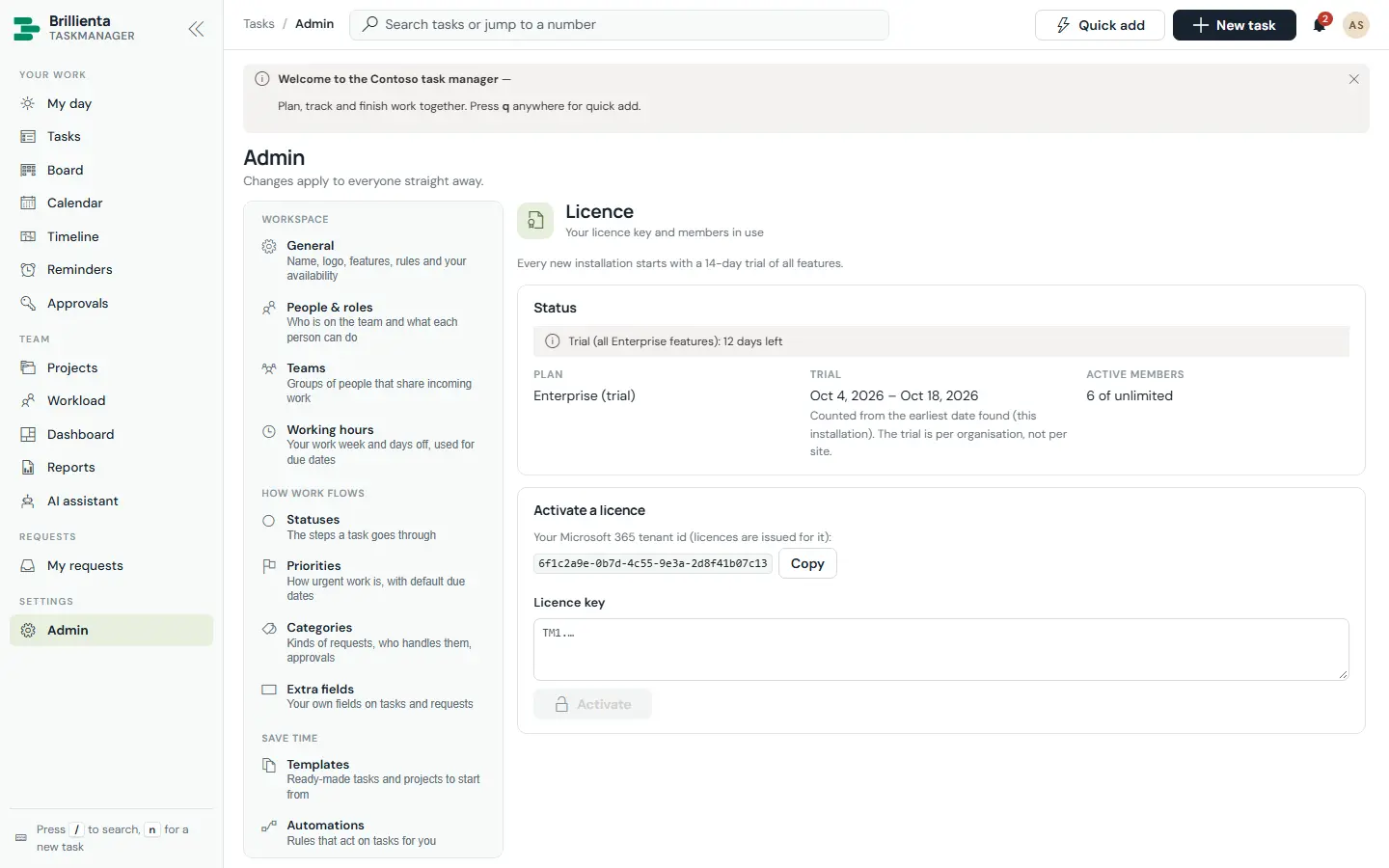
TM1.… per tenant), seats and what each plan unlocks.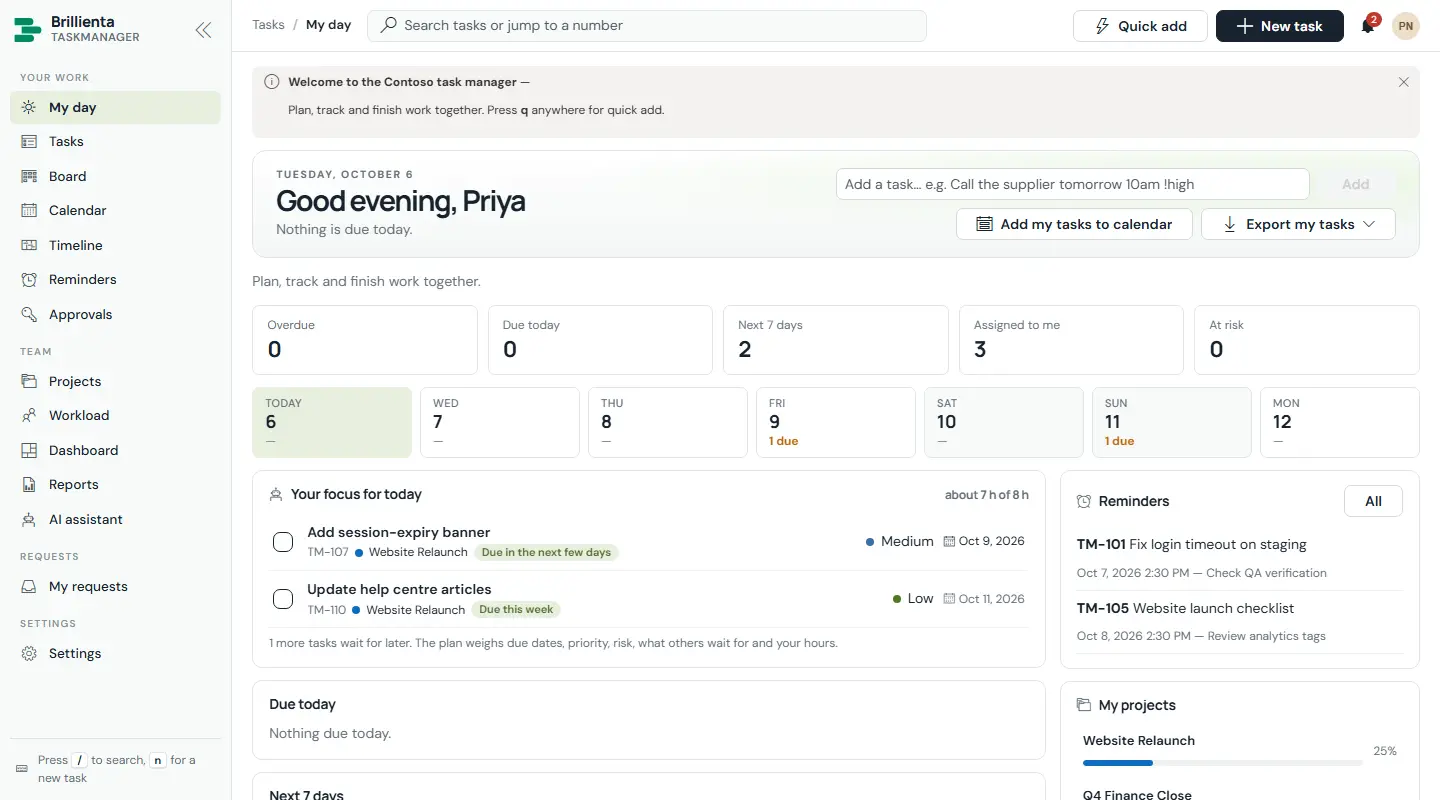
Part 5
Roles & permissions
Three layers decide what someone can do: SharePoint permissions, the app role, and the plan. A role row only counts when SharePoint permissions agree. While no active Admin exists, site owners act as admins so nobody is ever locked out.
| Role | Who | Can |
|---|---|---|
| Admin | Listed as Admin (and SharePoint lets them edit the Settings list) | Everything: configuration, members, security, flows, licence — plus everything a manager can do |
| Manager | Listed as Manager (and SharePoint lets them edit the Projects list) | Projects and sections, templates, announcements, everyone's tasks, overriding workflow rules, all approvals, workload, everyone's logged time |
| Member | Listed as Member | Create and work on tasks (their own, or all when Members may change any task is on), comment, log time, reminders, boards, calendar, timeline, dashboard, AI assistant |
| Guest | Everyone else who can open the page | Raise requests (when Requests is on), follow and comment on their own requests, open tasks assigned to them or they watch, approve what waits for them |
How a person's role is decided
The Members list holds each person's role, availability and capacity; saving a member puts them in the matching SharePoint group (TaskManager Admins / Managers / Members). Over the seat limit, extra people work as guests. The avatar menu always shows the signed-in person's role and why they have it.
Part 6
Security
Apply security (setup, or Admin → System health & access; re-runnable; needs a site owner) creates the groups, a TaskManager Requester permission level (contribute without delete), and breaks inheritance on the lists.
Who can do what with each list
After Apply security:
| Lists | Admins | Managers | Members | Guests |
|---|---|---|---|---|
| Configuration (settings, statuses, holidays…) | Edit | Read | Read | Read |
| Projects, templates, announcements | Edit | Edit | Read | Read |
| Tasks, comments, history, notifications, outbox | Edit | Edit | Add & edit | Own only |
| Time, views, reminders, queue, devices, directory, logs | Edit | Edit | Members only | — |
| Members list | Edit | Read | Own availability | — |
Own only = guests reach only their own items (and only with guest privacy switched on for full item-level enforcement).
Further protections
- Guest privacy. Without it, list permissions are list-level: a guest with REST skills could read other tasks. Switch on guest privacy (Enterprise) when tasks are confidential — SharePoint itself then shows guests only their own items.
- Flow authorisation. The email flow trusts members but lets guests queue mail only about their own tasks to that task's people; every row is claimed once and duplicates rejected.
- Secrets stay in flows. The Graph client secret and Azure OpenAI key are typed when the package is downloaded, live only in the package, and are hidden in run history. The Graph and AI flows use the premium HTTP action.
- Unguessable links, recycle-bin deletes. Task links carry unguessable keys, and deletes go to the recycle bin.
Part 7
Plans & licensing
Fourteen days with all Enterprise features per tenant, then a signed key per tenant (optionally with end date and seat count, plus 14 days' grace). Enforcement keeps saved choices for an upgrade; only as many members as there are seats stay active (admins first).
| Plus (10) | Pro (50) | Enterprise | |
|---|---|---|---|
| Tasks, subtasks, checklists, comments, attachments, My day, projects, board, calendar, templates, announcements, standard email, personal reminders, due-soon & overdue reminders, dashboard | ✓ | ✓ | ✓ |
| Timeline, workload, time tracking, approvals, recurring tasks, dependencies, custom fields, automations, working hours & holidays, custom email templates, escalation, daily digest, AI assistant, guest requests | — | ✓ | ✓ |
| Graph sync (people, devices, device tasks, offboarding), generative AI, guest privacy | — | — | ✓ |
How licensing works
Licence keys (TM1.…) are signed with the vendor's private key (ECDSA P-256) for one tenant. Admins activate them in Admin → Licence. Three independent checks (the app, a sentinel in the task engine, a watch in the screens) each hold their own encoded copy of the public key; production builds obfuscate the licensing code.
Part 8
Why TaskManager
No new system to adopt
It lives on a SharePoint page your people already visit, with the same sign-in and permissions. Guests participate without accounts or training.
Scales past the threshold
Indexed columns, threshold-safe id-window queries, a shared incremental cache and light rows keep it fast past 5,000 items into the lakhs.
Reminders that actually arrive
Due-soon, repeating overdue with escalation to leads, and a morning digest — from any open page within a minute, or from the flow when nobody is online.
AI where it helps, nowhere else
The built-in assistant never sends data anywhere; generative features use your own Azure OpenAI through your flow and stay optional per plan.
Proof for every week
Burndown, on-time delivery, workload, time-vs-budget and eighteen exportable reports turn stand-ups and audits into screenshots.
Always full screen, always current
The app fills the window (and Teams tabs), collapses to an icon rail, stacks on phones, and every open page refreshes what changed within seconds.
Part 9
Deployment
Requirements
SharePoint Online, Node 22 to build (SPFx 1.23), and the package brillienta-taskmanager.sppkg from npm run build.
- Upload the package
To the tenant (or site collection) App Catalog and deploy it.
- Approve API access (only for integrations)
SharePoint admin center → Advanced → API access: Graph
User.Read.All/Device.Read.Allfor sync,Tasks.ReadWritefor Planner, Teams and DevOps permissions as needed. - Add the app and web part
Add the app to the host site and place the Brillienta-TaskManager web part on a page. A site owner opens it once to run setup.
- Import the flows
From Admin: Email & email flow, Reminders & digest — plus Graph sync and AI if you use them (Power Automate → Import Package (Legacy), by an active-member service account).
Upgrades
Whenever the page loads a different app version (or a newer schema) and the visitor can manage lists, the app checks every list and column, recreates what is missing, adds indexes and choice values, reports type mismatches (never changed automatically) and writes the result to TM_SetupLog. Nothing is ever deleted. To ship an update: bump version and the solution version, add columns to schema.ts with a SCHEMA_VERSION bump, run npm run docs:lists, build and upload.
Part 10
Good to know
- Background work needs a member page open (except reminder sending via the flow). Risk scores, recurring catch-up, triage and Graph housekeeping wait until someone opens the app.
- Integrations sync in the browser with delegated permissions: a connected project syncs with Planner when a manager opens it (at most every 10 minutes) or presses Sync now; a linked task syncs when someone who may edit it opens it.
- Planner covers title, start/due date, progress and the first assignee who is a member here (20 checklist items max). Teams posts go out as the person who made the change, who must be in the team. Azure DevOps needs an organisation connected to the same Entra tenant.
- PDF exports use the standard Helvetica font; characters outside Western European languages print as "?" — Excel keeps every character.
- Large lists: indexed columns on every frequently filtered field (16 on Tasks), one query per status kind, date ranges as id ranges, and notification/queue housekeeping.
Appendix
Reference
A. Keyboard shortcuts
/ search · q quick add · n new task · g then m/t/b/c/l/p/w/d/a/r for My day / Tasks / Board / Calendar / Timeline / Projects / Workload / Dashboard / Assistant / Reports. Jump to a task by number in search.
B. Task views
Assigned to me · Due today · Next 7 days · Overdue · I requested · Watching · Unassigned · At risk · Waiting · All active · Recently completed — plus saved personal and shared views.
C. Reports (18)
Task register · Open work · Overdue · Due in 14 days · Unassigned · At risk · Age of open work · Completed · On-time delivery · Weekly trend · Requests · Approvals · Workload by person · People performance · Project status · Work by category · Time logged · Time by project and person.
D. Email events (23)
Tasks: request received, assigned, comment, @mention, status changed, completed, reopened, added to project · Approvals: needed, decision · Due dates: due soon, overdue, escalation, starts today · Reminders: approval, unassigned, no progress, still waiting, personal, daily digest · Automation: notice, at-risk, handed over.
E. SharePoint lists created
All with the prefix TM_, all hidden from Site contents, secured by Apply security: Settings, Projects, Tasks, Comments, Activities, Statuses, Priorities, Categories, Teams, Members, CustomFields, Templates, Automations, Holidays, Announcements, TimeEntries, Notifications, SavedViews, Reminders, ReminderQueue, Outbox, Devices, Directory, SyncLog, AiRequests, SetupLog.