How to reconcile Intune inventory with a SharePoint asset register
Decide which system owns each field, reconcile existing records and test how your asset register handles re-enrolled, shared and spare devices.
 Brillienta team·Published ·5 min read
Intune can tell your IT team whether an enrolled laptop checked in and who its primary user is. An asset register records what the organisation owns, who accepted a handover and what happened when equipment was repaired or returned. Linking the two gives IT a view of device health and a record of custody.
Decide which system owns each field
| Field | Source and use |
|---|---|
| Intune device ID | Use Intune's ID to link the enrolled device to the register record. Recheck the link after a wipe or re-enrolment. |
| Serial number and model | Compare inventory against the physical label or purchase record during reconciliation. Set blank, placeholder and duplicate serials aside for review. |
| Compliance and last check-in | Use Intune for device status. A device that stops checking in still needs a custody record. |
| Asset tag, condition and location | Keep these in the register for audits, handovers and returns, including equipment that never enrols in Intune. |
| Primary user and confirmed custodian | Use the Intune primary user to investigate unassigned devices. Record confirmed custody and changes in the register. |
Microsoft documents how the Intune primary user can differ from the Microsoft Entra device owner. A shared device can also have no primary user. Confirm who actually holds the equipment before recording a handover.
Reconcile a small batch first
- Pick a few examples from the existing register, including an assigned laptop, a shared device, a re-enrolled machine, a spare and a non-enrolled item such as a monitor.
- Keep existing asset tags. Link devices with an ID you can confirm, then compare unmatched rows by valid serial number. Review ambiguous rows with someone who can verify the hardware or purchase record.
- Compare imported compliance and last-check-in values with Intune. Resolve discrepancies before extending the sync to more models or locations.
- Run a check-out and return, then sync again. Verify that established custody and device history still make sense, even when a primary user changes or a device drops out of inventory.
What Brillienta device sync does
Brillienta Asset Management keeps the register in SharePoint. On Enterprise, device sync can reconcile Intune and optional Entra records. It checks existing links and device IDs before using serial numbers, ignores placeholder serials for matching, and can put ambiguous records in a review queue. Sync preserves existing assignments. The asset team can manage check-outs, returns and receipt confirmations in the register.
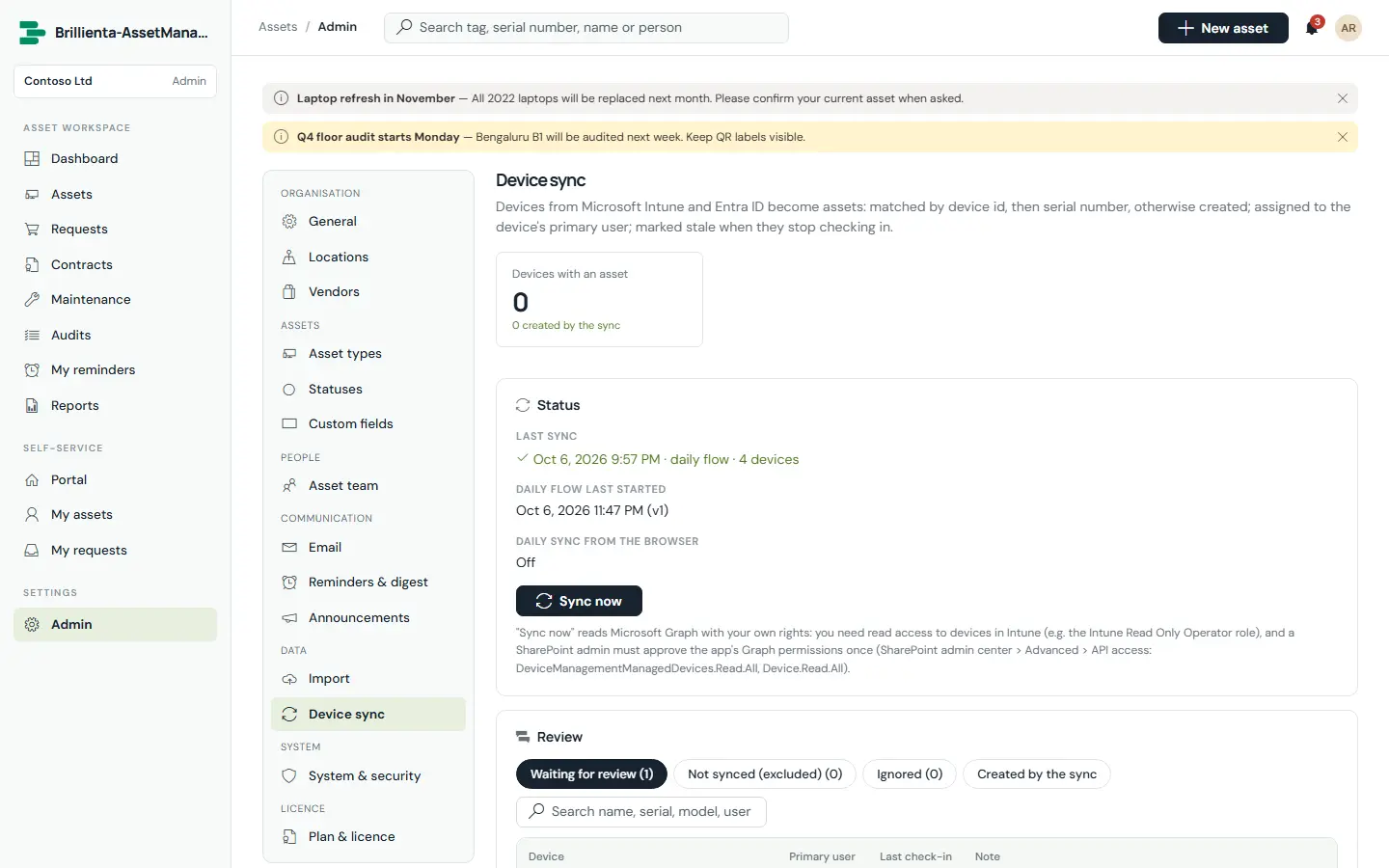
Before enabling anything, read the device sync guide and check which access is needed for a manual sync or a scheduled flow. If your starting point is Excel, use the spreadsheet migration checklist to prepare the register first.